
Changing a WordPress theme on a live site might sound intimidating, but it doesn’t have to be. Imagine the excitement of giving your website a fresh look and feel that captures your brand’s essence.
You have the power to transform your online presence with just a few clicks. But here’s the catch: doing it the right way is crucial to avoid breaking your site or losing valuable data. In this guide, you’ll learn exactly how to switch themes seamlessly, ensuring that your content stays intact and your visitors experience a smooth transition.
Your website is more than just a digital space; it’s an extension of your brand and your connection with your audience. So, if you’re ready to make a change that enhances both aesthetics and functionality, keep reading. You’ll discover the steps you need to take to ensure your WordPress theme change is successful and stress-free.
Backup Your Website
Backing up your website is very important. It keeps your data safe. If something goes wrong, you won’t lose your work. A backup is like a safety net. You can restore your site from it. This can save you a lot of stress. Problems can happen any time. Having a backup is smart.
There are different ways to back up your site. You can use a plugin. Plugins are easy to use and manage. Some popular plugins are UpdraftPlus and BackWPup. You can also use hosting services. Many hosting companies offer backup options. Another way is to do it manually. This involves downloading files and databases. Pick the method that suits you best. Always keep your backup in a safe place.

Credit: plethorathemes.com
Choose A New Theme
Themes change how your site looks. It’s important to pick wisely. A theme must be responsive. It should work well on phones. A fast-loading theme is crucial. Slow websites lose visitors. Make sure the theme is compatible with your plugins. Check reviews for bugs or issues. It should fit your brand style. Colors and fonts matter. Consider theme customization. You might want to tweak the design. Finally, look for support and updates. These keep your site secure.
WordPress has a theme directory. Many themes are free. You can search there easily. There are premium themes too. These often have more features. Websites like ThemeForest offer themes. They have thousands of options. You can filter by category or style. Some themes come with support. This helps if you face issues. Check demo versions. They show how the theme looks live. Always read reviews before downloading. Reviews help in picking a good theme.
Install The New Theme
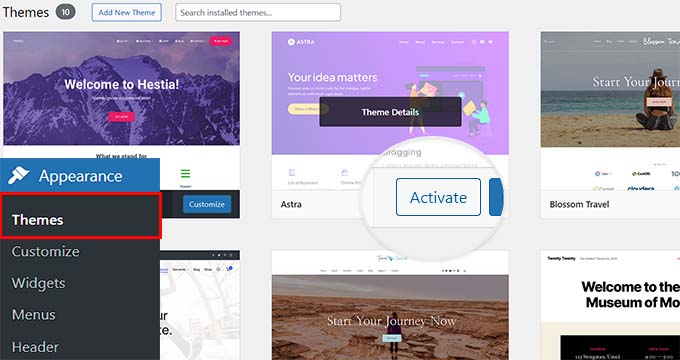
Start by downloading your new theme. Go to your WordPress dashboard. Find the “Appearance” tab and click on “Themes.” Look for the “Add New” button. Click on it to upload the theme. Choose the “Upload Theme” option. Select the theme file from your computer. Click “Install Now” to upload it. Wait for the upload to finish. A success message will appear on your screen. Your theme is now uploaded and ready.
Go back to the “Themes” page in your dashboard. Find your newly uploaded theme. Click the “Activate” button. This will make your new theme live. Check your site to see the changes. Make sure everything looks good. Sometimes, you may need to adjust settings. Explore your theme options. Customize colors and fonts as needed. Enjoy your fresh new look.
Customize The Theme
Using the Customizer is very simple. Open your WordPress dashboard. Click on the “Appearance” menu. Then select “Customize”. Here, you can see many options. Change the site title or colors. Adjust the header image. Everything updates in real-time. Experiment with different styles. See what looks best. Your changes are not live yet. They become live once you hit “Publish”. So feel free to play around.
Adding Widgets and Menus can enhance your theme. Go to the “Widgets” section in the customizer. Drag widgets to the sidebar or footer. They add extra content. For menus, visit the “Menus” section. Create a new menu. Add pages or links to it. Then assign it a location. This helps users navigate your site. Both widgets and menus are easy to set up.
Test The New Theme
Make sure the new theme works with your plugins. Plugins help your site run better. If the theme does not work, fix it before going live. Check the theme on your browser. Does it look right? This is important.
Your site must look good on all devices. Check on phones, tablets, and computers. Your theme should adjust to different sizes. This helps users have a good experience. If it does not, pick another theme.
Credit: www.wpbeginner.com
Fix Potential Issues
Switching a WordPress theme on a live site can cause issues. Ensure backups are made to prevent problems. Check for compatibility with plugins to avoid conflicts.
Common Problems
Changing a WordPress theme can cause issues. Broken layouts are a big problem. Your site may look messy. Some plugins might stop working. Images can disappear too. Links may break. Visitors might see error messages. These issues can confuse users. They might leave your site.
Troubleshooting Tips
Always make a backup first. This saves your work. Use a staging site. Test changes there. Check all pages after changing. Look for missing images. Fix broken links right away. Update plugins. Keep them current. Check your site’s speed. Use tools for speed tests. Fix slow-loading pages. Look at your site’s mobile view. Ensure it looks good on phones.
Optimize For Performance
Changing a WordPress theme can affect your site’s speed. Fast sites make users happy. Slow sites can lose visitors. Ensure your new theme loads quickly. Test its speed before using. Tools like Google PageSpeed Insights are helpful. Check scores for desktop and mobile. Make adjustments if needed. Minimize image sizes for faster loading. Use a caching plugin to speed things up. Keep plugins updated. Outdated plugins can slow sites down.
SEO affects how you appear in search results. Themes can influence your SEO. Choose a theme that supports SEO best practices. Look for clean code and fast loading. Use SEO plugins to boost your rank. Include meta tags and descriptions. Ensure your theme is mobile-friendly. Google prefers sites that work on phones. Check your site’s responsiveness. Make sure it looks good on all devices. Optimize your site’s structure. Use headers and alt text wisely. These help search engines understand your content.
Credit: wpdatatables.com
Frequently Asked Questions
How Do I Safely Change A WordPress Theme?
To safely change a WordPress theme, first back up your site and database. Test the new theme in a staging environment. Ensure compatibility with plugins and check for broken links. Finally, activate the new theme on your live site, and review all pages for proper display.
What Happens If I Change My WordPress Theme?
Changing your WordPress theme alters the site’s appearance and layout. Content remains intact, but some widgets may need adjustments. Ensure settings and customizations are updated for the new theme. Always preview changes before making them live to maintain a seamless user experience.
Can I Switch Themes Without Losing Content?
Yes, you can switch themes without losing content. WordPress stores content separately from themes. However, widgets and customizations may require adjustments. Ensure all settings are compatible with the new theme. Backing up your site before making changes is always recommended for safety.
How Do I Preview A Theme Before Changing It?
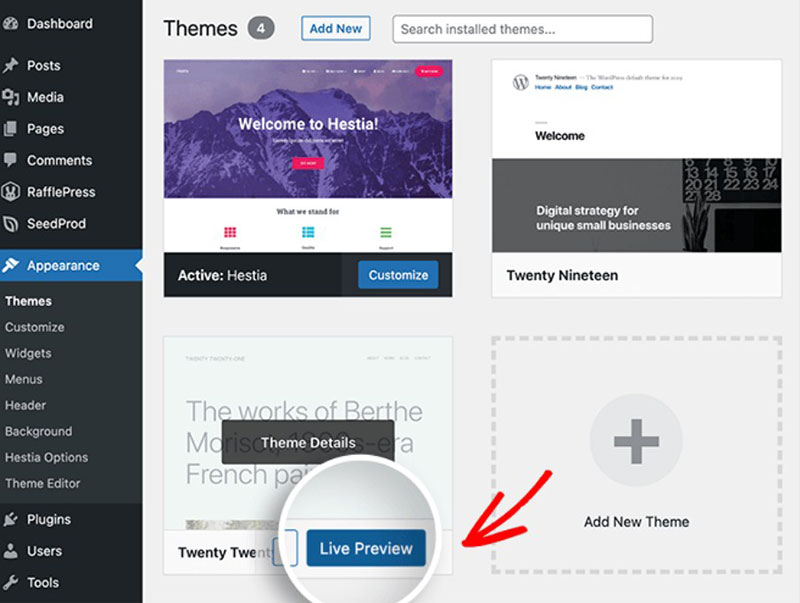
You can preview a theme using WordPress’s built-in preview feature. Navigate to Appearance > Themes, then click on Live Preview. This lets you see the theme’s appearance without activating it. Check compatibility with existing plugins and settings during the preview.
Conclusion
Changing your WordPress theme is simple. Follow the steps carefully. Always back up your site first. This prevents data loss. Choose a theme that suits your brand. Test your new theme thoroughly. Ensure all features work well. Monitor your website’s performance.
Check for any issues or glitches. Regular updates are important. They keep your site secure. A fresh theme can boost user experience. It makes your site visually appealing. With these tips, your theme change will be smooth. Your website will look great and function better.
Happy blogging!


