
Are you feeling stuck with a pesky word in your WordPress theme that just doesn’t fit your brand or style? You’re not alone.
Many WordPress users find themselves in this situation, eager to make a small but impactful change that can significantly enhance their website’s appeal. Imagine the satisfaction of knowing that every word on your site perfectly aligns with your vision. In this guide, you’ll discover how to effortlessly change a word in your WordPress theme, even if you’re not a tech guru.
By the end of this post, you’ll feel empowered and in control of your website’s content, ready to impress your audience with a seamless and professional look. Let’s dive in and unlock the full potential of your WordPress theme together!
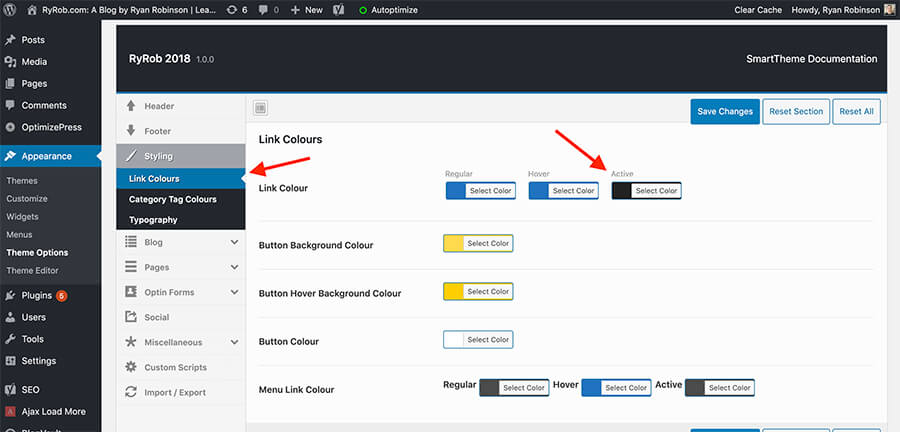
Credit: www.ryrob.com
Accessing Your WordPress Dashboard
First, open your browser. Type in your website’s URL. Add /wp-admin at the end. Press enter. The login page shows up. Enter your username and password. Click on the login button.
Now, you are in the dashboard. This is the control center of your site. You can see many options. Look for the appearance tab. Click on it. A drop-down menu appears.
Choose the theme editor option. A warning message pops up. Read it carefully. It says changes can break your site. Click ok if you understand. Now, you are ready to edit the theme.
Locating Theme Files
First, find the WordPress dashboard. Look for Appearance on the side menu. Click it. You will see several options. Choose Theme Editor. This is where you change theme words. Be careful. Changes can affect your site. Always make a backup before editing.
The Theme Editor shows theme files. Look for PHP files and CSS files. These files control the site’s look and feel. You will see template files. Find the file that has the word you want to change. Use the search function. This helps locate specific words. Edit carefully. Save changes after editing. Double-check your site to see the changes. Errors can cause problems. Make sure everything works fine.
Identifying The File To Edit
Exploring theme structure helps find where text is stored. Themes are like puzzle pieces. Each piece has a role. Some files hold the words you see. Themes have folders and files. These are often named clearly. Look for names like header.php or footer.php. These files may have the words you need to change.
Another place to check is the functions.php file. Sometimes text hides there. If you can’t find it, try other files. Always remember, every theme is different. Paths might change based on the theme’s design.
Common files containing text are important. style.css can hold text too. It’s not just for color and style. Always make a copy before you edit. This keeps your site safe. If you make a mistake, you can return to the original. This makes finding and changing words easier.

Credit: wordpress.com
Editing The Desired Word
Access your WordPress dashboard. Click on Appearance and then Theme Editor. Always create a backup before changes. This keeps your site safe. Find the file to edit on the right. It might be header.php or footer.php. Click the file name. This opens the code in the editor. Look for the word to change. Use the search feature. Press Ctrl + F on Windows. Press Command + F on Mac. Type the word and find it quickly.
Words can be tricky to find. Use simple words. Be precise. Replace the old word with the new one. Ensure you spell it right. Double-check your changes. Click the Update File button. Save your work. Visit your website. See the change you made. If something is wrong, go back. Check the backup. Restore it if needed. This keeps your site working well.
Saving And Previewing Changes
Saving edits in theme files is important. You must do this often. This ensures no data is lost. Go to the WordPress dashboard. Find the theme editor. Make your changes. Click save to keep them. This action is crucial. Without saving, changes disappear.
Saving Edits In Theme Files
After saving, preview changes. This helps see your work. Check the front-end. View the site as visitors do. Make sure edits look good. Ensure functionality is intact. Adjust if needed. Changes should enhance the site. Not harm it.
Checking Front-end Changes
Previewing lets you verify edits. It shows how the site appears. This is key for quality assurance. Poor edits can confuse users. Always double-check. Fix mistakes quickly. A smooth front-end is vital. It improves user experience.
Using Child Themes For Customization
Child themes offer a safe way to change a word in a WordPress theme. They allow easy customization without altering the original theme files. Simply create a child theme, copy the relevant file, and edit the text. This ensures your changes remain intact during theme updates.
Benefits Of Child Themes
Child themes help you keep your changes safe. Updates to the main theme won’t affect your changes. This keeps your site stable and secure. Using child themes is a smart way to customize. They allow you to change styles and functions easily. You can experiment without breaking the main theme. This makes your work easier and less stressful. Child themes are perfect for beginners. They help you learn without risks. You can practice coding and design. This builds confidence and skills. Plus, they ensure your website looks unique. Stand out with your own style!
Creating A Child Theme
Creating a child theme is easy. Start by making a new folder. This folder will hold your child theme files. Name it something like “my-child-theme”. Next, create a new file named style.css. This file tells WordPress about your child theme. Add a few lines of code to this file. You need to mention the main theme name. This links your child theme to the main theme. Finally, activate your child theme in the WordPress dashboard. Go to Appearance, then Themes. Click on your child theme to activate it. Now, you can start customizing!
Restoring Default Settings
Sometimes changes make a site look odd. Reverting to default settings helps fix this. It’s needed when things look broken. Or when unexpected errors pop up. Changes might cause the site to be slow. Restoring helps regain speed. Always save a backup before changing settings. A backup keeps data safe. Changes should be easy to undo.
When To Revert Changes
Return to original settings if the site crashes. If colors or fonts look wrong, revert them. This helps maintain a clean look. If the site loads slow, revert to default. Errors may disappear after a revert. Try this before seeking extra help. It can solve many problems quickly.
Steps To Restore Original Files
First, open the WordPress dashboard. Find the theme settings. Look for a reset option. Click it to restore defaults. If no option exists, reinstall the theme. This will bring back original files. Always check settings after a reset. Ensure everything works as expected. You may need to redo some customizations.
Using Plugins For Text Changes
Plugins make changing text easy in WordPress themes. Many plugins help with text customization. Popular plugins include WP Text Customizer, Text Change, and Text Widget. These plugins offer simple ways to change words in your theme. With plugins, you can change text without coding. This saves time and effort.
Popular Plugins For Text Customization
WP Text Customizer is a favorite choice. It allows you to change text on your site easily. Text Change is another popular plugin. It helps you to switch words quickly. Text Widget lets you add and edit text in widgets. Each plugin has unique features.
Steps To Install And Use Plugins
- Open your WordPress dashboard.
- Go to Plugins and click Add New.
- Search for the plugin name.
- Click Install Now.
- Once installed, click Activate.
- Find the plugin in the dashboard.
- Use it to change text on your site.
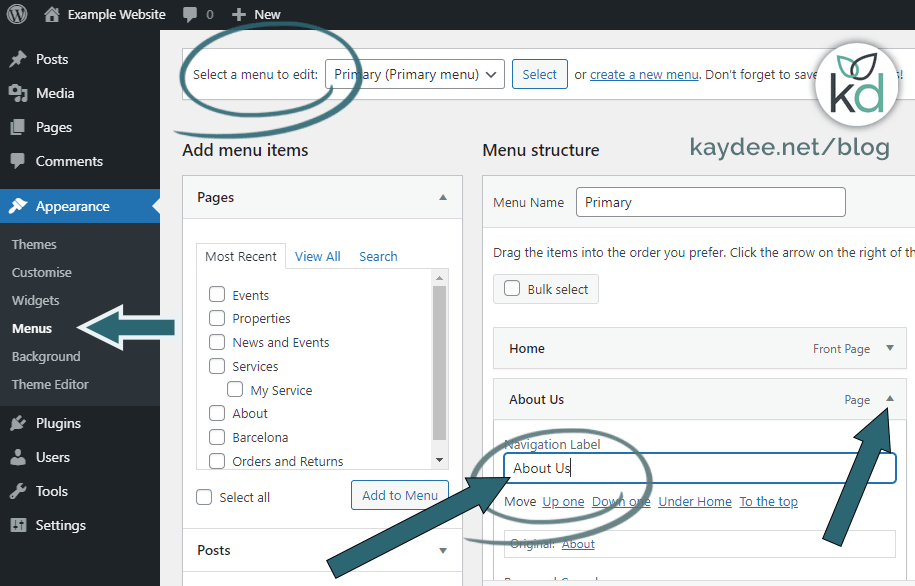
Credit: kaydee.net
Frequently Asked Questions
How Can I Change A Theme Word In WordPress?
To change a word in a WordPress theme, first access your WordPress dashboard. Navigate to Appearance > Theme Editor. Locate the file containing the word, usually within PHP or CSS files. Edit the text directly, then save your changes. Always back up your theme before making modifications.
Where To Find Theme Files In WordPress?
Theme files are in your WordPress dashboard under Appearance > Theme Editor. This section allows you to view and edit theme files directly. Common files include style. css and functions. php. Always use caution when editing these files, as changes can affect your website’s functionality and appearance.
Can Plugins Help Change Theme Words?
Yes, plugins like Loco Translate and WPML can help change theme words. These plugins are user-friendly and allow you to edit text strings without altering code. They provide a safe way to customize your theme’s language and ensure compatibility with updates.
What Precautions To Take When Editing Themes?
Before editing themes, back up your site to prevent data loss. Use a child theme to avoid overwriting changes during updates. Carefully review edits for errors and test changes on a staging site. These steps ensure safe and effective theme modifications.
Conclusion
Changing a word in a WordPress theme is simple. Just follow the steps outlined above. Use the WordPress dashboard to access theme files. Make sure to back up your site before making changes. This keeps your work safe. With these steps, you can easily update your theme text.
Customize your site without stress. Enjoy your new look and feel. Your website is ready to impress. Regular updates keep your site fresh. Keep exploring WordPress options for more customization. Happy editing!


