
Are you looking to customize your WordPress site but feeling overwhelmed by the idea of changing its theme code? You’re not alone.
Many WordPress users like you want to tweak their site’s appearance or functionality but are unsure where to start. The good news is, you don’t need to be a coding genius to make these changes. With a bit of guidance, you’ll find that editing your theme’s code can be straightforward and even fun.
Imagine the satisfaction of transforming your site into something uniquely yours! We’ll walk you through the process, step-by-step, ensuring you have the confidence to make your website truly reflect your vision. Ready to dive in and unlock your site’s full potential? Let’s get started!
Credit: wpengine.com
Preparing For Theme Code Changes
Changing a theme’s code in WordPress requires careful planning. Begin by backing up your site to avoid losing data. Use a child theme to make edits without affecting the original theme.
Backing Up Your Website
Always back up your website before making any changes. This protects your data from loss. Use a plugin to help you. Many plugins are free and easy to use. They save all your files safely. You can restore them anytime if needed. Cloud storage is a good option, too. Store your backup there for extra safety.
Setting Up A Child Theme
A child theme is important for safe changes. It keeps your edits separate from the main theme. This way, updates don’t erase your work. Make a new folder for the child theme. Use a simple text editor to create a style.css file. Copy parent theme details into this file. Activate the child theme in your WordPress dashboard. Now, you can safely edit your theme’s code.
Credit: www.easywp.com
Accessing Theme Files
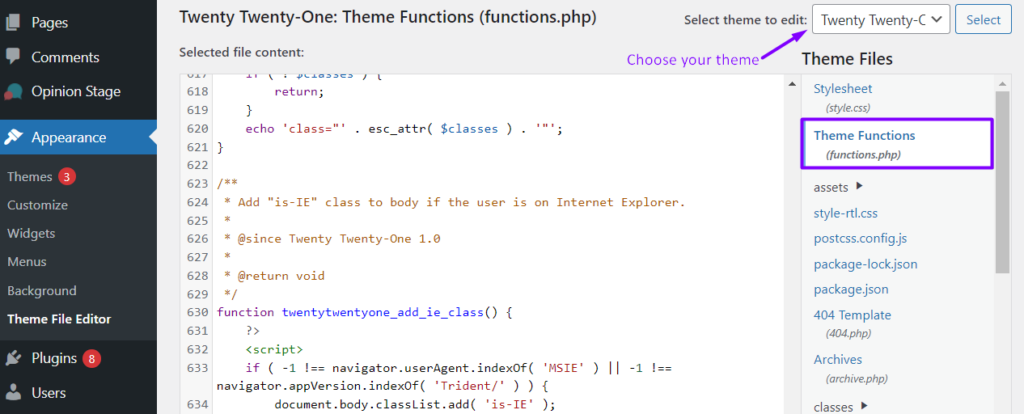
Log into your WordPress dashboard. Navigate to Appearance and then click on Theme Editor. You will see the theme files listed on the right side. Click on the file you want to change. Make sure to save your changes. Always back up files before editing.
Download an FTP client like FileZilla. Connect to your website server. Enter your FTP credentials to log in. Navigate to the wp-content/themes directory. Find your theme folder. Open the folder to see the files. Download a file, edit it, and upload it back. Ensure you have a backup to avoid errors.
Editing Theme Code
WordPress themes have a specific structure. Each theme has a style.css, functions.php, and other files. It’s important to know these files. The style.css controls the theme’s look. The functions.php handles the theme’s actions. Knowing this helps when making changes.
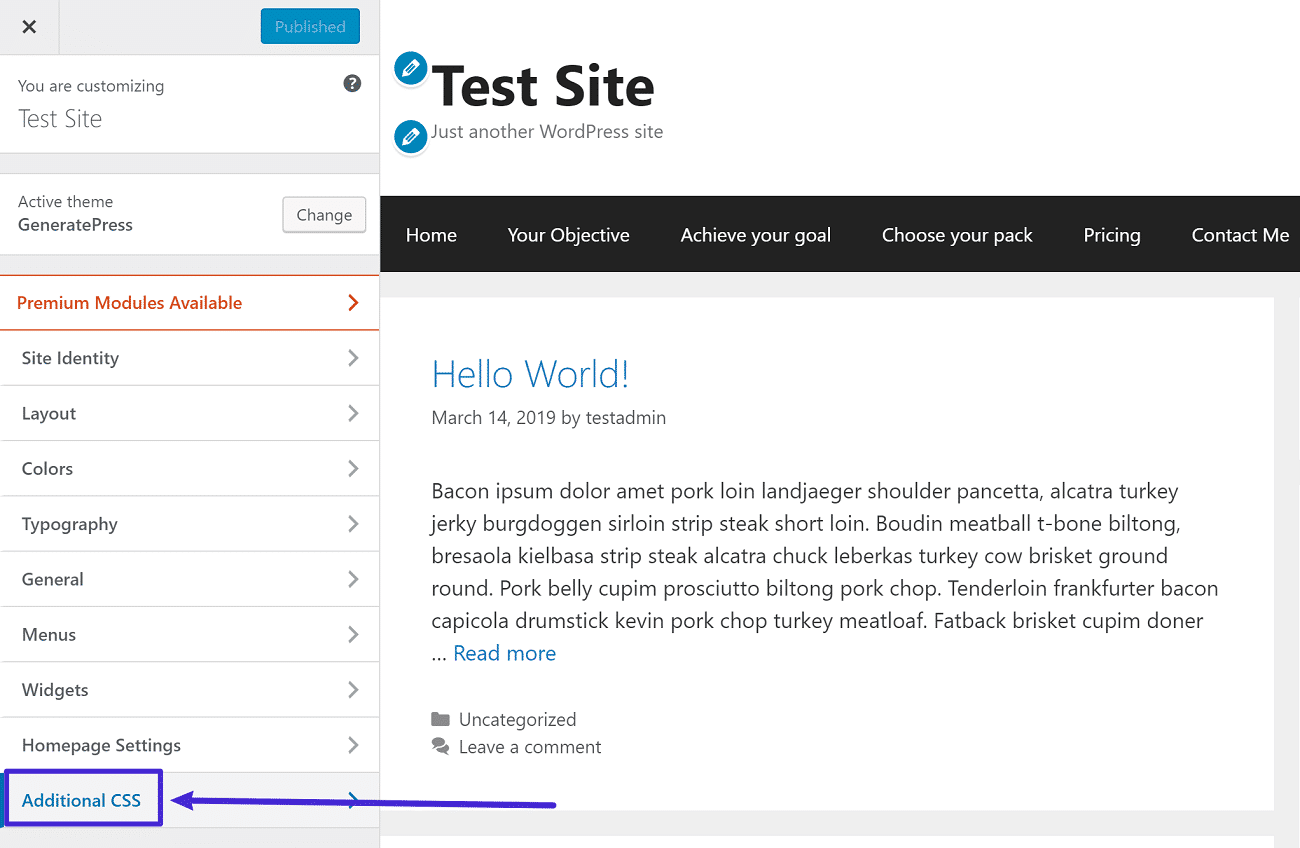
CSS changes the theme’s look. Open the style.css file to edit. Use simple CSS rules to change colors or fonts. Want a different background? Change the background-color property. Remember to save your changes. Check your site to see the new style.
PHP is for adding features. Open the functions.php file. Here, you can add or remove features. Want to add a new widget? Use a PHP function for widgets. Be careful with PHP. Wrong code can break your site. Always back up before making changes.
Credit: kinsta.com
Implementing Changes Safely
Changing a WordPress theme’s code requires caution to ensure site safety. Backup files before editing to prevent data loss. Use a child theme for customization, preserving original files and updates.
Testing In A Staging Environment
Always make changes in a staging environment first. A staging environment is a copy of your site. It lets you test changes without affecting the live site. This keeps your live site safe from mistakes. Ensure everything works well before going live. This step is very important. It avoids any unexpected problems on your main site.
Using Version Control
Version control helps you track changes to your code. It is like a history of your changes. If something goes wrong, you can undo changes easily. Tools like Git can help with this. They keep your changes organized and safe. Always use version control when changing themes. It protects your work and saves time.
Troubleshooting Common Issues
Changing a WordPress theme’s code can fix common issues. Ensure you use a child theme to prevent data loss. Always back up your website before making any changes.
Fixing Broken Layouts
Broken layouts can confuse your website visitors. Check your theme’s CSS first. Look for missing or incorrect styles. Test your website on different devices. This helps find layout issues. Use browser tools like Inspect Element. These tools show how elements fit together. Compare changes with the original theme files. Sometimes code gets lost during edits. Backup your theme files before making changes. This keeps your website safe.
Resolving Php Errors
PHP errors can break your site. Locate the error message first. It usually shows in the browser or error log. Identify the file and line causing the problem. This helps you fix the error fast. Syntax errors are common in PHP. Check for missing semicolons or brackets. Update PHP version if needed. Old versions may not support new code. Ask for help if errors persist. Online forums can be useful.
Best Practices For Theme Code Changes
Always keep your code neat and organized. Use indentation for better readability. Avoid using too many comments. Only comment on complex sections. This helps others understand your code easily. Use clear and simple variable names. It makes the code more readable. Avoid writing long lines of code. Break them into smaller parts if needed.
Document every change you make in the code. This helps track what you have done. Use a changelog to record all changes. This can save time in the future. You or others can understand the history of changes. Include dates and descriptions for each change. This helps in troubleshooting. Keep documentation updated and easy to understand.
Frequently Asked Questions
How Can I Edit Theme Code In WordPress?
To edit theme code in WordPress, navigate to Appearance > Theme Editor. Select the theme you want to edit. Use the editor to modify PHP, HTML, CSS, or JavaScript files. Ensure you have backups before editing to prevent data loss.
Is It Safe To Change Theme Code?
Changing theme code can be risky if not done correctly. Always backup your site before making changes. Use a child theme to avoid losing modifications during updates. Test changes on a staging site before applying them live.
What Is A Child Theme In WordPress?
A child theme allows you to modify a theme without altering the original files. It inherits the functionality and design of the parent theme. Creating a child theme ensures changes remain intact during updates.
Can I Revert Theme Code Changes?
Yes, you can revert changes if you have backups. Use version control or backup plugins to restore previous versions. Alternatively, manually replace files with original copies to undo modifications.
Conclusion
Changing a theme’s code in WordPress is easier than it seems. Follow steps carefully. Start by backing up your site. Open the theme editor. Make small changes first. Test each change thoroughly. Use child themes for safety. Avoid altering core files.
Always save your work. Seek help if needed. Online forums are great resources. Remember to keep learning. Every change improves your skills. WordPress offers endless possibilities. Enjoy customizing your site. Be patient. Practice makes perfect. Your unique site will stand out.
Happy coding!


