
Struggling with your website’s look but not sure where to start? Changing your WordPress theme manually might seem daunting, but it’s easier than you think.
Imagine giving your site a fresh, personalized appearance that truly reflects your brand or personal style. The right theme can transform not just the aesthetics but also the functionality of your site, enhancing user experience and potentially boosting your traffic.
You don’t have to be a tech wizard to make this change. With a few simple steps, you can revamp your website and make it stand out. Ready to dive into the world of WordPress themes and discover how you can switch things up with ease? Let’s unlock the secrets to a manual theme change and take your website to the next level.
Preparing For Theme Change
Before changing a theme, always backup your site. This keeps your data safe. Use plugins like UpdraftPlus or BackWPup. Save all files and databases. Check the backup is complete. This way, you can restore your site if needed. Backups are like a safety net.
Ensure the new theme works with your WordPress version. Visit the theme’s page. Read the compatibility notes. Look for user reviews. They can tell you if there are problems. Compatibility is key for a smooth change. Always test in a staging site first.

Credit: www.peeayecreative.com
Accessing WordPress Files
To change a WordPress theme manually, access the WordPress files using FTP or your hosting panel. Navigate to the themes folder, upload the new theme files, and activate it in the WordPress dashboard. This method allows customization without relying on the built-in theme installer.
Using Ftp Client
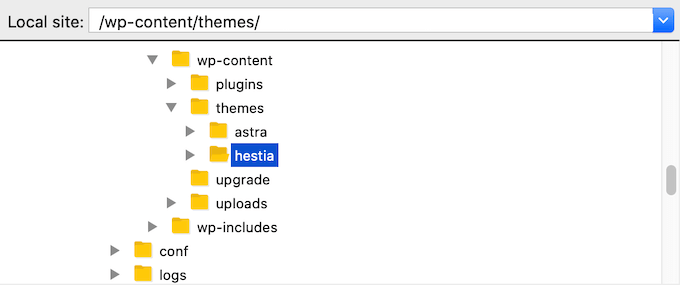
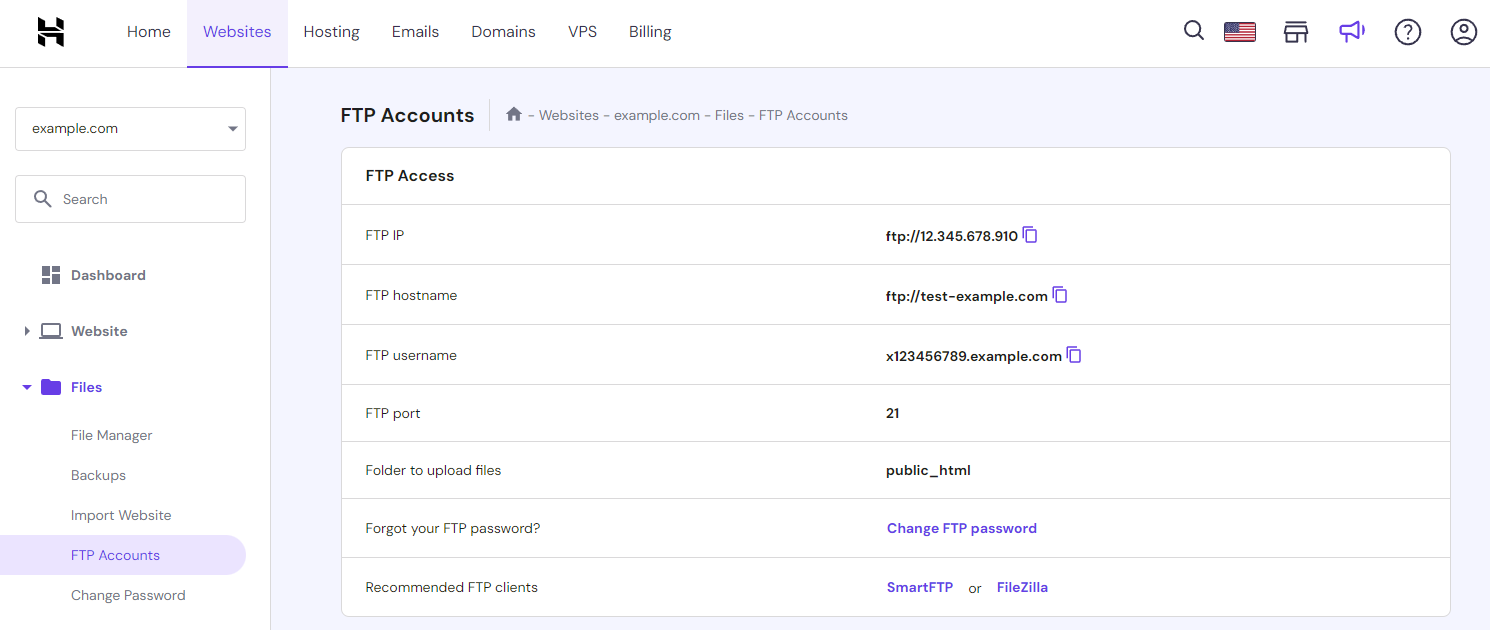
Download an FTP client like FileZilla. Install it on your computer. Connect to your website server. Use your login details. Find the wp-content folder. Open it. You will see the themes folder. Click to open it. You can upload your new theme here. Make sure your theme folder is complete. Check that all files are there. This is important. Otherwise, it will not work.
Navigating File Manager
Log in to your hosting account. Find the File Manager tool. Open it. Go to the public_html directory. Locate the wp-content folder. Open the themes folder inside. Click on the upload option. Add your theme files. Ensure all files are uploaded. Check if the new theme is visible. Your theme should now be in WordPress. Activate it through the dashboard.
Locating Theme Files
WordPress files are in a structured way. The directory structure is simple. The main folder is the WordPress root. Inside, there are key folders. Themes are stored in the wp-content folder. Each theme has its own sub-folder. This makes it easy to find them.
The wp-content folder is important. This folder holds all themes and plugins. It is in the WordPress root directory. Look for the folder named wp-content. Inside, you will find the themes folder. This is where all theme files are kept.
Credit: www.wpbeginner.com
Uploading New Theme
First, find a theme you like. Go to a trusted theme website. Click the download button. Save the theme files to your computer. Make sure the files are in a zip folder. This is important for later steps. Check if the theme is for the current WordPress version.
Open your FTP client. Connect it to your website. Use your website’s login details. Navigate to the WordPress themes folder. This is in the “wp-content” folder. Drag your theme’s zip folder there. Extract the files. Activate the theme in WordPress. Enjoy your new look!
Activating The New Theme
First, log in to your WordPress account. Use your username and password. Once logged in, you will see the dashboard. This is where you control your website. The dashboard is very important. It helps you manage everything. From here, you can add new posts and change settings.
On the dashboard, find the “Appearance” option. Click on it. A menu will appear. Choose “Themes” from this menu. Here, you will see all available themes. To activate a new theme, click “Activate” under the theme you want. Wait a few seconds. Your site now has a new look.
Customizing The Theme
WordPress offers a tool called Customizer. It helps you change your theme’s look. First, go to the Appearance menu. Then, click on Customize. Here, you can change colors, fonts, and more. Look for options like Site Identity and Colors. Adjust them to fit your style. Preview changes before saving. This way, you see how your site looks. Make sure to save your changes once you are happy.
Widgets add extra features to your site. To change them, go to Appearance, then Widgets. Drag and drop to add or remove them. Menus help visitors find pages on your site. Adjust them by clicking on Menus under Appearance. You can add new pages or rearrange them. Remember to save changes so they appear live. Now your site will look neat and organized.
Troubleshooting Common Issues
Themes may not work with some plugins. This can cause issues. Check the theme’s details for compatibility. Update plugins to latest versions. This often fixes many problems. Disable plugins one by one. See if the theme works then. Some plugins may need replacing. Choose alternatives that work well. This keeps your site running smoothly. Always backup your site first. This saves your work if something goes wrong.
Some themes may show errors on your site. These can be missing images or broken layouts. Check your theme settings. Sometimes, adjusting options helps. Clear your website’s cache. This can resolve some display issues. Use different browsers to test your site. Each one may show your site differently. If errors persist, consider contacting theme support. They can often provide a solution. Keep your theme updated. This prevents many display errors.
Testing The New Theme
Checking Site Functionality is very important. Make sure all links work. Test forms and widgets. Check the menu. Each part must be tested. Look for broken pieces. Fix any issues before moving on.
Ensuring Responsive Design is key. Check the theme on phones. Test it on tablets too. The site must look good everywhere. Resize the browser window. Check how elements adjust. Make sure text is readable. Images should not overflow. Buttons need to be easy to click. A good design works on all devices.
Credit: www.hostinger.com
Frequently Asked Questions
How Do I Change A WordPress Theme Manually?
To change a WordPress theme manually, access your WordPress dashboard. Navigate to Appearance > Themes. Select the theme you want and click ‘Activate. ‘ Ensure your site looks and functions correctly. You might need to adjust settings or customize the new theme for a seamless transition.
Can I Switch Themes Without Losing Content?
Yes, switching themes won’t affect your content. Your posts, pages, and media remain intact. However, theme-specific settings might change. It’s wise to preview changes before activating a new theme. Always back up your site to avoid unexpected issues during theme transitions.
What Are The Risks Of Changing Themes?
Changing themes can disrupt your site’s layout and functionality. Widgets and customizations might need reconfiguration. There’s a risk of losing theme-specific settings. Ensure compatibility of plugins and features. Always back up your site and test the new theme thoroughly before making it live.
How To Back Up WordPress Before Theme Change?
Use a backup plugin like UpdraftPlus or BackupBuddy for easy backups. Alternatively, manually back up by exporting your database and files via FTP. Always ensure you have a complete backup before changing themes. This protects against data loss and helps restore your site if issues arise.
Conclusion
Changing a WordPress theme manually can seem daunting. But with practice, it becomes easier. Start by backing up your website. This step prevents data loss. Then, access your WordPress files via FTP. Locate and upload the new theme. Activate it through your WordPress dashboard.
Remember to check for compatibility. Ensure all plugins work correctly. Test your website’s appearance and functionality. This process offers control over theme changes. Manual changes enhance customization. With careful steps, your website will look refreshed. Follow these guidelines for a smooth transition.
Enjoy your new WordPress theme!


