
You’ve just stumbled upon the perfect WordPress demo that captures everything you’ve envisioned for your website. It’s sleek, professional, and exactly what you need.
But turning that demo into a fully functioning theme seems daunting, right? Don’t worry, you’re not alone in feeling this way. Many WordPress users face the same challenge, and the good news is that it’s easier than you might think.
Imagine transforming that demo into a live, interactive site where your content shines, attracting visitors and keeping them engaged. This guide will walk you through the entire process, step by step, helping you convert a demo into a theme effortlessly. With the right approach, you can achieve a seamless transition that not only looks stunning but also functions perfectly. Stay with us, and by the end of this article, you’ll have the confidence and skills to create a WordPress theme that not only meets your needs but exceeds your expectations. Let’s get started on turning that demo into your dream website.
Credit: colorlib.com
Choosing The Right Demo
Begin by thinking about what your website needs. List important features. Maybe a blog, an online store, or a photo gallery. Think about colors and styles too. Each choice shapes your website. Make a list to help decide. Keep it simple. Simple lists help you see what’s important.
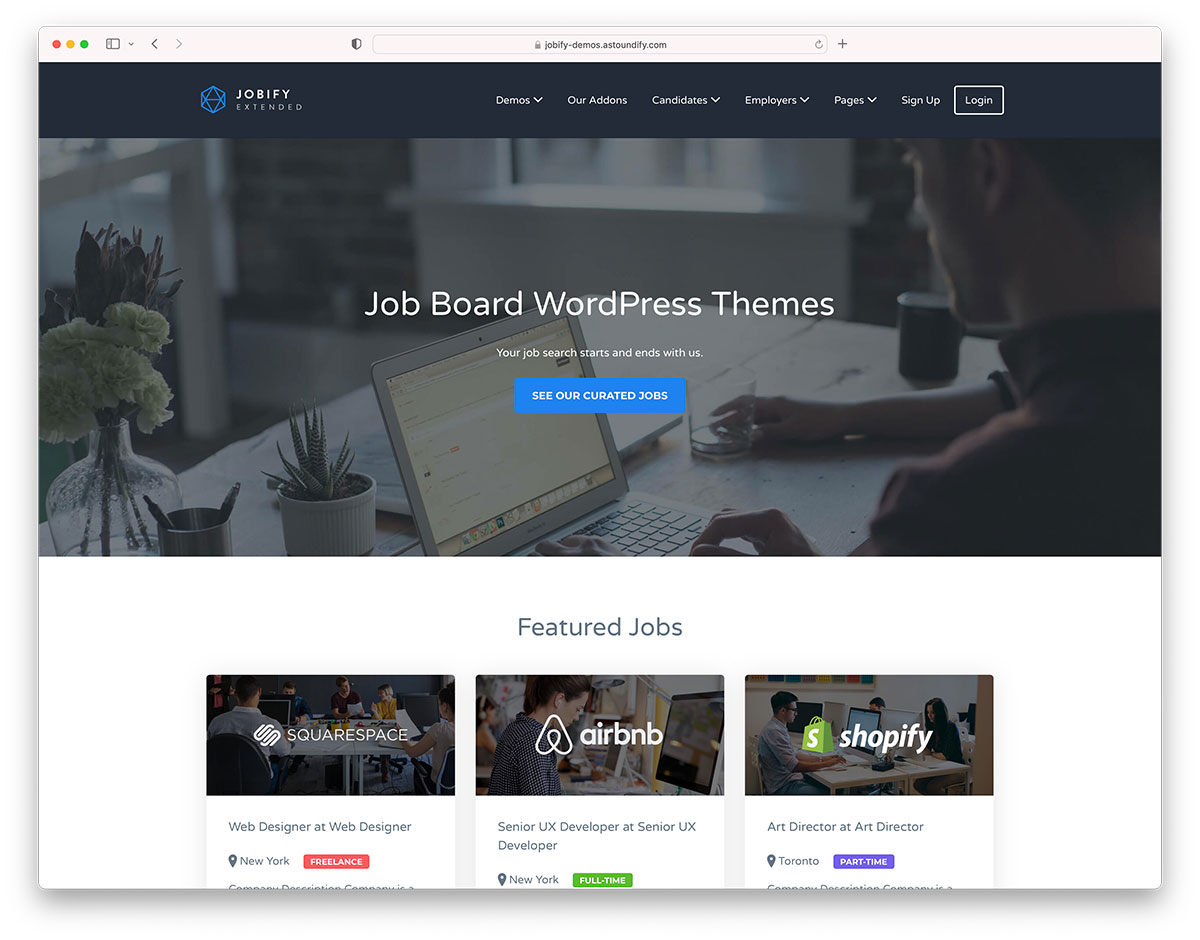
Look through the available demos. Many themes offer demos. These demos show you what your site might look like. Compare different demos. Check if they have the features you need. Some might look better but lack features. Choose wisely. It’s like picking the best clothes for an event.
Preparing Your WordPress Environment
Transforming a demo into a theme on WordPress involves selecting a suitable theme and installing it. Customize the settings to match your design preferences and activate the new theme. Save changes to see your website’s updated look.
Backing Up Your Site
Always protect your work by making a backup of your site. This saves your content if something goes wrong. Use a plugin like UpdraftPlus to easily backup your data. Store the backup in a safe place, such as Google Drive or your computer.
Updating WordPress And Plugins
Ensure your WordPress is up-to-date. Outdated versions can cause problems. Go to your dashboard and click Updates. Update your plugins too. Updated plugins work better and keep your site safe. Always check for updates regularly.
Installing The Demo Theme
First, find the demo files on the theme’s website. Click the download button to save the files. Make sure they are in a .zip format. Check your computer’s download folder for the files.
Log in to your WordPress dashboard. Find the Appearance menu on the left. Click on Themes. Select the Add New button at the top. Choose Upload Theme. Click Choose File to locate your downloaded demo files. Select the .zip file and click Install Now. Wait for the installation process to complete. Activate the theme once installed.
Credit: www.greengeeks.com
Customizing The Demo
The Theme Customizer is easy to use. Click on “Appearance” and then “Customize”. You will see many options. Change the site title, colors, and fonts. Make your site look the way you want. Save your changes often.
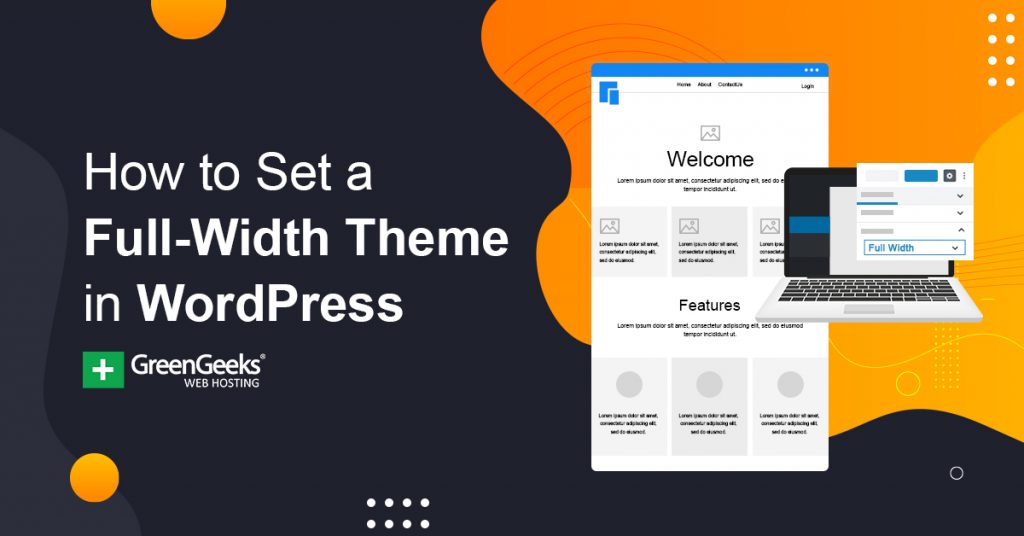
Layout changes how your site looks. Choose a layout that fits your style. Many themes have pre-set layouts. Use them to make your work easy. Change the header and footer if needed. Add your own images to make it personal.
Plugins add features to your site. Go to the “Plugins” menu. Click “Add New” to find plugins. Search for the plugin you need. Install it and click “Activate”. This adds new tools to your theme. Always update plugins for best performance.
Testing The Theme
Checking for Responsiveness is crucial. It means the theme should look good on all devices. Open your website on a phone and a tablet. Does the layout adjust? Are buttons easy to tap? Text should be clear. Images must not be cut off. If something seems wrong, it might need fixing. A responsive theme is user-friendly.
Ensuring Compatibility is equally important. Your theme should work well with plugins. Plugins add extra features to your site. Some themes may clash with certain plugins. Try adding a few popular plugins. Test them out. Does your site still function smoothly? If plugins don’t work, your theme might need changes. A compatible theme enhances your site’s performance.
Finalizing And Launching
Transforming a demo into a theme on WordPress involves a few key steps. Customize the settings, add your content, and adjust the layout. Ensure everything aligns with your brand before launching.
Performing A Final Review
Check your site for errors. Look at every page. Click on every link. Ensure images are clear. Text should be easy to read. Fix any broken links. Correct spelling mistakes. Make sure buttons work.
Test on different devices. Check on phones. Check on tablets. Check on computers. Ensure your site looks good. It should be easy to use. Adjust settings if needed. Speed is important. Make sure your site loads fast.
Publishing Your Site
Click the publish button. Your site goes live. Tell friends and family. Share on social media. Visitors can see your site now. Watch for feedback. Make changes if needed. Keep improving your site. Update content regularly. Fresh content keeps visitors coming back.
Credit: themeforest.net
Frequently Asked Questions
How Do I Convert A Demo To A Theme?
Converting a demo into a theme involves importing demo content and customizing settings. Use the WordPress importer tool to upload demo files. Customize your theme using the WordPress customizer. Ensure all plugins are activated for full functionality. This process helps you achieve a professional look efficiently.
Can I Change Themes Without Losing Data?
Yes, you can change themes without losing data. WordPress stores your content separately from themes. However, specific theme settings might be lost. Always back up your site before switching themes. Use plugins like WPvivid Backup to ensure data safety. This practice minimizes risks during theme transitions.
What Is A WordPress Child Theme?
A child theme inherits features from a parent theme, allowing customization without losing updates. Create a child theme using a directory and style. css file. This method helps in making safe modifications. Child themes ensure your customizations remain intact when the parent theme updates.
Why Import Demo Content On WordPress?
Importing demo content helps visualize theme potential and layout. It provides a starting point for customization. Demo content includes pages, posts, and settings configured by theme developers. This aids in understanding the theme’s features and design capabilities. It accelerates the process of creating a visually appealing site.
Conclusion
Changing a demo into a theme on WordPress is simple. Follow the steps carefully. Customize your site to match your vision. Themes give your site a unique look. Your website will stand out. Engage visitors with appealing design. Ensure your site is functional and responsive.
Test your theme thoroughly. Make adjustments if needed. Keep learning about WordPress features. Stay updated with new tools and themes. Enjoy the creative process. Building a great website is rewarding. Your efforts will lead to a professional-looking site. Happy designing!


