
Are you struggling to get your WordPress website looking just right with the OceanWP theme? One common challenge is centering the menu neatly under the logo.
This simple tweak can enhance your site’s aesthetics, creating a more balanced and professional appearance. Imagine your visitors landing on your site and being instantly impressed by its polished look. The good news is, centering your menu under the logo doesn’t have to be a daunting task.
In this guide, you’ll discover straightforward steps to achieve this design feature effortlessly. Stick with us, and you’ll soon have a website layout that not only looks great but also keeps your visitors engaged and eager to explore more.
Credit: wpgeodirectory.com
Oceanwp Theme Basics
The OceanWP theme is popular. It offers many features. You can make your site look unique. There are customization options for colors and fonts. You can change the layout too. The theme supports responsive design. This means your site looks good on phones and computers.
You can add custom widgets. These tools make your site better. There are options for social media buttons. This helps visitors share your content. You can make a beautiful website with OceanWP. It is easy to use. Even beginners can start quickly.
Understanding The Header Layout
The header structure in Oceanwp theme is simple. It consists of a logo and a menu. The logo usually appears at the top. The menu follows the logo. You can customize this structure easily.
For menu positioning, select the right settings. Move the menu under the logo. Use the WordPress customizer. Adjust the settings in the header options. Choose the layout that places the menu directly under the logo.
Ensure the menu is centered. This is important for a clean look. Check the alignment settings. Align the menu in the center. This makes the header look neat.
Accessing The WordPress Customizer
Finding the Customizer is simple. Open your WordPress dashboard. Look for the “Appearance” option. Click on it. You’ll see “Customizer”. Click “Customizer”. It’s a tool for changes. You can change menus, logos, and colors. The Customizer is important for your site’s look.
Navigating Theme Options is easy. In Customizer, find “Header”. Click on “Header”. Look for “Logo” and “Menu”. Move them as you like. You can center the menu under the logo. Save your changes. It updates your site. Watch your site look better. This makes your site neat and organized.
Aligning The Menu Under The Logo
Start by accessing your WordPress dashboard. Navigate to Appearance and click on Customize. Here, you will find many settings to change the look of your website. Select Header settings to adjust the menu and logo. You can choose different layout options. Choose the layout that places the menu under the logo. This will help center the menu properly.
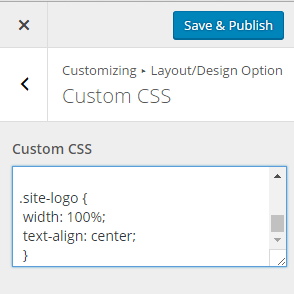
To align the menu perfectly, you may need to use CSS. Go to Additional CSS in the customizer. Here, you can add small pieces of code. Use the following code to center the menu:
#site-navigation {
    text-align: center;
}
After adding the CSS code, click Publish to save changes. Your menu should now be centered under the logo.
Custom Css For Precise Alignment
Find the Additional CSS section. It’s in WordPress dashboard. Click on Appearance. Then go to Customize. Here, see the Additional CSS option. This is where you add code.
Add the following CSS code. It helps center the menu under the logo. Copy the code below:
/ Center Menu Under Logo /
.site-header .nav-menu {
  display: flex;
  justify-content: center;
}

.site-header .nav-menu li {
  margin: 0 15px;
}
Paste it in the Additional CSS box. This changes menu position. The code uses flex and justify-content. It aligns the menu perfectly. Now, your menu is centered. Easy and effective. Enjoy your balanced layout!
Testing And Saving Changes
Centering the menu under the logo in the OceanWP theme involves tweaking the header settings. First, access the WordPress customizer, then adjust the header layout for optimal positioning. Save changes and preview to ensure the menu aligns perfectly below the logo, enhancing your site’s visual balance.
Previewing Adjustments
Before saving, preview the changes on your website. Check if the menu is centered under the logo. Look at different pages to be sure. Make sure the changes are visible on all devices. If something looks off, adjust the settings.
Saving Customizations
Once satisfied, save the changes. Click on the publish button to make the changes live. Double-check the site to ensure everything looks right. If needed, go back and tweak settings. Remember, small changes can make a big difference.
Troubleshooting Common Issues
Centering the menu under the logo in the OceanWP theme can be tricky. Adjust settings in the header section and use custom CSS. This helps achieve a balanced layout, enhancing the site’s appearance.
Responsive Design Concerns
Many people face issues with the menu layout on different screens. It’s important to make the menu fit well on both large and small screens. Adjusting the settings in the OceanWP Customizer can help. Check the menu’s alignment options under the header settings. This can improve how the menu looks on mobiles and tablets. Always preview changes on different devices before saving. This helps catch any layout problems early.
Menu Overlapping Problems
Sometimes the menu might overlap with other elements. This can make your site look messy. One solution is to increase the spacing between menu items. You can do this in the OceanWP Customizer. Another method is to check the z-index settings. Adjusting these can help keep the menu in the right place. Always ensure the logo and menu don’t touch each other. This keeps the site clean and easy to read.

Credit: docs.oceanwp.org
Additional Resources And Support
Official OceanWP Documentation offers detailed guidance. It helps to understand theme features. You can find step-by-step instructions. These are useful for beginners. The documentation is updated regularly. It ensures the latest information is available. Sections cover various topics. They include setup, customization, and troubleshooting.
Community Forums and Help provide user interactions. Users share tips and solutions. It’s a place to ask questions. You can get advice from experienced users. Moderators often assist with complex issues. Forums are a friendly space. They foster learning and sharing. It’s helpful for building confidence in using OceanWP.
Credit: www.acmethemes.com
Frequently Asked Questions
How Do I Center A Menu In Oceanwp?
To center a menu in Oceanwp, navigate to Appearance > Customize. Under Header settings, select the “Center” alignment option for your menu. Save changes to update your theme with the centered menu under the logo.
Can I Customize Oceanwp Menu Layout Easily?
Yes, Oceanwp offers user-friendly customization options. Use the WordPress Customizer to adjust menu layout, alignment, and design settings. Oceanwp provides flexible design features suitable for all skill levels.
Is Oceanwp Theme Mobile-responsive?
Yes, Oceanwp is mobile-responsive and adapts to different devices. It ensures your menu and logo display correctly on smartphones and tablets, providing a seamless user experience across all platforms.
Does Oceanwp Support Custom Css For Menus?
Yes, Oceanwp supports custom CSS for detailed customization. You can add custom CSS via the Customizer or a child theme. This allows advanced users to tailor menu styles beyond default settings.
Conclusion
Centering the menu under the logo in OceanWP is simple. Follow the steps carefully. Adjust settings in the WordPress customizer. Use CSS for more control. Test your changes to ensure they work. This enhances your site’s look. Creates a balanced design.
Visitors will find navigation easier. Your site becomes more user-friendly. Keep experimenting with design elements. Improve your WordPress site gradually. Enjoy the process. Make your website unique and engaging. With these tips, your site will stand out. Happy designing!


