

Are your WordPress posts all over the place, making it hard for your readers to find what they want? Organizing your content with clear categories can change that.
When you categorize your posts the right way, you make your site easier to navigate and keep visitors hooked longer. You’ll learn simple, step-by-step methods to categorize your posts effectively. By the end, you’ll have a tidy, user-friendly blog that draws readers back again and again.
Ready to take control of your WordPress content? Let’s dive in.
Credit: wordpress.org
Why Categories Matter
Categories help organize your WordPress posts. They group similar content together. This makes your site clear and easy to use. Categories also guide visitors to find what they want fast. They create a structure for your blog. This structure benefits both users and search engines.
Improving Site Navigation
Categories act like signposts on your website. They help visitors find related posts quickly. Users can click on a category to see all posts in that group. This reduces the time spent searching. Clear navigation keeps visitors on your site longer.
Boosting Seo
Search engines use categories to understand your site better. Well-organized categories improve site indexing. They connect related posts, creating topic clusters. This helps search engines rank your pages higher. Good categorization can increase your site’s visibility.
Enhancing User Experience
Categories make browsing simple and enjoyable. Visitors can explore topics that interest them. Clear categories reduce confusion and frustration. Users feel more engaged and likely to return. A better experience builds trust and loyalty.
Categories Vs Tags
Categories and tags help organize your WordPress posts. Both improve user experience and SEO. They guide visitors to find relevant content quickly. Many beginners confuse categories with tags. Understanding their differences helps keep your site neat and clear.
Key Differences
Categories are broad groups that cover a wide topic. They form the main structure of your site. Every post should have at least one category. Tags are more specific and describe details of the post. You can add many tags to a single post. Categories are hierarchical, meaning they can have subcategories. Tags do not have a hierarchy.
When To Use Each
Use categories to group posts by main topics. Think of categories as chapters in a book. Use tags to highlight specific points or keywords in the post. Tags help with search and filtering inside the site. Assign categories first, then add relevant tags. Avoid creating too many categories or tags. Keep them focused and useful for readers.
Creating Categories In WordPress
Creating categories in WordPress helps organize your posts clearly. Categories group similar content for easy navigation. They improve user experience and site structure. Proper categories also boost your SEO by making content easier to find.
WordPress offers simple ways to create categories. You can add them through the dashboard or while writing posts. Both methods are quick and user-friendly. Choose the one that fits your workflow best.
Using The Dashboard
To create categories using the dashboard, go to the WordPress admin panel. Find the “Posts” section and click “Categories.” Here, you will see a form to add a new category.
Enter the category name and a short description. You can also set a parent category if you want a hierarchy. Click “Add New Category” to save it. Your category is now ready to use for posts.
Adding Categories While Writing Posts
WordPress allows adding categories directly while writing a post. In the post editor, look for the “Categories” box on the right side. Click “Add New Category” at the bottom of this box.
Type your new category name and click “Add New Category.” The category will appear checked for the current post. This method saves time and keeps your workflow smooth.
Organizing Categories Effectively
Organizing categories effectively helps visitors find content quickly. Clear and logical categories improve site navigation. They also enhance user experience and SEO. Well-structured categories keep your blog neat and accessible. It makes managing posts easier for you too.
Choosing Clear Category Names
Pick simple and direct names for categories. Use words your readers understand easily. Avoid complicated or long category titles. Clear names reduce confusion and improve search results. Keep each category name short and specific. This helps users find topics without guessing.
Using Parent And Child Categories
Create parent categories to group broad topics. Use child categories for more detailed subtopics under each parent. This hierarchy organizes content logically and clearly. It shows readers related posts in a neat way. Parent and child categories also boost SEO by defining content structure.
Assigning Posts To Categories
Assigning posts to categories helps organize your WordPress site. Categories group posts by topics. This makes it easier for visitors to find related content. Proper categorization improves your site’s structure and SEO.
Manual Assignment
To assign a post manually, open the post editor in WordPress. On the right side, find the “Categories” box. Check the category or categories that fit your post. You can also create a new category here. Save or update the post to apply changes.
Bulk Editing Posts
Bulk editing saves time when categorizing many posts. Go to the “Posts” list in your dashboard. Select the posts you want to edit by clicking the checkboxes. From the “Bulk Actions” dropdown, choose “Edit” and click “Apply.” In the bulk edit options, select the categories to assign. Click “Update” to apply changes to all selected posts at once.
Managing And Editing Categories
Managing and editing categories in WordPress helps keep your content organized. Categories help visitors find posts easily. You can change, remove, or combine categories anytime. This keeps your blog tidy and relevant.
WordPress offers simple tools for managing categories from the dashboard. These options let you rename, delete, or merge categories quickly. This section explains how to do these tasks step-by-step.
Renaming And Deleting Categories
To rename a category, go to the Categories page in your dashboard. Find the category you want to rename and click “Edit.” Change the name in the box and save. The new name will show on your site immediately.
Deleting a category is also easy. On the same Categories page, click “Delete” under the category name. WordPress will ask for confirmation. Deleted categories won’t show on your site. Posts in that category move to the default category.
Merging Categories
Merging combines two or more categories into one. This keeps your blog simple and avoids duplicates. WordPress does not have a built-in merge option. You need a plugin like “Term Management Tools” to merge categories.
After installing the plugin, select categories to merge. Choose the main category to keep. Confirm the merge, and all posts will move to that category. The old categories will be removed. This process cleans up your category list fast.
Displaying Categories On Your Site
Displaying categories on your WordPress site helps visitors find content easily. Categories organize posts into groups. Showing them clearly improves user experience and site navigation. Different methods exist to display categories. Each method fits different site styles and needs.
Category Widgets
Category widgets are the easiest way to show categories. WordPress includes a built-in widget for this. Go to Appearance > Widgets, then add the “Categories” widget to a sidebar or footer. Visitors will see a list of categories with links. You can choose to show categories as a dropdown or a list. This method works well for simple sites.
Custom Menus
Custom menus let you add categories to your site’s main navigation. Go to Appearance > Menus and create a new menu. Add categories from the left panel under “Categories.” Arrange them in the order you want. Save the menu and assign it to a menu location. This method highlights important categories and boosts site structure.
Using Plugins
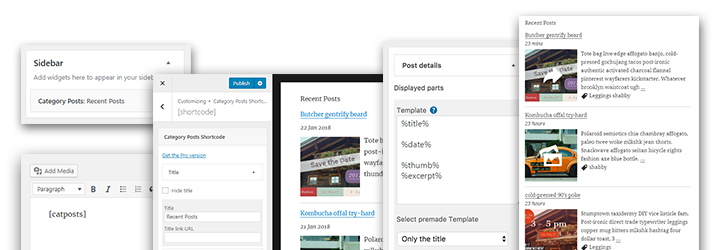
Plugins offer advanced options to display categories. Some plugins show categories with images or descriptions. Others create category grids or dropdowns. Plugins like “Category Posts Widget” or “WP Category Widget” add extra features. Choose a plugin that fits your site design. Plugins help make categories more attractive and useful.
Common Mistakes To Avoid
Categorizing posts in WordPress helps organize content clearly. Many users make common mistakes that reduce site clarity and user experience. Avoiding these errors improves navigation and SEO.
Overloading Categories
Too many categories confuse readers and search engines. Each category should cover a broad topic, not tiny details. Limit categories to keep your site simple and easy to navigate. Avoid creating a category for every small idea. This makes your site look messy and hard to use.
Ignoring Category Structure
A clear category structure guides visitors through your content. Group related topics under main categories and use subcategories wisely. Skipping this step leads to scattered posts and weak site organization. Plan your categories before adding posts. This saves time and keeps your site neat.
Tips For Maintaining Categories
Maintaining categories in WordPress helps keep your site organized. Good category management improves user experience and SEO. Clear categories make it easier for visitors to find related posts. Regular care avoids clutter and confusion as your blog grows.
Regular Review And Cleanup
Check your categories often. Remove categories that no longer fit your content. Merge similar categories to avoid repetition. Delete empty categories to keep your site tidy. A clean category list helps search engines understand your site.
Consistent Naming Conventions
Use simple and clear names for categories. Keep names short and easy to remember. Avoid using similar names that confuse readers. Use lowercase letters and avoid special characters. Consistent naming makes your blog look professional and organized.
Credit: wordpress.org

Credit: www.youtube.com
Frequently Asked Questions
What Are WordPress Post Categories Used For?
Post categories help organize content into topics. They improve navigation and SEO by grouping related posts. Categories make it easier for visitors to find relevant content quickly.
How Do I Create New Categories In WordPress?
Go to Posts > Categories in your dashboard. Enter a category name and slug, then click “Add New Category. ” Your new category will be ready to use immediately.
Can I Assign Multiple Categories To One Post?
Yes, WordPress allows multiple categories per post. Assigning several categories increases content visibility and helps users find posts through different topics.
How Do Categories Affect WordPress Seo?
Categories create a clear site structure. They improve internal linking and keyword relevance. Proper use of categories can boost search engine rankings effectively.
Conclusion
Categorizing posts in WordPress keeps your site organized and easy to use. It helps visitors find content quickly and improves your site’s structure. Use clear, simple category names that match your topics. Regularly review and update categories to keep them relevant.
Good categories also help search engines understand your site better. Start adding categories today to make your WordPress blog cleaner and friendlier for readers. Small steps like these make a big difference over time.


