
Have you ever felt trapped with a web hosting service that no longer meets your needs? Whether it’s due to high costs, poor performance, or simply a better offer elsewhere, knowing how to cancel your web hosting can save you both time and money.
But the process isn’t always straightforward. The thought of navigating complex cancellation procedures can be daunting, leading many to stick with services they’re unhappy with. Don’t worry, you’re not alone, and we’re here to guide you through this. By the end of this article, you’ll have the confidence and knowledge to break free from any web hosting service with ease.
Ready to reclaim control of your website? Let’s dive in!
Credit: help.one.com
Reasons To Cancel Web Hosting
Web hosting can be costly. Some plans may not fit your budget. A new provider might offer better deals. You may need more features. Old hosts may not have what you need. New providers might give you better service. Slow website speed can be a problem. Fast websites are important for visitors. Some hosts have poor customer support. You might need help but can’t get it. Frequent downtime is another issue. Websites should be up all the time. Security is a big concern. A hack can damage your site.
Switching hosts can fix these problems. Better prices, features, and support matter. A faster, safer website is key. Good hosts help your site grow. They keep your site secure and fast. Consider these reasons carefully before canceling.
Preparing For Cancellation
Always save your important files. This keeps your work safe. Use a backup tool if needed. Copy files to an external drive or cloud storage. Double-check that all data is saved. You don’t want to lose anything. Saving data is like keeping treasures. It makes you feel secure. Always have a plan for your data. This is smart and safe.
Check the contract with your host. Read the cancellation policy carefully. Know if there are any fees for leaving early. Some hosts charge a fee. Others may have a money-back guarantee. Find out how long you have to cancel. Sometimes it’s 30 days or less. This helps you avoid surprises. Understand all the rules. Then you can cancel smoothly.
Contacting Support
First, visit the web hosting website. Look for the support or contact page. This page usually has phone numbers and email addresses. There might be a live chat option too. Some websites have a help center. It often answers common questions. Use these resources to find the right contact. Be sure to note down any important details.
Start by telling them you want to cancel your hosting. Be clear and polite in your message. Give your account details to help them find your account. Explain why you wish to cancel. This helps them understand your decision. Keep your message short and to the point. Make sure you ask for a confirmation of your cancellation. It ensures there are no misunderstandings later.

Credit: www.bluehost.com
Completing Cancellation Process
Follow the steps given by your web hosting provider. Each provider has different instructions. It’s important to read them carefully. They may ask you to log in to your account. Some might need you to fill out a form. Others may require a phone call. Always check for emails from them. They could send confirmation details. Save these emails for records. They help if issues arise later.
Following Provider Instructions
Instructions are usually simple. Providers aim to make the process easy. Be sure to double-check all details. Mistakes can delay your cancellation. Check your account for any pending fees. Pay them to avoid problems. Keep track of your account status. This ensures your hosting is canceled correctly.
Confirming Cancellation
Confirmation is key. Providers often send a confirmation email. This email is proof of cancellation. Store it safely. It helps in case of disputes. Check your account to see if it’s inactive. Ensure all services are stopped. This avoids extra charges. Contact support if you face issues. They assist in confirming cancellation.
Post-cancellation Steps
Selecting the right hosting provider is crucial. Look for one with great customer service. Ensure they offer 24/7 support. Compare their pricing plans. Check user reviews. Make sure they have a reliable uptime. This helps your site stay online. Consider their features. Do they match your needs? Verify their security measures. Your data must be safe.
Restoring a website is simple. First, find your backup files. These are saved copies of your site. Upload them to the new host. Use an FTP client for this. Next, set up your database. Import the old data. Check if everything works. Test all pages and links. Ensure they load properly. Fix any errors you find. Your site should be live now.
Avoiding Common Mistakes
Checking for Hidden Fees is important. Some hosting companies hide costs. They may charge for early cancellation. Look at your contract closely. Understand what you agreed to. Seek clear details about fees. Ask for help if confused. Fees can surprise you. Some fees are for extra services. Others are for breaking the contract. Know what each fee means. Prepare before canceling. Save money by learning about fees.
Ensuring Domain Transfer can be tricky. Your domain is your website name. Check if you can move it. Some hosts hold onto your domain. You might need a code to transfer. Find the code in your host account. Follow steps to transfer your domain. Don’t lose your domain name. Keep your website safe. Read host rules about domain transfer. Talk to your new host for help. Make sure your domain moves smoothly.
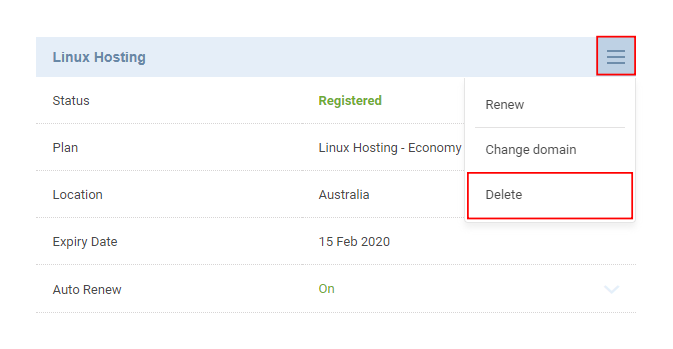
Credit: www.crazydomains.com
Frequently Asked Questions
How Do I Cancel Website Hosting?
Log in to your hosting account. Locate the services or hosting section. Select the hosting plan to cancel. Follow the cancellation instructions provided. Confirm your cancellation request.
What Happens If I Cancel My Website Hosting?
Canceling your website hosting can lead to site downtime and data loss. Backup your data first. Domain services might need separate cancellation. Check the provider’s policy for potential fees or refunds. Ensure you have an alternative plan to avoid disruptions to your online presence.
How Do I Cancel My Web.com Subscription?
To cancel your web. com subscription, log into your account and navigate to the cancellation section. Follow the prompts to complete the process. Alternatively, contact customer support for assistance. Ensure you confirm cancellation to avoid future charges.
How Do I Cancel My Godaddy Hosting?
Log in to your GoDaddy account and navigate to “My Products. ” Find your hosting plan and select “Manage. ” Click “Cancel Renewal” to stop automatic renewals. Confirm cancellation to complete the process.
Conclusion
Canceling web hosting doesn’t have to be complicated. Follow the steps carefully. Check your hosting provider’s cancellation policy first. Backup your data before making any changes. Contact customer support if you need help. Cancelling your web hosting can save you money.
It also frees up resources for other projects. Make sure you understand any fees involved. Review alternative hosting options if needed. Plan for future web hosting needs to avoid issues. A smooth cancellation process makes transition easier. Stay informed to make the best decision for your website.


