
Have you ever found yourself stuck with a web hosting plan that no longer fits your needs? Maybe you’re looking to switch providers, or perhaps you’ve decided it’s time to close up shop.
Whatever the reason, canceling your web hosting with GoDaddy can seem daunting at first. But worry not—you’re about to discover how straightforward it can be. Imagine the relief of freeing yourself from unnecessary costs and commitments, and having the flexibility to make choices that better suit your current goals.
As you navigate through this process, you’ll learn the steps to take control of your hosting plan. You’ll find out how simple it is to cancel your web hosting with GoDaddy, empowering you to make decisions that align with your future aspirations. Stick with us, and we’ll guide you through every step, ensuring you have all the information you need to proceed confidently.
Credit: www.godaddy.com
Reasons To Cancel Web Hosting
Web hosting might not suit your needs. Maybe you found a better provider. Or perhaps the cost is too high. Sometimes, the service is not reliable. Frequent downtime can affect your website. Other times, you might need more features. Your business could have grown. Or you want a faster website. Security issues might be another reason. If the host is not secure, your data is at risk. Customer support might not be helpful. This can be frustrating if you have issues.
Pre-cancellation Checklist
Ensure you have a copy of your website data. Use tools or plugins to save files. Store these backups on your computer. This ensures your site is safe. Losing data can be frustrating.
Consider moving your domain names to another provider. Check if your new host supports this. The transfer process can take a few days. Ensure the domain is unlocked before starting.
Read your contract with GoDaddy carefully. Understand any cancellation fees or penalties. Knowing the terms helps avoid surprises. Contact GoDaddy support if needed for clarity.
Accessing Godaddy Account
First, open the GoDaddy website in your browser. Click on the Sign In button. Enter your username and password. Click Log In. Now you are in your account.
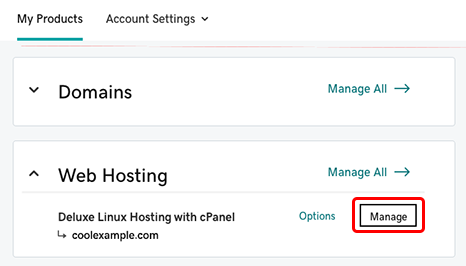
Look for the tab called My Products. You can find it at the top of the page. Click on it. This will show all the products you own. Find the web hosting you want to cancel. Make sure it’s the correct one.
Credit: www.hostinger.com
Canceling The Hosting Plan
Start by logging into your GoDaddy account. Find the “My Products” section. Here, you will see a list of your products and services. Scroll down to locate your hosting plan. Ensure you select the correct one. It’s important to pick the right plan to avoid mistakes.
Click on “Manage” next to the hosting plan. This will open more details about your plan. Look for the option that says “Settings” or “Options.” Click on it. Make sure you are viewing the right plan.
Find the “Cancel” or “Cancel Plan” button. This is usually at the bottom. Click it to proceed. Follow the instructions carefully. You might need to confirm your decision. Read any warnings or messages. They help you understand what happens next. Confirm to complete the cancellation.
Confirming Cancellation
First, log into your GoDaddy account. Find the web hosting section. Check all cancellation details carefully. Make sure the date and services match your needs. Confirm that you won’t lose any important data. Double-check the hosting plan and renewal dates. Review the refund policy too. Know what money you might get back. If there are any questions, look for help on their website.
Review Cancellation Details
Look at your billing cycle. Ensure you are not charged again. Confirm that your domains are safe. If you have other services, check them too. Be aware of any remaining fees. Make sure everything is clear before you cancel.
Complete The Cancellation Process
After reviewing, click the cancel button. Follow the steps shown. You might need to fill out a form. Confirm your choice again. Wait for a confirmation email. This will show your cancellation is successful. Keep this email for your records. If you need support, contact GoDaddy’s help team.

Credit: www.godaddy.com
Post-cancellation Steps
After canceling, check your email for a confirmation message. This email tells you the cancellation is complete. Sometimes, emails can go to your spam folder. Be sure to check there too. This email is important. It is your proof of cancellation.
Look at your billing statements closely. Make sure there are no extra charges. Sometimes, companies charge fees after cancellation. If you see any charges, contact customer support. They can help fix the issue. Keep an eye on your bank account too. This ensures no unexpected costs come up.
Common Issues And Solutions
Sometimes, billing issues can occur. Check your billing statement carefully. Look for unexpected charges. Contact Godaddy’s support for help. They can explain charges. Ask for refunds if needed. Keep records of your payments. Compare them with bills. Billing errors are common. Stay informed and proactive.
Losing data can be stressful. Backup your data often. Use Godaddy tools for backups. Check data retrieval options. Godaddy may offer help. Talk to their support for guidance. Understand backup processes. Know where your data is stored. Data retrieval is crucial. Protect your information always.
Alternative Hosting Options
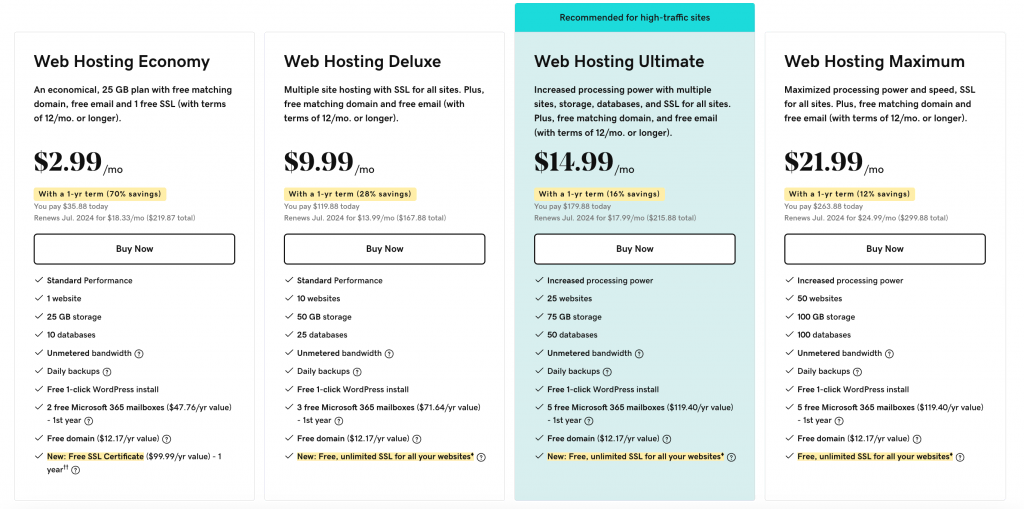
Many companies offer web hosting services. Each has different features. Some focus on speed. Others focus on security. A few offer easy-to-use tools. You need to choose what is best for you. Think about what you really need.
| Provider | Key Feature | Price Range |
|---|---|---|
| Bluehost | Beginner-Friendly | $3-$10/month |
| HostGator | Flexible Plans | $2-$12/month |
| SiteGround | Great Support | $4-$15/month |
Moving a website is not hard. You need to back up your files. Then, upload them to the new host. Many hosts help with this process. Check their help pages or ask support. The transfer usually finishes in a day. After moving, make sure everything works well. Test all parts of your site. Ensure links work, and images appear.
Frequently Asked Questions
How Do I Cancel Web Hosting On Godaddy?
Log into your GoDaddy account. Navigate to “My Products” and find your hosting plan. Click “Manage” and select “Cancel”. Follow the prompts to complete cancellation. Confirm the cancellation via email if required.
How Do I Remove Hosting From Godaddy?
Log into your GoDaddy account. Navigate to “My Products” and select “Manage” next to your hosting plan. Click “Cancel” to remove hosting. Confirm cancellation and follow any additional prompts.
How Do I Cancel My Website Hosting?
Log in to your hosting account. Navigate to the hosting section. Find the cancellation option. Follow the instructions to cancel. Confirm your cancellation request.
How Do I Stop The Godaddy Website?
Cancel your GoDaddy website by logging into your account, navigating to “My Products,” and selecting “Manage. ” Choose “Cancel Renewal” to stop auto-renewal. Confirm cancellation to deactivate the website. Ensure you back up any important data before proceeding. Contact GoDaddy support for assistance if needed.
Conclusion
Canceling your GoDaddy web hosting is straightforward. Follow the steps outlined above. First, log in to your account. Next, locate your hosting plan. Then, proceed to cancel it. Remember to back up important data. Keep an eye on any cancellation fees.
Double-check your email for confirmation. Moving to a new host? Research thoroughly before deciding. Customer support can help if you face issues. Feel free to explore other hosting options. Make sure your new host meets your needs. Adjust settings accordingly.
Your website deserves the best hosting experience. Make informed choices. Happy hosting!


