
Are you trying to customize your WordPress site without losing your changes during theme updates? Calling the CSS of your child theme is the perfect solution.
This guide will show you exactly how to do it. By the end, you’ll have the knowledge to make your WordPress site uniquely yours, while keeping it safe from future updates. Imagine the satisfaction of having a website that reflects your style, all while maintaining the robustness of WordPress.
Dive in to discover how easy it can be to take control of your site’s appearance, ensuring it stands out and functions flawlessly. Keep reading to unlock the full potential of your WordPress customization journey.
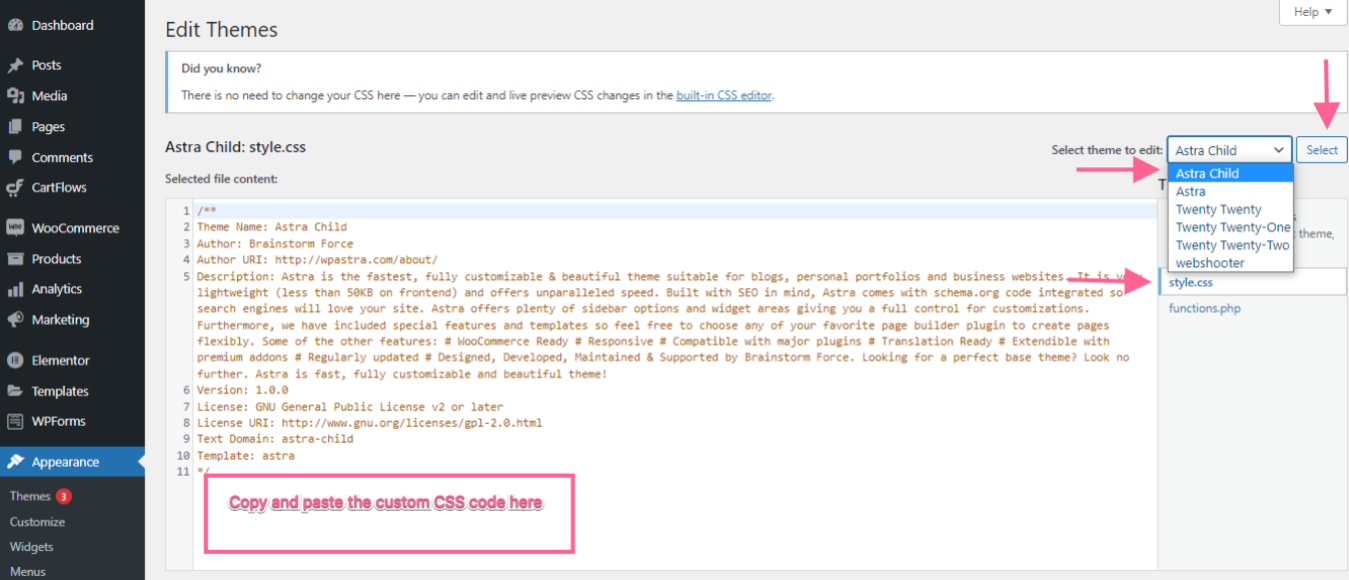
Credit: wpastra.com
Understanding Child Themes
A child theme is like a mini theme. It inherits styles and functions from a parent theme. You can make changes without altering the main theme. This keeps updates simple and safe.
To call the child theme CSS, enqueue it in the functions file. Use a simple code snippet. It looks like this:
function my_theme_enqueue_styles() {
    wp_enqueue_style('parent-style', get_template_directory_uri() . '/style.css');
    wp_enqueue_style('child-style', get_stylesheet_directory_uri() . '/style.css', array('parent-style'));
}
add_action('wp_enqueue_scripts', 'my_theme_enqueue_styles');
First, call the parent stylesheet. Then, add the child stylesheet. This lets both styles work together. Always test changes on a local server first. This avoids breaking your live site.

Credit: developer.wordpress.org
Benefits Of Using Child Themes
Child themes are easy to update. This keeps your site safe. They allow for customization without losing changes. Parents theme updates do not affect them. Developers love using child themes. They offer a safe testing environment. Mistakes are easy to fix. Beginners find them simple to work with. No need for advanced coding skills. Child themes offer flexibility. You can change styles easily. They help in keeping design intact. It’s useful for large sites. Helps in organizing code better. Allows for specific design changes. Sites look unique but remain secure.
Child themes boost performance. They keep the site fast. Reduce the risk of errors. They help keep the site organized. Make collaboration easy among developers. Teams find them handy. Saves time on projects.
Setting Up A Child Theme
First, create a new folder for your child theme. Use a simple name. This folder goes inside the wp-content/themes directory. The folder name should be easy to remember. This helps in finding it later.
Next, create a file named style.css in your folder. This file is very important. It controls the look of your child theme. Start with a basic header in this file. Here’s a sample:
        /
        Theme Name:   My Child Theme
        Template:     parent-theme-folder
        /
Replace “parent-theme-folder” with your parent theme’s folder name. This links your child theme to the parent theme. Now, your child theme is ready to use.
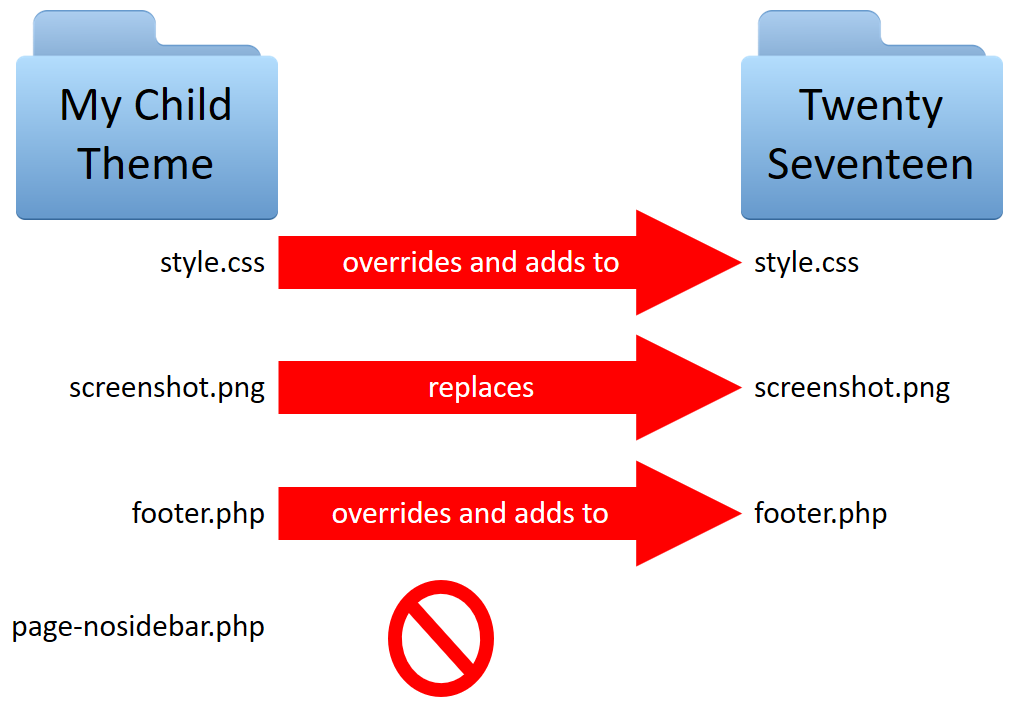
Credit: learn.wordpress.org
Linking Css In WordPress
Enqueuing stylesheets is an easy way to link CSS files. This method helps to keep the WordPress site running smoothly. It ensures styles are loaded properly.
Using Wp_enqueue_style
The wp_enqueue_style function is key. It loads the child theme CSS correctly. First, open your theme’s functions.php file. Add the code snippet to enqueue the style.
Use this code: wp_enqueue_style('child-style', get_stylesheet_uri());. This code tells WordPress to load the stylesheet. Always make sure the function is inside a proper hook.
For example, use the wp_enqueue_scripts hook. This is crucial to ensure the styles are added at the right time. Using hooks and functions keeps the site organized. It prevents errors and ensures smooth operation.
Customizing Child Theme Css
Child themes let you change styles without losing updates. Use a style.css file in your child theme folder. First, open the file. Write new CSS rules to override parent styles. Start with the body tag. Set different fonts or colors. Use inspect element in a browser. Find the parent class you want to change. Write your own CSS rules for it. Save changes and refresh your site. Check if the styles update.
Create unique styles for your child theme. Open the style.css file again. Add new CSS rules for custom elements. Make buttons look special. Change header sizes and colors. Add borders or shadows to boxes. Experiment with padding and margins. Use simple CSS selectors. Use class names and IDs wisely. Save your changes. Reload your WordPress site. Look at your new styles in action.
Troubleshooting Css Issues
Many make errors with child themes in WordPress. One common mistake is not using the correct path for the CSS file. This results in styles not showing. Another error involves forgetting to enqueue the child theme stylesheet. Without this, the child theme won’t work correctly. Using improper selectors in CSS files is also a problem. It causes styles to not apply as intended. Always ensure the child theme’s functions.php file is set correctly.
Debugging helps find and fix CSS issues. Start by checking the browser’s developer tools. These tools show if the CSS file is loading. If not, check the file path. Another technique is to clear the browser cache. Sometimes old cache holds onto outdated CSS. Also, use the inspect tool to see applied styles. This helps spot if styles are overridden. Always ensure your code is error-free before testing.
Frequently Asked Questions
What Is A Child Theme In WordPress?
A child theme is a sub-theme that inherits the functionality of another theme, the parent theme. It allows you to modify or add to the parent theme’s features without altering its core files. This ensures that your customizations are preserved when the parent theme is updated.
How Do I Enqueue A Child Theme’s Css?
To enqueue a child theme’s CSS, use the `wp_enqueue_style()` function in your child theme’s `functions. php` file. Ensure you specify the parent theme’s stylesheet as a dependency. This way, the child theme’s styles are loaded after the parent theme’s styles, allowing for overrides.
Why Use A Child Theme Instead Of Customizing?
Using a child theme prevents losing customizations during parent theme updates. It ensures your changes are separate and easy to manage. This method maintains the integrity of the original theme and simplifies the update process, as you only need to update the parent theme.
Can I Modify Parent Theme Css In A Child Theme?
Yes, you can modify the parent theme’s CSS in a child theme. By adding your custom styles in the child theme’s `style. css`, you can override the parent theme’s styles. This approach allows for easy customization while maintaining the parent theme’s original files intact.
Conclusion
Mastering child theme CSS in WordPress can simplify design tasks. It gives more control over website appearance. With this skill, you can easily update styles without affecting the parent theme. This keeps your WordPress site flexible and unique. Always remember to test changes in a safe environment first.
Practice makes perfect. Gradually, you’ll gain confidence in tweaking CSS files. Experimenting with child themes will enhance your WordPress expertise. Dive into CSS tweaks to elevate your site design. Keep learning and refining your skills for better results. Happy styling!


