
Ready to create your own WordPress website but not sure where to start? You’re in the right place.
Building a website with WordPress might seem tricky at first, but with the right steps, you can have a professional-looking site up and running faster than you think. Whether you want a blog, an online store, or a portfolio, this guide will walk you through everything you need to know.
You’ll learn how to set up your site, choose the perfect design, and make it work exactly the way you want. Stick with me, and by the end, you’ll have the confidence and tools to build your WordPress website like a pro. Let’s dive in!
Credit: wpmet.com
Choosing Hosting And Domain
Choosing the right hosting and domain is the first step in building a WordPress website. Hosting stores your website files and makes your site accessible online. The domain is your website’s address that visitors type in their browser.
Both must be reliable and easy to manage. A good hosting provider ensures your site loads fast and stays online. The domain should be simple, memorable, and related to your content or business.
Selecting Reliable Hosting Providers
Choose a hosting provider known for uptime and speed. Look for plans that support WordPress installations easily. Customer support is important to solve issues quickly. Hosting should offer security features like SSL certificates and backups. Shared hosting is affordable for beginners, while VPS or dedicated hosting fits larger sites. Check user reviews and technical specs before deciding.
Registering Your Domain Name
Select a domain name that reflects your brand or topic clearly. Keep it short and easy to spell. Use common extensions like .com, .net, or country-specific endings. Avoid numbers and hyphens to reduce confusion. Register your domain through trusted registrars for better support. Renew the domain on time to avoid losing it. Protect your privacy with domain privacy options if available.
Installing WordPress
Installing WordPress is the first step in creating your website. It sets up the platform where you will add content and design your pages. WordPress installation is simple and fast. You can choose between automatic and manual methods. Both methods prepare your site for customization and publishing.
One-click Installation Options
Many web hosts offer one-click WordPress installation. This tool installs WordPress with just a few clicks. You do not need technical skills or extra software. The process usually starts in your hosting control panel. Look for options like “WordPress Installer” or “Softaculous.”
One-click installation saves time and avoids errors. The installer creates the database and sets up files automatically. After installation, you receive login details for your WordPress dashboard. You can begin customizing your site immediately.
Manual Installation Steps
Manual installation gives more control over your WordPress setup. First, download the latest WordPress package from the official website. Upload the files to your web server using FTP or your hosting file manager.
Next, create a database via your hosting control panel. Note the database name, username, and password. Open your site URL in a browser to start the WordPress setup wizard. Enter the database details when prompted.
Finally, set your site title and admin account information. Click “Install WordPress” to finish. Manual installation takes more steps but helps understand your site’s structure.
Picking A Theme
Choosing the right theme is a key step in building a WordPress website. The theme controls the look and feel of your site. It affects user experience and site performance. A good theme fits your content and goals. It also works well on all devices and helps with search engine rankings.
Free Vs Premium Themes
Free themes are a great option for beginners. They cost nothing and offer basic features. Many free themes come with simple designs and limited customization. Premium themes require payment but provide advanced features. They often include better support and regular updates. Premium themes usually have more design options and built-in tools. Choose based on your budget and needs.
Responsive And Seo-friendly Designs
Responsive themes adjust to fit any screen size. This makes your site look good on phones, tablets, and desktops. Search engines prefer responsive sites, improving your SEO. SEO-friendly themes include clean code and fast loading times. They help search engines read your content easily. Picking a theme with these features boosts your site’s visibility and user experience.
Customizing Your Site
Customizing your WordPress site shapes its look and feel. It lets you match the site to your brand or style. A unique site stands out to visitors and keeps them engaged. WordPress offers easy tools to change colors, fonts, layouts, and more. This section covers key ways to customize your site effectively.
Using WordPress Customizer
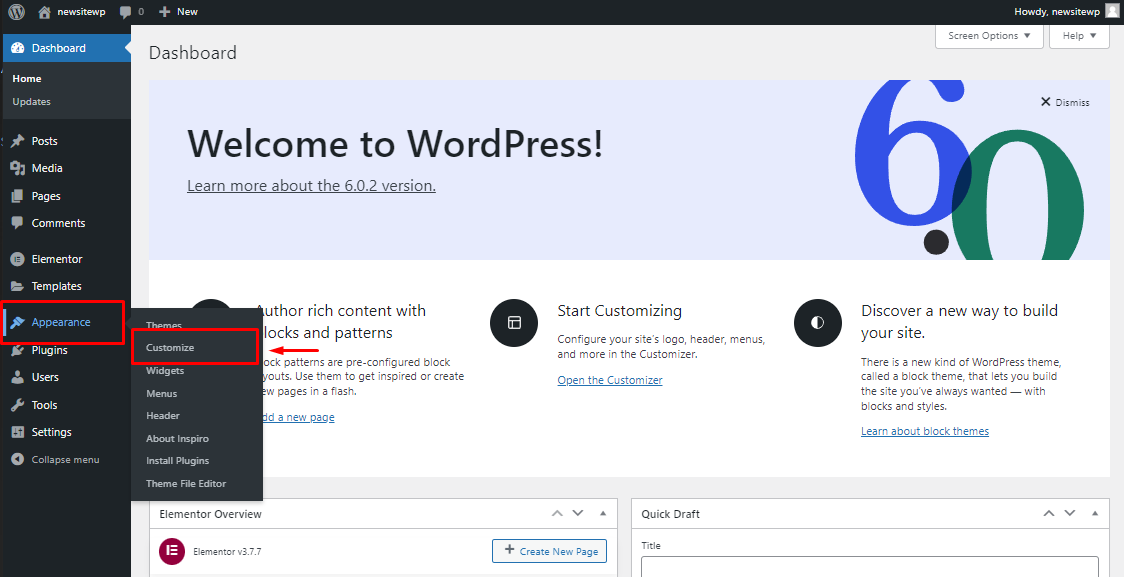
The WordPress Customizer is a simple tool for site changes. Access it from your dashboard under Appearance > Customize. It shows live previews of your edits. You can adjust site identity, colors, fonts, and background images here. Changes save instantly, so you see results fast. The Customizer also lets you add custom CSS for advanced tweaks. Use it to create a look that fits your content perfectly.
Adding Menus And Widgets
Menus organize your site’s pages for easy navigation. Create and edit menus under Appearance > Menus. You can add pages, posts, and custom links. Assign menus to locations like header or footer. Widgets add extra features to sidebars and footers. Find them under Appearance > Widgets. Popular widgets include search bars, recent posts, and social links. Drag and drop widgets to arrange them quickly. Menus and widgets improve user experience and site function.
Essential Plugins
Plugins enhance your WordPress website by adding key features. They improve security, boost SEO, and speed up performance. Choosing the right plugins helps your site run smoothly and safely. Below are essential plugin types every WordPress builder should consider.
Security Plugins
Security plugins protect your site from hacks and malware. They scan for threats and block suspicious activity. Many offer firewall protection and login security features. Regular updates keep your site safe from new risks. Popular options include Wordfence and Sucuri Security. Installing a security plugin reduces vulnerabilities and builds trust with visitors.
Seo And Performance Plugins
SEO plugins help your site rank higher in search engines. They optimize content, meta tags, and sitemaps automatically. Performance plugins improve site speed by caching and compressing files. Faster sites keep visitors engaged and lower bounce rates. Yoast SEO and Rank Math are top SEO tools. For speed, consider plugins like WP Rocket or W3 Total Cache. Combining SEO and performance plugins boosts visibility and user experience.
Creating Pages And Posts
Creating pages and posts is a key part of building a WordPress website. Pages hold static content like “About Us” or “Contact” information. Posts are for timely content such as blog articles and news updates. Both need clear structure and organization to keep your site user-friendly and easy to navigate.
Understanding how to create and manage these elements will help your website grow. The WordPress Block Editor offers simple tools for adding text, images, and other media. Using categories and tags will keep your content organized and improve visitor experience. Let’s explore these features.
Using The Block Editor
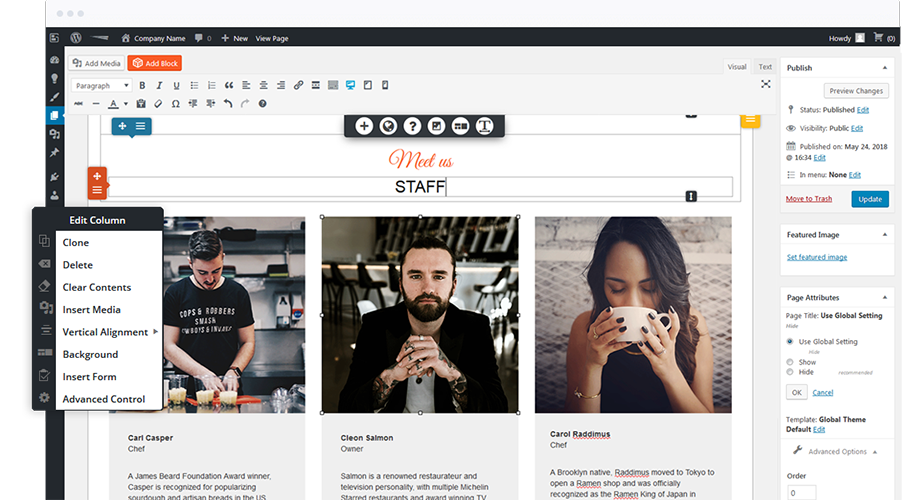
The Block Editor is WordPress’s default tool for creating pages and posts. It breaks content into blocks, each holding text, images, videos, or other media. This setup makes it easy to design pages without coding.
Start by adding a new post or page from your WordPress dashboard. Click the “+” button to add blocks. You can choose from paragraphs, headings, lists, images, and more. Rearrange blocks by dragging them up or down. Each block has its own settings for style and layout.
The editor saves changes automatically, so you won’t lose your work. Preview your page before publishing to check how it looks on desktop and mobile. This tool helps you build visually appealing content quickly and efficiently.
Organizing Content With Categories And Tags
Categories and tags help organize your posts. Categories are broad groups, like “News” or “Tutorials.” Tags are specific keywords related to the post, such as “WordPress tips” or “SEO.”
Assign categories to posts to group similar content. This makes it easier for visitors to find related articles. Use tags to describe details or topics covered in the post. Both improve site navigation and search engine optimization (SEO).
You can add categories and tags while creating or editing a post. Keep categories limited to main topics. Add relevant tags but avoid overusing them. Proper organization makes your website cleaner and more professional.
Optimizing For Seo
Optimizing your WordPress website for SEO improves its visibility on search engines. It helps attract more visitors by making your content easier to find. SEO involves simple steps that anyone can follow to boost site ranking. Focus on using the right keywords and tools to guide search engines.
Keyword Research Basics
Start by finding keywords your audience uses to search. Use free tools like Google Keyword Planner or Ubersuggest. Choose keywords with good search volume and low competition. Include these keywords naturally in your titles, headings, and content. Avoid stuffing keywords, which can harm your ranking.
Using Seo Plugins Effectively
Install SEO plugins like Yoast SEO or Rank Math. These plugins help you optimize titles, meta descriptions, and content easily. They provide real-time suggestions to improve readability and SEO. Use them to create XML sitemaps for better site indexing. Keep plugins updated to ensure best performance and security.
Credit: neilpatel.com
Enhancing Site Security
Keeping your WordPress website secure protects your content and visitors. Threats like hackers and malware target weak spots. Enhancing site security lowers these risks. Simple steps can make your site stronger and safer.
Updating Themes And Plugins
Themes and plugins add features to your website. Developers often release updates to fix security problems. Running old versions leaves your site open to attacks. Check for updates regularly in your WordPress dashboard. Install updates as soon as they appear. This keeps your site protected from known threats.
Setting Up Backups
Backups save a copy of your website data. They help restore your site after hacking or errors. Use backup plugins or your hosting service to schedule automatic backups. Store backups in a safe place outside your server. Test backups by restoring them occasionally. This ensures your data is secure and recoverable.
Using Chatgpt For Assistance
ChatGPT offers great help when building WordPress websites. It supports many tasks, making the process easier and faster. You can use it to generate code, create content, and get design advice. This tool is useful for beginners and experienced users alike.
Using ChatGPT reduces the time spent on technical and creative work. It provides simple explanations and examples. This helps you understand WordPress better and solve problems quickly. Below are key ways ChatGPT can assist you.
Generating Code Snippets
ChatGPT can write small pieces of code for your WordPress site. It creates PHP, JavaScript, and CSS snippets. These can add new features or customize your theme. You only need to copy and paste the code into your site.
It can also explain how the code works. This makes it easier to modify later. ChatGPT helps avoid common coding mistakes. It saves time compared to writing code from scratch.
Creating Content And Seo Text
ChatGPT generates clear, engaging content for your pages and posts. It writes text that fits your topic and style. You can ask for SEO-friendly titles, descriptions, and keywords. This helps improve your site’s ranking on search engines.
The tool suggests easy-to-read sentences and proper keywords. It supports blog posts, product descriptions, and FAQs. This boosts your site’s visibility and attracts more visitors.
Design Suggestions And Troubleshooting
ChatGPT offers ideas for improving your site’s look and user experience. It suggests color schemes, layouts, and menu structures. You can get advice on choosing the right plugins and themes.
If you face errors or problems, ChatGPT helps diagnose and fix them. It provides step-by-step solutions and clear instructions. This guidance helps you keep your WordPress site running smoothly.
Manual Integration And Review
Manual integration and review is a key step in building WordPress websites. This process ensures the website works smoothly and looks professional. It involves adding code snippets and checking content carefully. These tasks improve the website’s quality and user experience.
Manual work helps catch errors that automated tools might miss. It also allows you to customize the site exactly as needed. Taking time for review avoids problems later on, such as broken layouts or incorrect information.
Adding Ai-generated Code
AI tools can create useful code snippets for WordPress. These may include custom functions, styles, or scripts. Copy the AI-generated code carefully. Paste it into the correct theme or plugin files using a code editor.
Always back up your site before adding new code. Test the website after integration to confirm everything works. Avoid copying large blocks of code without understanding them. Small, clear additions reduce the risk of errors.
Editing Content For Quality And Accuracy
Content must be clear, correct, and easy to read. Review AI-generated text for grammar and spelling mistakes. Simplify complex sentences to improve understanding for all visitors.
Check facts and data for accuracy. Remove any repeated or irrelevant information. Well-edited content helps keep visitors engaged and improves search engine ranking.
Launching And Maintaining Your Site
Launching and maintaining your WordPress site is a crucial step. It ensures visitors have a smooth experience and keeps your content fresh. A well-maintained site ranks better on search engines and attracts more traffic. Focus on both testing before launch and ongoing upkeep after going live. This approach helps avoid errors and keeps your site secure and fast.
Testing And Going Live
Test your WordPress site thoroughly before launching. Check all links, buttons, and forms to ensure they work correctly. Preview your site on different devices and browsers. This helps fix layout or compatibility issues. Use tools to test page speed and improve loading times. Backup your site before going live to avoid data loss. After testing, connect your domain and set your site public. Monitor your site closely in the first days after launch for any problems.
Regular Updates And Monitoring
Keep WordPress core, themes, and plugins up to date. Updates fix bugs and security issues. Regular monitoring helps detect broken links, slow pages, or hacking attempts. Use security plugins to scan for malware and block threats. Schedule backups to protect your data from loss or corruption. Check your site’s performance and user feedback often. These steps keep your site safe, fast, and user-friendly over time.
Credit: www.boldgrid.com
Frequently Asked Questions
How Do I Build My Own WordPress Website?
Choose a domain and hosting, then install WordPress. Select a theme, customize it, and add plugins. Create pages and publish your content.
Why Are People Moving Away From WordPress?
People move away from WordPress due to security risks, frequent updates, plugin conflicts, and complex customization needs. Some seek simpler, more secure alternatives.
Can A Beginner Build A Website On WordPress?
Yes, beginners can build websites on WordPress easily. Its user-friendly, drag-and-drop interface requires no coding skills.
Can Chatgpt Build A WordPress Website?
ChatGPT cannot build a complete WordPress website alone. It assists by generating code, content, and design ideas. Users must manually install WordPress, integrate code, set up hosting, and customize the site. Always review AI-generated work for accuracy and security.
Conclusion
Building a WordPress website is easier than many think. Follow simple steps and choose the right tools. Focus on clear design and useful content for visitors. Keep your site updated for security and performance. Practice regularly to improve your skills over time.
Creating a website can be a rewarding experience. Start small, learn as you go, and enjoy the process. Your WordPress site can grow with your needs and goals.


