
Are you a WordPress enthusiast looking to take your theme development skills to the next level? Imagine having the power to customize your theme with ease, giving users a seamless and personalized experience.
Building a WordPress theme options panel can do just that! It allows you to create a user-friendly interface where you can add, modify, and manage settings without diving into code every time. Think about the time you’ll save and the control you’ll have over your site’s appearance and functionality.
This guide will walk you through the process step-by-step, ensuring you can implement this feature effortlessly. Get ready to unlock the potential of your WordPress theme and captivate your audience like never before. Let’s dive in and revolutionize how you interact with your website!
Getting Started
Begin with a safe place to work. Use your computer to create a space for your project. Install a local server like XAMPP or MAMP. This server helps you test your theme. Download and install WordPress on this server. This setup lets you work without going online.
Use a code editor to write your code. Code editors help you see and fix mistakes. Popular choices are Visual Studio Code and Sublime Text. These tools make coding easier. A browser is needed too. Test your theme in browsers like Chrome or Firefox.
You need some tools to begin. HTML, CSS, and PHP are important. They are the building blocks of WordPress themes. A theme framework like Bootstrap can help. It provides a base for your design. Theme Unit Test data is useful. It helps to check how your theme works with different content.
Familiarize yourself with WordPress Codex. It is a guide with useful tips. Debugging tools are helpful too. Tools like Query Monitor find errors in your code. These tools save time and make your theme better.

Credit: webdesignerdepot.com
Understanding Theme Options
The theme options panel lets users change how their site looks. Users can adjust colors, fonts, and layouts. This makes each site unique. Developers use theme options to give users control. It helps to meet different needs easily. Creating a good options panel boosts user satisfaction. It also reduces support requests. Users enjoy customizing without coding skills. Developers get more positive feedback. They can focus on adding new features. Efficient theme options improve website functionality. Everyone benefits from a well-designed options panel.
Theme options make sites look different. Users change settings without coding. This saves time. It makes sites personal and fun. Developers offer many choices for users. They get fewer questions from users. This means less work later. It boosts user happiness. Developers can improve their themes quickly. Sites become more flexible. Both users and developers enjoy better experiences. Easy changes make websites more dynamic. Users feel in control of their sites.
Creating A Custom Theme
A starter theme is your base. It helps you create a new theme. Some popular choices are _Underscores_ and _Sage_. These themes give you a clean slate. You can add your own design easily. Choose a theme that fits your needs. Always check its documentation. Make sure it is updated. This way, you avoid issues later on. A good starter theme saves time. It also makes coding simpler.
Your theme needs a structure. Start with a folder. This will hold all your files. Inside, create subfolders. Name them CSS, JavaScript, and Images. Add a functions.php file. This file is important. It helps your theme work. Add a style.css file too. This file styles your site. Make sure to keep things organized. A clean structure is easy to manage.
Incorporating WordPress Api
The WordPress Customizer API is a great tool. It helps you create custom theme options. Developers find it easy to use. It lets you add settings and controls. You can see changes live as you make them. This is called real-time preview. Users love it because they see changes right away. Simple and quick. You can customize colors, fonts, and more. The API supports many options. It makes themes more user-friendly. It saves time and effort. Everyone benefits from it.
The Settings API is very useful. It helps manage settings in WordPress themes. Developers use it to store and retrieve data. It is easy to understand. It keeps data safe and organized. You can use it for many things. Like adding new options or fields. It is flexible and reliable. The API works well with other tools. It makes themes more customizable. This helps users a lot. They get a better experience.
Designing The Options Panel
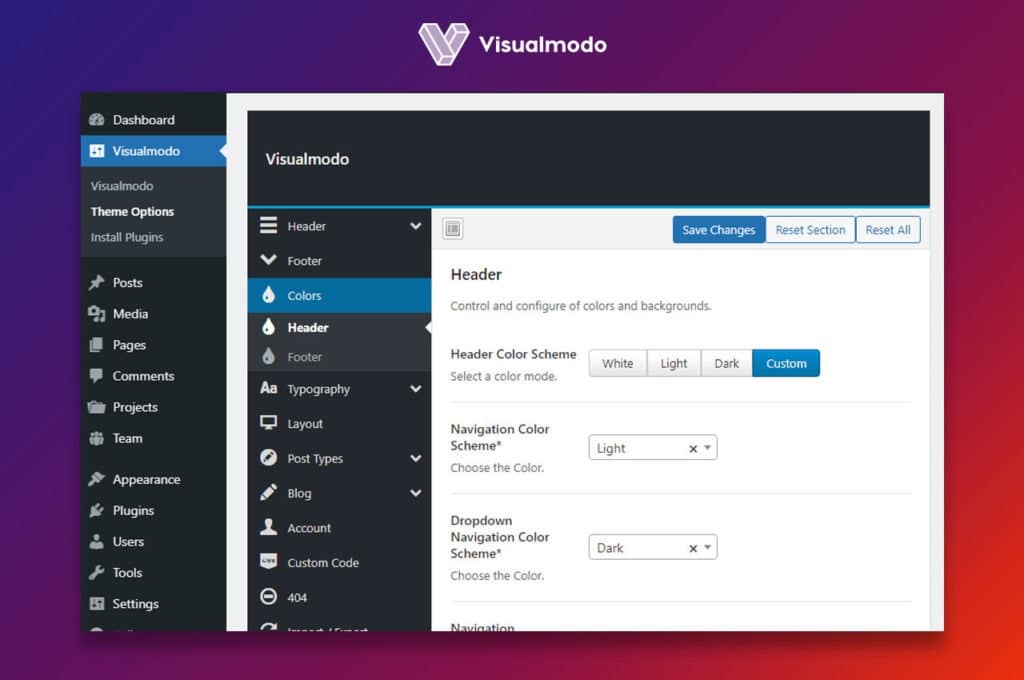
Creating a user-friendly interface is important. Users should find it easy to navigate. Use clear and simple labels. This helps users understand the options. A clean layout makes it easy to find settings. Provide tooltips for extra help. Use consistent colors and fonts. This keeps the design uniform. Make sure buttons are easy to click. This helps users make changes without trouble.
Adding essential features is necessary. Include options for colors and fonts. Allow users to change the logo. Provide settings for page layouts. Offer control over headers and footers. Include social media links. This helps users connect with audiences. Make it easy to save changes. Users appreciate quick updates. Use sliders for easy adjustments. This makes settings fun to change.
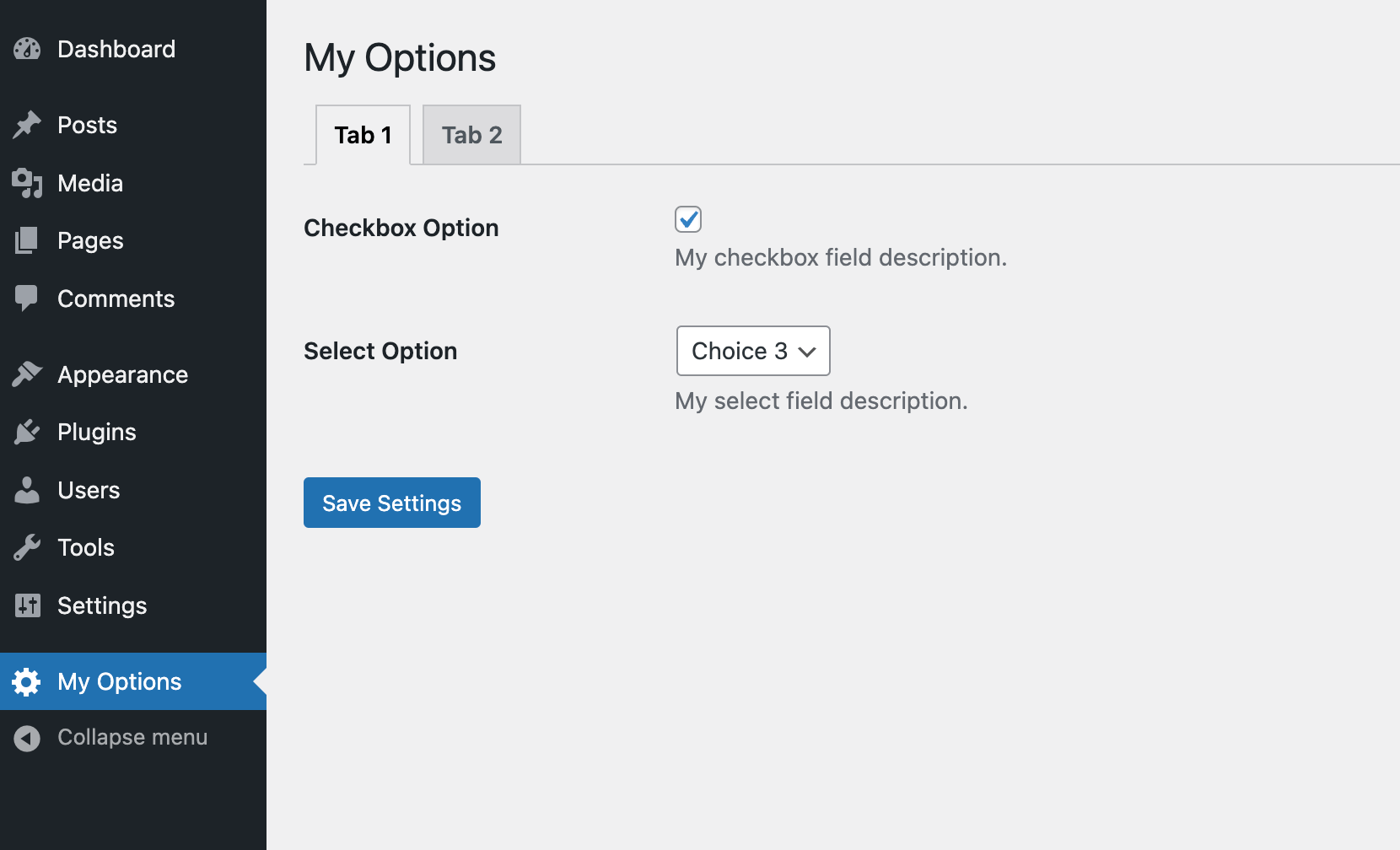
Credit: www.wpexplorer.com
Implementing Options
Creating a WordPress theme options panel enhances user experience by offering customizable settings. Start by understanding the WordPress Settings API. Then, build a structured framework with essential features.
Saving User Preferences
Creating a theme options panel can be fun. First, add a menu in the admin dashboard. This lets users find the panel easily. Use register_setting to save options. This function helps WordPress remember user choices. Ensure you define settings fields. These fields store user inputs. Validate inputs for security. This keeps your theme safe.
Retrieving Options In Theme Files
Retrieve options using get_option. This function fetches saved data. Use it in theme files. Display user preferences on your site. Fetch and display options like colors or fonts. This makes the site unique. Always check if the option exists. It avoids errors. If no option, set a default value. This ensures your theme works well.
Enhancing With Advanced Features
Adding Custom Widgets can make your theme unique. Users like special features. Start with the WordPress Widget API. This lets you create new widgets. These can show images, text, or links. Widgets improve user experience. They can be added easily. Place them in sidebars or footers. Make sure they are simple. Users should find them easy to use. Custom widgets keep visitors engaged.
Integrating Third-Party Libraries adds extra power. Libraries offer new tools. They can improve design and function. JavaScript libraries are popular. They add animations and effects. CSS libraries improve styling. Choose libraries that fit your theme. Ensure compatibility with WordPress. Check for updates regularly. This keeps your theme running smoothly. Libraries must not slow down your site. Fast sites rank better. Users stay longer on quick sites.
Testing And Debugging
Debugging helps find mistakes in your code. Common issues include broken links and missing styles. Check your theme for these errors. Use tools like WP_DEBUG to see warnings. Fixing errors makes your theme work better. It also helps users navigate smoothly.
Common Issues And Solutions
Compatibility issues can cause problems. Sometimes, plugins don’t work well with themes. Check your theme with popular plugins. Fix any clashes you find. Another issue is incorrect settings. Make sure all options are set right. Proper settings ensure smooth operation.
Ensuring Compatibility
Test your theme with different browsers. Each browser may show the theme differently. Check it on Chrome, Firefox, and Safari. Also, test your theme on mobile devices. People use phones a lot. Make sure your theme looks good on small screens.
Launching Your Theme
Make sure your theme is bug-free. Test it on different browsers. Check for any errors. Ensure the theme works on mobile devices. This is very important. Users will expect a smooth experience.
Write clear instructions for users. Tell them how to install the theme. Provide steps in an easy way. This helps them start quickly.
Package your theme files. Include a readme file with details. Explain the theme features. Keep it short and clear.
Visit the WordPress directory site. Create an account if needed. Follow their steps to submit your theme. Wait for approval. It may take some time. Be patient.
Credit: visualmodo.com
Maintaining And Updating
Crafting a WordPress theme options panel involves regular updates and maintenance. This ensures compatibility with new plugins and enhances user experience by keeping features relevant and efficient. Regular attention helps in resolving potential issues promptly.
Responding To User Feedback
Listening to user feedback is very important. Users can find issues you missed. Their suggestions can make your theme better. Always encourage users to share their thoughts. This can be done through comments or emails. Respond quickly to their feedback. This shows you care about your users. It builds trust and makes users happy.
Regular Updates And Improvements
Updating your theme keeps it fresh and safe. Regular updates fix bugs and add new features. Always test updates before releasing them. This ensures users have a smooth experience. Keep an update schedule. This helps users know when to expect new features. Regular improvements make your theme more popular and loved.
Frequently Asked Questions
What Are WordPress Theme Options Panels?
WordPress theme options panels are interfaces within a theme that allow users to customize features without coding. They offer settings for colors, fonts, layouts, and more, enhancing user experience and site personalization. Building a custom panel provides flexibility and can improve site functionality based on specific needs.
How Do I Start Building Theme Options?
Start by understanding your theme’s needs and the features you want to offer. Use WordPress functions like `add_theme_page()` to create a new menu in the admin area. Organize settings using arrays and functions, and ensure your code is clean and well-documented for easy maintenance.
What Tools Are Needed For Building Options Panels?
You’ll need a code editor and FTP client to access theme files. Familiarity with PHP and WordPress functions is essential. Tools like Advanced Custom Fields can simplify the process by providing pre-built options. Use WordPress Codex and developer forums for guidance and troubleshooting.
Can I Customize Existing Theme Options Panels?
Yes, you can customize existing panels by adding new settings or modifying current ones. Access the theme’s functions. php file to locate the panel’s code. Ensure changes are well-documented and back up files before editing. Use child themes to preserve customizations during updates.
Conclusion
Building a WordPress theme options panel enhances customization. Users can easily tweak settings. No coding skills are required. This makes theme management straightforward. Follow the steps to create a functional options panel. Test thoroughly to ensure smooth operation. A user-friendly interface boosts engagement.
Clean design attracts more users. Customize themes effortlessly with these tips. Start by planning what options are needed. Choose the right tools for development. Keep the interface simple yet effective. Enjoy the benefits of a personalized theme. Your WordPress site will stand out.


