
Are you struggling to create an effective “Contact Me” page on your WordPress theme? You’re not alone.
Many find themselves puzzled about how to make this essential page stand out. But don’t worry; with the right guidance, you can easily craft a page that not only looks great but also engages your visitors and encourages them to reach out.
Imagine this: a potential client lands on your website, intrigued by your content. They’re ready to connect, but your “Contact Me” page is confusing or uninviting. You might lose them forever. Building an optimized contact page is crucial. It’s your gateway to building relationships, gaining trust, and growing your network. We’ll walk you through simple, actionable steps to build a compelling “Contact Me” page on your WordPress theme. By the end, you’ll have a page that’s not just functional but also inviting and user-friendly. So, let’s dive in and transform your contact page into a powerful communication tool!
Choosing The Right Plugins
Finding the best plugin can be easy. Contact Form 7 is a top choice. It’s very popular. WPForms is another option. Many people love its user-friendly design. Ninja Forms offers great features. It works well with most themes. Each plugin is special. They all have unique features. Choose one that suits your needs.
Start by going to the WordPress dashboard. Click on Plugins. Then, click on Add New. In the search bar, type the plugin’s name. Click Install Now when you find it. Wait for it to install. Once done, click Activate. The plugin is ready to use. Check its settings. Make sure everything is set up right. Now, you can create your contact page.

Credit: wplook.com
Setting Up The Contact Form
Contact forms need fields. Name, Email, and Message fields are important. Users fill these to contact you. Add more fields if needed. Dropdowns and check boxes are fun. They make forms look better. Simple fields are best for kids. Make sure the form is easy to use. Test it well. Errors upset users.
The form should look nice. Use colors that match your site. Fonts are fun to change. Big letters are easy to read. Keep the form simple. Too much color is bad. Use borders to make fields neat. Buttons should stand out. Test the form look on phones. Small screens need special care.
Adding Contact Page To The Site
First, go to your WordPress dashboard. Click on “Pages”. Then, select “Add New”. You will see a blank page. Type a title for your page. Use something like “Contact Me”. Next, add any text you want. Include details like your email or phone number.
To add a contact form, you need a plugin. Install a plugin like Contact Form 7. Go to the plugin settings. Create a new form. Copy the shortcode. Now, go back to your new page. Paste the shortcode there. Save your changes. Now, your contact form is ready. People can now reach you easily.
Enhancing User Experience
Adding Captcha for Security is very important. It keeps your site safe. Bots can’t fill out forms. This protects your data. Use a simple Captcha plugin. There are many free options. Install and activate one. Add it to your contact form. Now, only real people can send messages. This step is easy and quick.
Ensuring Mobile Responsiveness is vital too. Many people use phones. Your page must look good on all devices. Use a responsive theme. Check your page on different screens. Make sure everything fits well. Text should be easy to read. Buttons should be easy to click. This improves user experience. Everyone can contact you easily.
Testing The Contact Page
Ensure the form sends messages. Fill out the form with test data. Check your inbox for an email. Use a different email to test replies. Make sure the email format is correct. If emails are missing, check the spam folder.
Problems can arise with forms. No emails received? Check the email settings. Make sure the email server works. Form not sending? Check the plugin settings. Ensure the form fields are correct. Review the spam settings. Sometimes emails go there. Double-check all settings.
Optimizing For Seo
Choosing the right keywords is very important. Use words people search often. Place them in your page title and meta description. They should be in your headings too. Keywords should also appear naturally in your content. This helps search engines find your page. It makes your page more visible.
A fast-loading page is crucial. Slow pages lose visitors. To enhance speed, use optimized images. They should be the right size. Avoid using too many plugins. Each one can slow down the page. Choose a reliable hosting service. They offer faster speeds. A faster page keeps visitors happy.
Maintaining Your Contact Page
Crafting a contact page on a WordPress theme involves selecting user-friendly plugins and customizing them to fit your design. Ensure the form fields are clear and concise, facilitating easy communication. Regularly updating the page keeps it functional and engaging for visitors.
Regular Updates And Backups
Regular updates keep your contact page fresh. Check for broken links often. Fix them quickly to avoid user frustration. Add new information when needed. Keep your contact details current. Updating plugins is important too. A backup protects against loss. Save your data frequently. Use tools to automate backups. This ensures you never lose valuable information.
Monitoring Spam And Inquiries
Spam can clutter your inbox. Use plugins to filter unwanted messages. Clean your inbox regularly. Check for genuine inquiries. Respond promptly to users. It builds trust and engagement. Keep an eye on repeated questions. Consider adding a FAQ section. It saves time for both parties. Ensure your contact form is simple. Users prefer straightforward communication.

Credit: www.youtube.com
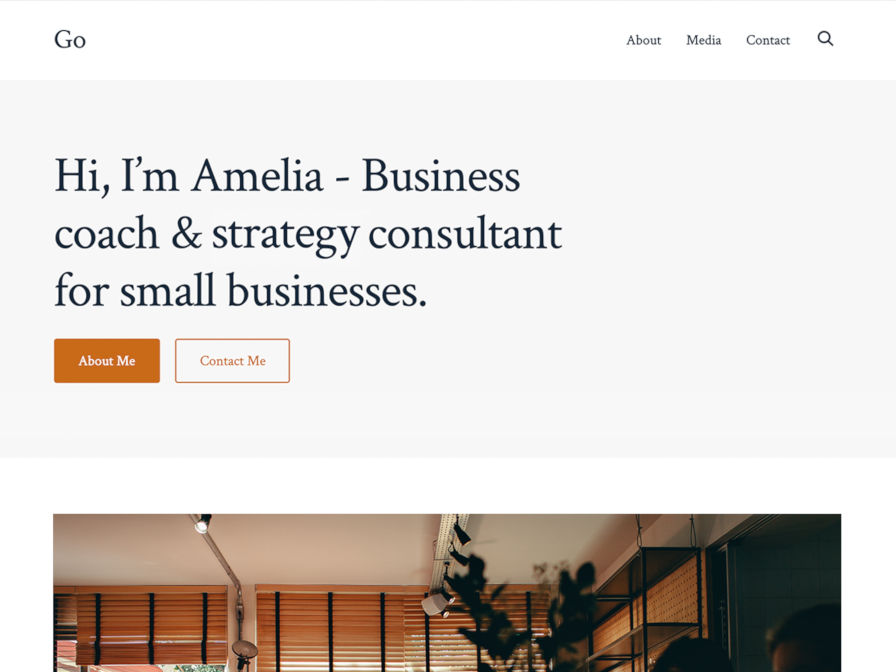
Credit: wptavern.com
Frequently Asked Questions
How Do I Create A Contact Me Page In WordPress?
To create a Contact Me page in WordPress, go to your dashboard and click on ‘Pages’. Select ‘Add New’ and title it ‘Contact Me’. Use a contact form plugin like WPForms or Contact Form 7 to add a form. Customize the form fields and publish your page.
Which Plugin Is Best For Contact Forms?
WPForms and Contact Form 7 are popular choices for WordPress contact forms. WPForms is user-friendly with a drag-and-drop builder, making it ideal for beginners. Contact Form 7 is more customizable and offers advanced features. Both plugins are widely used and well-supported.
Can I Customize The Contact Form Fields?
Yes, you can customize contact form fields using plugins like WPForms or Contact Form 7. These plugins allow you to add, remove, and rearrange fields to suit your needs. You can include fields for name, email, phone number, and message, ensuring the form meets your requirements.
Is A Contact Me Page Necessary For WordPress Sites?
A Contact Me page is essential for WordPress sites. It allows visitors to reach you easily, improving user experience and engagement. It enhances your site’s credibility and can help generate leads or inquiries. Ensure it’s easy to find and user-friendly for maximum effectiveness.
Conclusion
Creating a Contact Me page on WordPress is simple yet important. It connects visitors directly with you. Use clear instructions and easy-to-navigate design. Personalize the page with your contact details. Add a form for quick messages. Ensure your page is mobile-friendly.
Regular updates keep information accurate. This page builds trust with visitors. It shows you’re accessible and ready to help. A well-crafted Contact Me page boosts user experience. It encourages communication and engagement. Start building your page today. Let your visitors reach you effortlessly.


