
Are you ready to create a stunning WordPress theme using Bootstrap? Imagine having the power to customize your website exactly the way you envision it.
With the right guidance, you can transform your ideas into a functional, eye-catching theme that stands out from the crowd. Building a WordPress theme with Bootstrap isn’t just for seasoned developers. It’s an exciting opportunity for anyone with a passion for design and a desire to enhance their website’s performance.
By combining WordPress’s powerful content management system with Bootstrap’s responsive design framework, you gain a robust toolkit to create a website that is both beautiful and user-friendly. You’ll discover straightforward steps to craft your own theme, even if you’re new to coding. Learn the secrets behind seamless design integration and harness the potential of Bootstrap to make your site responsive and mobile-ready. Unleash your creativity and keep readers engaged with a theme that reflects your unique style. Dive in, and let’s turn your vision into reality!
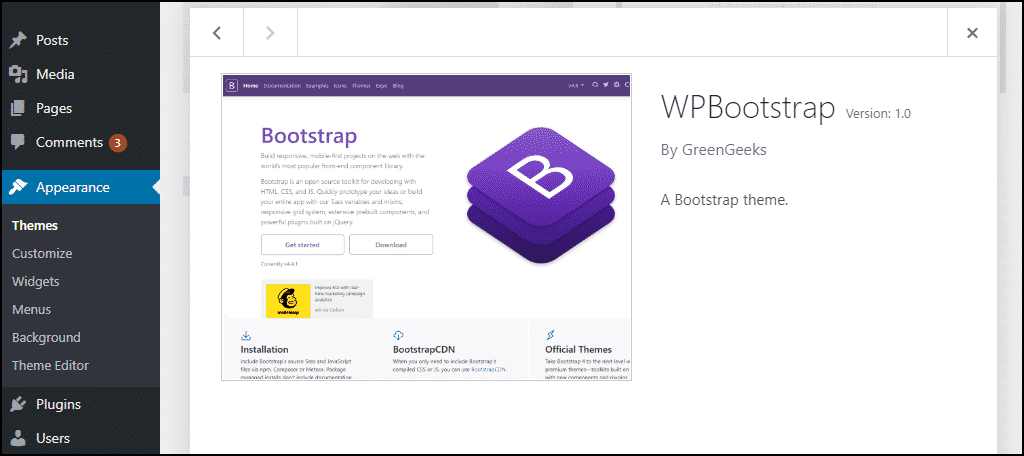
Credit: www.greengeeks.com
Getting Started
To begin, install XAMPP or MAMP for a local server. These tools help run WordPress on your computer. Then, download and install the latest version of WordPress from the official site. Place the WordPress files in the htdocs directory. Next, create a new database using phpMyAdmin. This database will store your website’s data. Finally, open the WordPress setup in your browser. Follow the instructions to connect to your new database.
WordPress is a popular tool for building websites. It is easy to use and very flexible. Bootstrap is a toolkit for designing websites. It helps make sites look good on any device. These two tools together create powerful websites. You will use Bootstrap’s CSS and JS files. They help style your WordPress theme. This way, your site looks modern and professional.
Installing WordPress Locally
Setting up WordPress locally aids in theme development using Bootstrap. Begin by installing WordPress on your computer. Customize themes with Bootstrap’s responsive design elements for a seamless user experience.
Choosing The Right Tools
Begin with selecting the best tools for WordPress. Choose a reliable local server software. MAMP, XAMPP, and WAMP are popular options. These tools help you run WordPress on your computer. Each has a unique interface and features. Pick one that feels right for you. Install it on your system. This sets the base for your WordPress theme.
Configuring A Local Server
Set up the server properly. Open the server software. Create a new database for WordPress. Name it clearly. This database stores all WordPress data. Next, locate the WordPress files. Place them in the server’s folder. Run the installation process. Follow the simple steps. Connect WordPress to the database. Your local server is now ready. You can start building your WordPress theme.
Creating A New Theme
Building a WordPress theme with Bootstrap involves combining HTML, CSS, and JavaScript. This approach creates a responsive, mobile-friendly design. Start by setting up a local development environment and organize your theme files. Use Bootstrap components to enhance layout and styling, ensuring a seamless user experience.
Understanding The WordPress Theme Structure
WordPress themes have a special structure. It includes a few important files. The main file is style.css. This file tells WordPress about the theme. Other important files are index.php and functions.php. Each file has its own role. They work together to show your site. Understanding these files is key to building a theme. You can add more files for extra features. But start with the basic ones first. This will help you learn better.
Setting Up The Theme Folder
First, create a new folder for your theme. Name it clearly. Put it in the wp-content/themes directory. Inside, create a file named style.css. This file needs special information at the top. Include your theme name, author, and version. Add an index.php file too. This file acts as your theme’s main page. Use Bootstrap to style your theme. Link Bootstrap files in the header. This makes design easy and nice looking.
Integrating Bootstrap
First, download the Bootstrap files. Go to the Bootstrap website. Save the files on your computer.
Next, upload these files to your WordPress theme folder. Find the wp-content/themes/your-theme-name path. Place Bootstrap files here.
Enqueuing Styles And Scripts
You need to tell WordPress about these files. Open the functions.php file in your theme folder. Add code to load the Bootstrap files. Use the wp_enqueue_style() for CSS files. Use wp_enqueue_script() for JavaScript files.
Make sure to use the right paths. Check for spelling errors. Now, your theme will load Bootstrap when visitors see your site. This makes your theme look nice and work well.
Building Theme Templates
Start by making a new file for the header. Name it header.php. Add the basic HTML structure in it. Use Bootstrap’s CSS classes. This helps in creating a clean look. For the footer, create another file. Call it footer.php. Add closing tags and any footer content here. Link these files in your main template files. This keeps the code organized and reusable.
Create a new file named index.php. This is your main page template. Add calls to the header and footer files. Use Bootstrap’s grid system for layout. This makes the page responsive. Add a main content area. Use WordPress loop to display posts. This structure helps in fetching and displaying content easily.
Customizing With Bootstrap
Bootstrap makes your theme look good. It has many components you can use. Buttons, cards, and forms are some examples. Buttons can be big or small. Choose what fits your design. Cards help you show information clearly. They are like little boxes. Forms let people enter data. Use them to get information from users. Add these to your theme easily. It saves time. Your theme will be consistent and neat.
Websites need to look good on all devices. This is called responsive design. Bootstrap helps with this. It uses a grid system. This system divides the page into parts. You can move parts around. Make them smaller or bigger. Change how they look on phones and computers. This keeps your site user-friendly. Users will like visiting your site. It will be easy to read on any screen.
Adding WordPress Functionality
Create a WordPress theme using Bootstrap to blend modern design with smooth functionality. Integrate Bootstrap’s responsive features for a seamless user experience on all devices. Enhance your site’s visual appeal and usability with this powerful combination.
Incorporating Widgets And Menus
Widgets add fun to WordPress themes. They make sites interactive. Menus help users navigate easily. Use WordPress functions to create them. register_sidebar() makes widget areas. wp_nav_menu() helps set up menus. Add them to your theme files. Make sure users can find them. Keep it simple for better user experience.
Implementing Custom Post Types
Custom post types allow unique content. They fit special needs. Use register_post_type() for this. Create a new type for your theme. Add labels and features. Set ‘public’ to true. This makes it visible. Add supports like title and editor. It helps with content creation. Custom post types make sites more flexible.
Testing And Debugging
Cross-Browser Testing is important for your WordPress theme. Each browser shows your theme differently. Test on Chrome, Firefox, Safari, and Edge. You might see different results. Adjust your code for each browser. This ensures your theme looks good everywhere.
Fixing Common Issues helps improve user experience. Some issues include layout problems and broken links. Check your theme’s design on different devices. Look for overlapping text or images. Fix these errors in your code. Use tools to catch errors early. Update your theme regularly to prevent bugs.
Preparing For Deployment
Building a WordPress theme with Bootstrap involves integrating sleek design and responsive elements. Start by setting up a local environment for testing. Customize the Bootstrap components to align with your theme’s vision.
Optimizing The Theme
Boosting your theme’s performance is crucial. Start by compressing images for faster loading. Use tools like Gzip to minify code. This helps in reducing file size. Make sure to remove unused scripts. This will improve speed. Testing the theme on different devices ensures responsiveness. Check for any bugs. Fix them promptly. Fast websites rank better.
Ensuring Security And Seo
Security is vital for any website. Install SSL certificates to encrypt data. Regularly update plugins. This prevents vulnerabilities. Use strong passwords for admin accounts. Choose themes with SEO-friendly code. Meta tags and alt text help in ranking. Focus on keyword research for better visibility. Structured data enhances search engine understanding. Keep your theme secure and optimized for search engines.
Credit: blog.teamtreehouse.com
Credit: bootstrapwp.com
Frequently Asked Questions
What Is Bootstrap In WordPress Theme Development?
Bootstrap is a popular front-end framework that simplifies web design with pre-built components. In WordPress theme development, it provides responsive grids and styling, making themes mobile-friendly and visually appealing. Its integration speeds up development and ensures consistency across different devices.
How Do I Start Creating A WordPress Theme?
Begin by setting up a local WordPress environment using tools like XAMPP. Create a new theme folder in the ‘wp-content/themes’ directory. Start with a basic ‘style. css’ and ‘index. php’ file. Use Bootstrap for styling, and leverage WordPress functions for dynamic content.
Can I Use Bootstrap With Other WordPress Plugins?
Yes, Bootstrap is compatible with most WordPress plugins. Its CSS and JavaScript files can coexist with plugin styles. Ensure proper enqueuing of Bootstrap assets to avoid conflicts. This allows for seamless integration, enhancing the functionality and appearance of your WordPress site.
Why Choose Bootstrap For WordPress Themes?
Bootstrap offers a responsive grid system, extensive components, and cross-browser compatibility. It simplifies design and development, ensuring your WordPress theme looks great on all devices. Its popularity means ample resources and community support, making it a reliable choice for developers.
Conclusion
Building a WordPress theme with Bootstrap is rewarding. You create responsive, modern designs. Start with a clear plan and structured layout. Use Bootstrap’s grid system for flexibility. Customize with CSS for a unique look. Test across devices to ensure compatibility.
Remember, practice enhances your skills. Patience is key. Troubleshooting helps you learn more. Enjoy the creative process. You can bring your vision to life. Bootstrap makes it easier. Keep experimenting and refining your techniques. Your WordPress theme can shine with Bootstrap’s power.
Happy coding and designing!


