
Have you ever wanted to customize your WordPress site without the fear of losing your changes when updates roll around? Building a WordPress child theme is your golden ticket.
It not only gives you the freedom to tweak and tailor your site to your heart’s content, but it also ensures that your hard work won’t vanish with the next theme update. Imagine the thrill of having a site that truly reflects your vision, all while keeping the original theme intact and secure.
This guide will walk you through the straightforward process of creating a WordPress child theme, empowering you to take control of your site’s design and functionality without the technical headaches. Dive in to discover how easy it is to start customizing your website today!
What Is A WordPress Child Theme?
A WordPress child theme is like a copy of a main theme. It allows you to make changes without changing the main theme. This is important because the main theme may get updates. Updates can overwrite your changes.
Child themes use the same design and features as the main theme. But you can add or change things as you like. This is very useful for people who want a customized website. It keeps the main theme safe and sound. Your changes will stay even when the main theme updates.
Building a child theme involves creating a new folder. Then you add a few special files inside. These files tell WordPress to use the child theme. It’s simple, yet very effective.
Benefits Of Using A Child Theme
Child themes protect your original theme. Changes made to a child theme don’t affect the main theme. This way, updates to the main theme won’t erase your work.
Creating a child theme is simple. You don’t need to be a coding expert. Basic knowledge is enough. This makes it easy for beginners to customize their site.
Child themes allow customization without risk. You can test new designs safely. If something goes wrong, the main theme remains safe.
Effortless updates are a key advantage. The parent theme can update without losing your changes. This keeps your site secure with the latest features.
Using child themes helps in learning. You can explore and understand coding. This is a great way to improve your skills.
Choosing A Parent Theme
Pick a theme you like. Make sure it fits your needs. Parent themes have many styles and features. Some themes are simple. Others are complex. Choose wisely. Check theme reviews online. See what others say. Good reviews mean the theme is liked. Look for updates. Updated themes work better. They fix bugs. Themes that are not updated can break. Think about support. Some themes offer help. Support can be useful. You can ask questions. Consider customization. Some themes allow changes. You can make them your own. Customization adds a personal touch.
Free themes are good for beginners. You can try them first. Paid themes offer more features. They can be worth the cost. Decide based on your skill. If you are new, choose something simple. If you are skilled, try complex ones. Test the theme before using it. See how it works. Make sure it fits your style. This is the first step in building a child theme.

Credit: m.youtube.com
Setting Up Your Development Environment
First, download and install a code editor like VS Code or Sublime Text. These tools help you write and edit your theme files easily. Next, get FileZilla for transferring files to your web host. This is called FTP software. You will also need a browser to test your site. Most people use Chrome or Firefox.
Create a folder on your computer. Name it child theme. Open your code editor and load this folder. This is your workspace. Now, make two files inside: style.css and functions.php. These files are important for your theme. Style.css controls how things look. Functions.php helps add features.
Creating The Child Theme Directory
Start by opening the WordPress themes folder. Inside, create a new folder. Name it as your child theme. This folder is where all the child theme files will go. It’s important to keep the name simple and clear. Use lowercase letters and avoid spaces.
Next, add a style.css file in the new folder. This file will hold the theme’s style rules. It tells WordPress this is a child theme. A functions.php file is also needed. This file helps you add features to your theme.
Remember, the child theme directory should be neat. Everything must be organized well. This makes it easy to manage later. Keeping files structured helps avoid confusion.
Adding The Style.css File
Every WordPress child theme needs a style.css file. It holds important details. First, add the theme’s name. Next, provide the template for the parent theme. This is important. The version number comes next. This helps with updates.
Add your author name and description. These details help users understand the theme. Remember to save the file.
To use the parent theme’s styles, add a line in the style.css file. Use the @import rule. Place it at the top of the file. Type @import url("../parent-theme/style.css");. This pulls styles from the parent theme. Now, your child theme has the same styles.
Adding The Functions.php File
Integrating the functions. php file is crucial in crafting a WordPress child theme. This file enables you to modify theme features without altering the original parent theme. By adding custom functions, you can personalize your website’s functionality while maintaining updates safely.
Purpose Of Functions.php
The functions.php file is important. It adds features to your theme. It works like a plugin. This file allows you to change or add functions. You can create your own shortcodes. You can also modify existing WordPress functions. It is a powerful tool for developers. But always remember, changes here affect the whole site.
Enqueuing Parent And Child Styles
To keep styles in sync, enqueue them. First, load the parent theme styles. Then add the child theme styles. Use the function wp_enqueue_style() to do this. This ensures styles are not lost. Always enqueue styles in the correct order. It keeps your site looking nice.
Customizing The Child Theme
Change the look of your site with CSS. Open the child theme’s style.css file. Add your custom styles here. It’s easy! Want a different font? Write a rule for it. Change colors? Add another rule. This won’t hurt the parent theme. Your changes stay safe in the child theme. Experiment with different styles. Have fun making your site unique!
Need to change a parent theme file? Copy it to the child theme. Make edits here. The child theme file takes over the parent one. This is called overriding. Change a header or footer easily. Customize the look. Keep your changes safe and separate. This way, updates won’t erase your work. Always test after changes. Ensure everything works well.
Testing Your Child Theme
Test your child theme to find errors. Use debugging tools to help. These tools show where problems are. Check your browser console for error messages. These messages tell you what is wrong. Look for broken links and missing images. Fixing errors is important. It makes your theme work well.
Ensure your theme works with other plugins. Check if everything looks fine on different devices. Your theme must fit on mobile phones and tablets. Test the theme with popular browsers. Make sure it looks good on each browser. If your theme is compatible, users will have a great experience.
Activating The Child Theme
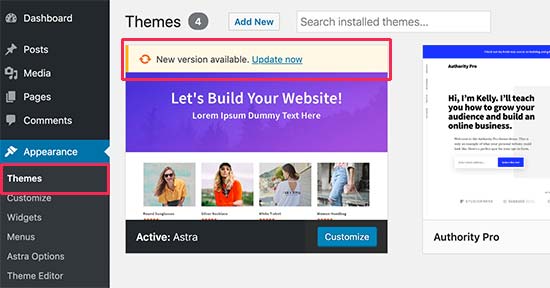
First, go to your WordPress dashboard. Click on Appearance. Then, choose Themes. You will see a list of themes. Find your Child Theme. Click Activate to start using it. Your site now uses the child theme. The design stays the same. You can now edit safely. Parent theme changes won’t affect your work.
After activation, check your site. Visit the homepage. Look for any changes. If you see errors, check your files. Make sure the style.css and functions.php are correct. These files help the child theme work. Fix any mistakes. If everything looks fine, your child theme works well. Enjoy editing and customizing now.
Common Issues And Troubleshooting
Style conflicts can make your website look messy. To fix them, check your CSS files. Ensure the child theme’s CSS loads after the parent theme. Use inspect tool in the browser. This helps find which styles are causing issues. You can then override them in the child theme. Sometimes, adding !important helps force styles.
Template overrides can break your site. First, make sure you copied the right files. They should be in your child theme’s folder. Check if the file paths match the parent theme. Use the WordPress template hierarchy as a guide. If changes don’t show, try clearing the cache. This can help see your edits.
Credit: kubiobuilder.com
Best Practices For Child Themes
Crafting a WordPress child theme involves creating a new directory in the themes folder. Add a style. css file with a template header and import the parent theme’s stylesheet. Customize the functions. php file to enqueue the parent and child styles.
Maintaining Clean Code
Clean code is important for a child theme. Keep your code organized and easy to read. Use clear names for your files and functions. Avoid adding too many custom functions. This keeps your theme simple. Use comments to explain complex code. This helps others understand your work. Clean code makes it easier to fix problems later.
Ensuring Future Compatibility
Themes change over time. It’s good to ensure your child theme stays compatible. Always use the latest WordPress functions. Follow WordPress guidelines when coding. Check your theme regularly. Update your theme with new changes. This keeps it working well with the parent theme.
Credit: www.wpbeginner.com
Frequently Asked Questions
What Is A WordPress Child Theme?
A WordPress child theme is a sub-theme that inherits styles and functionalities from a parent theme. It allows users to modify existing themes without losing customizations during updates. Using a child theme is crucial for maintaining changes and ensuring compatibility with future theme updates.
Why Use A Child Theme In WordPress?
Using a child theme helps preserve custom changes during theme updates. It allows for safe customization of styles and functionalities. Child themes also facilitate easier management of modifications and improve development workflow, ensuring your main theme remains untouched and secure.
How Do I Create A Child Theme?
To create a child theme, first make a new folder in your themes directory. Inside, create a style. css file with necessary headers and import the parent theme’s stylesheet. Then, create a functions. php file to enqueue styles and scripts.
Finally, activate the child theme via WordPress.
Can Child Themes Affect Website Performance?
Child themes generally don’t affect website performance. They inherit functionalities from the parent theme. However, poorly coded customizations in the child theme can cause issues. Ensure you follow best practices when adding features to avoid performance bottlenecks.
Conclusion
Building a WordPress child theme is simpler than it seems. Start by creating a new folder in your themes directory. Add a style. css file with basic information. Then, create a functions. php file to enqueue the parent theme’s stylesheet.
Customize safely without losing changes during updates. Experiment with styles and functions. This method ensures a stable and personalized website. Keep practicing, and soon it will become second nature. Remember, patience and practice are key. Enjoy the creative process and watch your site evolve.
Happy theming!


