
Imagine having a sleek, efficient website that captures your audience’s attention without overwhelming them. A one-page WordPress theme could be the solution you need.
Whether you’re a budding entrepreneur, a creative professional, or simply someone who wants a streamlined online presence, learning how to build a one-page WordPress theme can transform your website experience. Think of it as crafting your digital business card, where every detail matters and every scroll has a purpose.
In this guide, you’ll discover step-by-step how to create a one-page theme that’s not only visually appealing but also highly functional. Dive in, and equip yourself with the skills to make your website stand out in a world where first impressions are everything.
Choosing The Right Tools
Picking a good text editor is crucial. Sublime Text and Atom are popular. They are user-friendly and fast. These editors help you write clean code. Many developers prefer Visual Studio Code. It has lots of useful features. A good editor makes coding easy and fun.
WordPress themes have a specific structure. index.php is the main file. style.css is for design and layout. The functions.php file adds features. Each file has a unique role. Knowing this helps create a theme. It’s like building a house with different rooms.
Plugins add extra features to your theme. Elementor is great for design. Yoast SEO helps with search engine ranking. Developers use Advanced Custom Fields for custom data. Resources like WordPress Codex provide guidance. These tools make theme building easier.
Setting Up Your Development Environment
Start by setting up a local server. Use tools like XAMPP or WAMP. They help run websites on your computer. Install one and follow the steps. Make sure the server is running. Check by opening a browser. Type localhost in the address bar. You should see a welcome page.
Download WordPress from its official site. Unzip the file. Move it to the htdocs folder in XAMPP. Rename the folder if you like. Open your browser again. Type localhost/your-folder-name. Follow the steps to install WordPress. Set up a database when asked. Use PHPMyAdmin for this. Create a new database. Note its name for later.
Child themes let you make changes without losing them. Create a new folder in the wp-content/themes directory. Name it like your-theme-child. Add a style.css file inside. This file needs special text at the top. Include your theme’s name and version. Activate the child theme in WordPress. Go to the dashboard. Find Appearance, then Themes. Select and activate your child theme.
Designing The Layout
Wireframing helps plan your one page design. It is like drawing your idea. Use simple lines and boxes. It shows where each part will go. This is your first step before starting to build.
Choosing Color Schemes and Fonts makes your page look nice. Pick colors that match. Use no more than three colors. This keeps it simple. Fonts should be easy to read. Not too fancy. Your page should look clean and clear.
Incorporating Responsive Design is important. It makes sure your theme works on phones. Also on tablets and computers. Everything should fit the screen well. No need to zoom or scroll too much. Your page needs to be easy to use.
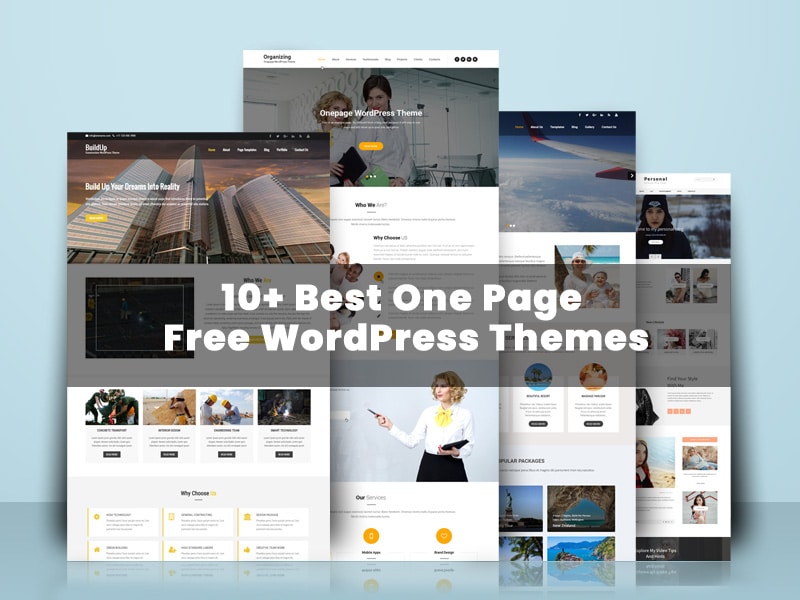
Credit: gracethemes.com
Developing The Theme
A custom header makes your site unique. Start with a simple HTML structure. Add a logo and navigation links. Use CSS for styling. Make the header responsive. This ensures it looks good on all devices. The footer is equally important. Add contact info and social media links. Style it with CSS too. Keep both elements simple and clean. This enhances the user experience.
Divide the page into sections. Use HTML for structure. CSS will add style. Each section should have a purpose. Examples are “About,” “Services,” and “Contact.” Use consistent styling. This creates a uniform look. Use padding and margin to space elements. Keep sections organized. This helps users find information quickly.
JavaScript makes the page interactive. Add a slideshow or menu toggle. This keeps users engaged. Write small scripts for animations. Keep JavaScript code clean. Ensure it doesn’t slow down the site. Use event listeners for user actions. Make sure all scripts are compatible with all browsers. Test thoroughly to ensure smooth functionality.
Customizing WordPress Settings
Permalinks help make your site links look neat. Choose a simple structure for easy reading. Menus help visitors find pages quickly. Add pages to the menu from the dashboard. Use drag and drop to arrange the order. Keep menus short and clear.
Widgets add features to your site. Find them under the Appearance menu. Drag widgets to sidebars. Sidebars show widgets on the site. Place important widgets like search and recent posts in sidebars. Make sure they are easy to see.
Theme options let you change colors and fonts. Use the customizer tool for this. Pick colors that match your brand. Choose fonts that are easy to read. Check how changes look on different devices. Make sure everything is clear and nice.

Credit: colorlib.com
Testing And Debugging
Browsers sometimes show websites differently. Test your theme on Chrome, Firefox, Safari, and Edge. Make sure every feature looks the same. Use online tools for this. They help you spot any differences. Fix these to keep users happy.
Many people browse on phones. Check your theme on small screens. It should look good on phones and tablets. Use tools like Google’s Mobile-Friendly Test. This ensures your theme is responsive. A responsive theme keeps users engaged.
Errors are common in WordPress. Debugging helps find these errors. Turn on WordPress debug mode. Look for error logs. Fix issues like broken links or missing images. Ensure plugins work well. This keeps your theme smooth and fast.
Launching Your Theme
Creating a one-page WordPress theme enhances user experience and simplifies navigation. Focus on a clean design and efficient coding. Tailor each section to meet your needs while ensuring fast loading times and mobile responsiveness.
Preparing For Deployment
First, make sure everything works. Check all links and pages. Fix any errors. This ensures a smooth launch. Also, back up your files. This protects against data loss. Use a simple backup plugin for this. Next, choose a reliable hosting provider. This ensures your site loads fast. A slow site can lose visitors. Finally, test your theme on mobile devices. Many users browse on phones. Your theme should look good on all screens.
Optimizing For Performance
Speed is important. Reduce image sizes to improve speed. Use tools like TinyPNG. This helps your theme load faster. Enable caching to save time. Caching stores data for quick access. Use a plugin like W3 Total Cache. Also, minimize CSS and JavaScript files. This removes extra spaces and lines. Faster sites keep users happy. They also rank better in search engines.
Submitting To WordPress Theme Directory
First, read the guidelines. WordPress has strict rules. Follow them closely. Next, check your code for errors. Use tools like Theme Check. This ensures your theme meets standards. Prepare a detailed description. Explain your theme clearly. Include features and benefits. Finally, submit your theme. Use the WordPress Theme Directory. Wait for approval. It might take some time. Patience is key.

Credit: beautifulthemes.com
Frequently Asked Questions
What Is A One-page WordPress Theme?
A one-page WordPress theme is a design template that displays all content on a single page. It offers seamless navigation and an engaging user experience by using sections or dividers. This theme is ideal for portfolios, small businesses, or landing pages, focusing on simplicity and efficiency.
How To Customize A One-page Theme?
Customizing a one-page theme involves using WordPress’s built-in customization tools. You can adjust the layout, colors, fonts, and sections. Plugins and widgets enhance functionality, adding features like contact forms or galleries. Regular updates ensure compatibility and improved performance.
Are One-page Themes Seo-friendly?
Yes, one-page themes can be SEO-friendly with proper optimization. Use keyword-rich headings, meta tags, and alt text for images. Fast loading times, responsive design, and clean code enhance user experience and search rankings. Regularly update content for relevance and engagement.
Can I Use Plugins With One-page Themes?
Absolutely, plugins can be used with one-page themes to add functionality. Popular plugins enhance features like SEO optimization, contact forms, social media integration, and analytics. Ensure plugins are compatible with your theme to maintain performance and security.
Conclusion
Building a one-page WordPress theme offers simplicity and efficiency. It keeps your website streamlined and user-friendly. You can easily showcase all important information without overwhelming visitors. This approach is great for portfolios, small businesses, or personal sites. Remember to focus on key elements like clean design, responsive layout, and fast loading speed.
These factors enhance user experience and improve site performance. Experiment with different styles and features until you find what suits your needs best. Start crafting your one-page theme today and enjoy a hassle-free web presence!


