
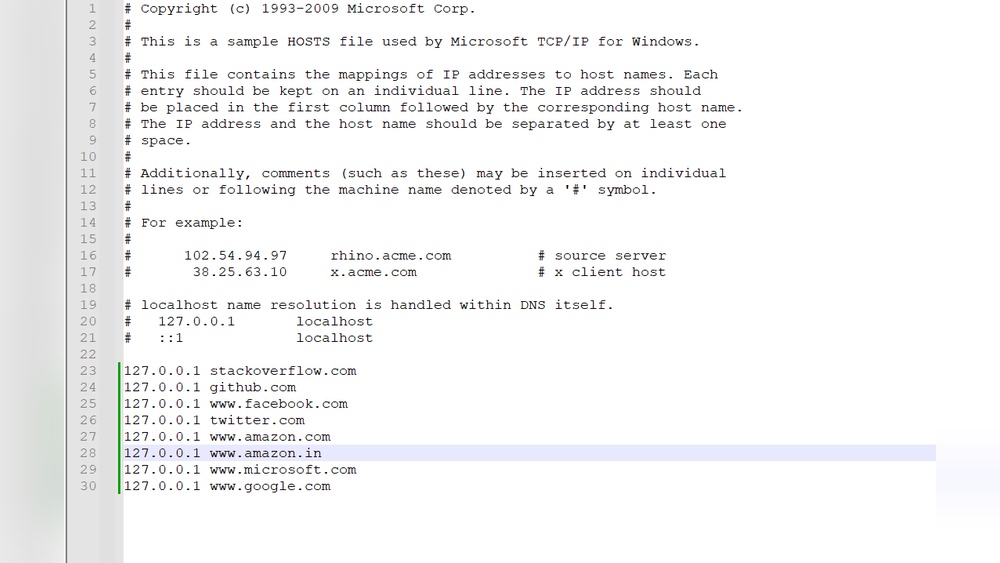
Have you ever wanted to stop certain websites from loading on your computer? Whether it’s to block distracting sites, protect your kids, or enhance your focus, there’s a simple way to do this without installing extra software.
By editing your hosts file, you can take full control over which domains your computer can access. You’ll learn exactly how to block a domain using the hosts file—step by step, clearly and easily. Keep reading, and you’ll have the power to manage your online experience like a pro.
Hosts File Basics
The hosts file is a simple tool on your computer. It helps control how your device connects to websites. Understanding this file makes blocking domains easier. It works quietly in the background. No extra software is needed to use it.
This section explains the basic ideas of the hosts file. Learn what it is and how it controls domain access. These facts help you use the hosts file to block unwanted sites.
What Is The Hosts File
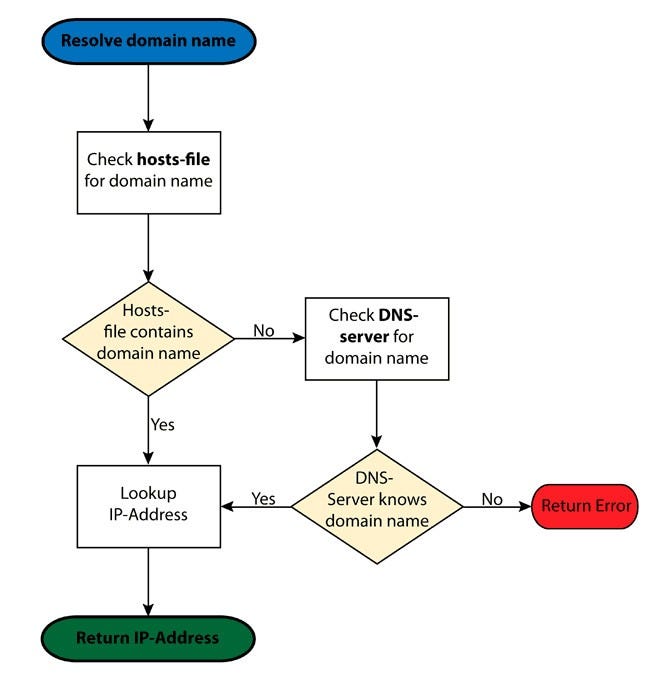
The hosts file is a text file on your computer. It matches website names to IP addresses. When you type a website name, the computer checks this file first. If it finds the name, it uses the IP address listed there. This process skips the internet’s usual address lookup.
The file is small and easy to edit. It works on Windows, Mac, and Linux systems. Changes in this file affect only your device. Other devices still use the internet normally.
How Hosts File Controls Domains
The hosts file controls domains by linking names to IPs. You can set a domain to point to a wrong address. This stops the site from loading on your computer. For example, pointing a domain to 127.0.0.1 blocks it. This IP is your own device, so the site cannot be reached.
Using the hosts file helps block ads, trackers, and harmful sites. It acts before your browser tries to connect to the internet. This makes it a fast way to control domain access. No need for extra apps or browser extensions.
Credit: medium.com
Locating The Hosts File
The hosts file is a small text file used by your computer to map domain names to IP addresses. It helps control how your device accesses websites. To block a domain using this file, you first need to find its location on your system. The hosts file is stored in different places depending on your operating system.
Knowing where to find this file is the first step in blocking unwanted domains. Below are the common locations for Windows, MacOS, and Linux systems.
Windows Location
On Windows, the hosts file is located in the System32 folder. The full path is:
You need administrator rights to edit this file.
Macos Location
For MacOS, the hosts file is inside the private directory. You can find it here:
Use the Terminal app to access and modify this file.
Linux Location
Linux systems store the hosts file in the etc directory. The path is:
Edit this file using a text editor with root permissions.
Editing The Hosts File
Editing the hosts file is a straightforward method to block unwanted domains. This file acts like a phone book for your computer, linking domain names to IP addresses. By changing this file, you can stop your computer from connecting to specific websites. The process differs slightly depending on your operating system. The following sections explain how to edit the hosts file on Windows, MacOS, and Linux.
Using Notepad On Windows
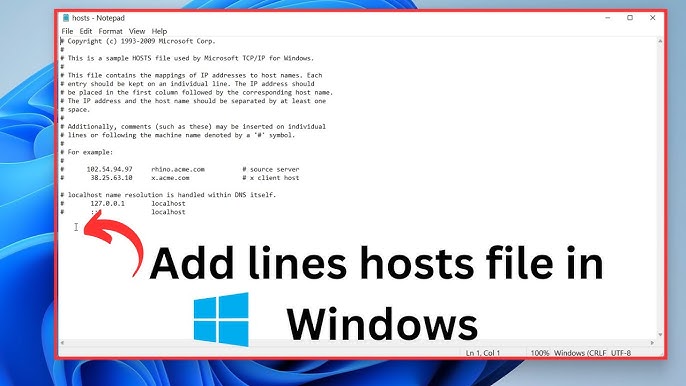
First, open Notepad with administrator rights. To do this, search for Notepad, right-click it, and select “Run as administrator.” This step is essential to save changes later.
Next, open the hosts file located at C:\Windows\System32\drivers\etc\hosts. Use the Notepad “Open” menu and navigate to this folder. You may need to select “All Files” to see the hosts file.
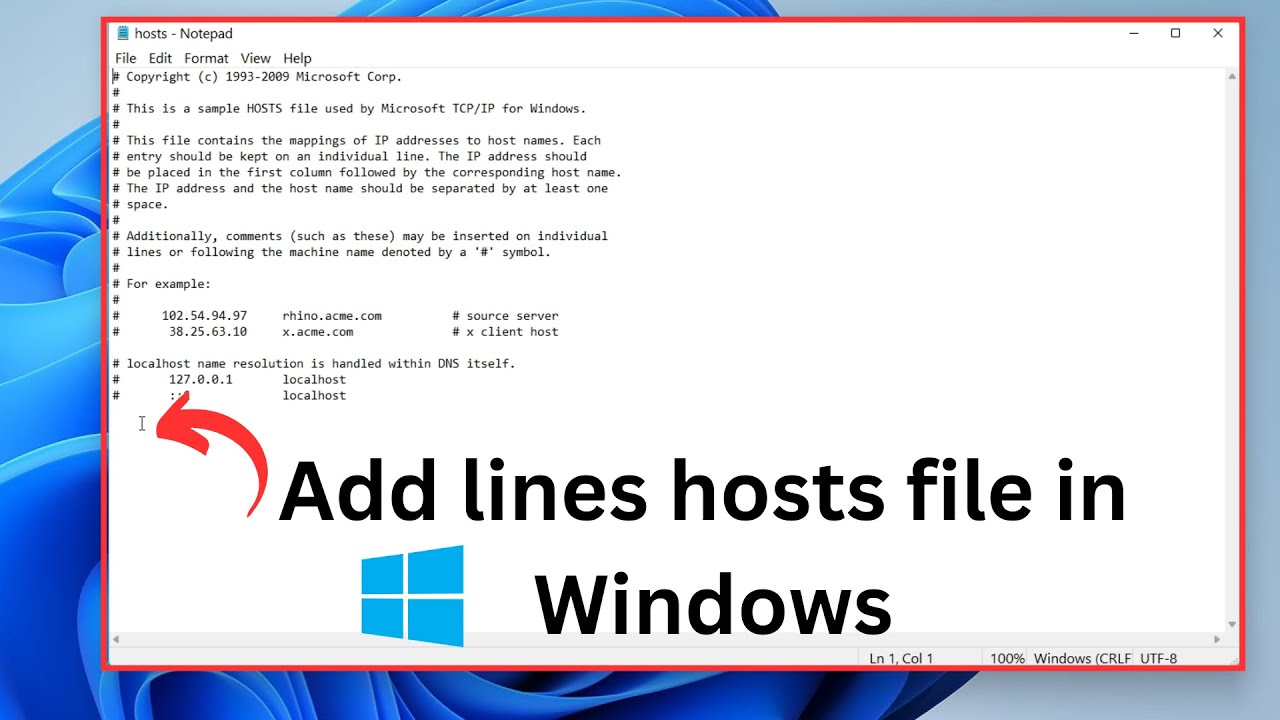
Add a new line at the end of the file. Type 127.0.0.1 followed by the domain name you want to block. For example, 127.0.0.1 example.com.
Save the file and close Notepad. The changes take effect immediately.
Using Terminal On Macos And Linux
Open the Terminal application. Use a text editor like nano or vim to edit the hosts file.
Enter the command sudo nano /etc/hosts. You will need to provide your password to proceed.
Scroll to the end of the file and add a new line. Type 127.0.0.1 followed by the domain name you want to block, for example, 127.0.0.1 example.com.
Press Ctrl + O to save the file and Ctrl + X to exit nano. The changes are applied immediately.
Required Permissions
Editing the hosts file requires administrative or root permissions. Without these, you cannot save changes.
On Windows, run Notepad as an administrator. On MacOS and Linux, use sudo to get root access.
Always be careful when editing system files. Incorrect changes might cause network issues.
Blocking Domains Step-by-step
Blocking domains using the hosts file is a direct way to stop access to certain websites on your computer. This method works by redirecting the domain name to a local address. It prevents your browser from reaching the unwanted site. Follow these simple steps to block domains effectively.
Adding Domain Entries
First, open the hosts file with administrator rights. On Windows, find it in C:\Windows\System32\drivers\etc\hosts. On Mac or Linux, it is in /etc/hosts. Add a new line at the end of the file. Type 127.0.0.1 followed by a space and the domain you want to block. For example, 127.0.0.1 example.com. Repeat for each domain you want to block.
Saving Changes Correctly
After adding domains, save the file without changing its name or format. Use a plain text editor like Notepad or TextEdit. Make sure you have permission to save in the system folder. If you get an error, try running the editor as administrator or using sudo on Mac/Linux. Closing the editor properly ensures changes take effect.
Verifying Domain Block
To check if the block works, open your browser. Type the blocked domain’s address in the URL bar. The site should not load and might show a connection error. You can also clear your browser cache before testing. This ensures the browser does not use old data. Confirming the block means your hosts file edits worked.
Common Issues And Fixes
Blocking a domain using the hosts file is simple but may face some issues. These common problems can stop the block from working correctly. Troubleshooting these issues helps ensure the block works as expected.
Below are some frequent problems and easy fixes to try. These steps help you verify and correct settings in your hosts file and system.
Flush Dns Cache
Changes in the hosts file might not apply immediately. Your system stores DNS data temporarily. Flushing the DNS cache clears old data and forces the system to read the updated hosts file. Use the command prompt or terminal to run the flush command. This step is quick and often solves block issues.
Check For Syntax Errors
Even small mistakes in the hosts file stop blocks from working. Each entry must have the IP address followed by the domain name. No extra spaces or special characters should be in the line. Make sure to save the file without a file extension. Check for typos and correct them to ensure the file works.
Restart Network Services
Sometimes, network services need a restart to apply hosts file changes. Restarting these services forces the system to reload network settings. On Windows, you can restart the network adapter or reboot the computer. On Mac or Linux, restart the network manager service. This fix helps apply the domain block correctly.
Credit: www.youtube.com
Advanced Tips
Advanced tips help you use the hosts file more effectively. These tips save time and improve control over domain blocking. They are useful for managing many sites or combining tools.
Blocking Multiple Domains
To block many domains, list each domain on a new line. Use the format “127.0.0.1 domain.com” for every site. This method stops access to many sites at once. It is faster than editing the file repeatedly.
Keep your list organized. Group similar domains together. This makes future changes simpler. Also, backup your hosts file before major edits.
Automating Hosts File Updates
Manual updates take time. Automation saves effort and reduces errors. Use scripts or software to update the hosts file automatically. These tools download updated block lists from trusted sources.
Schedule updates daily or weekly. This keeps your blocking list fresh. Make sure your system allows script access to the hosts file. Always check that changes do not break your internet connection.
Using Hosts File With Other Blocking Tools
The hosts file works well with other blocking methods. Combine it with browser extensions or firewall rules. This layered approach improves protection and flexibility.
Use the hosts file for basic blocking and extensions for advanced filters. Firewalls can block at the network level. This reduces risks from apps that ignore the hosts file.
Credit: www.youtube.com
Frequently Asked Questions
How Do I Edit The Hosts File To Block A Domain?
To block a domain, open the hosts file with admin rights. Add a line with “127. 0. 0. 1” followed by the domain name. Save the file. This reroutes the domain to your local machine, effectively blocking it.
Can Blocking Domains Via Hosts File Affect Internet Speed?
No, blocking domains using the hosts file does not impact your internet speed. It only stops your computer from reaching specific websites. This method is efficient and does not consume additional bandwidth.
Is The Hosts File Method Permanent For Domain Blocking?
Yes, changes in the hosts file are permanent until manually removed. The block stays active across reboots. To unblock, simply delete the corresponding line and save the file again.
Which Operating Systems Support Blocking Domains Via Hosts File?
Windows, macOS, and most Linux distributions support domain blocking through the hosts file. The file location varies, but the editing process is similar across these platforms.
Conclusion
Blocking a domain using the hosts file is simple and effective. It helps control access to websites on your computer. By editing the hosts file, you can stop unwanted sites from loading. This method works without extra software or tools.
Keep a backup of the original hosts file before changes. Test the changes by visiting the blocked domain. This small step improves your browsing safety and focus. Try it today to see how easy it is to manage website access yourself.


