
Are you ready to take your WordPress site to the next level? Customizing a WordPress theme can feel like unlocking a new world of possibilities for your website.
Imagine having a site that perfectly matches your vision, stands out from the crowd, and truly represents your brand or personal style. It’s not just about aesthetics; a customized theme can enhance user experience, improve functionality, and even boost your site’s performance.
But where do you begin? The idea of diving into theme customization might sound daunting, especially if you’re not a tech wizard. The good news is, you don’t have to be. This guide will walk you through the initial steps of theme customization in a way that’s simple and straightforward. Whether you’re a beginner or just need a refresher, you’ll find the insights you need to start transforming your site today. Stick around, and discover how easy it is to make your WordPress theme work for you.
Credit: 10web.io
Choosing The Right Theme
Free themes are budget-friendly. They are easy to find and use. But, premium themes offer advanced features. They often have better support. Free themes may have fewer options. Premium themes can be more unique. They often look more professional. Choose what fits your needs best.
Plugins add extra features to your site. Make sure your theme works well with them. Check the theme’s details. See if it mentions plugin compatibility. Some themes have trouble with certain plugins. This can cause problems. A compatible theme makes everything run smoothly.
A responsive design is important. It makes your site look good on all devices. Phones, tablets, and computers. A theme should adjust to different screen sizes. This helps users have a better experience. Check if the theme is mobile-friendly. It helps with SEO too.
Credit: www.cloudways.com
Setting Up A Child Theme
Child themes keep your changes safe. Updates won’t erase them. This is important. It prevents loss of work. A child theme is like a copy. But, it doesn’t copy everything. It only copies what you change. This keeps your site secure. It makes updates easy.
Create a new folder. Name it your theme’s name with “-child”. Make two files in it. First, style.css. Second, functions.php. Style.css is important. It tells WordPress about your child theme. Add code to functions.php. This code links your child theme to the parent. It helps load styles.
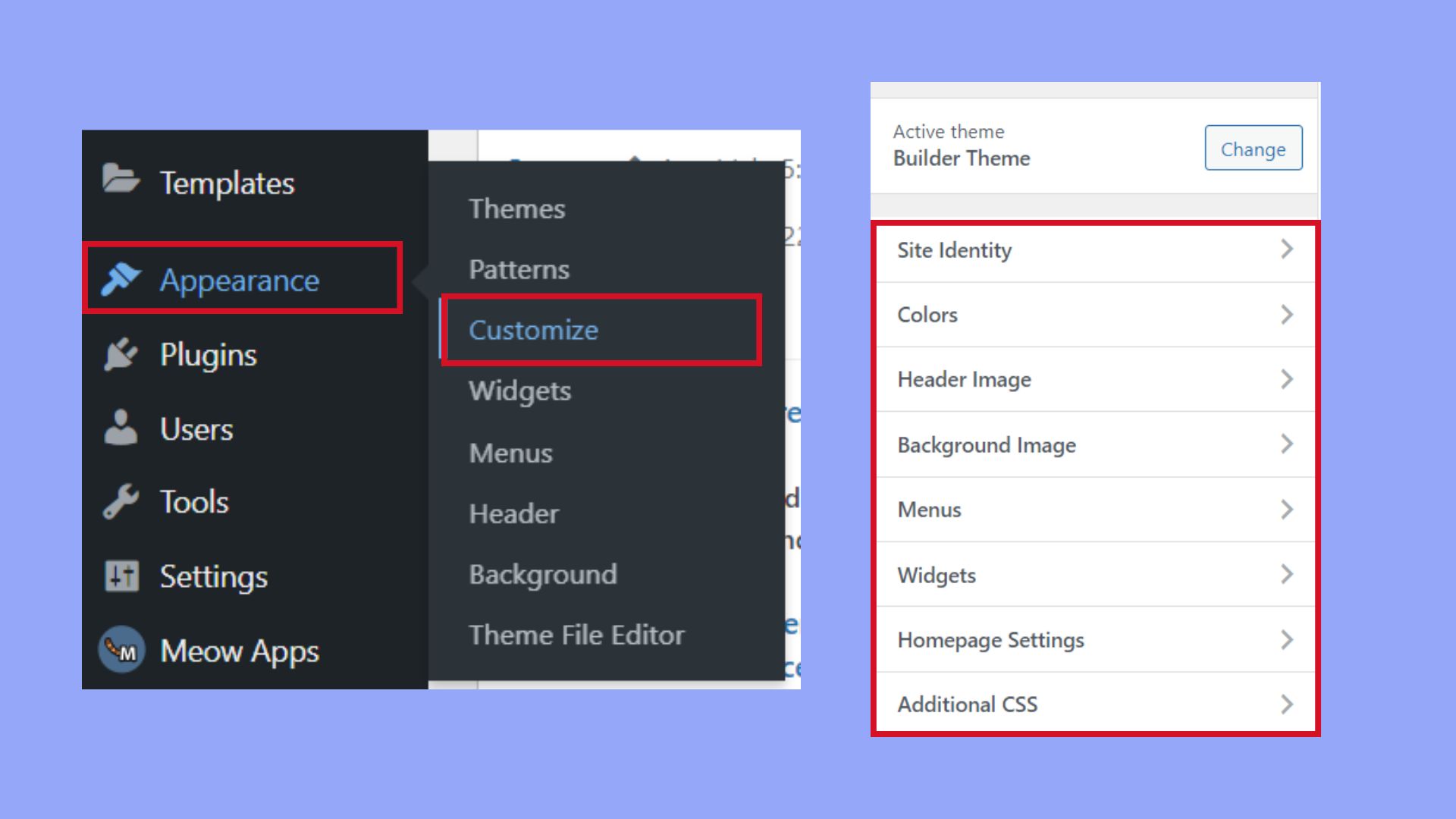
Go to your WordPress dashboard. Find “Appearance”. Click “Themes”. You will see your child theme. Click “Activate”. Your child theme is now active. You can start customizing. Changes will now be safe. Updates won’t harm them.
Customizing With WordPress Customizer
The Customizer is a simple tool. Find it in the dashboard. Click on Appearance, then Customize. The left side shows options. The right side shows your site. See changes in real-time. Explore each section. Start with Site Identity. Add your site name and logo. Make your site unique.
Colors and fonts make your site pop. Choose Themes to change colors. Pick a primary color. Pick a background color. Use Font options for text style. Make text bold or italic. Choose a font that is easy to read. Fonts should match your site style. Colors and fonts are crucial for design.
Headers and footers are important parts. Customize them for a unique look. Click on Header to add a logo. Add a menu for easy navigation. Choose Footer settings to add widgets. Add social media links. Add contact info. Keep it clean and organized. Headers and footers should be simple and informative.
Editing Theme Files
The Theme Editor helps you change theme files directly. Access it from your WordPress dashboard. You will find it under Appearance > Theme Editor. Choose the theme you want to edit. Be careful. Changes affect your site’s look. Always make a backup first.
WordPress themes have many files. Each has a role. The style.css file controls the site’s look. The functions.php file adds features. Header.php and footer.php are important too. They shape the top and bottom of your site. Knowing these helps you edit wisely.
Always work with a child theme. It keeps your changes safe. Use a code editor for better visibility. Test changes on a local site first. This prevents errors on your live site. Remember, small changes can make big differences.
Adding Custom Css
Start with simple changes. Use CSS to change colors and fonts. This makes your website look unique. Try changing the background color or font size. These small tweaks can make a big difference. Use CSS selectors like class and ID. This helps you target specific elements. Write clean and clear code. It makes future edits easy.
WordPress has a tool for CSS changes. It’s called Additional CSS. Find it in the Customizer. Go to Appearance, then Customize. Click on Additional CSS. Add your custom code there. This tool is user-friendly. You can see changes live. This helps you spot errors quickly. Keep your code organized. This makes it easier to manage later.
Always test your CSS changes. Check how your website looks on different devices. Sometimes changes look good on a computer but not on a phone. Use browser tools to inspect elements. This helps you find problems. Tweak your CSS if needed. Small adjustments can improve the look. Make sure your site is easy to navigate. A well-designed site keeps visitors happy.
Utilizing Page Builders
WordPress has many page builders. Some are Elementor, Beaver Builder, and Divi. These tools help create beautiful sites. They make building easy. Many people use them. They offer great design options. Try one and see. You might find it useful.
Drag and drop makes building easy. You can move items around. No coding is needed. Just click, drag, and place. It’s simple and fun. Everyone can do it. Even kids can try. Build your site with ease. Make your vision real.
Page builders can improve your site’s layout. They offer many design features. Add columns, rows, and sections. Make your site look neat. Add buttons, images, and text. Arrange them as you like. Your site can look unique. Make it stand out. Express yourself.
Incorporating Custom Widgets
Widgets add fun to your website. They make it more interactive. Choose widgets that fit your website’s style. Think about what your visitors need. Popular widgets include social media buttons and search bars. Some websites use weather updates or news tickers. Select what adds value to your site.
Adding widgets to a theme is easy. Go to the WordPress dashboard. Find the Appearance section. Click on Widgets. You will see a list of available widgets. Drag and drop them into your theme’s widget areas. Save your changes. Now your widgets appear on your site.
Change how widgets look to match your theme. Use the WordPress Customizer. Go to the dashboard and select Appearance. Click on Customize. Find the Widgets section. Here, you can change colors and styles. Make sure the design is simple and clean. This will help users find information easily.
Testing And Optimization
Starting with customizing a WordPress theme involves testing and optimization. Select a theme that suits your needs. Tweak design elements, adjust layouts, and enhance functionality for a personalized look.
Ensuring Mobile Compatibility
Many people use phones to visit websites. Themes must be mobile-friendly to reach all users. Always check if the theme looks good on phones. Use tools to test the mobile view of your site. This helps your site work on all devices.
Improving Page Load Speed
Fast loading pages keep visitors happy. Use lightweight themes and optimize images. Compress images to make them smaller. Use a caching plugin to speed up your site. A faster site ranks higher in search results.
Using Seo Best Practices
Good SEO helps people find your site. Use SEO plugins to guide you. Always use keywords in your content. Write short, simple titles for your pages. Add meta descriptions for every page. This helps search engines understand your content better.

Credit: kinsta.com
Frequently Asked Questions
How Do I Customize A WordPress Theme?
Customizing a WordPress theme involves accessing the WordPress Customizer. Navigate to Appearance > Customize in your dashboard. Use this tool to adjust settings like colors, fonts, and layout. You can also add widgets and menus. For advanced customization, modify theme files using a child theme to ensure updates don’t override changes.
Can I Change Theme Fonts Easily?
Yes, you can change fonts using the WordPress Customizer. Go to Appearance > Customize, then select the Typography section. Here, you can choose different fonts for headers and body text. For more font options, consider using plugins like Google Fonts Typography, which offers extensive font selections.
Is Coding Needed For Theme Customization?
Basic theme customization doesn’t require coding. You can use the WordPress Customizer for most changes. However, for advanced modifications, coding skills may be necessary. Using a child theme allows safe code alterations. Plugins can also assist in customization without code, offering features like page builders and custom CSS.
Are Plugins Useful For Theme Customization?
Plugins are extremely useful for theme customization. They offer additional features without needing code changes. You can use plugins for page building, SEO optimization, and adding custom elements. Popular plugins like Elementor and WPBakery provide drag-and-drop interfaces, making customization accessible even for beginners.
Conclusion
Customizing your WordPress theme is easier than you think. Start by choosing a theme that fits your needs. Use the WordPress Customizer to make changes. Experiment with colors and fonts. Add widgets to enhance functionality. Don’t forget to test your changes.
Keep your design simple and user-friendly. Regularly update your theme for security. Seek help from online forums if you face issues. Embrace creativity but maintain clarity. Your website should reflect your brand. Happy customizing!


