

Backing up your WordPress site might sound complicated, but it’s one of the smartest moves you can make to protect your hard work. Imagine losing all your posts, images, and settings in a blink—frustrating, right?
You don’t have to rely on plugins or wait for help. By learning how to back up WordPress manually, you take full control of your site’s safety. This guide will walk you through simple, clear steps to secure your content right now.
Ready to keep your website safe and stress-free? Let’s dive in.
Credit: blogvault.net
Why Manual Backups Matter
Backing up WordPress manually needs the right tools. These tools help you copy your site safely. Prepare them before starting the backup process. This step saves time and avoids mistakes. You will need access to your hosting panel, an FTP client, and database access. Each tool plays a key role in saving your files and data.
Access Hosting Control Panel
The hosting control panel lets you manage your website files. Log in to your hosting account first. Find the file manager tool inside the panel. This tool shows all your WordPress files. You can download these files for backup. The panel also helps manage databases and other settings.
Use Ftp Client
An FTP client transfers files between your computer and server. Install an FTP program like FileZilla or Cyberduck. Open the FTP client and enter your server details. Connect using your username and password. Use it to download WordPress files to your computer. It’s faster and more reliable than the hosting panel sometimes.
Set Up Database Access
Your WordPress site stores content in a database. Access the database using tools like phpMyAdmin. Login details are available in your hosting control panel. Export your database as an SQL file. This file contains all your posts, pages, and settings. Having this file completes your manual backup process.
Credit: pixelgrade.com
Prepare Your Tools
Backing up WordPress files is a key part of protecting your website. These files include your themes, plugins, images, and core WordPress files. Saving them ensures you can restore your site if something goes wrong. This section explains how to back up your WordPress files manually. Follow these steps carefully to keep your data safe.
Locate WordPress Directory
First, find your WordPress directory on the server. This folder holds all your website files. It usually has names like public_html, www, or your site name. Inside, look for folders like wp-content, wp-admin, and wp-includes. These contain your themes, plugins, and WordPress core files.
Download Files Via Ftp
Use an FTP client to access your WordPress directory. Programs like FileZilla work well and are free. Connect to your server with your FTP credentials. Once connected, select your entire WordPress folder. Download it to a safe location on your computer. This process copies all your website files for backup.
Save Important Configurations
Don’t forget to save key configuration files. The wp-config.php file holds your database details. Back it up along with the .htaccess file if available. These files control important settings for your WordPress site. Keeping them safe helps restore your website quickly if needed.
Backup WordPress Files
Storing backups safely is key to protecting your WordPress site. Backups keep your data secure during problems. Without proper storage, backups might get lost or damaged. Keep backups in places that are safe and easy to access. This helps you restore your site fast if needed.
Use Cloud Storage
Cloud storage offers a safe place for your backups. It protects files from local hardware failures. Services like Google Drive or Dropbox keep backups online. This means you can access your files from any device. Cloud storage also keeps backups safe from theft or damage.
Keep Local Copies
Local copies mean saving backups on your computer or external drives. This gives you quick access without internet. Use USB drives or external hard drives for this. Store them in a dry, cool place to avoid damage. Local copies act as a backup to your cloud storage.
Organize Backup Files
Organizing backup files makes finding them easy. Use clear names that include dates and site details. Create folders for different backup versions. This helps you pick the right file when restoring. Good organization saves time and reduces errors.
Backup WordPress Database
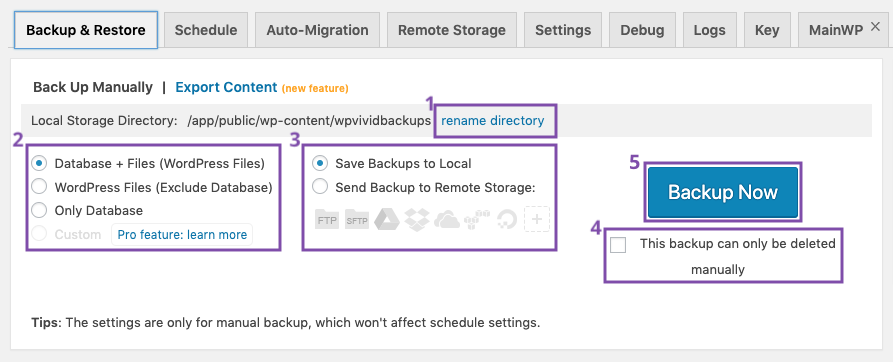
Backing up WordPress manually can save your site in tough times. Many users make simple errors that cause backup failure. Avoiding these mistakes protects your data and time. Learn common backup mistakes to avoid for smooth manual backups.
Not Backing Up Both Files And Database
WordPress stores content in two places: files and database. Files include themes, plugins, and uploads. The database holds posts, settings, and user info. Skipping either part means an incomplete backup. Always back up both files and the database.
Ignoring Backup Frequency
One backup is not enough. Your site changes often. Missing regular backups risks losing recent work. Set a schedule to back up your site often. Daily or weekly backups keep your data safe.
Storing Backups On The Same Server
Saving backups on your web server is risky. If the server crashes, you lose both site and backups. Keep backups in a separate place. Use cloud storage or an external drive for safety.
Not Testing Your Backups
Backups must be tested. A backup that does not restore is useless. Try restoring your site on a test server. Check that files and database load correctly. Testing saves headaches later.
Skipping Backup File Naming And Organization
Backup files should have clear names and dates. Random names make it hard to find the right backup. Organize backups in folders by date. This saves time when you need to restore.
Credit: duplicator.com
Frequently Asked Questions
How Do I Manually Backup WordPress Files?
To manually backup WordPress files, use an FTP client to download your entire WordPress directory. This includes core files, themes, plugins, and uploads. Save the files securely on your local drive or cloud storage for easy restoration if needed.
How Can I Backup The WordPress Database Manually?
Access your hosting control panel and open phpMyAdmin. Select your WordPress database, then click Export. Choose the SQL format and save the file. This file contains all your site’s content and settings essential for a full backup.
How Often Should I Backup WordPress Manually?
It’s best to backup WordPress manually at least once a week. If your site updates frequently, consider daily backups. Regular backups protect your data from unexpected crashes, hacks, or errors, ensuring you can quickly restore your website.
Can I Restore WordPress From A Manual Backup?
Yes, you can restore WordPress from a manual backup by uploading your saved files via FTP. Import the saved database through phpMyAdmin. Ensure your files and database match to avoid errors during restoration.
Conclusion
Backing up your WordPress site manually keeps your data safe and secure. It takes just a few simple steps to save your files and database. Regular backups help you avoid losing important content. You stay in control of your website’s information at all times.
Try to back up your site often for best protection. This way, you can restore your site quickly if problems occur. Manual backups give peace of mind and protect your hard work. Keep your website safe by making backups a regular habit.


