
Imagine losing all the hard work you’ve put into your WordPress website in a single moment. Scary, right?
Backing up your WordPress files is the best way to protect yourself from unexpected crashes, hacks, or mistakes. But how do you do it without wasting time or getting overwhelmed? In this guide, you’ll discover simple, step-by-step methods to back up your WordPress files quickly and safely.
Keep reading—you’ll learn how to secure your website and sleep easy knowing your content is protected.
Why Backup Your WordPress Site
Backing up your WordPress site is a smart habit every website owner should adopt. It means making a copy of your website’s files and database. This copy acts like a safety net. If anything goes wrong, you can quickly restore your site. Without backups, you risk losing all your hard work and data.
Regular backups protect your site from many dangers. They save you time and stress when problems occur. Every website faces risks that can cause data loss. Knowing these risks helps you understand why backups are crucial.
Common Risks To WordPress Sites
WordPress sites face many threats. Hacking attempts can break into your site and damage files. Malware infections can corrupt your data. Hosting server failures can delete your content unexpectedly. Human errors, like deleting important files by mistake, happen too. Updates to themes or plugins can cause crashes. These risks can stop your site from working properly.
Benefits Of Regular Backups
Backups give peace of mind. You can restore your site fast after a problem. They protect your content, designs, and settings. Regular backups save time by avoiding full site rebuilds. They help you test new changes safely. Backups also support moving your site to a new host. Keeping backups ensures your site stays safe and stable.
Types Of WordPress Backups
Backing up WordPress files protects your website from data loss. Different types of backups serve different purposes. Knowing these types helps you choose the right backup method. It also ensures your website stays safe and can be restored quickly.
Database Backups
The WordPress database stores all your content and settings. Posts, pages, comments, and user info live here. Backing up the database saves this important data. It does not include images or themes. Database backups are smaller and faster to create.
File Backups
File backups include WordPress core files, themes, plugins, and uploads. These files make your website look and work properly. They do not contain your posts or settings. File backups keep your design and media safe. You can restore files without losing your content.
Full Site Backups
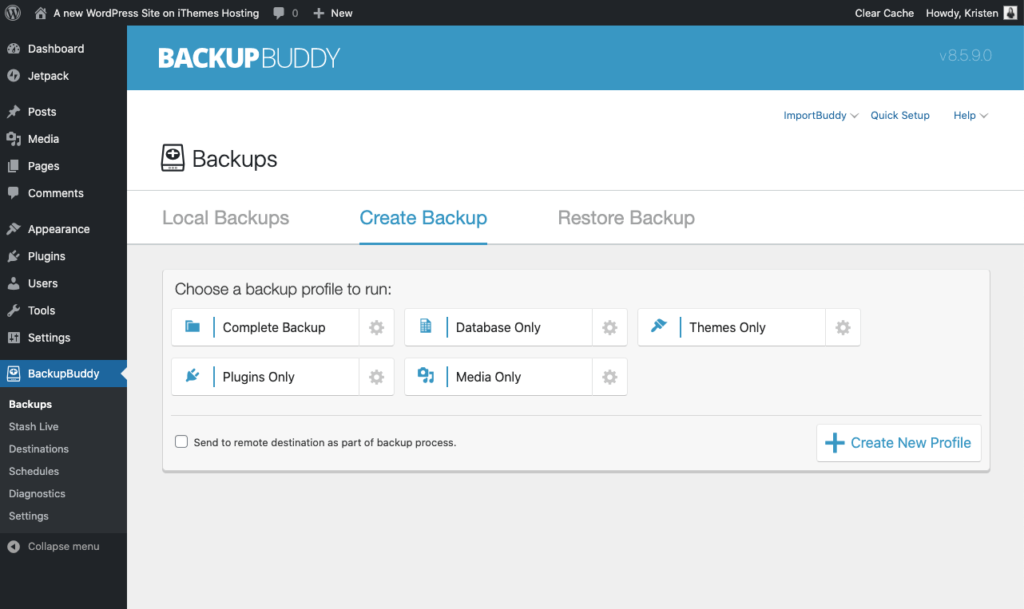
Full site backups combine database and file backups. They save everything needed to restore your entire site. This backup type is the most complete and safest. It takes more space and time but offers peace of mind. Full backups help recover from serious issues fast.
Manual Backup Methods
Manual backup methods give full control over WordPress files and database. They do not rely on plugins or external tools. These methods help secure your site data safely and reliably. Learning manual backup builds a deeper understanding of how WordPress works.
Backing Up WordPress Files Via Ftp
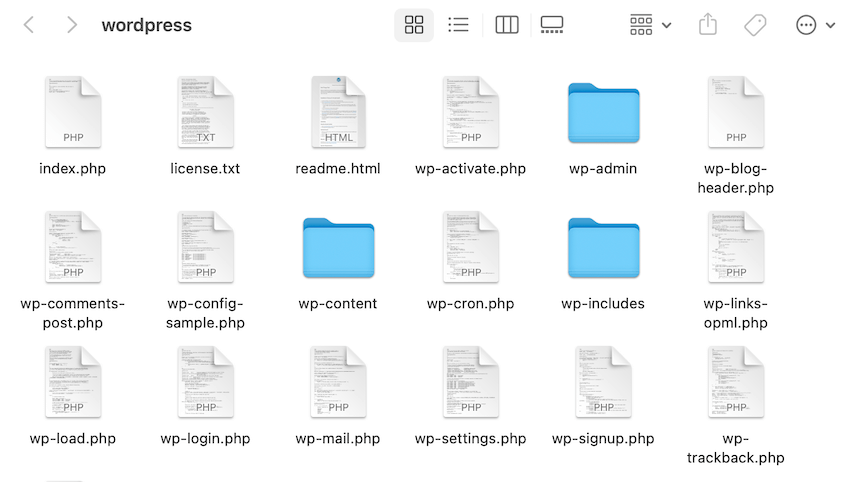
Use an FTP client like FileZilla to connect to your web server. Enter your FTP credentials provided by your hosting service. Navigate to your WordPress root folder. It usually contains wp-content, wp-admin, and wp-includes folders.
Select all WordPress files and folders. Download them to your local computer. This process copies themes, plugins, uploads, and core files. Ensure the download completes without interruption. Store the backup in a safe place.
Exporting The Database Using Phpmyadmin
Login to your hosting control panel and open phpMyAdmin. Select your WordPress database from the list on the left. Click on the Export tab at the top of the page. Choose the Quick export method and format as SQL.
Click Go to download the database file. This file contains all posts, pages, comments, and settings. Keep this backup file secure along with your WordPress files. Regularly exporting the database prevents data loss.
Credit: duplicator.com
Using WordPress Backup Plugins
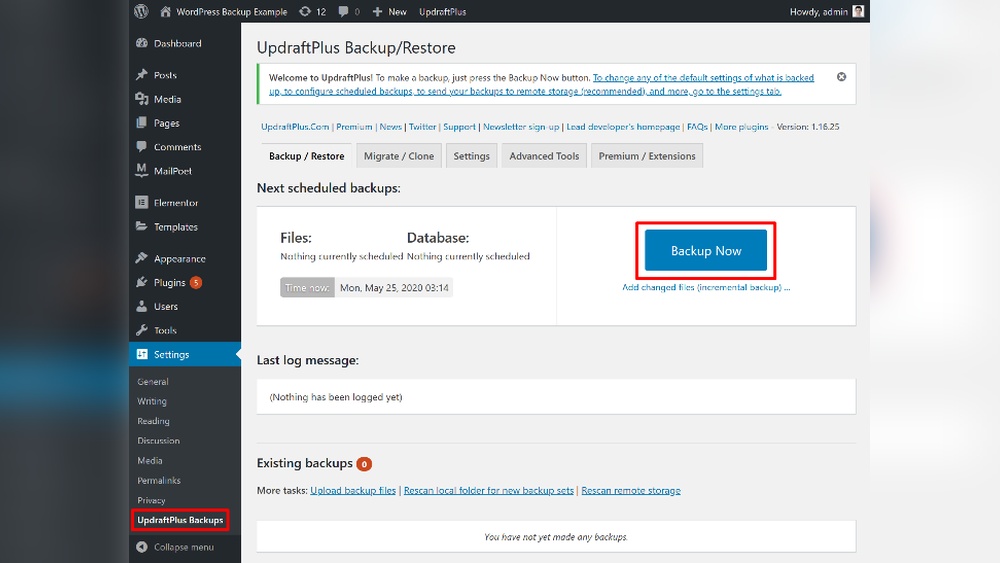
Using WordPress backup plugins is an easy way to protect your website data. These plugins save your files and databases safely. They help restore your site quickly if problems happen. Many plugins work automatically, so you do not need to backup manually.
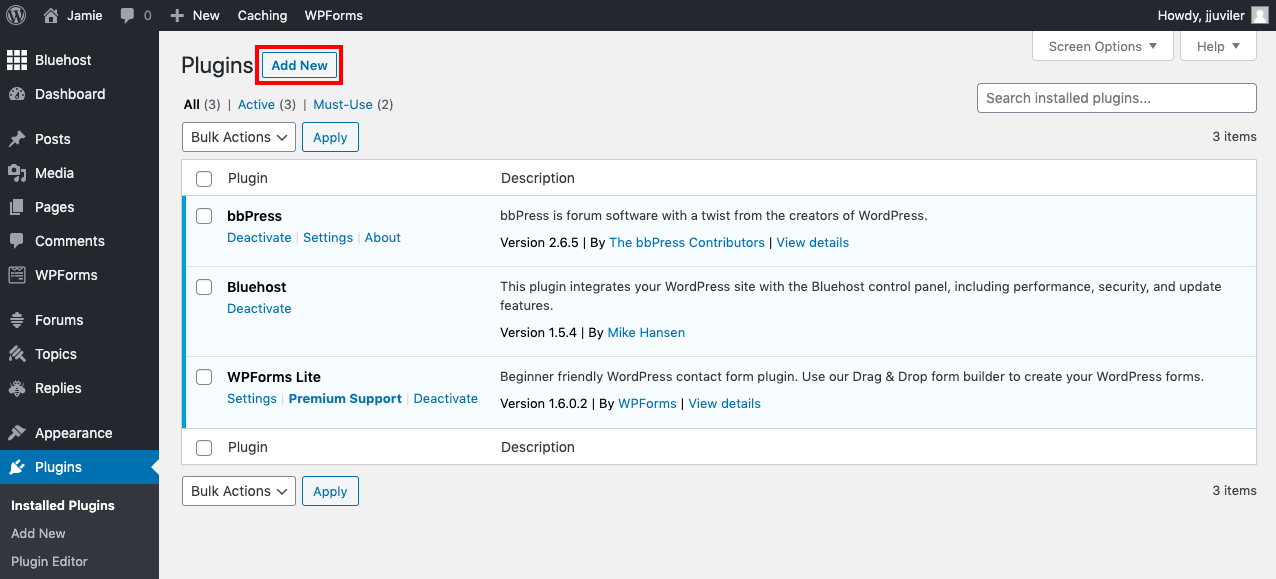
Choosing the right plugin can make a big difference. Some plugins offer free versions with basic features. Others provide more options but cost money. Most plugins are simple to install and use, even for beginners.
Popular Backup Plugins
UpdraftPlus is a well-known plugin with good reviews. It saves files to cloud storage like Google Drive or Dropbox. BackWPup is another option that works well for full backups. Duplicator helps move and copy your website easily. All these plugins offer free and paid plans.
Setting Up Automatic Backups
Automatic backups save your website without extra work. Most plugins let you choose backup frequency. You can set daily, weekly, or monthly backups. It is smart to keep backups in remote places. Cloud services or email are good choices. Check your backup settings regularly to ensure they work correctly.
Backing Up To Cloud Storage
Backing up WordPress files to cloud storage keeps your data safe and accessible. Cloud storage offers a secure place to store backups without using your local space. It also allows easy recovery if your site faces issues.
Many cloud services provide automatic backup options. These services save time and reduce human errors. Choose a service that fits your needs and budget.
Integrating Backups With Google Drive
Google Drive is a popular cloud storage choice for WordPress backups. It offers free storage and easy sharing options. Connect your WordPress site to Google Drive using plugins. These plugins automatically upload backup files to your Drive.
Set a backup schedule to keep your files updated. Google Drive helps keep backups organized with folders and labels. Access your backups from any device with internet access.
Using Dropbox For Backup Storage
Dropbox provides simple cloud storage for WordPress backups. It is user-friendly and supports automatic syncing. Use WordPress plugins to link your site to Dropbox. These plugins send backup files straight to your Dropbox account.
Dropbox offers version history, allowing you to restore previous backups. It works well for small to medium websites. Access your backups anytime, ensuring your WordPress files are secure.
Credit: agethemes.com
Restoring WordPress From Backup
Restoring WordPress from a backup is crucial after data loss or website issues. It brings your site back to a previous, safe state. This process can save time and effort by avoiding a full site rebuild. Two main ways exist to restore WordPress: manually and using backup plugins.
Restoring Files Manually
Manual restoration means uploading backup files yourself. First, access your web hosting control panel or use an FTP client. Locate your WordPress root folder. Then, upload your backup files to replace the damaged ones. This includes core files, themes, plugins, and uploads.
Next, restore your database using phpMyAdmin. Import the saved database backup file. This step ensures your website content and settings return correctly. Manual restoration requires careful steps but works well for technical users.
Restoring Via Backup Plugins
Backup plugins simplify the restoration process. Many plugins have a restore feature built-in. Open your WordPress dashboard and go to the plugin’s restore section. Upload your backup file or select a backup from the list.
The plugin will handle file and database restoration automatically. This method is faster and less technical. It suits beginners or anyone wanting a quick fix. Always use trusted plugins for secure restoration.
Best Practices For WordPress Backups
Backing up WordPress files is a key part of site management. It protects your work from data loss or hacking. Following best practices ensures your backups are reliable and easy to restore. This section covers how often to back up and how to keep backups safe.
Backup Frequency Recommendations
Set a backup schedule based on how often your site changes. For active sites, daily backups work best. For smaller or static sites, weekly backups may be enough. Back up before making big changes or updates. Regular backups reduce risk of losing recent work.
Securing Your Backup Files
Store backup files in a safe, separate location from your website. Use cloud storage or external drives for extra security. Protect backups with strong passwords or encryption. Avoid keeping backups only on your server to prevent loss in hacks or crashes.
Credit: solidwp.com
Frequently Asked Questions
What Are The Best Methods To Backup WordPress Files?
The best methods include using plugins like UpdraftPlus, manual FTP download, or hosting provider backups. Choose based on ease, control, and frequency.
How Often Should I Backup My WordPress Site?
Backup your WordPress site at least once a week. Increase frequency if you update content daily or run an e-commerce store.
Can I Backup WordPress Files Without Plugins?
Yes, you can manually backup WordPress files via FTP and export your database using phpMyAdmin for full site backup.
Where Are WordPress Files Stored For Backup?
WordPress files are stored in your website’s root directory, including wp-content, wp-includes, and wp-admin folders, plus the database.
Conclusion
Backing up your WordPress files keeps your website safe. Regular backups help avoid data loss and save time. Choose simple tools that fit your needs. Store backups in more than one place for extra security. Check your backups often to make sure they work.
Taking small steps now protects your hard work later. Stay consistent and keep your site secure. Don’t wait until a problem happens. Start backing up today to keep your WordPress site safe and sound.


