
Backing up your WordPress website is one of the smartest moves you can make to protect your hard work. Imagine losing all your posts, images, and custom settings in a blink—devastating, right?
But don’t worry, backing up your site doesn’t have to be complicated or time-consuming. Whether you’re a beginner or have some experience, this guide will show you simple, effective ways to secure your website. You’ll learn how to create backups manually, use plugins, and even leverage your hosting provider’s tools.
By the end, you’ll feel confident knowing your site’s data is safe and easily recoverable whenever you need it. Ready to take control and safeguard your WordPress site? Let’s dive in!
Backup Plugins
Backup plugins simplify saving your WordPress website data. These tools automate the backup process and reduce the chance of data loss. Many plugins offer easy setup and scheduling options. They also let you store backups on cloud services or your computer. Using a backup plugin keeps your website safe without much effort.
Installing A Plugin
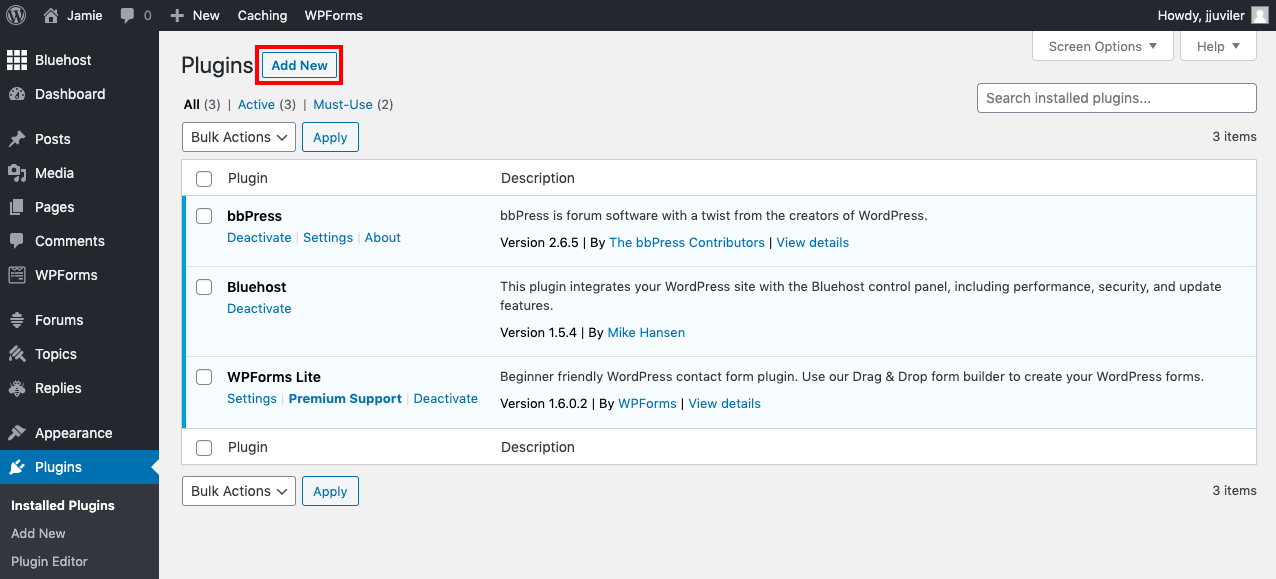
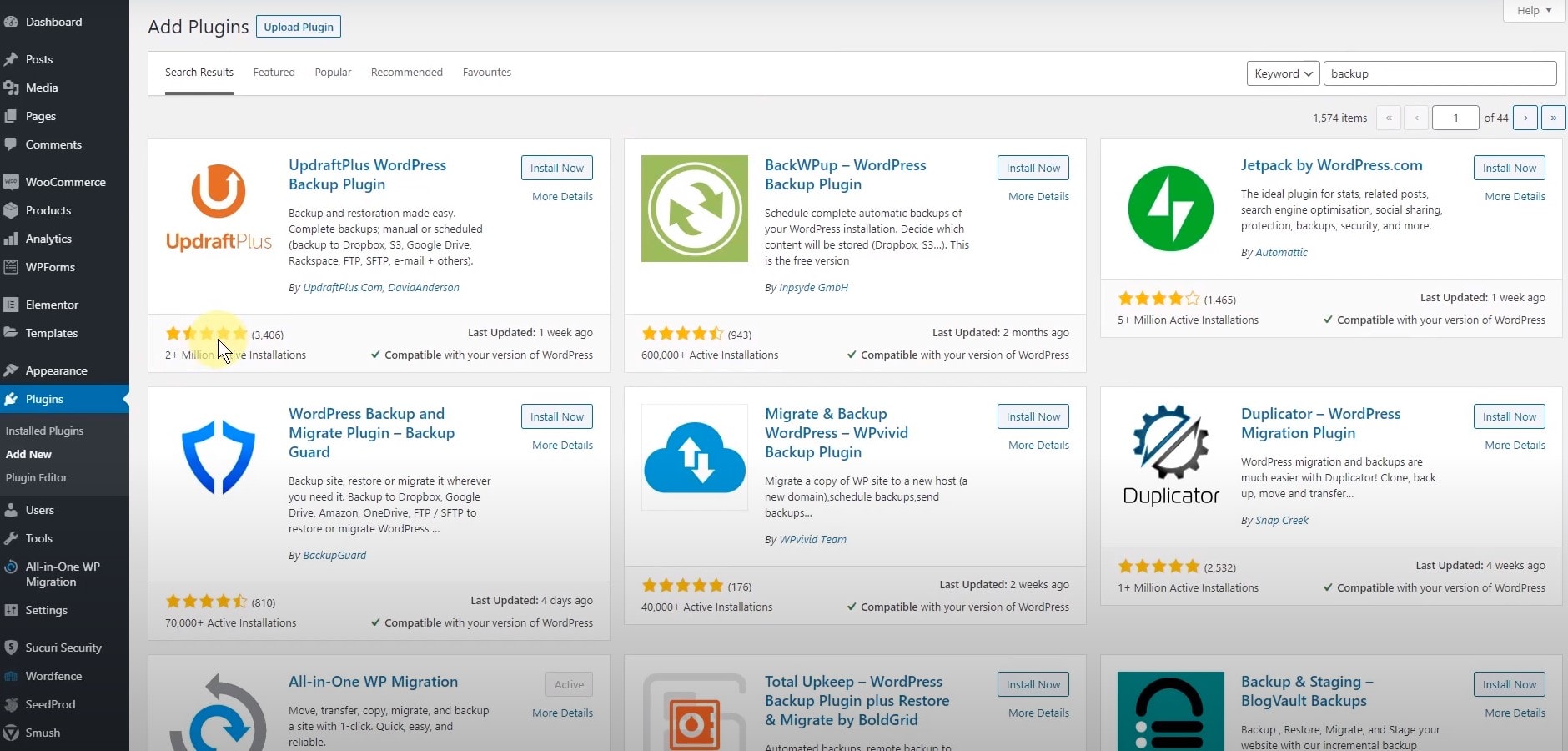
Go to your WordPress dashboard. Click on “Plugins” in the sidebar. Select “Add New” to open the plugin search. Type the name of your chosen backup plugin, such as UpdraftPlus. Click “Install Now” next to the plugin. After installation, press “Activate” to enable it on your site.
Configuring Backup Settings
Open the backup plugin from the dashboard menu. Find the settings or configuration tab. Choose how often you want backups to run. Set the time for automatic backups to start. Enter your email to receive backup notifications. Save the settings before moving to the next step.
Choosing Backup Options
Select which parts of your site to back up. Options usually include files, databases, or both. Decide where to store the backup files. Popular choices include Dropbox, Google Drive, or local storage. Pick the storage that fits your needs best. Confirm all choices to avoid missing data.
Initiating The Backup
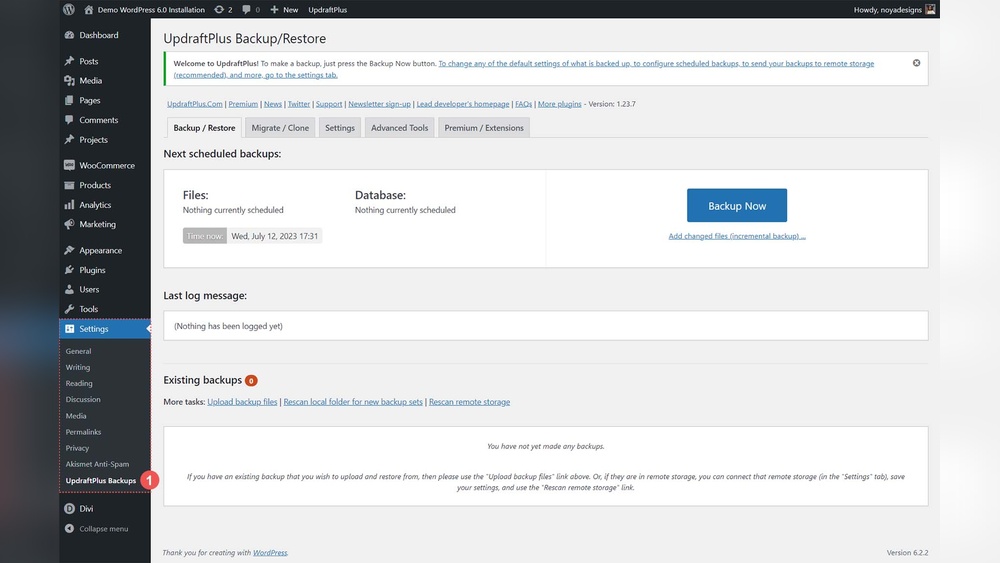
Locate the “Backup Now” or similar button in the plugin panel. Click it to start the backup process immediately. Wait for the plugin to complete the backup. A progress bar or notification shows the status. After finishing, verify the backup is saved correctly. Regularly test backups to ensure they work well.
Credit: agethemes.com
Hosting Provider Tools
Hosting provider tools offer a simple way to back up your WordPress website. They often come integrated within your hosting dashboard. These tools help create, manage, and automate backups without extra plugins. Using hosting tools reduces the risk of data loss from updates or errors. Many hosting providers offer easy-to-use backup features. These features are built to protect your website files and database securely.
Accessing Hosting Dashboard
Start by logging into your hosting account. Find the control panel or dashboard section. This is where all your website management tools are located. Look for options labeled “Backup” or “Backup Manager.” Some hosts use cPanel, Plesk, or custom dashboards. Once inside, you can explore the backup options available.
Using Backup Manager
The Backup Manager lets you create backups manually. It shows all your past backups and their dates. Select the option to create a new backup. You can often choose to back up your entire site or just files or databases. After starting the process, wait for the backup to complete. You can download or store backups safely on the server.
Creating Automatic Backups
Automatic backups save your site regularly without manual work. In the hosting dashboard, find the schedule or automation settings. Set how often you want backups: daily, weekly, or monthly. Choose the backup type and storage location. Automatic backups keep your site safe from sudden problems. You can restore your site quickly using these saved copies.
Manual Backup Methods
Manual backup methods give you full control over your WordPress website’s data. You handle both files and database yourself. These methods work well for small sites or when you want extra security. Manual backups require some technical steps but keep your data safe.
Backing up manually means you download the website files and export the database. You can use FTP clients or your web hosting control panel. This process ensures you have a complete copy of your site ready to restore anytime.
Downloading Website Files
Your website files include themes, plugins, images, and core WordPress files. You need to download all these files to create a full backup. Use your hosting file manager or an FTP client to get the files.
Locate the root folder, often called public_html or www. Select all files and download them to your computer. Keep this backup safe to restore your site if needed.
Exporting WordPress Database
The database stores all your posts, pages, and settings. Exporting it creates a backup of your content and configurations. Access your database via phpMyAdmin in your hosting control panel.
Select your WordPress database. Click the export tab and choose the “Quick” export method. Save the SQL file to your computer. This file is essential for restoring your site’s data.
Using Ftp Clients
FTP clients like FileZilla help you connect to your web server. They allow easy transfer of files between your computer and server. Enter your FTP credentials provided by your host to connect.
Navigate to your website’s root folder. Download all files and folders to your local device. Regular FTP backups keep your site files safe and up to date.
Backing Up Via Cpanel
cPanel offers a simple way to back up your WordPress site. Log in to cPanel through your hosting provider. Find the “Backup” or “Backup Wizard” option in the dashboard.
Choose to create a full or partial backup. Full backups include files and databases. Download the backup file once it’s ready. Store it securely for future use or migration.
Remote Backup Storage
Remote backup storage keeps your WordPress site safe from local failures. It stores copies of your website files and database on external servers. This method protects against data loss caused by hardware issues or hacking. Using remote backups means your website data stays secure and accessible anytime.
Google Drive Integration
Google Drive offers an easy way to store your WordPress backups remotely. Many WordPress backup plugins support direct integration with Google Drive. You can schedule automatic backups to save your site data to your Drive account. This keeps your backups organized and safe off-site. Access your backups from any device with internet access.
Cloud Storage Options
Besides Google Drive, several cloud storage services work well for WordPress backups. Options include Dropbox, Amazon S3, and Microsoft OneDrive. These platforms provide reliable, secure storage with flexible pricing plans. Cloud storage services protect your data with encryption and multiple server locations. Choose a service that fits your budget and backup needs.
Local Vs Remote Backups
Local backups save your website data on your own computer or server. They are fast and easy to access but risk loss if the device fails. Remote backups store data on external servers, offering better security and disaster recovery. Combining both methods provides extra safety. Store backups locally for quick restores and remotely for protection against major failures.
Backup Frequency
Backing up your WordPress website regularly protects you from data loss. The frequency of backups depends on how often your site changes. More frequent updates need more frequent backups. Establishing a proper backup schedule ensures your data stays safe.
Scheduling Automatic Backups
Automatic backups run on set intervals without manual effort. Most backup plugins allow daily or weekly schedules. Choose a frequency that matches your site’s update speed. For busy sites, daily backups work best. For slower sites, weekly may be enough. Automatic backups reduce the risk of forgetting to save your data.
Manual Backup Timing
Manual backups give you control over when to save your site. Perform a manual backup before major changes. Updates to themes, plugins, or WordPress core need a fresh backup. Manual backups also help after adding significant content. Keep a habit of backing up before any major edits.
Backup Retention Policies
Backup retention means how long you keep old backups. Keep multiple backups to restore from different points in time. Delete very old backups to save storage space. Many plugins let you set retention limits automatically. A good rule is keeping backups for at least 30 days. This covers unexpected issues that appear after some time.
Credit: shortpixel.com
Restoring From Backup
Restoring your WordPress website from a backup is crucial after data loss or site errors. The process brings your site back to a previous stable state. This step protects your content, design, and settings from permanent damage. Knowing how to restore files and databases ensures quick recovery.
Restoring Files And Database
Start by restoring your website files and database separately. Website files include themes, plugins, and uploads. Use FTP or your hosting file manager to upload these files to your server. The database holds your posts, pages, and settings. Restore the database using tools like phpMyAdmin by importing your backup SQL file. Both parts must match the same backup date for a full restore.
Using Plugins To Restore
Many WordPress plugins simplify restoring backups. Plugins like UpdraftPlus or BackupBuddy let you restore with a few clicks. Open the plugin dashboard in WordPress. Choose the backup file you want to restore. The plugin will handle files and database restoration automatically. This method is user-friendly and reduces manual errors.
Restoring Via Hosting Tools
Hosting providers often offer backup and restore tools in their control panel. Log in to your hosting account and find the backup section. Select the backup date you want to restore. The hosting tool will restore both your website files and database. This method is fast and reliable, especially for beginners.
Security Tips
Keeping your WordPress backups secure is vital. Backups protect your site’s data from loss or damage. Follow these security tips to safeguard your backup files and maintain your website’s integrity.
Protecting Backup Files
Store backup files in a secure location outside your web server. Use cloud storage services or external drives. Avoid saving backups in public folders where hackers can access them. Encrypt backup files to add a layer of protection. Set strong permissions to limit who can view or download backups.
Using Strong Passwords
Use complex passwords for your WordPress admin and backup storage accounts. Combine letters, numbers, and symbols. Change passwords regularly to reduce risk. Avoid simple or common passwords. Use a password manager to create and store strong passwords safely.
Keeping Plugins Updated
Keep all WordPress plugins updated to the latest versions. Updates fix security holes and bugs. Outdated plugins can be an entry point for hackers. Regularly check for plugin updates in your dashboard. Remove plugins you no longer use to reduce vulnerabilities.

Credit: developer.wordpress.org
Frequently Asked Questions
How Do I Backup An Entire WordPress Site?
Backup an entire WordPress site by using a plugin like UpdraftPlus or your hosting provider’s backup tools. Back up both files and database. Alternatively, manually back up via FTP and export the database using phpMyAdmin. Store backups locally or on cloud services for safety.
How To Backup A Whole Website?
Access your hosting control panel or WordPress dashboard. Use a backup plugin like UpdraftPlus or your hosting provider’s backup tool. Back up both website files and databases. Save backups locally or on cloud storage for safety. Schedule regular backups to keep data updated.
Can You Export An Entire WordPress Site?
Yes, you can export an entire WordPress site by exporting all content via the WordPress dashboard. For a full backup, use plugins or hosting tools to save files and databases. This ensures a complete site copy, including posts, pages, themes, plugins, and settings.
Does WordPress Have A Backup?
WordPress does not have built-in backups but offers easy backup options through plugins like UpdraftPlus. Hosting providers often provide automatic backups. Users can also manually back up files and databases via FTP or hosting control panels. Regular backups protect your site from data loss.
Conclusion
Backing up your WordPress website protects your content and data. Regular backups prevent loss from errors or hacks. Choose a method that fits your skills and needs. Plugins offer easy, automated backups for beginners. Manual backups give full control but require more steps.
Store backups safely, away from your main site. Test your backups sometimes to ensure they work well. A good backup plan keeps your website secure and reliable. Start backing up today to avoid future problems.


