
Imagine losing all your hard work on your WordPress website in an instant. Scary, right?
Backing up your website is the best way to protect yourself from unexpected crashes, hacks, or mistakes. But how do you do it without getting lost in technical jargon? This guide will show you exactly how to backup your WordPress site quickly and easily.
By the end, you’ll have a reliable plan to keep your content safe and your mind at ease. Keep reading—your website’s safety depends on it.
Credit: shortpixel.com
Importance Of Website Backups
Website backups are essential for every WordPress site owner. They keep your data safe and help you restore your site fast. Without backups, you risk losing all your hard work. Regular backups protect your content, settings, and customer information. They give peace of mind and security.
Protecting Against Data Loss
Data loss can happen anytime. Hardware failure, accidental deletion, or plugin errors can cause it. Backups save a copy of your website files and database. You can restore the lost data quickly. This prevents permanent damage and saves time.
Recovering From Cyber Attacks
Hackers target websites to steal information or spread malware. Cyber attacks can break your site or change your content. Backups allow you to restore a clean version. This removes harmful code and restores trust with visitors.
Ensuring Website Downtime Minimization
Downtime means your site is offline or slow. This drives visitors away and hurts your reputation. Backups help you recover fast after problems. Quick restoration reduces downtime and keeps your site running smoothly.

Credit: www.youtube.com
Choosing The Right Backup Method
Choosing the right backup method is important for your WordPress website. It helps protect your data and keeps your site safe. Different methods fit different needs. Some are simple, others offer more control or automation. Pick the one that matches your skills and time.
Manual Backups Via Cpanel
Manual backups use cPanel, a control panel from your host. It lets you download your website files and databases. You log in to cPanel, find the file manager, and save your site’s folders. Export your database using the phpMyAdmin tool. This method gives full control over what you save. It is free but takes time and effort. Good for users who want to understand their site deeply.
Using WordPress Plugins
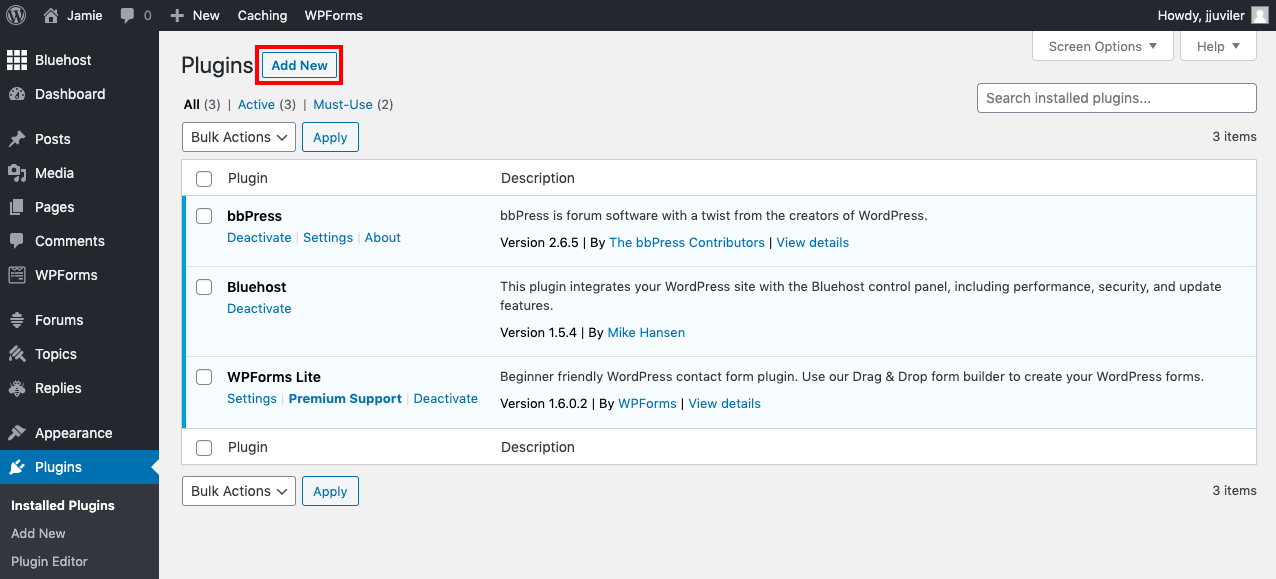
WordPress plugins simplify backups. They automate the process and save files regularly. Popular plugins can store backups in your dashboard or remote storage. Easy setup with no technical skills required. Some plugins offer free versions with basic features. Paid versions add more options like scheduling and email alerts. Plugins are great for users who want quick and reliable backups.
Cloud Backup Solutions
Cloud backup solutions store your site data on remote servers. They use services like Google Drive, Dropbox, or Amazon S3. These solutions keep your backups safe from local computer failures. Many WordPress plugins connect directly to cloud services. Cloud backups offer secure, off-site storage and easy access. Best for users who want extra protection and automatic backups.
Step-by-step Manual Backup Process
Backing up your WordPress site manually is simple and important. It protects your content and settings from loss. This guide shows clear steps for a safe backup. Follow each step carefully to keep your website secure.
Exporting WordPress Database
The database holds all your posts, pages, and settings. Start by logging into your hosting control panel. Find the “phpMyAdmin” tool and open it. Select your WordPress database from the list. Click the “Export” tab at the top.
Choose the “Quick” export method for an easy backup. Select “SQL” as the file format. Click “Go” to download your database file. Save this file in a safe place on your computer.
Downloading Website Files
Your website files include themes, plugins, and uploads. Use an FTP client like FileZilla to access your server. Enter your FTP details to connect to your website. Navigate to the root folder, usually named “public_html.”
Select all files and folders inside this directory. Download these files to a folder on your computer. This step ensures you have a full copy of your website files.
Storing Backup Safely
Store your backup files in multiple locations. Use an external hard drive or USB stick for extra security. Upload a copy to a cloud storage service like Google Drive. Label each backup with the date for easy tracking.
Keep backups updated regularly to avoid data loss. Having a recent backup helps restore your site fast if needed.
Credit: agethemes.com
Top WordPress Backup Plugins
Backing up your WordPress website is crucial for safety. A good backup plugin makes this task easy and reliable. These plugins save your site data and let you restore it quickly. Choose a plugin that fits your needs and skill level. Here are some key points to consider and popular options to try.
Features To Look For
Easy setup and user-friendly interface matter. Automatic backups help keep your site safe without effort. Storage options like cloud, FTP, or local backups offer flexibility. Check for backup scheduling to save regularly. Look for restore options that are simple and fast. Compatibility with your WordPress version is important. Make sure the plugin supports large sites if needed. Customer support and regular updates show reliability.
Popular Plugin Options
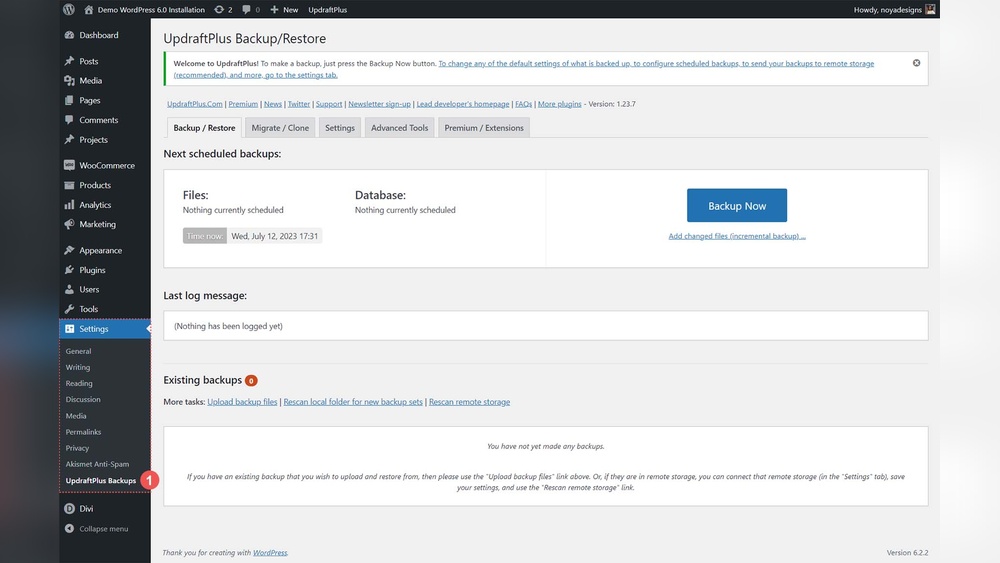
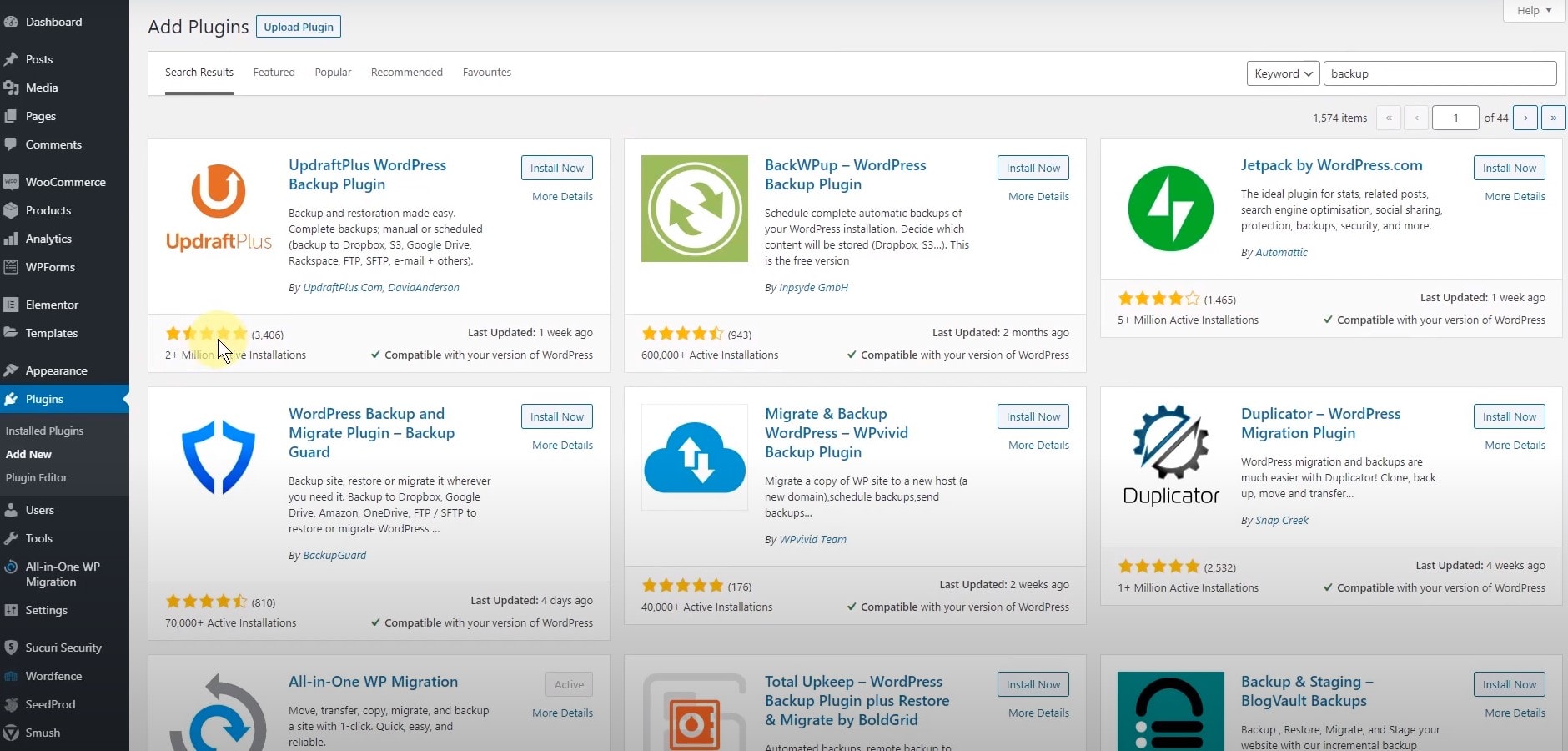
UpdraftPlus is popular for its easy use and reliable backups. It offers cloud storage and scheduled backups. BackupBuddy provides full backups and easy site migration. It stores backups in various locations. BackWPup is a free option with many features. It supports multiple storage services. Jetpack Backup offers real-time backups and simple restores. It integrates well with WordPress. Each plugin has free and premium versions to choose from.
Setting Up Automatic Backups
Most backup plugins let you set schedules. Choose how often backups run, like daily or weekly. Select the time when your site is less busy. Pick backup contents: files, database, or both. Choose where to store backups safely. Enable notifications to get alerts on backup status. Test your backup by restoring a small file. This confirms the backup works properly. Automatic backups keep your site protected without hassle.
Backing Up With Cloud Services
Backing up your WordPress website using cloud services is a smart way to keep your data safe. Cloud storage offers secure, off-site backup solutions. It helps protect your website from data loss caused by hacks, server crashes, or human errors.
Cloud backups allow easy access to your files from any device. They provide peace of mind by storing your data in multiple locations. This method ensures your website content and settings remain safe over time.
Integrating Cloud Storage
Start by choosing a cloud storage provider like Google Drive, Dropbox, or Amazon S3. Install a WordPress backup plugin that supports cloud integration. Connect the plugin to your cloud account using API keys or login details. This setup sends your backup files directly to the cloud. It keeps your backups organized and easy to find.
Scheduling Regular Backups
Set a backup schedule based on your website’s update frequency. Daily or weekly backups are common choices. Use your backup plugin to automate this process. Automation saves time and reduces the risk of forgetting backups. Consistent backups ensure your data stays current and recoverable.
Restoring From Cloud Backups
If your website encounters problems, cloud backups help restore it quickly. Access your cloud storage and download the latest backup file. Use your backup plugin to upload and restore your website from this file. The process is simple and minimizes downtime. Regular restoration tests keep your backup system reliable.
Best Practices For Backup Management
Effective backup management keeps your WordPress site safe and running. It protects your data from loss or damage. Following best practices ensures your backups work when needed. Consistency, testing, and storage strategies matter.
Frequency Of Backups
Backup your website regularly. How often depends on how often you update content. For busy sites, daily backups work best. Less active sites can backup weekly. Regular backups reduce data loss risks.
Testing Backup Restores
Backup is useless if you cannot restore it. Test your backups by restoring them on a test site. This confirms the backup files are complete. Regular testing helps avoid surprises during real issues.
Keeping Multiple Backup Copies
Store several backup copies in different places. Use cloud storage, external drives, or backup services. Multiple copies protect against hardware failure or accidental deletion. Keep at least three copies for safety.
Frequently Asked Questions
How Often Should I Backup My WordPress Website?
You should backup your WordPress site at least once a week. For high-traffic sites, daily backups are recommended to ensure data safety. Regular backups protect your content from data loss, hacks, or server failures.
What Are The Best Plugins To Backup WordPress?
Popular WordPress backup plugins include UpdraftPlus, BackupBuddy, and BackWPup. These plugins offer automated backups, easy restoration, and cloud storage options, making website backup simple and reliable.
Can I Backup WordPress Manually Without Plugins?
Yes, you can manually backup WordPress by exporting your database and downloading files via FTP. This method requires technical knowledge but ensures full control over your backup process.
Where Should I Store My WordPress Backups?
Store backups offsite in secure locations like cloud storage services (Google Drive, Dropbox). Offsite storage protects backups from server failures and makes recovery easier.
Conclusion
Backing up your WordPress site protects your hard work and data. Regular backups keep your site safe from errors or attacks. Choose a backup method that fits your skills and needs. Store backups in multiple locations for extra security. Test your backups to ensure they work properly.
Stay consistent with your backup schedule to avoid surprises. A secure website helps build trust with your visitors. Keep your site running smoothly by backing it up often. Simple steps can save you time and stress later.



