
Are you looking to enhance your WordPress website by adding a separate site to your theme? Whether you’re aiming to showcase a new project, expand your portfolio, or simply create a dedicated space for something special, attaching a separate site can be a game-changer.
Imagine the possibilities: a seamless integration that allows your audience to explore diverse content without leaving your main site. It sounds like a daunting task, but it doesn’t have to be. In this guide, you’ll discover straightforward steps to attach a separate site to your WordPress theme effortlessly.
You’ll learn how to maintain your brand’s identity while exploring new horizons, ensuring your visitors get a cohesive experience. Ready to unlock new potential for your WordPress site? Let’s dive in and get started!
Choosing The Right Tools
Picking the right theme is very important. A theme changes how your site looks. Some themes are free. Others cost money. Always choose a theme that is easy to use. Make sure it fits your site’s needs. Look for themes with good reviews. User reviews help you know if a theme is good.
Selecting A Suitable Theme
Themes should be responsive. This means they look good on phones and computers. Check if the theme has updates. Updated themes have fewer bugs. Avoid themes that have not been updated in a long time. Choose a theme with a strong support team. This team helps if you have problems.
Necessary Plugins
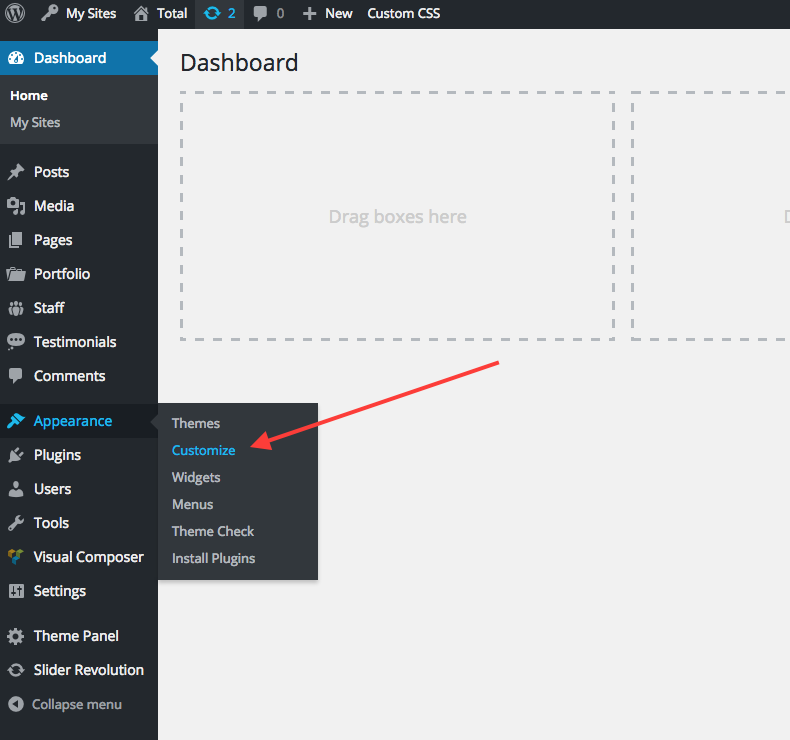
Plugins add extra features to your site. Some plugins improve security. Others make your site faster. Choose plugins that are popular and have good ratings. Too many plugins can slow your site down. Only install what you need. Check for plugin updates regularly. Updated plugins work better and are safer.
Credit: totalwptheme.com
Preparing Your Separate Site
Creating a new site needs careful planning. Think about what you want to show. Make a list of your important pages. You might need an about page or a contact page. Think about the information your visitors need. Keep things simple and clear. Write short sentences. Use easy words. Your visitors should find what they need quickly.
Design is about how your site looks. Choose a style that fits your theme. Use colors that match your main site. Make sure buttons are easy to click. Pictures should be clear. Use easy-to-read fonts. Your site should work well on phones and computers. Check that everything lines up nicely. A good layout makes visitors stay longer.
Setting Up A Subdomain Or Subdirectory
Subdomains act like a separate site. They use a unique URL. Example: blog.yoursite.com. Subdirectories are folders within your main site. They use the same URL. Example: yoursite.com/blog. Both have their pros and cons. Subdomains can be harder to set up. Subdirectories are easier for SEO.
Log into your hosting account. Find the domain settings. Click on “Create Subdomain.” Enter a name for your subdomain. Choose the main domain to attach. Hit “Create” to finish. Your subdomain is now ready.
Log into your hosting panel. Navigate to your file manager. Locate your main site folder. Create a new folder inside. Name it anything you want. Upload the site files into this folder. Your subdirectory is now set up. Easy and quick.
Integrating With WordPress
First, download the separate site files. Save them to your computer. Locate the WordPress theme folder. Use FTP to upload the site files there. Make sure all files are uploaded correctly. This step connects your site with WordPress.
Check for any theme conflicts. Some themes might not work well. Modify styles to match your WordPress theme. Use CSS for this. Make sure the fonts look good. Check the layout and colors. Adjust settings if needed. This helps keep your site looking nice.
Ensuring Seamless Navigation
Attaching a separate site to your WordPress theme improves user experience. Ensure easy access to all site sections. Utilize plugins or coding to integrate seamlessly.
Creating Consistent Menus
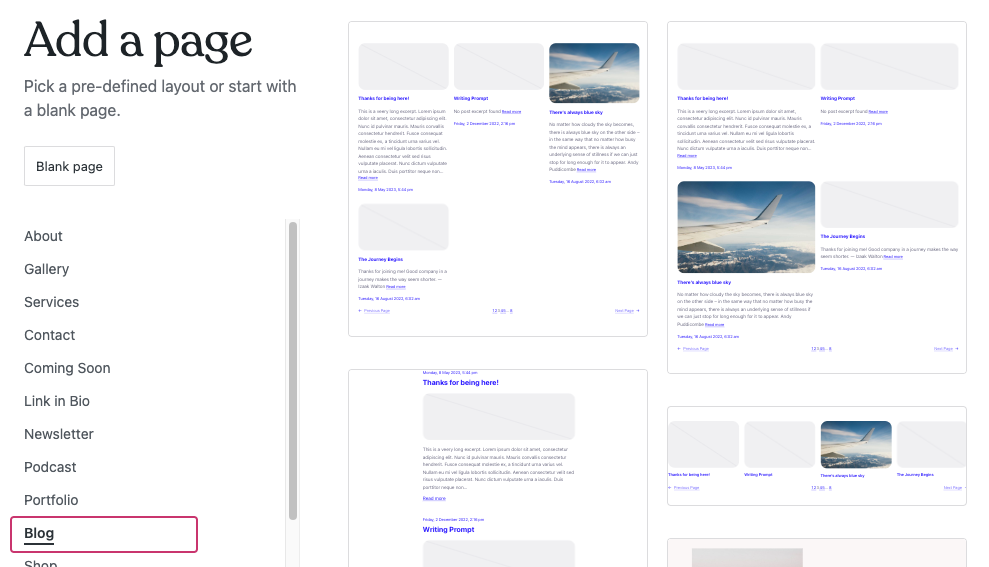
Menus help visitors find what they need. A consistent menu is key. Ensure all menus look the same on each page. Use the same colors, fonts, and layout. This keeps users happy. They know where to click next. Familiarity boosts user experience. Add new pages to the menu. Make sure they match the theme. Check all links work well. Fix any broken links quickly. A good menu guides users smoothly. It’s like a map on a journey. Keep it clean and simple.
Linking Pages And Posts
Links connect pages and posts. They help users explore more. Use clear links in your text. Users should know where they go. A good link description is important. Add links to related topics. This keeps users engaged longer. Avoid too many links. It can confuse visitors. Check links often for errors. A broken link frustrates users. Link building is like building a bridge. It connects one point to another. Make sure every link is strong.
Credit: wordpress.com
Optimizing For Seo
Connect a separate site to your WordPress theme easily. Start by selecting a compatible theme that supports multiple sites. Navigate through your WordPress dashboard to link the external site effectively, ensuring seamless integration and improved SEO performance.
Url Structure Optimization
Choose short and clear URLs. This helps users and search engines. Include important keywords in the URL. Avoid using special characters or numbers. Use hyphens to separate words. This improves readability. Example: yourwebsite.com/seo-tips.
Metadata And Keywords
Metadata is vital for SEO. Add a title tag with keywords. This appears in search results. Use a meta description with a brief summary. Aim for about 150 characters. Include keywords naturally. This attracts clicks. Avoid keyword stuffing. This can hurt your ranking. Keep content relevant to your topic.
Testing And Troubleshooting
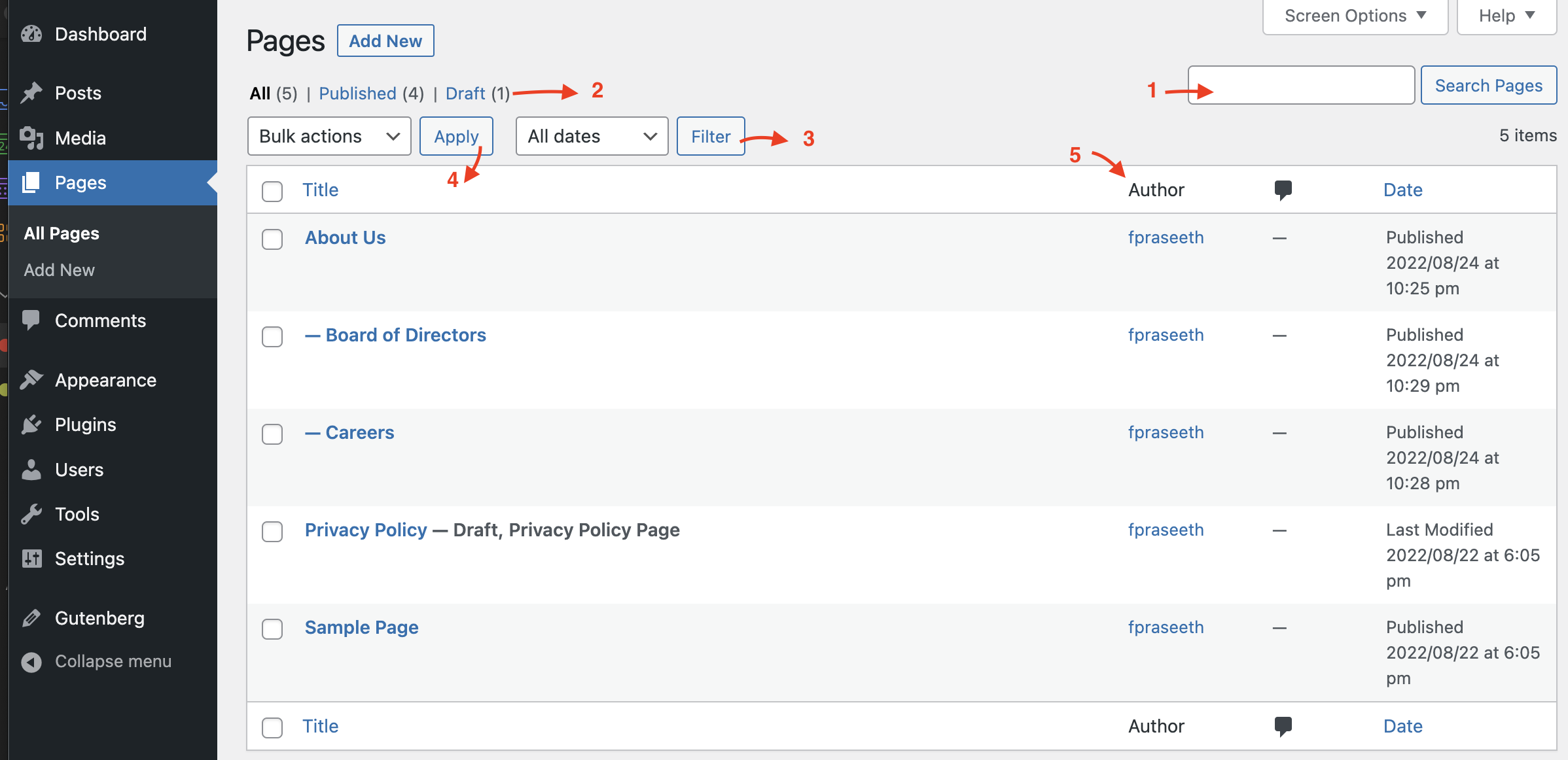
Checking for Errors in your WordPress theme is crucial. Start by reviewing the site’s code. Look for any red flags or error messages. Make sure all files are in the right folders. If something seems off, it probably is. Also, test your site on different browsers. Each browser can show different errors. Always check the site’s speed. Slow pages can mean problems. Use online tools to find errors.
Resolving Compatibility Issues is important. First, check if your theme supports all plugins. Some plugins might not work well together. Update your theme and plugins regularly. This helps fix many issues. If a plugin causes trouble, find an alternative. Check if the site works on phones and tablets. Mobile compatibility is key. Always backup your site before changes. This saves you if things break.
Credit: wordpress.org
Launching Your Integrated Site
Ensure all site files are in place. Test the site on different browsers. Check if all links work properly. Verify that images load correctly. Review your site’s appearance. Make sure it matches the theme.
Update your WordPress settings. Make sure the new site is linked. Double-check all content. Ensure it displays as intended. Confirm all plugins are active. Ensure they work smoothly.
Share the exciting news with your audience. Use social media to spread the word. Send emails to your subscribers. Let them know your site is live. Encourage them to visit. Provide them with a link to the site. Invite feedback on their experience.
Prepare a small announcement post. Highlight the new features. Share details about your site. Explain its benefits. Make it sound inviting. Keep the message simple and clear. Engage with your audience.
Frequently Asked Questions
How To Integrate A Separate Site With WordPress?
To integrate a separate site with WordPress, use the “iframe” method or subdomains. These methods allow easy embedding and linking. Choose a method based on your site’s needs. Ensure compatibility and seamless navigation for users. Optimize URLs and maintain consistent branding for better user experience.
Can I Use Different Themes For Subdomains?
Yes, WordPress allows different themes for subdomains. Use the Multisite feature to manage multiple sites. Each subdomain can have its own theme. Customize settings for each subdomain individually. Ensure the themes are compatible with your main site. This enhances user experience and site functionality.
What Are The Steps To Link Sites In WordPress?
Linking sites in WordPress involves creating subdomains or using plugins. Install plugins like “Multisite” for better management. Customize menus to include links to different sites. Ensure smooth navigation and consistent branding. Regularly update and test links for functionality. This improves site performance and user engagement.
Is It Possible To Use Plugins On Separate Sites?
Yes, you can use plugins on separate sites. Install plugins individually for each site. Ensure compatibility with different themes. Customize settings to suit each site’s requirements. Regularly update plugins for security and performance. This enhances functionality and user experience across all sites.
Conclusion
Attaching a separate site to your WordPress theme is simple. Follow the steps carefully. Remember to back up your data first. This prevents any loss during changes. Use plugins to ease the process. They offer user-friendly options. Check compatibility of your theme and site.
This ensures smooth integration. Customize settings to fit your needs. Test the site after attaching. Make sure everything works properly. Regular updates keep your site secure. A well-integrated site enhances user experience. It also boosts visibility. Stay informed on WordPress updates.
This keeps your setup current. Enjoy your new site setup!


