
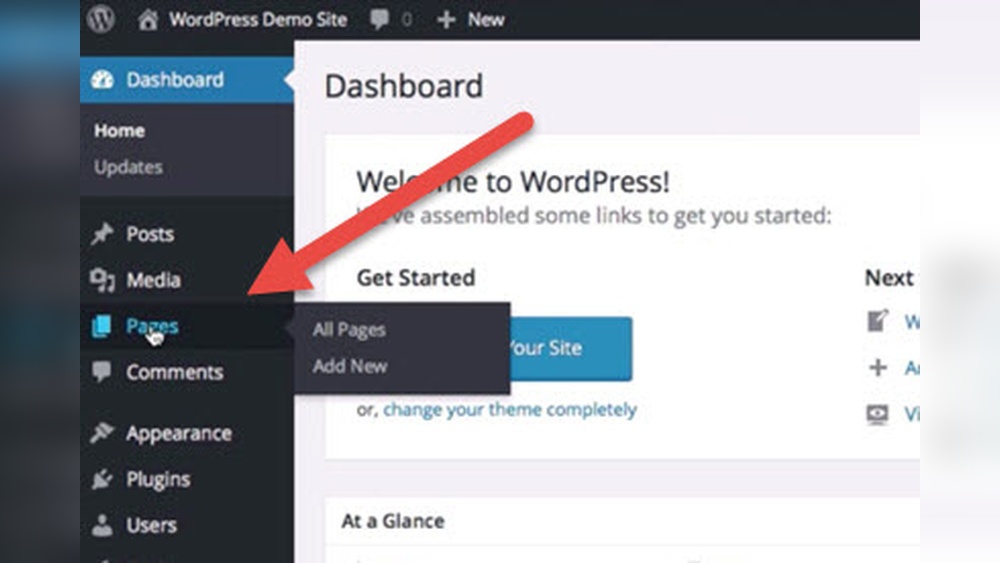
Are you struggling to make your WordPress website look just right? One of the first steps to get your site noticed is setting the perfect home page.
Knowing how to assign your home page in WordPress gives you full control over what visitors see first. This simple change can boost your site’s impact and keep people engaged longer. Keep reading, and you’ll learn exactly how to do it quickly and easily—no tech skills needed!

Credit: learn.wordpress.org
Choosing A Static Front Page
Choosing a static front page in WordPress means picking a fixed page to show first on your website. This page stays the same for every visitor. It is different from the default blog page that shows your latest posts.
A static front page helps you control what visitors see first. You can highlight important information or your best content right away. It is useful for business sites, portfolios, or any site that needs a clear introduction.
Difference Between Static And Blog Pages
A static page shows the same content all the time. It does not change unless you edit it. A blog page shows new posts in order. The newest posts appear first. The blog page updates automatically as you add posts.
Static pages are simple and focused. Blog pages are dynamic and always changing. Static pages suit home pages that explain your site. Blog pages work well for news or updates.
Benefits Of A Static Home Page
A static home page creates a clear first impression. Visitors see your main message quickly. It helps guide visitors to important parts of your site.
It improves your site’s design by allowing custom layouts. You can add images, buttons, and text easily. This page looks professional and organized.
Search engines like static pages. They find it easier to understand your site. A static front page can help your site rank better.
Credit: cyberchimps.com
Creating The Home Page
Creating a home page is the first step in building your WordPress website. It serves as the main page visitors see first. A clear and simple home page helps guide visitors. Focus on what you want to show and keep it neat.
Using The WordPress Editor
The WordPress editor lets you add text, images, and blocks easily. You can drag and drop elements to arrange them. Add headings to organize content and make it easy to read. Use paragraphs to break large text into small pieces. Insert images or videos to make the page interesting. Preview your changes before publishing. This ensures the page looks good on all devices. Save your work often to avoid losing changes.
Design Tips For Your Home Page
Choose a simple layout that fits your website’s purpose. Use clear fonts and colors that match your brand. Keep menus easy to find and use. Add buttons for important links like contact or shop. Make sure your page loads fast by using small images. Leave white space to avoid clutter. A clean design helps visitors focus on your message. Test your home page on phones and tablets. It should look good everywhere.
Assigning The Home Page
Assigning a home page in WordPress helps set the main page visitors see first. This step is important for website navigation and user experience. You can choose a static page or show your latest posts as the home page. Setting a specific page as your home page creates a clear starting point for your visitors.
Accessing Reading Settings
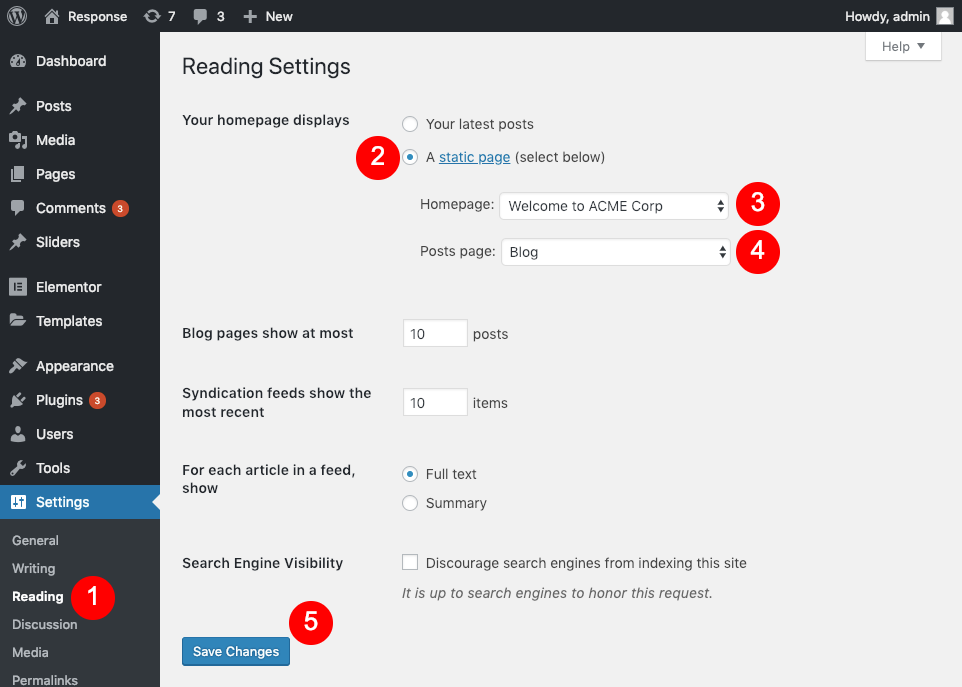
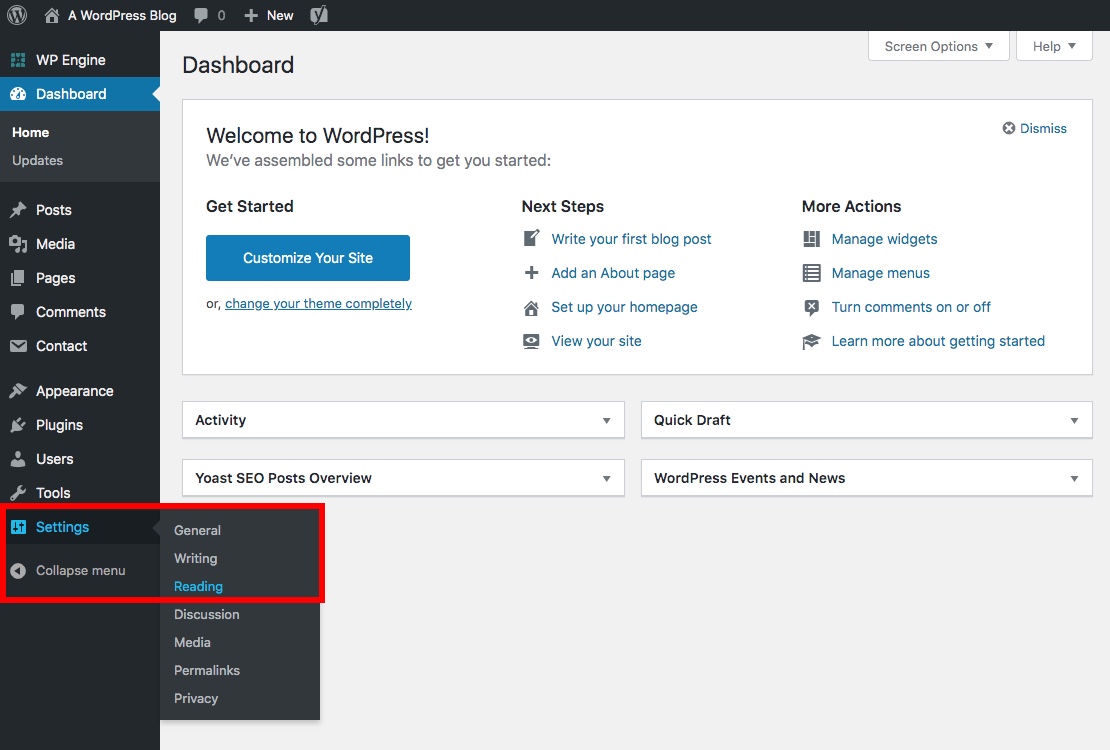
Start by logging into your WordPress dashboard. Find the “Settings” menu on the left side. Click “Reading” to open the reading settings page. This section controls how your website displays content to visitors. It is where you assign the home page.
Selecting Your Static Page
In the “Reading Settings,” look for the “Your homepage displays” option. Choose “A static page” to set a fixed home page. Then, use the dropdown menu to pick the page you want as the home page. Save your changes by clicking the “Save Changes” button at the bottom.
Customizing Your Home Page
Customizing your WordPress home page lets you create a unique look for your website. It helps visitors find important information quickly. You can choose simple or complex designs. Both work well depending on your needs.
Start by deciding what content you want on your home page. Think about your brand and what message you want to send. Then use tools within WordPress to shape your page’s appearance and function.
Adding Widgets And Sections
Widgets add small blocks of content to your home page. They can show recent posts, calendars, or search bars. Most themes support widgets in sidebars and footers. Some allow widgets in the main content area too.
Go to the WordPress dashboard. Select Appearance, then Widgets. Drag and drop widgets into the desired areas. Customize each widget with settings to fit your style.
Use sections to organize content clearly. Sections can separate text, images, or calls to action. This makes your home page easier to scan and more inviting.
Using Page Builders For Advanced Layouts
Page builders offer more control over your home page design. They use drag-and-drop tools for easy layout creation. Popular builders include Elementor, Beaver Builder, and Divi.
With page builders, you can add columns, buttons, and custom backgrounds. You don’t need coding skills to use them. These tools help you build professional pages fast.
Open the page builder on your home page. Select elements to add and arrange them freely. Preview changes live and publish when satisfied.
Troubleshooting Common Issues
Troubleshooting common issues helps keep your WordPress home page working well. Small problems can stop your site from showing the right page. Fixing these quickly improves user experience and site performance.
Some problems happen often. Knowing how to solve them saves time and frustration. Two common issues are the home page not updating and permalink settings causing errors.
Home Page Not Updating
Sometimes changes to the home page do not show. This can confuse visitors and site owners. Clear your browser cache first. Old files may load instead of new ones.
Check if a caching plugin is active. Disable it temporarily and refresh your site. Also, clear your WordPress cache if available. This helps load the latest content.
Make sure you saved changes in the WordPress editor. Unsaved edits do not appear on the live site. Lastly, check if your theme or page builder overrides the home page settings.
Permalink Settings And Fixes
Permalinks control how URLs look on your site. Incorrect settings can cause links to break or show errors. Visit the WordPress dashboard and go to Settings > Permalinks.
Select a permalink structure that fits your site. The “Post name” option is simple and SEO friendly. Save changes even if you do not alter anything. This refreshes the permalink rules.
If errors continue, check your .htaccess file. It must have the right code for permalinks to work. Contact your hosting provider if you cannot edit this file yourself.
Tips For Better Home Page Performance
Improving your WordPress home page helps visitors stay longer. A fast, clear page keeps users happy and engaged. Simple steps can boost your site’s performance and make your content shine.
Optimizing Images And Content
Use smaller images without losing quality. Compress images with tools like TinyPNG or ShortPixel. Choose the right format: JPEG for photos, PNG for graphics. Add clear, short text that explains your site. Avoid long paragraphs and keep sentences easy. Use headings and bullet points to organize content. Clear content helps visitors find what they want quickly.
Improving Load Speed
Choose a good hosting service for faster loading. Use caching plugins like W3 Total Cache or WP Super Cache. Minimize the number of plugins to reduce delays. Enable lazy loading to load images only when needed. Keep your WordPress and plugins updated for best speed. Test your home page speed with tools like Google PageSpeed Insights. Faster pages improve user experience and search rankings.
Credit: www.wpexplorer.com
Frequently Asked Questions
How Do I Set A Static Home Page In WordPress?
Go to WordPress Dashboard, click Settings > Reading. Select “A static page” under “Your homepage displays”. Choose your desired page and save changes.
Can I Assign A Custom Home Page Without Plugins?
Yes, WordPress allows setting a static home page natively. No plugins are needed for this basic function.
What Is The Difference Between Homepage And Blog Page?
Homepage is the front page visitors see first. Blog page lists your posts. Both can be set separately in settings.
How To Change Homepage After Initial Setup?
Return to Settings > Reading. Select a new static page under “Homepage”. Save the changes to update your front page.
Conclusion
Assigning a home page in WordPress helps organize your website clearly. Choose a page that best represents your content. Setting it up is quick and simple. This improves visitor experience and site navigation. Keep your home page updated for better engagement.
Follow the steps carefully to avoid errors. Your website will look professional and easy to use. Stay consistent with your content and design. This small change makes a big difference for your site.


