
Are you worried about losing your valuable WordPress blog content? Archiving your blog is the smartest way to keep your work safe and accessible for years to come.
Whether you want to free up space, preserve memories, or create a backup, knowing how to archive your WordPress blog can save you time and stress. In this guide, you’ll discover simple steps to protect your blog without any technical headaches.
Keep reading to learn how to secure your content and never lose a single post again.
Why Archive Your WordPress Blog
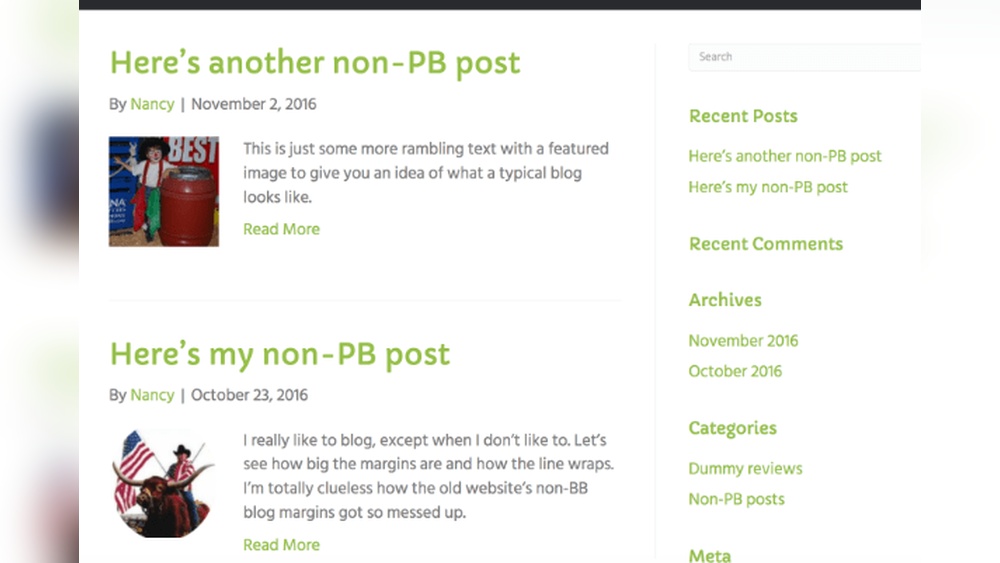
Archiving your WordPress blog helps keep your site clean and organized. It stores old posts safely without deleting them. This process is useful for managing content and improving site performance. Archiving also protects your work for future reference.
Benefits Of Archiving
Archiving frees up space on your website. It speeds up your site by reducing active content. Visitors find current posts more easily. Old posts stay available for readers who want them. It keeps your blog tidy and professional. Archiving also protects your content from accidental deletion.
Common Scenarios For Archiving
Archiving helps when you stop updating a blog. It works well for seasonal or event-based sites. Old projects or campaigns can be stored safely. Archiving is useful if you want to redesign your blog. It keeps old content accessible during changes. Archiving also supports legal or record-keeping needs.
Credit: toolset.com
Preparing Your Blog For Archiving
Preparing your WordPress blog for archiving is an important step. It helps keep your site clean and organized before you save it for the future. This process makes sure your blog data is safe and easy to access later.
Start by reviewing your blog content. Remove anything outdated or no longer needed. This keeps the archive tidy and useful. Next, create a full backup of your blog. Backups protect your data and prevent loss during archiving.
Cleaning Up Content
Go through your posts, pages, and media files. Delete drafts, spam comments, and unused images. Check for broken links and fix them. Clear out old plugins and themes you do not use. This reduces clutter and speeds up your site.
Backing Up Your Data
Use a reliable backup plugin or your hosting service’s tools. Save all your files, database, and settings. Store backups in a safe place outside your server. Test the backup to ensure it works. This step protects your blog from unexpected problems.
Using WordPress Export Tools
Using WordPress export tools is a simple way to save your blog content. These tools help you create backup files of your posts, pages, and media. The process is quick and requires no special skills. It is perfect for archiving your website or moving it to another platform.
Exporting Posts And Pages
Start by going to the WordPress dashboard. Find the “Tools” menu and select “Export.” Choose the option to export “Posts” or “Pages.” You can select specific dates, authors, or categories to narrow down the export. Click the “Download Export File” button. This creates an XML file with your chosen content. Keep this file safe for future use or import.
Exporting Media Files
Media files are not included in the default export of posts and pages. To save your images and videos, use a plugin or manually download the uploads folder via FTP. Some plugins can export media files along with content. This ensures all your media is backed up. Store these files in a secure location to avoid loss.
Credit: happyaddons.com
Creating A Full Site Backup
Creating a full site backup is a key step to protect your WordPress blog. It saves all your content, settings, and files. This backup helps you restore your site if anything goes wrong. Regular backups prevent data loss and save time. You can choose between plugins or manual methods to create a full backup.
Choosing Backup Plugins
Backup plugins make saving your site easy and fast. They automate the process and store your data safely. Popular plugins include UpdraftPlus, BackWPup, and Duplicator. These tools let you schedule backups and save files to cloud services. Most plugins offer free versions with basic features. Paid versions provide extra options like faster backups and better support. Always pick a plugin that updates regularly and has good reviews.
Manual Backup Methods
Manual backups give you full control over your data. You must download your WordPress files and database separately. Use an FTP client to copy your files from the server. Export your database using phpMyAdmin or a similar tool. Save both files in a secure place on your computer or external drive. Manual backups take more time but help you understand your site structure better.
Storing Your Archive Safely
Storing your WordPress blog archive safely is important. It protects your content from loss or damage. Choosing the right storage method keeps your data secure and easy to access. This section explains how to store your archive using cloud and local storage methods.
Cloud Storage Options
Cloud storage keeps your archive on remote servers. These servers are managed by trusted companies. You can access your archive anytime from any device. Popular options include Google Drive, Dropbox, and Microsoft OneDrive.
Cloud storage offers automatic backups. It protects files from hardware failures or theft. Many services provide free storage with upgrade options for more space. Use strong passwords and enable two-factor authentication for extra security.
Local Storage Best Practices
Local storage means saving your archive on physical devices. These include external hard drives, USB flash drives, or your computer.
Keep backup copies on different devices. Store devices in cool, dry places away from sunlight. Avoid using the same device for daily tasks and backups to reduce risks.
Regularly check your files to ensure they are intact. Update your backup copies every few weeks. Use encryption software to protect sensitive data from unauthorized access.
Restoring Archived Content
Restoring archived content is an important step to bring your WordPress blog back online. It lets you recover all your posts, pages, and other data. This process helps maintain your website’s continuity and keeps your audience engaged.
Restoring content requires careful handling of files and settings. You must import your data correctly to avoid errors. Also, media files and themes need special attention to work well with your restored site.
Importing Content Back To WordPress
Start by logging into your WordPress dashboard. Use the built-in import tool to upload your archived content file. This file is usually in XML format.
Go to Tools > Import and select the WordPress importer. Upload the XML file and follow the prompts. Assign authors and set import options carefully.
Wait until the import finishes. Check your posts and pages to ensure everything appears as expected. Fix any broken links or missing content promptly.
Handling Media And Themes
Media files like images and videos may not import automatically. You need to upload these files separately via FTP or the Media Library. Confirm all media links work correctly on your site.
Themes control how your site looks. Install the same theme version you used before archiving. Activate the theme and check your site’s appearance.
Customize your theme settings if needed. This restores your site’s original design and user experience.
Tips For Long-term Preservation
Keeping your WordPress blog safe for years requires careful planning. Long-term preservation helps protect your content from loss or damage. It also keeps your site running smoothly over time.
Focus on simple habits that build strong protection. These habits reduce risk and make recovery easier if problems occur. Start with these essential tips to secure your blog’s future.
Regular Backup Schedule
Backups save copies of your entire blog. Regular backups protect your content from accidental loss. Set a schedule that fits how often you update your site.
Use reliable backup tools to automate the process. Store backups in multiple places, like cloud storage and local drives. Check backups often to ensure they work correctly.
Keeping Software Updated
Keep WordPress and all plugins updated. Updates fix security issues and improve performance. Running outdated software risks hacking and errors.
Enable automatic updates if possible. Test updates on a staging site before applying them live. Stay aware of new versions to avoid missing important fixes.

Credit: usablewp.com
Frequently Asked Questions
How Do I Export My WordPress Blog For Archiving?
To export your WordPress blog, use the built-in Export tool. Navigate to Tools > Export, choose “All content,” and download the XML file. This file contains posts, pages, comments, and more for easy backup or migration.
What Plugins Help Archive A WordPress Blog Effectively?
Popular plugins like UpdraftPlus, WP All Export, and Simply Static help archive WordPress blogs. They simplify backups, exports, and static site generation for easy preservation and offline access.
Can I Archive My WordPress Blog Without Losing Seo Rankings?
Yes, archiving your blog properly preserves SEO. Use redirects for moved content and keep essential metadata intact. Avoid deleting your live site abruptly to maintain search engine trust.
How Often Should I Archive My WordPress Blog?
Archiving frequency depends on your update schedule. For active blogs, monthly backups are ideal. For less frequent posts, quarterly archiving keeps your content safe and up-to-date.
Conclusion
Archiving your WordPress blog keeps your content safe and organized. It helps you save old posts without losing access. You can revisit past ideas anytime you want. This process also frees up space on your website. Regular archiving makes your site faster and cleaner.
Take time to back up your data well. Simple steps lead to lasting benefits for your blog. Start archiving today and keep your content secure.



