

Are you worried about losing your hard work on your WordPress site? Whether you’re upgrading, redesigning, or simply want a backup, knowing how to archive your WordPress site is a smart move.
Archiving keeps your content safe and lets you revisit your site anytime without stress. In this guide, you’ll discover simple, step-by-step methods to archive your site quickly and securely. Keep reading to protect your online presence and save yourself from future headaches.
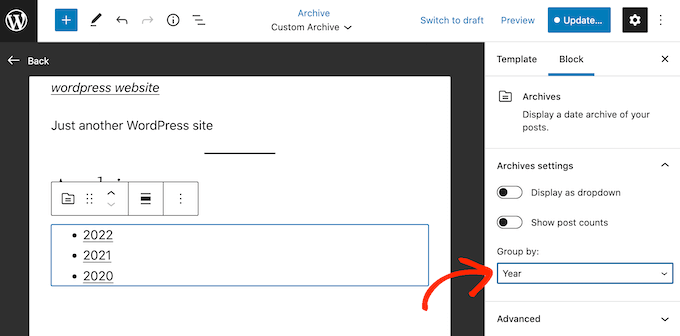
Credit: www.wpbeginner.com
Why Archive Your WordPress Site
Archiving your WordPress site protects your hard work and content. It saves a copy of your website at a certain point in time. This copy can be used to restore your site after problems or to keep a record of your content. Archiving is a smart habit for every site owner.
Benefits Of Site Backup
Backing up your WordPress site keeps your data safe. It helps you recover from hacking or accidental deletions. You can restore your site quickly without losing important content. Backups also help when updating WordPress or plugins fails. They give peace of mind knowing your site is protected.
Risks Of Not Archiving
Not archiving your site puts your data at risk. A crash or hack can cause permanent loss. You may lose posts, images, and settings. Fixing a broken site without backup takes time and money. It can also hurt your site’s reputation and traffic. Avoid these problems by keeping regular backups.
Choosing The Right Backup Method
Choosing the right backup method for your WordPress site is very important. It protects your content and settings from loss or damage. Different methods work best for different users. Consider your technical skills, time, and how often you update your site.
Backing up your site regularly keeps it safe from hacks or errors. You can pick a method that fits your needs and budget. Let’s explore three common ways to back up a WordPress site.
Manual Backup
Manual backup means you save your files and database yourself. You download all WordPress files using an FTP client. Then, export your database from your hosting control panel. This method needs some technical knowledge.
You control every step and file. It is free and secure if done correctly. But it takes time and must be done regularly. Forgetting to back up can cause data loss.
Using Plugins
Backup plugins make the process simple. They automate file and database backups. Popular plugins include UpdraftPlus, BackWPup, and Duplicator. These tools often offer scheduled backups and cloud storage options.
Plugins save time and reduce errors. They work well for beginners. Some features may require payment. Always choose plugins with good reviews and updates.
Hosting Provider Options
Many hosts offer built-in backup services. These may include daily or weekly backups stored on their servers. Some hosts allow easy restoration with one click.
Using your hosting provider’s backup saves effort. It integrates with your site’s environment. Check if backups are automatic and how long they keep files. Some hosts charge extra for backup services.
Preparing For Backup
Preparing for backup is a vital step before archiving a WordPress site. It helps to avoid issues during the process. Proper preparation ensures a smooth and complete backup. This section guides you through key tasks to get ready.
Check Site Size
Knowing your site size helps you choose the right backup method. Large sites need more storage and time. Use tools or hosting control panel to check your site’s total size. Include all files and databases. This avoids incomplete backups or failures.
Update WordPress And Plugins
Keep WordPress and plugins updated before backup. Updates fix bugs and improve security. Backup an updated site to avoid saving old errors. Check for available updates in your dashboard. Run updates and test your site afterward.
Disable Caching
Caching can cause backup problems. It stores temporary files that might not reflect recent changes. Disable all caching plugins and server caches before backup. This step ensures the backup captures the latest version of your site. Reactivate caching after the process ends.
Credit: roconpaas.com
Manual Backup Steps
Backing up your WordPress site manually is a reliable way to protect your content and settings. This method lets you control every step and keep copies safe. Follow clear steps to create a complete backup of your site.
Exporting WordPress Database
Start by exporting your WordPress database. It holds all your posts, pages, and settings. Access your hosting control panel and open phpMyAdmin. Select your WordPress database from the list. Click the “Export” tab. Choose the “Quick” export method and the “SQL” format. Click “Go” to download the database file.
Downloading Site Files Via Ftp
Next, download your site files using an FTP client. Connect to your website server with FTP credentials. Navigate to the root folder where WordPress is installed. Select all files and folders, including wp-content, wp-includes, and wp-admin. Download them to your computer. This step saves your themes, plugins, and media files.
Saving Backup Locally
Save both the database export and site files on your local computer. Organize them in a folder with the date of backup. Use an external hard drive or cloud storage for extra safety. Keeping backups offline ensures you can restore your site anytime.
Using Backup Plugins
Using backup plugins is an easy way to archive your WordPress site. These tools save your website data safely. They keep copies of your files and database. This helps restore your site if anything goes wrong.
Backup plugins are made for all skill levels. You do not need to be a tech expert. Most plugins have simple steps to follow. This saves time and effort when you archive your site.
Popular Plugin Choices
Several backup plugins are popular among WordPress users. UpdraftPlus is one of the top choices. It offers free and paid versions. Another good option is BackWPup. It supports many storage options. Duplicator helps copy and move sites easily. Each plugin has unique features for backups.
Configuring Backup Settings
Set up your backup plugin carefully. Choose what to back up: files, database, or both. Pick the storage location like cloud services or local folders. Set file size limits if needed. Some plugins allow encryption to secure backups. Check the options to keep backups organized.
Scheduling Automatic Backups
Automatic backups save you manual work. Set how often backups happen: daily, weekly, or monthly. Choose the backup time when your site has low traffic. This avoids slowing down the site. Make sure your plugin sends notifications after backups. Regular backups keep your site safe without effort.

Credit: blogvault.net
Storing Your Backup Securely
Storing your WordPress site backup securely protects your work from loss or damage. A safe backup ensures quick recovery after any problem. Choose reliable storage options to keep your data safe and easy to access.
Cloud Storage Options
Cloud storage keeps your backup offsite and secure. Services like Google Drive, Dropbox, or Amazon S3 offer easy access from anywhere. These platforms encrypt your data to protect it from unauthorized access. Regularly update your backups to the cloud for safety.
External Hard Drives
External hard drives provide a physical copy of your backup. They are easy to use and fast for large files. Store the drive in a safe place away from your computer. Keep it dry and protected from extreme temperatures.
Multiple Backup Locations
Save backups in more than one place to reduce risk. Use both cloud storage and external drives for better security. This way, if one backup fails, another copy is ready. Multiple locations make your data recovery more reliable and stress-free.
Restoring Your Archived Site
Restoring your archived WordPress site brings back your content and design. It helps recover your website after data loss or migration. The process can be simple or detailed, depending on how you saved your site.
Choose the right method to restore your site. Both plugin-based and manual options work well. Testing after restoration ensures everything runs smoothly.
Restoring Via Plugin
Plugins make restoration quick and easy. Most backup plugins include restore options. Upload your backup file through the plugin’s interface. Follow prompts to complete the process. The plugin handles database and file recovery automatically. This method suits beginners and saves time.
Manual Restoration Process
Manual restoration requires more steps but offers control. Start by uploading your archived files via FTP. Use a tool like FileZilla for this. Next, restore your database using phpMyAdmin. Import the SQL file from your backup. Update the wp-config.php file with new database details. This method works well for advanced users.
Testing The Restored Site
Check your site carefully after restoration. Visit different pages to verify they load correctly. Test forms, images, and links to ensure they work. Clear your browser cache before testing. Use different devices and browsers for accuracy. Fix any broken elements immediately to avoid visitor issues.
Best Practices For Ongoing Site Archiving
Archiving your WordPress site regularly keeps your data safe and easy to restore. Following best practices helps avoid data loss and saves time during recovery. Consistent site archiving protects your content and settings from unexpected issues.
Regular Backup Schedule
Create a backup routine that fits your site’s update frequency. Daily backups suit active blogs, while weekly backups work for less frequent updates. Use automated tools to save time and avoid forgetting backups.
Keeping Backup Records
Store backup files in organized folders with clear dates. Keep multiple backup copies in different locations, such as cloud storage and local drives. Proper records help find the right backup quickly when needed.
Monitoring Backup Success
Check backup logs to confirm files save correctly. Test backups by restoring to a test environment now and then. This ensures your backups work and your site can be recovered without issues.
Frequently Asked Questions
How Do I Archive A WordPress Site Manually?
To archive manually, back up your WordPress files and export your database. Then, save these files securely offline or on cloud storage for future access.
What Tools Help Archive A WordPress Website Easily?
Plugins like UpdraftPlus, Duplicator, and All-in-One WP Migration simplify archiving by automating backups and exports with minimal technical knowledge required.
Can I Archive A WordPress Site Without Hosting?
Yes, by downloading all site files and exporting the database via phpMyAdmin, you can archive your site independently of your hosting provider.
How Often Should I Archive My WordPress Site?
Archive regularly, ideally before major updates or monthly, to ensure you have recent backups and prevent data loss during changes.
Conclusion
Archiving a WordPress site keeps your content safe and organized. You can revisit old posts anytime without stress. Regular archives help manage your website better. Backups protect you from data loss or hacking. Follow clear steps to save your site easily.
Keep your archive files in a secure place. This simple process saves time and effort later. Start archiving today to keep your site’s history. Easy, quick, and useful.


