
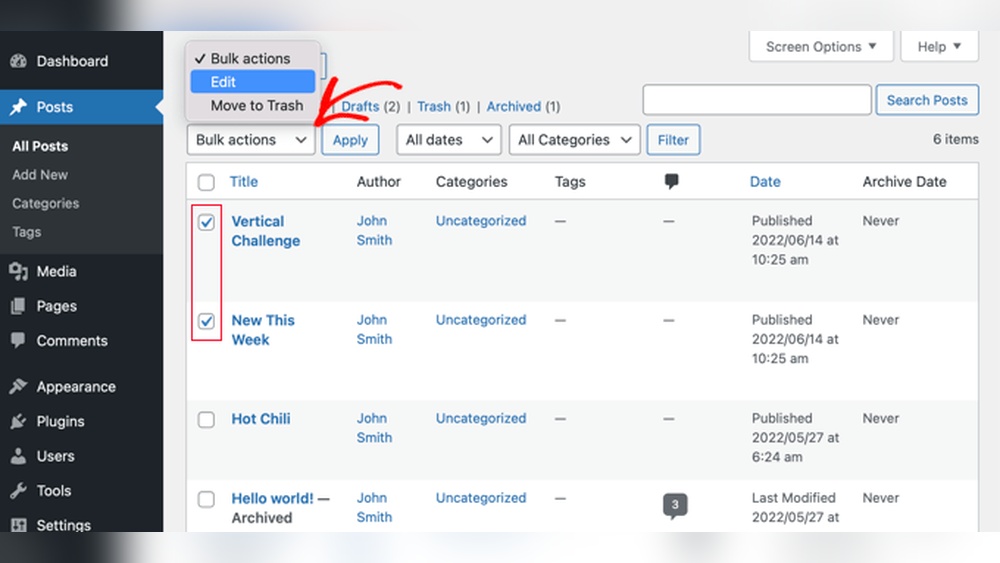
Are you looking to tidy up your WordPress site without deleting important posts? Archiving your posts is a smart way to keep your content organized and easy to manage.
In this guide, you’ll discover simple steps to archive a post on WordPress quickly and effectively. By the end, you’ll have the skills to keep your site clean and user-friendly, making it easier for your visitors to find what really matters.
Ready to take control of your content? Let’s dive in!
Benefits Of Archiving Posts
Archiving posts on WordPress helps keep your website neat and easy to manage. It moves old or less important content out of the main view. This makes your site clearer for visitors and easier for you to update. Archiving also helps keep your website fast and organized. Here are some key benefits of archiving posts.
Improving Site Organization
Archiving posts keeps your website structured. It separates old posts from new ones. This makes your site less cluttered. Visitors find the latest content quickly. You avoid confusion from too many posts on one page. It also helps you manage content better. Finding and updating posts becomes easier with archives.
Enhancing User Experience
Visitors enjoy a clean and simple site. Archived posts do not crowd the homepage or main blog page. This lets users focus on current and relevant content. Archived posts are still available but stored away neatly. Users can explore older content without feeling lost. This smooths navigation and keeps visitors happy.
Boosting Seo
Search engines prefer well-organized websites. Archiving old posts improves site structure and speed. It helps search engines find important content faster. Archived posts still add value by linking to new posts. This maintains your site’s authority and relevance. A clean site with fresh content ranks better in search results.
Preparing To Archive Posts
Preparing to archive posts on WordPress takes some careful steps. Proper preparation keeps your site clean and safe. It also helps you find old posts easily if needed later. This section guides you through two important tasks before archiving.
Identifying Posts To Archive
Start by choosing which posts to archive. Look for old posts that no longer get traffic. Posts with outdated information or seasonal content work well. You can also archive posts that don’t fit your site’s current focus. Use WordPress filters to sort posts by date or category. This makes it easier to pick the right ones.
Backing Up Your Content
Backing up posts is crucial before archiving. It protects your content in case something goes wrong. Use WordPress plugins or your hosting service to create a backup. Save the backup file in a safe location on your computer or cloud storage. Regular backups keep your site secure and give peace of mind.
Archiving Posts Using Built-in Features
Archiving posts in WordPress helps keep your site organized. It also hides old content without deleting it. WordPress has built-in features that make archiving simple. These tools let you change post status or use categories and tags. Both methods help sort and store posts for easy access later.
Changing Post Status
Changing the post status is a quick way to archive content. WordPress offers several status options like Draft, Pending Review, and Private. Setting a post to Draft removes it from public view but saves it for later editing. Marking a post as Private hides it from visitors but keeps it visible to logged-in users. These options help manage posts without losing data.
Using Categories And Tags For Archiving
Categories and tags organize posts by topic or theme. Create a category named “Archive” to group old posts. Assign this category to posts you want to archive. Tags can also help by labeling posts as “archived” or by year. Visitors and site owners can find archived posts easily using these labels. This method keeps your site neat and helps with SEO.

Credit: www.greengeeks.com
Archiving With WordPress Plugins
Archiving posts helps keep your WordPress site organized. Plugins make archiving easier and faster. They offer features to manage old posts without deleting them. Using plugins saves time and ensures your content stays accessible.
Top Plugins For Archiving
Several plugins help archive posts efficiently. “Simple Yearly Archive” creates clean archive pages by year. “WP Archive” lets you customize post listings easily. “Post Archive by Category” organizes posts by categories. These plugins work well for different archiving needs.
Step-by-step Plugin Setup
First, install your chosen archive plugin from the WordPress dashboard. Go to Plugins > Add New, then search for the plugin name. Click “Install Now” and then “Activate” to enable it.
Next, find the plugin’s settings page under the Settings menu. Configure how you want posts to be archived, such as by date or category. Save your settings to apply changes.
Finally, add the archive feature to your site. Use a shortcode or widget provided by the plugin. Place it on a page or sidebar to display archived posts to visitors.
Creating An Archive Page
Creating an archive page in WordPress helps organize your older posts. It makes it easy for visitors to find past content. Archive pages show posts by date, category, or author. Setting up a clear archive page improves your site’s navigation and user experience.
Using WordPress Archive Templates
WordPress offers built-in archive templates for different post types. These templates display posts in a simple list or grid format. You can use these templates without any coding skills. They automatically sort posts by date, category, or tag. This saves time and keeps your archives consistent.
Customizing Archive Layout
Customize your archive page to match your website’s style. Change colors, fonts, and layout using the WordPress Customizer. You can add images or excerpts for each post. Plugins also help add extra features like filters or pagination. A clean layout helps visitors scan and find posts quickly.
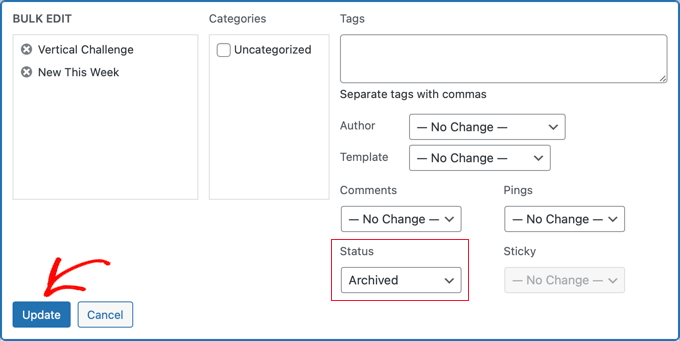
Credit: www.wpbeginner.com
Managing Archived Content
Managing archived content on WordPress helps keep your site organized. It allows you to control old posts without deleting them right away. Archived posts can be restored, updated, or deleted based on your needs. This section explains how to handle your archived posts efficiently.
Restoring Archived Posts
Restoring a post brings it back to your live site. Go to the archive section in your WordPress dashboard. Find the post you want to restore. Click the restore or publish button to make it visible again. This process helps reuse old content without rewriting.
Deleting Or Updating Archives
Deleting archived posts frees up space on your site. Choose the posts no longer needed and select delete. Be sure before deleting, as this action is permanent. Updating archives keeps content fresh and relevant. Edit the post and save changes. This improves user experience and SEO value.
Tips For Maintaining Organized Archives
Keeping your WordPress archives neat helps you find posts quickly. It also keeps your site clean and easy to manage. Organized archives save time and reduce confusion. Follow simple tips to maintain order and clarity in your archives.
Regular Content Audits
Check your archived posts often. Remove outdated or irrelevant content. Update posts that need fresh information. Audits keep your archives useful and relevant. Set a schedule to review your archives every few months.
Consistent Naming Conventions
Use clear and simple titles for archived posts. Follow the same pattern for naming files and folders. Consistent names make searching easier. Avoid long or complicated titles. Stick to short, descriptive names for better organization.
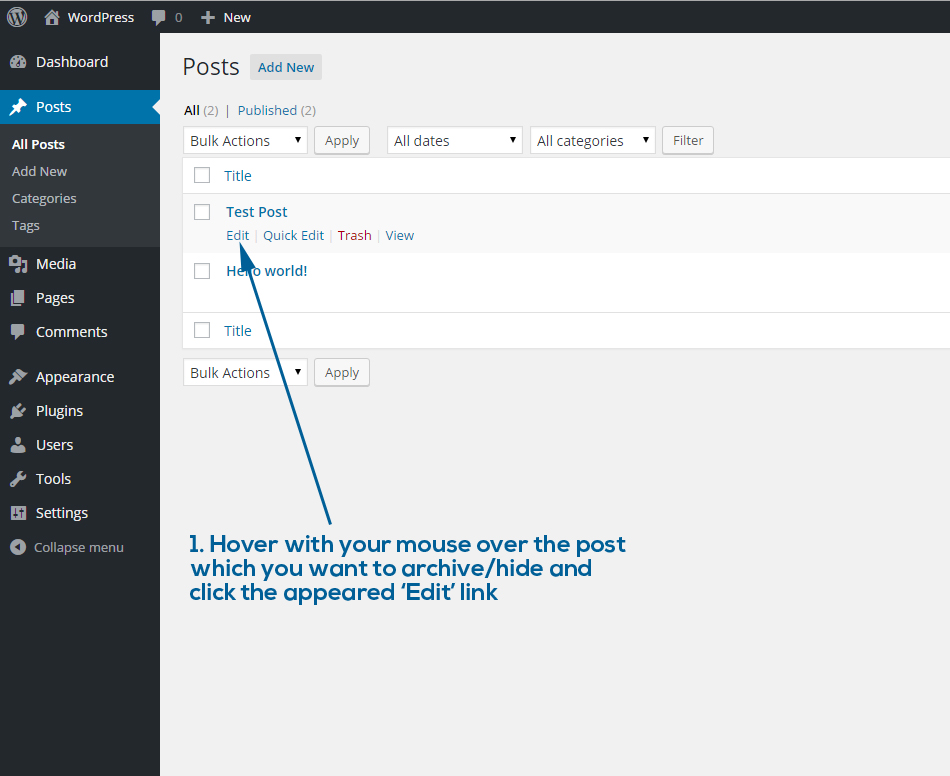
Credit: psdtowp.net
Frequently Asked Questions
How Do I Archive A Post On WordPress?
To archive a WordPress post, change its status to “Draft” or “Private. ” This hides the post from public view without deleting it, effectively archiving it.
Can Archived Posts Be Restored On WordPress?
Yes, archived posts can be restored. Simply change the post status back to “Published,” making it visible again on your site.
Does Archiving A Post Affect Seo Rankings?
Archiving a post removes it from public view but keeps the URL live if set to private, minimizing SEO impact.
How To Organize Archived Posts In WordPress?
Use categories or tags to group archived posts. This helps maintain site structure and easy access to archived content.
Conclusion
Archiving a post on WordPress keeps your site organized and clean. It helps visitors find fresh content easily. You control what stays visible and what gets stored away. This simple step saves time and avoids clutter on your blog. Try archiving posts regularly to keep your site neat.
It makes managing your WordPress site much easier. Remember, a tidy blog invites readers to explore more. Keep your content well-ordered and your visitors happy.


