

Are you struggling to keep your WordPress site organized? Archiving pages can be the simple solution you need to declutter your website without losing valuable content.
In this guide, you’ll learn exactly how to archive a page in WordPress quickly and easily. Whether you want to hide outdated pages or keep your site clean for your visitors, the steps we cover will help you take control.
Stick with me, and by the end, you’ll have a clear, actionable plan to manage your pages like a pro. Ready to get started? Let’s dive in!
Why Archive Pages Matter
Archiving pages in WordPress helps keep your website organized and clean. It allows you to store old or unused content without deleting it. This way, your site stays fast and easy to manage. Visitors see only current and relevant pages. Archiving also protects your content for future use or reference.
Benefits Of Archiving
Archiving frees up space on your website. It helps improve site speed and performance. Old pages do not clutter menus or search results. You keep your website tidy and user-friendly. Archiving also preserves valuable content for later use. It stops accidental deletion of important pages. Your site stays professional and updated.
When To Archive A Page
Archive pages that no longer fit your site’s focus. Old event pages or outdated offers are good examples. Pages with outdated information should be archived. Also archive pages that receive very little traffic. This keeps your site fresh for visitors. You can always restore archived pages when needed. Archiving helps manage content without losing it.
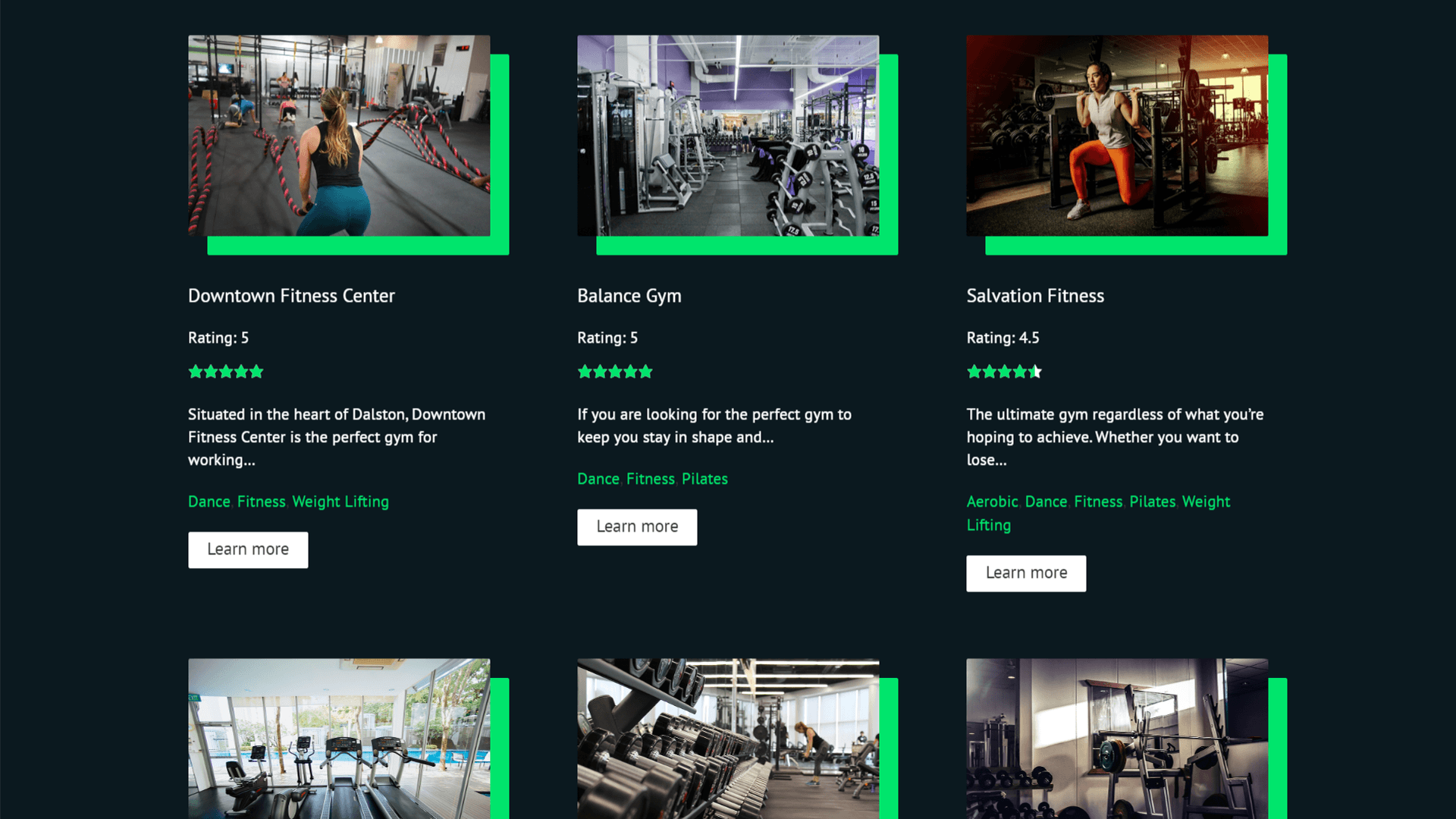
Credit: toolset.com
Preparing Your WordPress Site
Before archiving a page in WordPress, some important steps must be taken. These steps keep your site safe and organized. Taking time now helps avoid problems later.
Preparing your site means protecting your content and checking who can make changes. This process ensures that archiving goes smoothly and without mistakes.
Backup Your Content
Backing up your site saves a copy of all your pages and posts. This copy protects your work in case something goes wrong. Use a trusted plugin or your hosting service for backups.
Store backups in a safe place. Regular backups keep your data safe from loss or errors. Always create a backup before you start archiving pages.
Check User Permissions
User permissions control who can edit or delete pages. Check these settings to avoid unwanted changes. Only trusted users should have permission to archive or edit pages.
Review user roles in the WordPress dashboard. Adjust roles if needed to protect your content. Clear permissions help keep your site secure.
Methods To Archive A Page
Archiving a page in WordPress helps keep your site organized. It also makes old content easy to find later. There are two main ways to archive pages. You can use plugins or do it manually. Both methods are simple and work well.
Using Plugins
Plugins simplify the archiving process. Many free and paid plugins exist for WordPress. They help you save pages without deleting them. Some plugins create special archive pages automatically. Others let you set rules for archiving. Installing a plugin is easy from the WordPress dashboard. After activation, follow the plugin instructions to archive pages. Plugins handle the technical work for you. This method saves time and avoids mistakes.
Manual Archiving Techniques
Manual archiving means you do the work yourself. You can create a new category called “Archive”. Then, assign old pages to this category. Another way is to change page status to “Draft” or “Private”. This hides the page from visitors but keeps it saved. You can also move pages to a separate folder within your site. Manual archiving gives you full control. It requires a little more effort but works well for small sites.
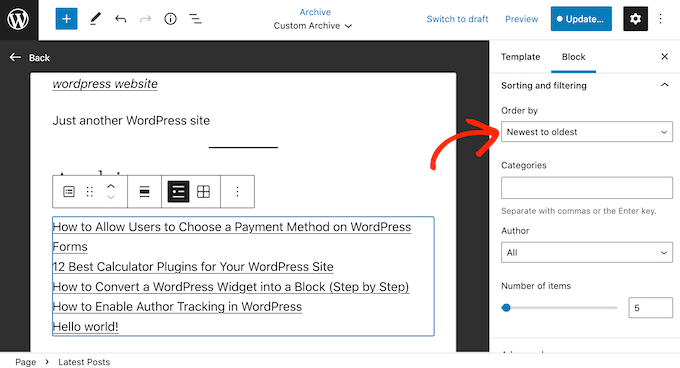
Credit: www.wpbeginner.com
Step-by-step Plugin Archiving
Archiving pages in WordPress helps keep your website organized. Using a plugin makes this task simple and effective. Follow these steps to archive pages easily with a plugin.
Choosing The Right Plugin
Select a plugin that fits your archiving needs. Check for good reviews and regular updates. Pick one that is easy to use and supports your WordPress version. Popular options include “Simple Page Archiver” or “WP Archive.” Choose a plugin that offers clear instructions and good support.
Installing And Activating
Go to your WordPress dashboard and click on “Plugins.” Select “Add New” and type the plugin name in the search box. Click “Install Now” and wait for the process to finish. Then, click “Activate” to enable the plugin on your site. The plugin is now ready to use.
Configuring Archive Settings
Open the plugin settings from your dashboard menu. Set how you want pages to be archived. Choose options like automatic archiving or manual selection. Adjust visibility settings for archived pages. Save your changes to apply the new archive setup. This step helps keep your archive system organized and clear.
Manual Archiving Steps
Archiving pages in WordPress helps keep your site organized. It moves old or unused content to a separate section. This keeps your main site clean and easy to navigate.
Manual archiving lets you control which pages to keep visible. It also allows you to create a dedicated archive page for easy access.
Creating A New Archive Page
Start by creating a new page in WordPress. Name it “Archive” or something clear. This page will list all archived content.
Use the WordPress editor to add a title and description. You can also customize the layout if needed.
Moving Content To Archive
Open the page you want to archive. Change its status to “Draft” or “Private.” This hides the page from visitors.
Copy the content or link from the old page. Paste it into the new archive page or list it there. Repeat for other pages to archive.
Updating Navigation Menus
Go to Appearance > Menus in your WordPress dashboard. Remove old pages from the main menu. Add the new archive page link instead.
Save the menu changes. This update helps visitors find archived content easily without clutter.
Managing Archived Pages
Managing archived pages keeps your WordPress site clean and organized. It helps you control old content without losing it. Proper management makes it easier to find and use archived pages later.
Restoring Archived Content
Restoring archived pages is simple. Go to your WordPress dashboard and find the archive section. Select the page you want to restore. Click the restore button to make the page live again. This saves time and keeps your content fresh.
Deleting Old Archives
Deleting old archives frees up space and improves site speed. Review your archived pages carefully. Remove pages that are no longer useful or relevant. Use the delete option in the archive menu. This keeps your website tidy and efficient.
Tips To Maintain Site Performance
Maintaining your WordPress site’s performance is key after archiving pages. Slow sites can drive visitors away. Keeping archived content optimized helps your site stay fast and user-friendly. Good performance also boosts search engine rankings.
Optimizing Archived Content
Compress images and files in archived pages. Use caching plugins to reduce server load. Remove unnecessary scripts and styles from these pages. Limit the number of archived pages shown on one screen. This keeps load times short and smooth.
Regularly Reviewing Archives
Check your archived pages often. Delete outdated or irrelevant content. Update important information to keep it useful. Look for broken links and fix them quickly. Regular reviews keep your archive clean and efficient.

Credit: www.greengeeks.com
Frequently Asked Questions
What Does It Mean To Archive A Page In WordPress?
Archiving a page in WordPress means hiding it from public view without deleting. It keeps the content accessible internally for future use or reference.
How Can I Archive A Page Without Deleting It?
To archive, change the page status to “Draft” or use plugins that enable archiving. This removes the page from your site but saves content.
Are Archived Pages Still Indexed By Search Engines?
Generally, archived pages set to draft or private are not indexed. Use noindex tags for more control and to prevent search engine visibility.
Can I Restore An Archived Page Later?
Yes, archived pages can be restored by changing their status back to “Published. ” This makes them visible again on your website instantly.
Conclusion
Archiving a page in WordPress keeps your site organized and tidy. It helps you save old content without deleting it. This way, visitors find fresh and relevant information easily. The process is simple and quick to follow. Regularly archiving pages improves your website’s user experience.
Try it today to keep your site neat and easy to manage.


