
Updating your WordPress theme can feel like a daunting task, but it doesn’t have to be. Imagine having a fresh, sleek design that not only looks great but also runs smoothly.
That’s the power of a WordPress theme update. You might be wondering why it’s important or how exactly to do it without breaking your site. Don’t worry; you’re not alone. Many WordPress users share these concerns. In this guide, you’ll discover a straightforward process to update your theme effortlessly.
We’ll walk you through the essential steps, ensuring your website remains secure and visually appealing. By the end, you’ll feel confident making updates on your own, enhancing your site’s performance while keeping your unique style intact. Ready to transform your site? Let’s dive in!

Credit: www.namecheap.com
Preparing For An Update
Always create a backup before updating. Use a plugin or manual method. This keeps your data safe. You can restore if something goes wrong. Backups protect your hard work.
Ensure the theme is compatible with your WordPress version. Use the theme’s website or documentation for this. Compatibility avoids errors and ensures smooth updates. Don’t skip this step.
Read the documentation for the theme. It explains new features and changes. Documentation helps you understand what the update will do. Always keep it handy for reference.
Accessing The WordPress Dashboard
Start by visiting the WordPress login page. Enter your username and password. Click the login button. You will see the dashboard. This is the main control area.
Look for the menu on the left side. Find the word “Appearance”. Click on it. This takes you to the themes section. Here, you can manage your site’s look. Find the theme you want to update. Update it easily from here.
Updating The Theme Automatically
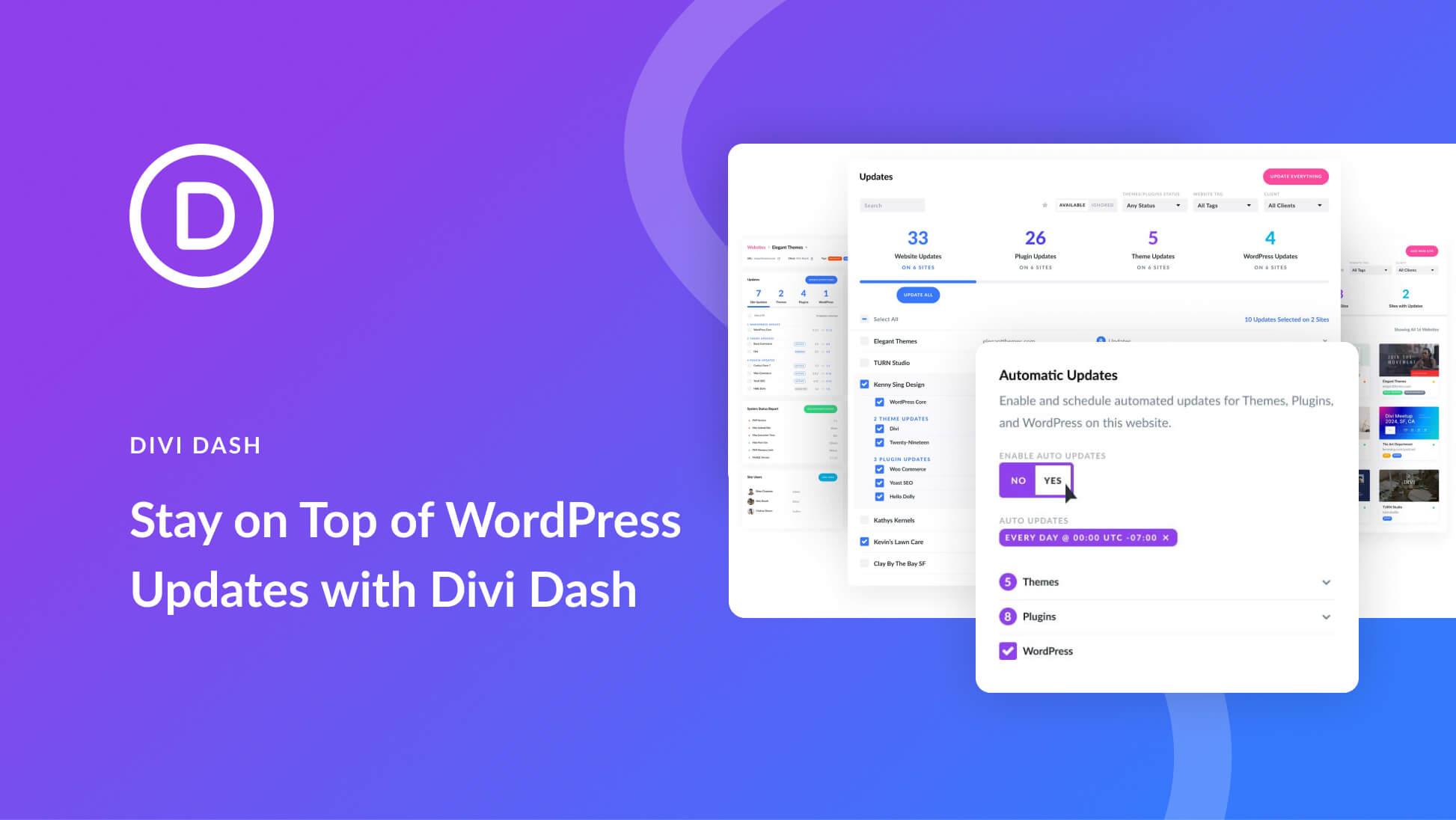
First, find the update notification in your WordPress dashboard. It usually appears at the top. This message tells you that a new theme version is ready. It is important to keep your theme updated. It helps to keep your site secure and fast.
Once you see the notification, click on the Update Now button. It is often easy to find. This button starts the update process. Your theme will update by itself. You do not need to do anything else. Wait for the update to finish.
Do not close the window during the update. It can take a few minutes. When it’s done, your theme will be up to date. Check your website to make sure everything looks right.
Credit: www.elegantthemes.com
Updating The Theme Manually
Manually updating a WordPress theme involves downloading the latest version from the developer’s site. Next, log into your WordPress dashboard, navigate to Themes, and upload the new version. This ensures your site remains secure and features up-to-date designs.
Download The Latest Version
First, visit the theme’s official website. Search for the latest theme version. Click on the download button. Save it to your computer. Make sure to remember the folder location.
Upload The New Theme Files
Open your WordPress dashboard. Go to the Appearance section. Click on Themes. Find the Upload Theme button. Click on it. Now, choose the file you downloaded. Hit the Install Now button. Wait for the upload to finish. Then, activate the theme. Always check your site after updating. Ensure everything looks good. If not, you may need to tweak some settings.
Testing After The Update
Start by visiting different pages. Look for missing images or broken links. Test the contact form and other interactive features. Do buttons and menus work? Ensure the website loads quickly. A slow site can lose visitors.
Access the theme settings panel. Compare the current settings with previous ones. Some settings might reset after updates. Adjust layout, colors, and fonts if needed. Check widget placements and custom codes. Sometimes updates change these areas. Make sure everything looks right.

Credit: blogvault.net
Troubleshooting Common Issues
Resolve Compatibility Conflicts: Compatibility issues may arise after updating a WordPress theme. These conflicts can break functionality. Check plugin compatibility with your updated theme. Disable plugins one by one to identify the problematic plugin. Update or replace the conflicting plugin if necessary. Some plugins might need special settings for compatibility. This ensures smooth functioning of your website.
Fix Layout or Style Errors: Theme updates can cause layout or style errors. These errors can affect the look of your site. Clear your browser cache to see any changes properly. Use the WordPress Customizer to adjust settings. This helps fix minor layout issues. Check for missing CSS files if styles are not loading. Reinstall the theme if errors persist. Sometimes, reverting to a previous theme version solves the problem.
Best Practices For Future Updates
Regularly Backup Your Site is very important. Backup protects your site data. Sometimes, updates cause problems. You can lose data. A backup helps fix it. Use tools to make backups. Store them safely. Make a backup before each update. This keeps your site safe.
Monitor Theme Developer Announcements is helpful. Developers share news about updates. They tell what’s new. They talk about fixes. Check their website often. Follow them on social media. Join their email list. This helps you stay informed. You know when updates come. You know what changes happen.
Frequently Asked Questions
How Do I Update My WordPress Theme?
To update your WordPress theme, navigate to the dashboard. Select ‘Appearance’ and then ‘Themes’. Find the theme needing an update and click ‘Update’. Ensure you have backups before updating to prevent data loss. Automatic updates can be enabled for convenience.
Can I Update WordPress Theme Without Losing Customization?
Yes, you can update without losing customization by using a child theme. A child theme allows you to make changes while preserving the original theme. It’s essential to back up your site and ensure all customizations are saved before updating.
Why Should I Update My WordPress Theme Regularly?
Regular updates enhance security, improve performance, and provide new features. They address vulnerabilities and bugs, ensuring your site remains safe and efficient. Updated themes are compatible with the latest WordPress versions, offering better functionality and user experience.
What If My Theme Update Fails?
If an update fails, check for compatibility issues. Disable plugins that might conflict with the theme. Revert to the previous version if necessary, and contact the theme developer for support. Regularly backing up your site can prevent data loss.
Conclusion
Updating your WordPress theme is simple. Follow the steps carefully. Backup your site first. Check for compatibility with your plugins. Download the latest theme version. Install it via the WordPress dashboard. Preview changes before applying them. Ensure your website runs smoothly.
Don’t forget to clear your cache. Regular updates keep your site secure. They also improve performance and design. Stay informed about new features. Keep your audience engaged with fresh content. Updating themes strengthens your site’s foundation. It’s a small step with big benefits.
Enjoy a better WordPress experience.


