
Is your WordPress site feeling a little outdated? A fresh theme update might be just what it needs to regain its sparkle and enhance your user experience.
Whether you’re a seasoned WordPress user or just starting out, updating your theme can seem daunting. You might worry about losing your site’s unique style or even breaking something important. But don’t worry, you’re not alone. Many WordPress users share these same fears, and we’re here to help guide you through the process smoothly and safely.
Imagine your website looking sleek, modern, and performing at its best—appealing to visitors and keeping them engaged. By the end of this article, you’ll know exactly how to apply a theme update to your WordPress site without the headaches. Let’s dive in and make your website shine!

Credit: jetpack.com
Preparing For The Update
Always create a backup before updates. This keeps your site safe. You can use a plugin for easy backups. Store it in a safe place.
Ensure your theme is compatible with the update. Visit the theme’s site for details. Check forums or reviews. This helps avoid problems.
Update the WordPress Core first. This is the main part of your site. Go to your dashboard. Click on updates. Keep your site running smooth.
Manual Theme Update
First, go to the theme’s website. Find the download section. Get the latest version of your theme. Save it to your computer. Make sure it is the correct version. This step is crucial. Keep the file safe.
Log in to your WordPress dashboard. Go to Appearance and then Themes. Choose a different theme to activate. This makes the current theme inactive. It is important to do this. Your website will not break. You can now update safely.
Go back to Appearance then Themes. Click Add New. Find the Upload Theme button. Select the new theme file from your computer. Click Install Now. Wait for the upload. Activate the theme once uploaded. Your site now uses the latest theme version.
Automatic Theme Update
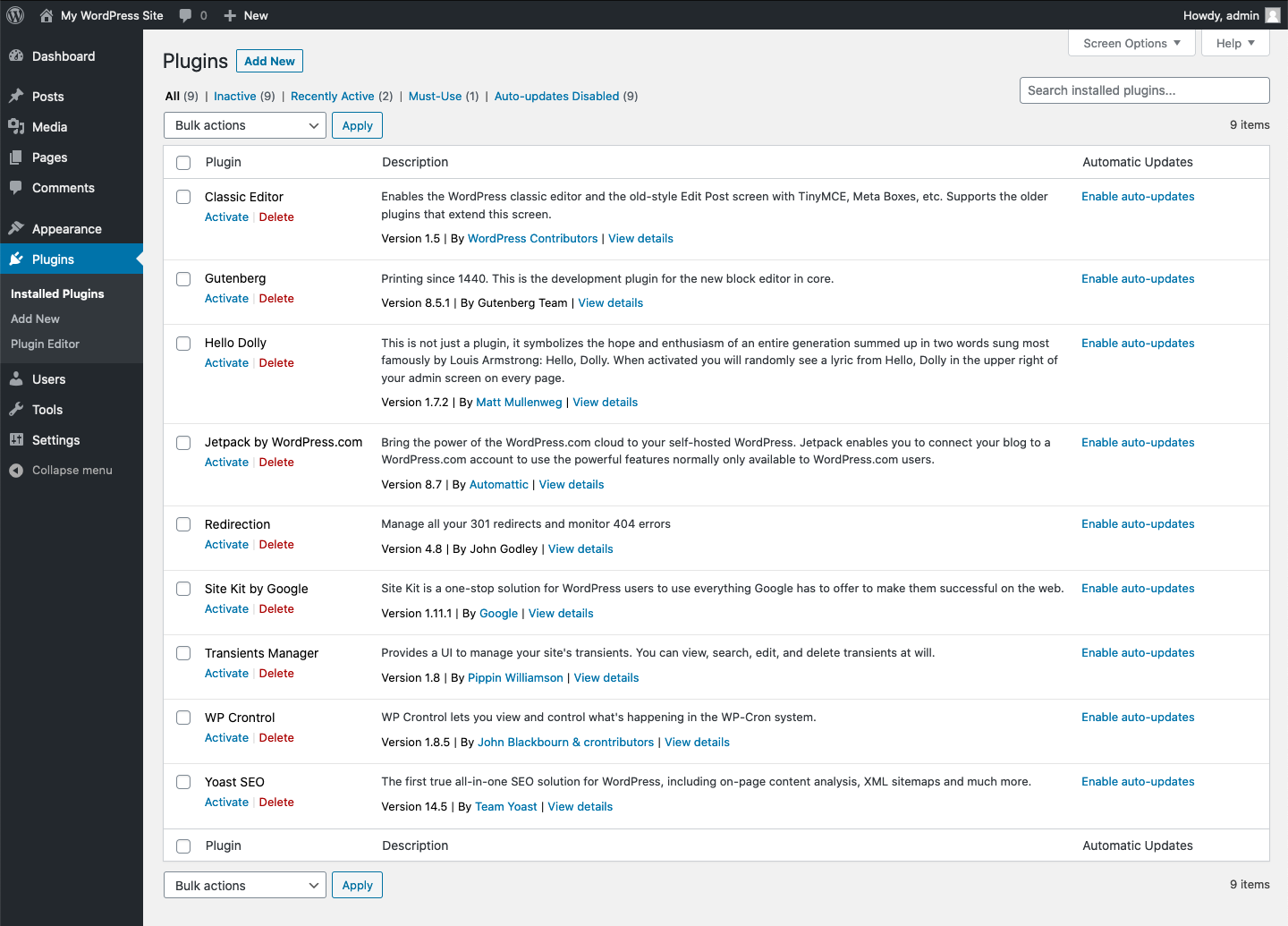
Keeping your WordPress theme updated is important. It helps to keep your site safe. Automatic updates make this easy. You can turn them on in your WordPress dashboard. Go to the Themes section. Look for the Enable auto-updates button. Click it. Now, your theme will update by itself. You won’t need to do anything. This saves time and effort.
Some people like to use plugins for updates. Plugins can make updates easier. Easy Updates Manager is a good choice. It helps you manage theme updates. Install it from the plugin store. Once installed, set it up in the settings. Choose Automatic Updates for themes. The plugin will now handle updates for you. It’s a simple and effective way to keep your site up to date.
Post-update Checks
After updating your WordPress theme, ensure all features work correctly. Check for broken links or missing images. Review site design and functionality for consistency with previous settings. Test on different devices for responsiveness. Keep a backup to reverse changes if necessary.
Verify Site Functionality
Ensure all parts of your site work well. Test buttons and links. Check if forms send messages. Go through each page. Make sure everything looks right. This keeps visitors happy.
Check For Broken Links
Broken links can frustrate users. They lead to missing pages. Use a tool to find them. Fix these links quickly. A site with working links looks professional.
Test On Different Devices
People use phones, tablets, and computers. Your site should look good on all. Test it on each device. Make sure text and images fit well. This helps everyone enjoy your site.
Troubleshooting Common Issues
Updating your WordPress theme can resolve compatibility issues and improve functionality. Start by backing up your site to prevent data loss. Follow the theme update instructions carefully to ensure a smooth process.
Handling Theme Conflicts
Theme conflicts can break your website. First, check your active plugins. Some plugins might conflict with the new theme. Disable all plugins. Activate them one by one. This helps find the conflicting plugin. If the conflict continues, contact your theme support. They can provide a solution.
Fixing Css And Design Issues
After updating, your site might look different. CSS changes can cause design issues. Open the customizer in WordPress. You can adjust your site’s appearance there. Use the inspect tool in your browser. It helps find CSS errors. Correct these errors to fix design problems.
Restoring From Backup
Sometimes updates cause major issues. Have a backup ready. A backup saves your site before the update. Use your hosting service to restore the backup. This brings your site back to its previous state. Regular backups are important. They protect your site from unwanted changes.

Credit: blogvault.net
Maintaining Your Theme
Keeping your theme up-to-date is important. Make a plan for updates. Check for new theme versions often. Plan updates during quiet website hours. This way, visitors won’t face issues. Always back up your site before updating. This keeps your data safe.
Check your theme’s performance regularly. Slow themes can upset visitors. Use tools to measure speed. If your site is slow, fix it. A fast site keeps users happy. Look for errors after updates. Fix them quickly to keep your site running smoothly.
Stay aware of new theme features. Sign up for theme newsletters. Follow your theme’s creators on social media. Read blogs about your theme. This helps you know about new changes. Being informed helps you update your site better.
Credit: make.wordpress.org
Frequently Asked Questions
How To Update A WordPress Theme?
To update a WordPress theme, navigate to your dashboard. Click on “Appearance” and then “Themes. ” Check for any available updates. If an update is available, click “Update Now. ” Always back up your site before updating to prevent potential issues.
Can I Update Themes Manually?
Yes, you can update themes manually. Download the latest theme version from the developer’s site. Use an FTP client to access your site’s server. Replace the old theme folder with the new one. Always create a backup before proceeding with a manual update.
Do Theme Updates Affect My Content?
Theme updates generally don’t affect your content. They primarily update design elements and functionality. However, if you’ve made custom changes to the theme files, those might be overwritten. Use a child theme to preserve customizations during updates.
Why Is It Important To Update Themes?
Updating themes is crucial for security and compatibility. New updates often include security patches and bug fixes. They can also improve performance and introduce new features. Keeping your theme updated ensures your site runs smoothly and securely.
Conclusion
Updating your WordPress theme is essential for security. It keeps your site fresh. Follow the steps carefully for a smooth process. Remember to back up your site before starting. Check compatibility with plugins to avoid issues. Keep your theme files in order.
Regular updates ensure your site runs efficiently. They also help maintain a professional look. Practice these steps regularly. They make updating themes easy. With these tips, your site will stay secure and modern. Your visitors will appreciate a well-maintained site.
Happy updating!


