
Are you eager to transform your WordPress site with a fresh, premium look but unsure where to start? Applying a premium theme can dramatically elevate the aesthetics and functionality of your site, making it more appealing to visitors and more effective in delivering your content.
Imagine the impact on your brand when your site not only looks professional but also provides an excellent user experience. In this guide, we’ll walk you through the simple steps to apply your premium theme seamlessly. You don’t need to be a tech wizard to achieve a stunning website design.
By the end of this article, you’ll have the confidence and knowledge to give your WordPress site the facelift it deserves. Let’s dive in and unlock the potential of your website today!
Choosing The Right Premium Theme
Applying a premium theme to a WordPress site involves a few simple steps. First, navigate to the WordPress dashboard. Next, click on “Appearance” and select “Themes” to upload your premium theme. Finally, activate the theme to see changes on your site.
Considerations For Theme Selection
Picking a premium theme can be fun. Think about your site’s purpose. A blog needs a simple layout. An online store needs product displays. Ensure the theme is responsive. It should look good on phones and computers. Check the theme’s reviews. Others’ opinions can help you decide. Look for themes with support. You might need help setting it up. Themes should also load quickly. Fast sites keep visitors happy. Make sure the theme matches your branding. Colors and fonts should fit your style.
Top Sources For Premium Themes
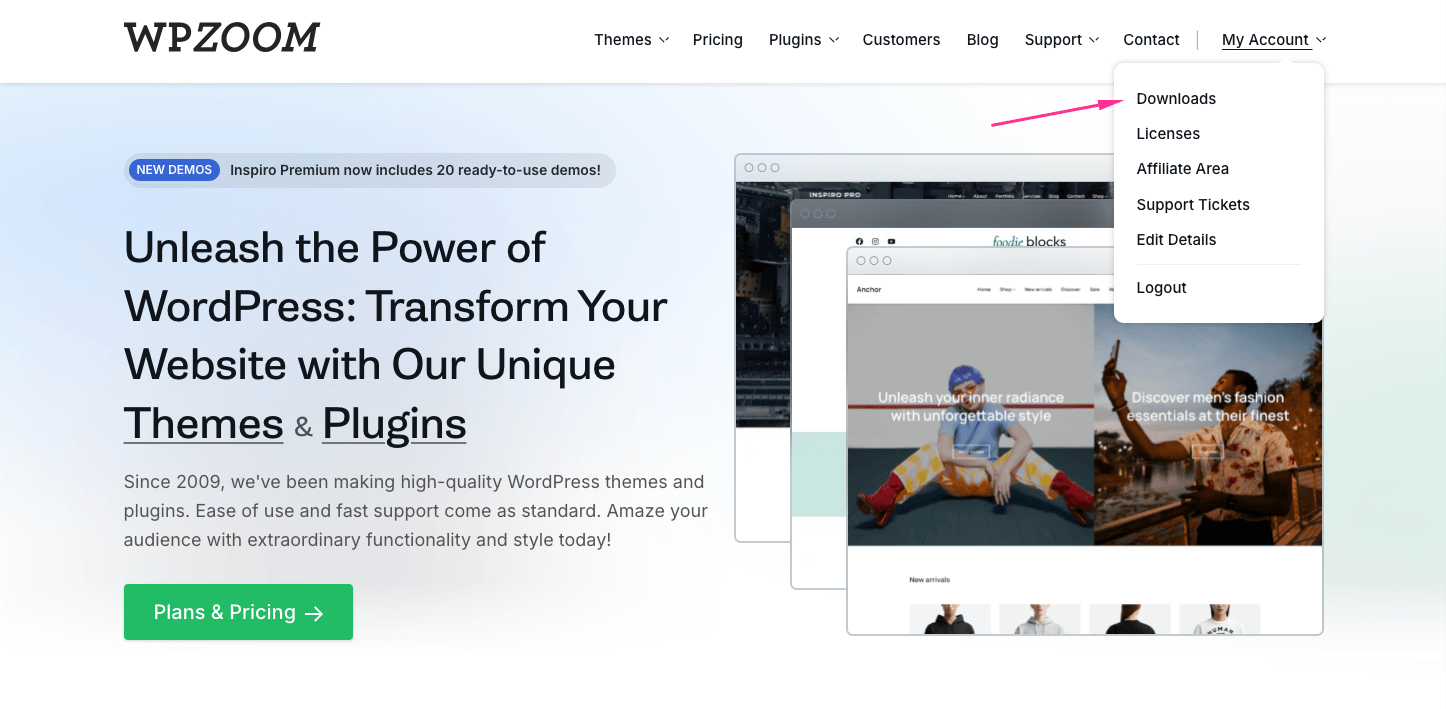
There are many places to find themes. ThemeForest has a big selection. Elegant Themes offers popular options like Divi. MOJO Marketplace has unique designs. StudioPress offers themes for Genesis Framework users. Each site offers themes for different needs. Some offer support and tutorials. Always download from trusted sites. This keeps your site safe.
Credit: www.wpzoom.com
Preparing Your WordPress Site
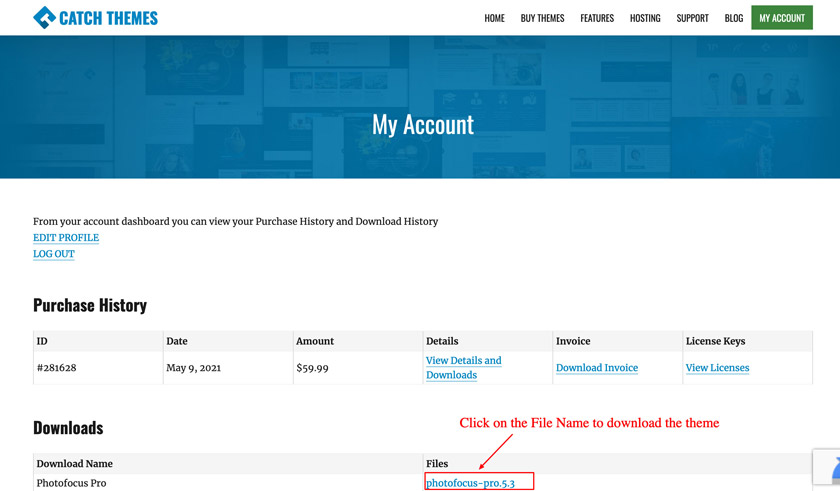
Applying a premium theme to your WordPress site enhances its appearance and functionality. Start by purchasing and downloading your chosen theme. Navigate to the WordPress dashboard, select “Appearance,” then “Themes,” and upload your premium theme. Activate it to give your site a fresh, professional look.
Backing Up Your Current Site
Before changing themes, create a backup of your site. Use a plugin like UpdraftPlus or BackupBuddy. These tools save your site’s content and settings. Backups protect your data from accidents. Keep your files safe on your computer or cloud. Regular backups are a smart practice. They ensure peace of mind.
Updating WordPress And Plugins
Keep your WordPress version updated. Check for updates in the dashboard. Also, update plugins to their latest versions. Updates fix bugs and improve security. Click “update” next to each item. Make sure everything is up to date before applying a new theme. This helps your site run smoothly and securely.
Installing The Premium Theme
First, log into your WordPress dashboard. Click on Appearance and then Themes. At the top, find the Add New button. Click it. Next, click Upload Theme. Choose your premium theme file from your computer. Make sure it is a .zip file. After selecting, click Install Now. Wait for the installation to complete. Finally, click Activate to use your new theme.
Start by opening your FTP client. Connect to your website. Go to wp-content/themes folder. Upload the extracted theme folder here. After uploading, return to your WordPress dashboard. Go to Appearance and then Themes. Your new theme should now be visible. Click Activate to start using it.
Credit: catchthemes.com
Activating The Theme
Easily apply your premium theme to your WordPress site by accessing the dashboard. Navigate to “Appearance,” then “Themes. ” Click “Add New,” upload your theme file, and activate it. Your new design comes alive instantly.
Switching From Default To Premium
Start by logging into your WordPress dashboard. Navigate to the Appearance section. Click on Themes. Look for the premium theme you purchased. Click Activate to apply it. Your site will now show the new design. Check the front page to see the changes. Enjoy the fresh look!
Checking For Activation Issues
Sometimes themes don’t activate properly. Head back to the Themes section. Make sure your theme is active. If not, click Activate again. Still having trouble? Check for any error messages. These can help solve the issue. You might need to contact theme support for help.
Customizing Theme Settings
Easily apply your premium theme to your WordPress site by accessing the dashboard’s appearance section. Upload and activate your theme under “Themes. ” Customize settings to match your design preferences and enhance your site’s appearance effortlessly.
Using The Theme Customizer
The Theme Customizer makes it easy to change your site. Find it in the WordPress dashboard. Click on “Appearance” then “Customize”. This tool lets you preview changes before saving. Adjust colors and fonts. Choose from many options. Make your site unique. Change the header and footer. Add widgets for more features. Each change updates in real-time. Watch your site transform instantly. Feel free to experiment. You can always reset if needed.
Adjusting Layout And Design Options
Layout options help set your site’s structure. Pick a layout that suits your style. Choose from one or two columns. Add sidebar elements for extra info. Select a design that matches your brand. Use background images for a personal touch. Resize elements to fit your needs. Make sure everything is balanced. Test different styles. Find what works best for you. Simple changes can have big impacts.

Credit: www.youtube.com
Adding Essential Plugins
Plugins add great features to your WordPress site. Boosting functionality is easy with the right plugins. Choose plugins that fit your needs. Yoast SEO helps with search engine optimization. Contact Form 7 lets users reach you easily. WooCommerce is perfect for online shops. Remember, too many plugins can slow your site. So, pick only the most important ones.
Boosting Functionality
Plugins can make your site do more. Some plugins add sliders or photo galleries. Others help with social media sharing. Jetpack is good for site stats and security. Elementor helps design beautiful pages. Think about what your site needs before adding plugins. Make sure each plugin works well.
Ensuring Compatibility
Plugins must work well with your theme. Check if the plugin supports your theme. Some plugins might not be updated. This can cause problems. Always update plugins to their latest version. Back up your site before adding new plugins. This keeps your site safe. Ensure everything works smoothly together.
Testing The New Theme
Explore how to apply a premium theme to a WordPress site easily. Navigate to the ‘Appearance’ section in your dashboard. Upload and activate the desired theme to enhance your site’s look.
Checking For Responsiveness
Make sure your theme works on all devices. Phones, tablets, and computers need checking. Resize your browser window. Is the theme adjusting well? A responsive theme improves user experience. Test different screen sizes. Responsiveness is important for SEO.
Ensuring Cross-browser Compatibility
Browsers display websites differently. Check your theme in Chrome, Firefox, and Safari. Does it look good in each? Use tools like BrowserStack for testing. Compatibility keeps users happy. Check for issues like broken layouts. Fix any errors you find. Ensure your theme works everywhere.
Troubleshooting Common Issues
Applying a premium theme to your WordPress site can be tricky. Ensure the theme is compatible with your WordPress version. Check theme documentation for installation steps. If issues persist, deactivate plugins to identify conflicts.
Resolving Display Problems
Display issues can be tricky. First, check theme settings. Ensure the correct layout is active. Sometimes, updating your browser solves the issue. Also, clear your cache. This helps refresh changes. If problems persist, check theme documentation. It might have specific tips.
Next, verify screen resolution. Different devices show themes differently. Try adjusting your settings. This can improve display.
Fixing Plugin Conflicts
Plugins can cause conflicts. Deactivate them one by one. Find the troublesome plugin. After identifying, check for updates. Sometimes, old plugins clash with new themes. Updating can solve this.
If updating doesn’t help, search for alternatives. Some plugins have similar functions. Choose another that works well. Also, contact plugin support. They might offer solutions.
Frequently Asked Questions
How Do I Install A Premium Theme?
To install a premium theme, first, download the theme file. Then, navigate to your WordPress dashboard, go to Appearance > Themes > Add New, and select Upload Theme. Choose the downloaded file and click Install Now. Finally, activate the theme to apply it to your site.
Can I Customize My Premium Theme?
Yes, you can customize your premium theme. Most themes offer customization options through the WordPress Customizer. Access it via Appearance > Customize in your dashboard. You can modify colors, fonts, layouts, and more to match your preferences and branding.
Why Choose A Premium Theme Over A Free One?
Premium themes offer better design, functionality, and support compared to free themes. They usually include regular updates, ensuring compatibility with new WordPress versions. Additionally, premium themes often provide more customization options and features, enhancing your site’s appearance and performance.
What If My Theme Doesn’t Install Correctly?
If your theme fails to install, check if the file is corrupted or incomplete. Ensure you’re uploading the correct theme file format (. zip). You can also try reinstalling or contacting the theme’s support team for assistance. They can guide you through troubleshooting steps.
Conclusion
You can easily apply a premium theme to your WordPress site. Follow the steps shared in this guide. Your website will look professional and stylish. Updating themes enhances user experience and keeps your site fresh. Remember, customization options are available to suit your needs.
Take time to explore those settings. A well-applied theme can improve your site’s appearance and functionality. Ensure you back up your site before making changes. This protects your data from unexpected issues. Enjoy your new theme and the improved look it brings to your WordPress site.


