
Are you ready to transform your WordPress page into something eye-catching and unique? Applying a theme to your page can breathe new life into your website, creating a look and feel that truly represents your brand or personal style.
Imagine your visitors landing on your site and being instantly impressed by its professional, cohesive design. You might think it’s complicated, but even if you’re not tech-savvy, changing your WordPress theme is a straightforward process that you can master in no time.
Stick with us, and by the end of this article, you’ll know exactly how to apply a theme to your WordPress page effortlessly. Get ready to captivate your audience and make your website stand out from the crowd!

Credit: wordpress.org
Choosing The Right Theme
Free themes cost nothing. They are great for beginners. Many free themes offer basic features. But, some may lack support. This can be a problem. Premium themes have a price. They often give more options. These themes include better support and updates. Picking between them can be tough. Think about your needs. What features do you need? This will guide your choice.
Always check the theme’s design. Is it simple and clean? This makes your site look good. Look at the theme’s speed. A fast theme helps users. It also helps your site rank better. Consider the customization options. Can you change colors or fonts? This gives you more control. Also, check if the theme is responsive. It should look good on all devices. A good theme makes your site shine.
Installing A Theme
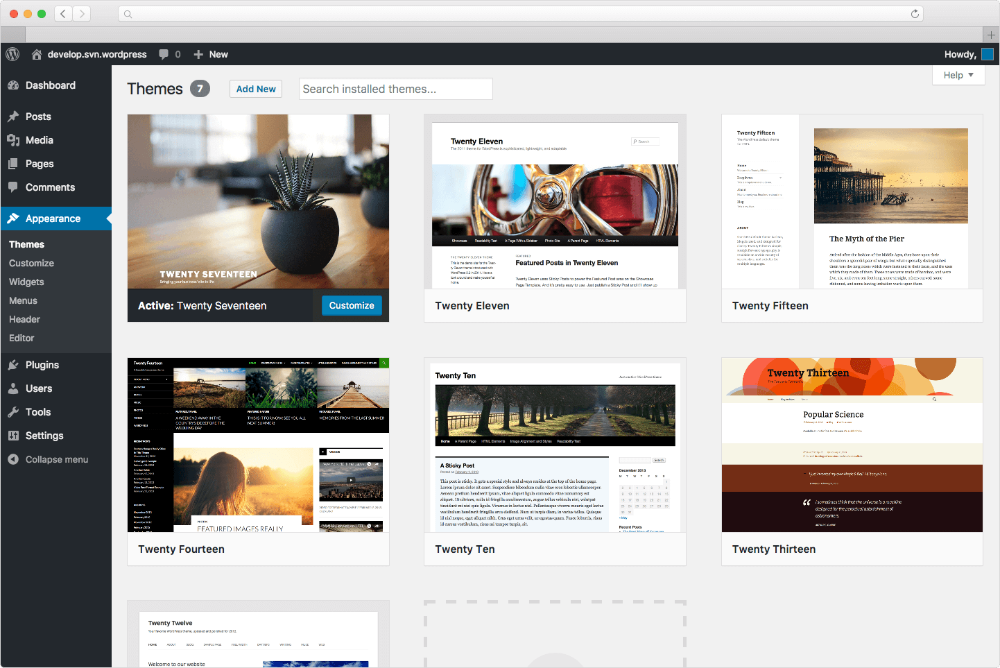
The WordPress Theme Directory is easy to use. It has many free themes. Start by logging into your WordPress dashboard. Click on “Appearance” and then “Themes”. There, find the “Add New” button. This opens the theme directory. You can use the search bar to find themes. Look for something that fits your style. Preview themes before you install them. After finding the right theme, click “Install”. Finally, click “Activate” to apply the theme. Your page now has a new look.
Sometimes, you have a theme file on your computer. This is a .zip file. You need to upload this file. Go to your WordPress dashboard. Click on “Appearance” and then “Themes”. Find the “Add New” button. Then click “Upload Theme”. Choose your .zip file. Click “Install Now”. Wait for the upload. Click “Activate” to use your theme. Your website now looks different. Make sure it looks good.
Activating Your Theme
First, go to your WordPress Dashboard. Then, click on Appearance on the left side. Choose Themes from the menu. You will see a list of themes. Choose a theme you like. Click on the Live Preview button. This shows how your site looks with the new theme. Check all pages to see if you like it. If something looks wrong, try a different theme. The preview helps you decide without changes. This way, you can be sure it fits your style.
After previewing, you can activate the theme. Go back to the Themes page. Find the theme you want. Click on the Activate button. Your theme will change right away. All pages will use the new design. Make sure everything looks good. Sometimes small adjustments are needed. You can always switch back if needed. Enjoy your new theme!
Credit: docs.presscustomizr.com
Customizing The Theme
The WordPress Customizer is a handy tool. It lets you make changes to your theme. You can see changes live. First, go to the dashboard. Click on Appearance. Then, select Customize. This opens the Customizer. Here, you can change colors. You can also edit fonts. There are options to add a logo. You can make your site look unique. Make sure to save changes. Click the Publish button to save.
Custom CSS helps to change the look of your site. CSS stands for Cascading Style Sheets. It controls how things appear. To add CSS, go to the Customizer. Look for Additional CSS. Click on it. A box will open. Type your CSS code here. You can change colors or sizes. Make text bold or change spacing. Always check your changes. Make sure they look good. Save your work by clicking Publish.
Maintaining Theme Compatibility
Updating your theme is important for your website. New updates fix bugs and improve security. Always check for theme updates in WordPress. Go to your dashboard. Click on “Updates”. Here, you will see available updates. Download and install them. This keeps your site safe and fast.
Checking plugin compatibility is also crucial. Plugins help add features to your site. But, some plugins may not work well with your theme. Before adding new plugins, check reviews and ratings. Ensure they work with your theme version. Sometimes, plugins can break your site. Test plugins in a safe environment first. This prevents problems on your live site.
Troubleshooting Common Issues
Applying a theme to a WordPress page often encounters issues. Ensure the theme is compatible with the WordPress version. Check for plugin conflicts, as they might cause display problems.
Resolving Theme Conflicts
Theme conflicts can cause problems. Themes might not fit together well. This makes your page look wrong. Deactivate plugins one by one. See if this fixes the problem. Check your theme settings. Some settings might be off. Make sure themes are updated. Updates often fix issues. Switch to a default theme. This helps find where the problem is. Contact theme support. They can help solve conflicts.
Fixing Layout Issues
Layout problems make pages look messy. Check for extra spaces. They can break the layout. Ensure your theme is compatible. Not all themes fit every site. Look at theme settings. Sometimes settings change layouts. Use a child theme. It protects your layout from updates. Adjust CSS codes if needed. Small changes can fix big problems. Seek help from forums. Others might have fixed similar issues.

Credit: www.namecheap.com
Frequently Asked Questions
How Do I Apply A Theme In WordPress?
To apply a theme in WordPress, go to your dashboard. Navigate to “Appearance” and click on “Themes. ” Select “Add New” to browse available themes. Once you find a theme you like, click “Install,” then “Activate” to apply it to your page.
Can I Change My WordPress Theme Easily?
Yes, changing your WordPress theme is simple. Go to “Appearance” in the dashboard, then “Themes. ” Choose a new theme and click “Activate. ” Ensure you back up your site first, as changes might affect your layout and features.
What Should I Consider When Choosing A WordPress Theme?
When choosing a theme, consider design, functionality, and compatibility. Ensure it’s responsive and SEO-friendly. Check user reviews and support availability. A well-coded theme can enhance performance and user experience. Always preview themes before applying them to your site.
Are WordPress Themes Free Or Paid?
WordPress offers both free and paid themes. Free themes are available in the WordPress repository. Premium themes offer advanced features and support. Assess your needs and budget before deciding. Remember, investing in a good theme can improve your site’s appearance and functionality.
Conclusion
Applying a theme in WordPress is simple. Follow the steps shared here. Explore various options. Choose a theme that fits your style. Customize to meet your needs. Make your website stand out. Enhance your site’s appearance. Improve its functionality. A good theme boosts user experience.
It makes navigation easy. Visitors enjoy browsing your pages. Keep practicing with different themes. Learn what works best for you. Stay updated with new designs. Your website reflects your vision. Now, you have the tools to make it unique. Enjoy creating and sharing your content online!


