

Are you ready to give your WordPress site a fresh, professional look? Choosing the right theme can transform your website instantly, making it more attractive and easier to navigate.
But how do you apply a theme without getting lost in complicated steps? This guide will walk you through the process clearly and simply, so you can confidently customize your site and make it truly yours. Keep reading, and you’ll be amazed at how quickly your website can start turning heads.

Credit: wordpress.com
Choosing The Right Theme
Choosing the right theme is a key step in building your WordPress site. It sets the look and feel of your website. The right theme improves user experience and helps your site perform well. Spend time selecting a theme that fits your content and audience. Consider design, features, and ease of use. This section breaks down important points to help you pick the best theme.
Free Vs Premium Themes
Free themes are good for beginners and small sites. They offer basic features and simple designs. Premium themes cost money but provide more options. These include better support, regular updates, and advanced customization. Premium themes often have built-in SEO tools. Choose based on your budget and needs. A free theme can work well if you want a simple site.
Responsive Design Importance
Responsive design means your site looks good on all devices. Phones, tablets, and computers show your site properly. Most users visit websites on mobile devices today. A responsive theme helps keep visitors on your site longer. It also improves your search engine ranking. Always pick a theme that adapts to different screen sizes.
Checking Theme Compatibility
Not all themes work with every WordPress plugin or version. Check if the theme supports the latest WordPress update. Ensure it works well with popular plugins you plan to use. Compatibility avoids errors and site crashes. Read reviews and test demos before choosing. This saves time and frustration later.
Credit: wordpress.org
Preparing Your WordPress Site
Preparing your WordPress site before applying a new theme is essential. It helps avoid problems and keeps your site safe. This step is simple but very important for a smooth theme change.
Backing Up Your Website
Backing up your website saves all your files and data. It protects your work from being lost during the theme change. Use a trusted plugin or your hosting service to create a full backup. Store the backup in a safe place, like your computer or cloud storage. This way, you can restore your site if anything goes wrong.
Updating WordPress Core
Keep your WordPress core updated to the latest version. Updates fix bugs and improve security. An updated core ensures your new theme works well. Check for updates in your dashboard and install them before applying the theme. This step helps your site run smoothly and safely.
Installing A WordPress Theme
Installing a WordPress theme is an easy way to change your website’s look. Themes control the design and layout. Choosing the right theme helps create a unique style for your site. There are two main ways to install a theme: through the WordPress theme directory or by uploading one manually.
Using The Theme Directory
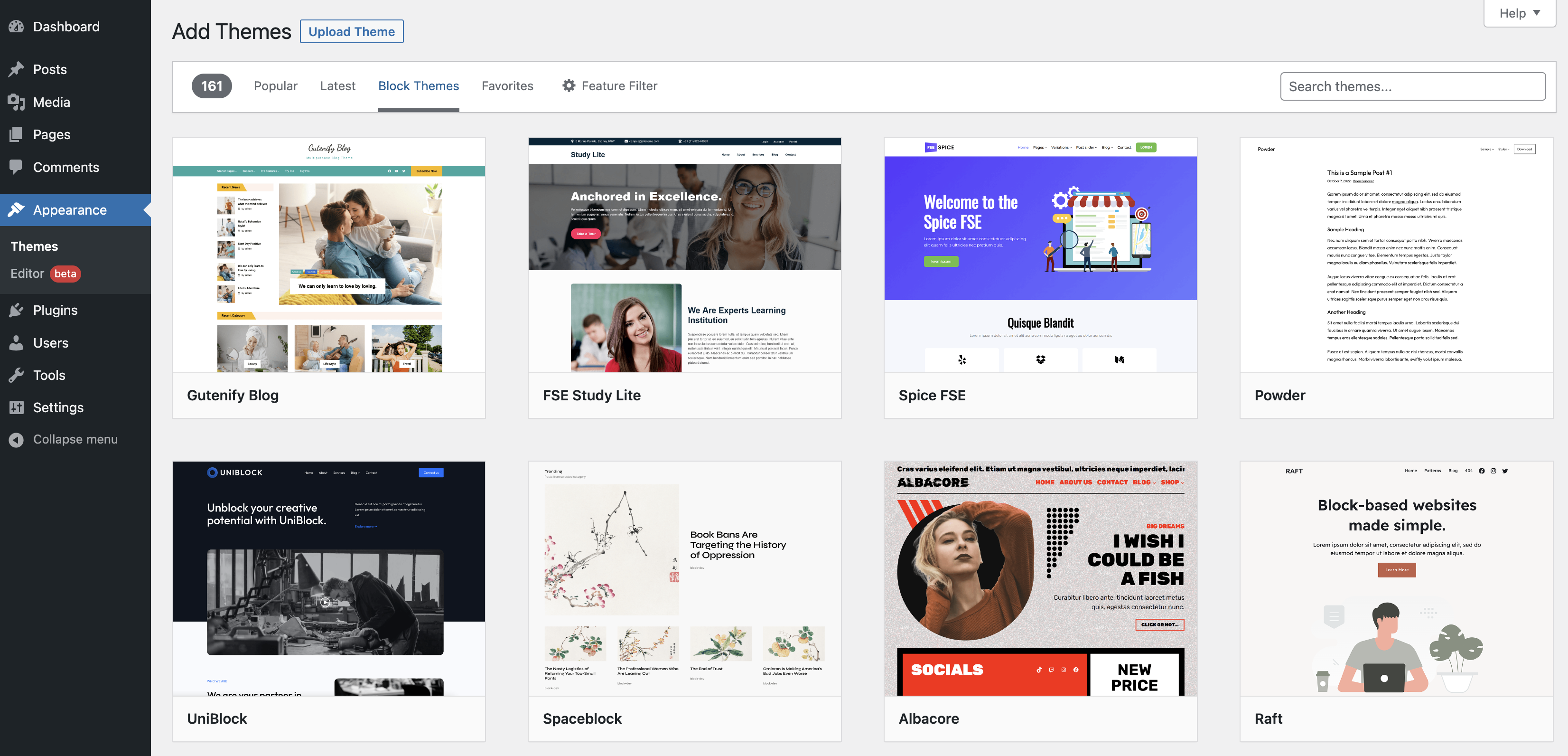
Start by logging into your WordPress dashboard. Go to the “Appearance” menu and click “Themes.” Next, click the “Add New” button at the top. Here, you can browse thousands of free themes. Use the search box to find a theme that fits your needs.
Once you find a theme, click “Install.” WordPress downloads and installs the theme for you. After installation, click “Activate” to use it on your website. This process is quick and requires no extra files.
Uploading A Theme Manually
Sometimes, you might want to use a theme not in the directory. Maybe you bought a premium theme or downloaded one from another site. In this case, you need to upload the theme file yourself.
First, get the theme as a .zip file on your computer. Then, go to the WordPress dashboard. Navigate to “Appearance” and then “Themes.” Click “Add New,” and choose “Upload Theme” at the top. Click “Choose File” and select the .zip file.
Finally, click “Install Now.” WordPress uploads and installs the theme. After installation, click “Activate” to apply the new design to your site.
Activating Your Theme
Activating your theme is a key step in customizing your WordPress site. This process applies the new design and layout to your website. It changes how your site looks to visitors. Activation is simple but requires care to avoid issues. Follow these tips to activate safely and preview your theme.
Switching Themes Safely
Switching themes can affect your site’s appearance and functions. Save a backup of your site before changing themes. This protects your content and settings. Check if your new theme supports your plugins. Some themes may not work well with certain plugins. After activation, review your site for errors or broken features. Fix any problems quickly to keep your site running smoothly.
Previewing Before Activation
Previewing a theme lets you see changes before going live. Use the WordPress Customizer to view your site with the new theme. This shows how your content fits the design. Make adjustments like colors and fonts in preview mode. Previewing helps avoid surprises after activation. It ensures your site looks good and functions well before visitors see it.
Customizing Your Theme
Customizing your WordPress theme lets you create a unique website. It helps match your brand and style. You can change layouts, colors, fonts, and more. These changes make your site look professional and inviting.
Using The Customizer Tool
The Customizer tool is an easy way to adjust your theme’s settings. It shows a live preview of your site as you make changes. You can find it under Appearance > Customize in your WordPress dashboard. Use it to edit site identity, layout, and colors quickly.
Adding Widgets And Menus
Widgets add extra features to your site’s sidebar or footer. You can add search bars, recent posts, or social links. Menus help visitors navigate your site easily. Create and arrange menus under Appearance > Menus. Place widgets by going to Appearance > Widgets.
Changing Colors And Fonts
Colors and fonts give your site its personality. Use the Customizer to select colors for backgrounds, text, and links. Pick fonts that are easy to read. Many themes offer font options right inside the Customizer. Keep your color scheme simple and consistent.
Credit: help.market.envato.com
Troubleshooting Common Issues
Applying a theme in WordPress can sometimes cause issues. These problems often affect your site’s appearance or functionality. Knowing how to fix common issues helps keep your site running smoothly. This section covers two typical problems and how to solve them quickly.
Fixing Layout Problems
Layout problems can make your site look broken or messy. This happens when elements overlap or do not align properly. First, clear your browser cache. Old files can cause display errors. Next, check the theme settings. Sometimes, a small option change fixes the issue.
Make sure your images are the right size. Large images slow down your site and cause layout shifts. Use a tool to resize images before uploading. Also, check for missing or extra spaces in your content. These can break the design.
Resolving Plugin Conflicts
Plugins sometimes do not work well with your theme. This can cause errors or stop some features from working. To find the problem, deactivate all plugins. Then, activate them one by one. This shows which plugin causes the conflict.
Update all plugins and your theme to the latest versions. Outdated software often causes issues. If a plugin still conflicts, look for an alternative plugin with similar features. Keeping plugins to a minimum also improves site speed and stability.
Enhancing Your Theme With Plugins
Applying a theme in WordPress gives your site a fresh look. Plugins enhance this look by adding features and improving functionality. They help customize your theme without coding. Plugins can make your site faster, safer, and easier to use. Picking the right plugins is key to a smooth experience.
Essential Plugins For Themes
Essential plugins add useful tools to your theme. For example, page builders like Elementor help create custom layouts. SEO plugins, such as Yoast SEO, improve your site’s visibility on search engines. Security plugins keep your site safe from threats. Contact form plugins let visitors reach you easily. These plugins fit well with most themes.
Optimizing Site Performance
Performance plugins boost your website speed. Caching plugins store page copies to load faster for visitors. Image optimization plugins reduce file sizes without losing quality. Lazy load plugins delay images until needed, saving bandwidth. Fast sites keep visitors happy and improve search rankings. Choose plugins that do not slow your site down.
Frequently Asked Questions
How Do I Install A WordPress Theme?
Go to your WordPress dashboard, click Appearance > Themes > Add New. Search for a theme, then click Install and Activate.
Can I Change Themes Without Losing Content?
Yes, switching themes won’t delete your content. However, some settings or layouts may need adjustment after activation.
Are Free WordPress Themes Safe To Use?
Most free themes from the official repository are safe and regularly updated. Always check reviews and update history before installing.
How To Upload A Custom Theme In WordPress?
Download the theme ZIP file, go to Appearance > Themes > Add New > Upload Theme, choose the file, and click Install and Activate.
Conclusion
Applying a theme in WordPress is simple and quick. You can change your website’s look anytime. Choose a theme that fits your style and content. Always check how it appears on different devices. Keep your site fresh by trying new themes often.
Enjoy creating a website that feels just right for you. Start exploring themes today and see the difference.


