
Are you tired of your WordPress theme looking just like everyone else’s? You have the power to change that and make your website truly unique.
By using CSS, you can alter your WordPress theme to reflect your personal style or brand identity. Imagine the satisfaction of transforming a generic template into a tailor-made masterpiece, all with just a few lines of code. You’ll learn how to easily modify your WordPress theme using CSS.
Whether you’re aiming for a complete overhaul or just a few tweaks, this guide is designed with you in mind. Get ready to captivate your audience and make your website stand out from the crowd. Keep reading to discover how you can take control of your site’s design and watch as it evolves into something extraordinary.
Choosing The Right Theme
Picking the perfect theme is important. It sets the tone for your site. Ensure the theme is responsive. This means it looks good on all devices. Check if it’s customizable. You want to change things later. Look at the reviews. What do other people say? Make sure it fits your needs. Some themes are for blogs, others for shops. Understand your site’s purpose.
Explore the features. Does it have what you want? Some themes offer extra tools. These can help make your site better. Always check for support. You might need help. Ensure the theme gets updates. This keeps it secure. A well-chosen theme helps your site grow.
Accessing The WordPress Dashboard
The WordPress dashboard is the control center for your site. To access it, you need to log in. Enter your username and password. Click on the “Log In” button. Once inside, you can see many options. The dashboard lets you edit your site easily. You can change posts, pages, and themes. It’s simple to find the theme section. Click on “Appearance” in the left menu. Then select “Themes”. Here, you can choose a new theme or edit the current one. Editing with CSS is powerful. CSS changes how your site looks. It can make your site unique. You can add your custom CSS code. This code changes colors, fonts, and layouts. Always save changes to see them live.
Understanding Css Basics
CSS selectors help find HTML elements. They tell CSS which parts to style. Element selectors target all elements with a certain tag. Class selectors use a dot (.) and target elements with a specific class. ID selectors use a hash (#) and target elements with a unique ID. Attribute selectors match elements with a specific attribute. Group selectors apply styles to multiple selectors at once. Simple yet powerful!
CSS properties control how elements look. Color changes the text color. Background sets the element’s background color or image. Font alters text style, size, and family. Margin adds space outside an element. Padding adds space inside an element. Border creates a line around an element. Width and height set element size. Easy to use and fun!
Using The Customizer
First, open your WordPress dashboard. Look for the Appearance menu. Click on it. Then, select Customizer. The Customizer lets you change how your site looks. It shows your changes live. You can change many things here.
In the Customizer, find the Additional CSS option. Click on it. A box will appear. This box is where you add your CSS. Type your CSS in this box. Your changes will show instantly. CSS lets you change colors, sizes, and more. It helps make your site unique. Always remember to save your changes. Hit the Publish button when done.
Editing Css Via Additional Css
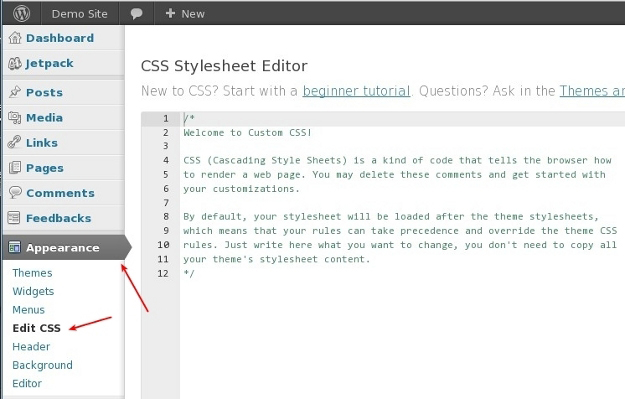
WordPress allows theme customization through the Additional CSS feature. This is found in the WordPress Customizer. Access it by navigating to Appearance > Customize. Once there, click on Additional CSS. A box appears for your CSS code. You can type or paste CSS here. Changes show up immediately in the preview. This helps you see the effect before saving. Experiment with different styles easily. Make text bold, change colors, or adjust layouts. It’s simple and doesn’t affect the main theme files. This means updates won’t erase your changes. Always check your CSS code for errors. Incorrect code can break your site layout. It’s wise to test on a staging site first. This keeps your main site safe. Remember, small CSS changes can make big differences in design.

Credit: wpbookingcalendar.com
Modifying Theme Files
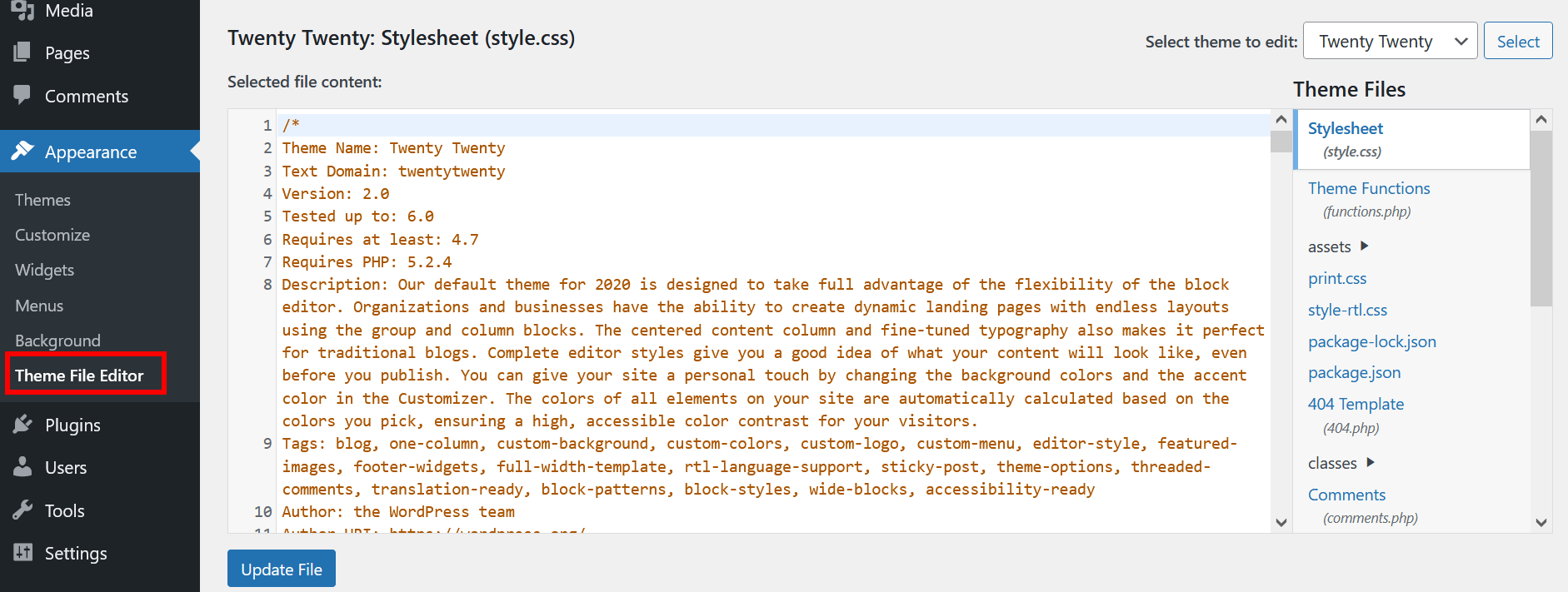
Access the Theme Editor from your WordPress dashboard. Go to Appearance. Then click on Theme Editor. Here you can see all files in your theme. Be careful. Changes here affect your site directly. Make sure you backup your theme. This way, you can restore it if something goes wrong.
The style.css file controls the look of your site. This is where you can change colors, fonts, and layout. Find the file in the Theme Editor. Click on it to open. Edit the code to change your site’s appearance. Save your changes. Refresh your site to see the updates.
Creating A Child Theme
A child theme lets you make changes without losing them. Updates to the main theme won’t erase your work. This is safe and smart. You keep the original theme intact. Your changes stay separate. This helps in organizing your work better. It also makes it easy to try new ideas. No worries about breaking the site.
First, create a new folder in the theme directory. Name it with the parent theme name and add “-child”. Inside, create a style.css file. This file needs a special header. Add the parent theme’s details here. Next, create a functions.php file. In this file, enqueue the parent theme’s style. Finally, activate your child theme in WordPress. Your custom changes are now ready to start.
Using Developer Tools For Css Changes
Developer tools help see how a website is built. Right-click on a page. Choose “Inspect” to open the tool. Look for the element you want to change. The tool shows the HTML and CSS for that element. Understand the element’s structure. It helps to know what you are changing. The CSS tab shows styles. Modify them to see changes on the site.
Change CSS in the developer tools. Add or edit styles. See how they affect the webpage. Testing here is safe. It won’t change the live site. If a change looks good, copy the code. Paste it into your WordPress theme’s CSS file. This way, changes become permanent. Use this method to test and apply new styles easily.
Leveraging Css Frameworks
CSS frameworks can enhance WordPress themes effectively. Altering design through custom CSS allows unique styling without changing core files. Easily apply colors, fonts, and layouts to suit your preferences, improving visual appeal while maintaining functionality.
Bootstrap
Bootstrap is a popular CSS framework. It helps design websites with ease. Many themes use Bootstrap. You can change a theme using its tools. Find the Bootstrap classes in your theme. Change their styles with CSS. Use colors, fonts, or sizes. This makes your site unique. Beginners find it easy to start. It has many pre-built components. Buttons, forms, and grids are ready. Just add them to your site. Your site will look good fast.
Tailwind Css
Tailwind CSS offers a different approach. It is more flexible than Bootstrap. You make your own styles. It uses utility classes. These classes are small and simple. Combine them for custom designs. Tailwind helps personalize your theme. You can change every part of your site. It is great for advanced users. Tailwind allows deep styling control. You can match your brand easily. Many designers love it for this reason.
Credit: www.ionos.com
Ensuring Mobile Responsiveness
Media queries help make websites look good on different devices. They change styles based on the device’s size. You can set different styles for phones, tablets, and computers. This makes the site responsive. It adjusts automatically to fit any screen.
Use flexible grids and layouts. Design should adapt to screen sizes. Images should resize automatically. Text should be readable without zooming. A responsive site gives a better user experience. People can easily navigate and read content. Always test on different devices. Make sure everything looks right.
Testing And Debugging Css
CSS errors can make your website look strange. One common mistake is missing semicolons. Every CSS line needs a semicolon at the end. Forgetting them can break the style. Another error is spelling mistakes in property names. For example, writing “color” as “colr”. Check for typos to avoid problems. Incorrect selector names can also cause issues. If your CSS does not match the HTML tags, it won’t work. Double-check your selectors to ensure they are correct.
Use the browser’s developer tools to spot CSS issues. Right-click on an element and choose “Inspect”. This shows the HTML and CSS. You can see which CSS rules are applied. Try commenting out CSS lines to find the problem. Add `/ /` around a line to ignore it. This helps in finding the error. Use online validators to check your CSS code. They find mistakes and suggest fixes. Simple steps make debugging easy.
Credit: www.8theme.com
Utilizing Plugins For Css Customization
CSS plugins make changes simple. They help you style your site easily. Some well-known plugins include Simple Custom CSS and SiteOrigin CSS. These plugins are user-friendly. They allow you to add styles without coding skills. Each plugin has unique features. Some have visual editors. Others offer live preview options. You can see changes instantly. This helps in making fast decisions. Many plugins are free. Some offer premium features for more options. Explore them to find the best fit.
Using plugins has many benefits. They save time and effort. You don’t have to touch the theme code. This keeps your site safe. Plugins are easy to update. They provide regular updates and support. This ensures smooth performance. Many plugins are lightweight. They don’t slow down your site. Even beginners can use them. No need for technical skills. They offer flexibility and control. Customize your site with ease. Make your site look unique and attractive.
Frequently Asked Questions
How Can I Add Custom Css To WordPress?
To add custom CSS in WordPress, go to the dashboard. Navigate to Appearance > Customize > Additional CSS. Enter your custom CSS code there and publish. This method allows you to modify the appearance without altering theme files.
Is It Safe To Edit WordPress Theme Css?
Yes, it’s safe if done correctly. Use child themes or the Additional CSS option to prevent data loss during updates. Avoid editing core theme files directly. Always back up your website before making changes to avoid potential issues.
Can I Use A Plugin To Change Css?
Yes, you can use plugins like Simple Custom CSS. These plugins allow you to easily add custom CSS without editing files. They are user-friendly and safe for beginners. You can manage all your CSS changes in one place.
What Happens If I Make A Css Mistake?
If you make a CSS mistake, your site design might break. Use the Additional CSS section or a child theme to easily revert changes. Always preview changes before publishing. Debugging tools in browsers can also help identify and fix errors.
Conclusion
Altering a WordPress theme with CSS is simple. It opens creative possibilities. Customizing designs enhances your site’s uniqueness. Small tweaks can make a big impact. Always back up your theme before changes. Experiment with different styles. A little practice helps you master CSS.
Online resources offer helpful guidance. Remember to test changes on multiple devices. Responsive design ensures user satisfaction. Keep exploring CSS features. They empower your creativity. Enjoy crafting your unique WordPress site.


