

Do you want to boost engagement on your WordPress site? Allowing comments is one of the easiest ways to connect with your audience and build a loyal community.
But if you’re not sure how to enable comments or want to make sure you’re doing it right, you’re in the right place. This guide will walk you through simple steps to turn on comments and keep your readers coming back for more.
Ready to get started? Let’s dive in!
Enable Comments In WordPress Settings
Enabling comments in WordPress settings is simple and quick. It lets visitors share thoughts and start conversations on your site. Comments make your blog more lively and interactive. WordPress offers easy tools to control how comments appear and function.
Adjusting these settings helps you manage discussions better. You can allow or block comments on all posts or only some. Start by changing the general discussion settings in the dashboard. Then set default options for new posts to save time. These steps give you full control over your comment system.
Adjust General Discussion Settings
Go to your WordPress dashboard and click on Settings. Select Discussion from the menu. Here, find the option “Allow people to post comments on new articles.” Check this box to enable comments. This setting applies to all future posts. You can also control other comment features here, like comment moderation and notifications. Adjust these options based on your needs. Remember to save changes before leaving the page.
Set Defaults For New Posts
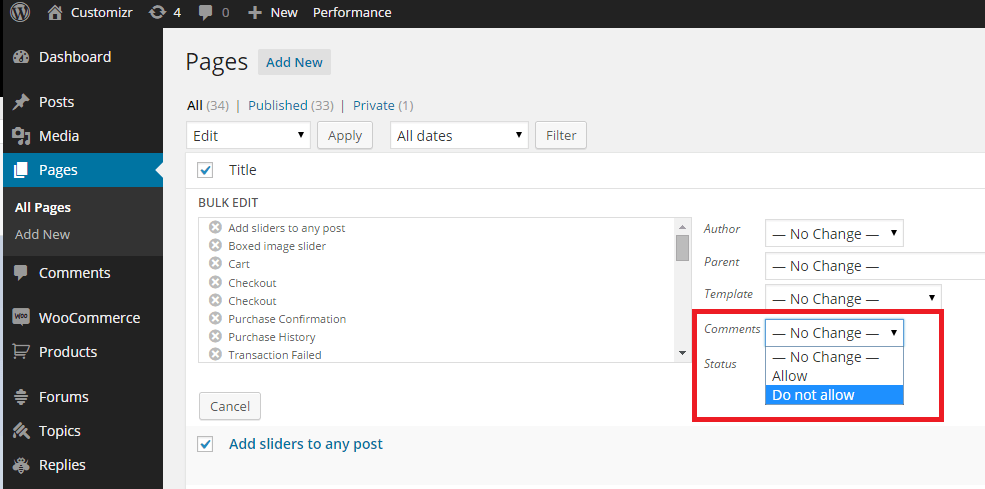
In the same Discussion settings, scroll to “Default article settings.” Check the box to allow comments on new posts. This saves time by turning on comments automatically. You can override this setting on individual posts. Just edit the post and change the comment option. Setting defaults helps keep your comment system consistent. It also makes managing your blog easier and faster.

Credit: docs.presscustomizr.com
Manage Comments On Individual Posts
Managing comments on individual posts gives control over user interaction. It allows customizing which posts accept comments. This helps keep discussions relevant and organized. WordPress provides simple options for this task.
Allow Comments On Specific Posts
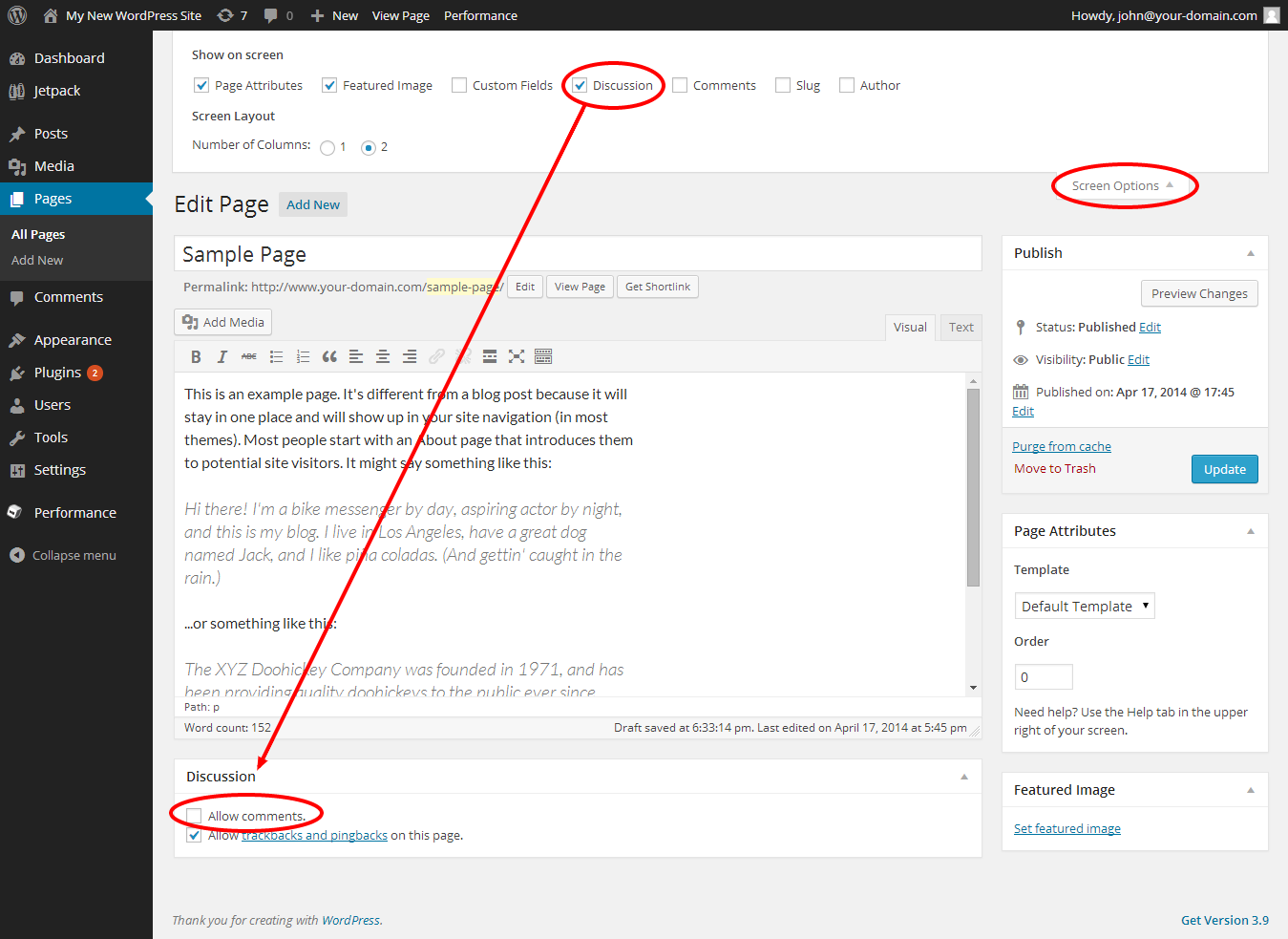
To enable comments on a single post, open the WordPress editor. Find the “Discussion” box on the right or below the post content. Check the box labeled “Allow comments.” This lets visitors leave feedback on that post only. Save or update the post to apply changes. This method helps encourage interaction on chosen posts.
Disable Comments When Needed
Disabling comments on certain posts stops new feedback. Go to the post editor and locate the “Discussion” section. Uncheck the “Allow comments” box. This prevents new comments but keeps existing ones visible. Save the post to confirm the setting. Useful for posts where comments are unwanted or distracting.
Use Plugins To Enhance Commenting
Using plugins to enhance commenting in WordPress improves user interaction and site management. Plugins add features that the default comment system lacks. They help control spam, improve design, and boost engagement.
Plugins also allow easy customization of comment forms. This makes comments more inviting and user-friendly. Visitors find it easier to share their thoughts.
Top Plugins For Comment Management
Several plugins help manage comments efficiently. Akismet filters spam comments automatically. It saves time by blocking unwanted content.
Disqus replaces the default comment system with a more interactive platform. It supports social login and threaded replies. This makes conversations clearer and more active.
WPDiscuz adds live comment updates and voting features. It improves user interaction without slowing down the site. Easy to use and customize.
Customizing Comment Forms
Plugins let you change comment form fields easily. You can add or remove fields like name, email, and website. Some plugins allow adding custom questions to reduce spam.
Change the form’s look to match your site style. Use colors and fonts that fit your theme. This keeps the design consistent and professional.
Allow users to upload images or files with comments. This feature adds value in many types of blogs. It helps readers share more detailed feedback.
Credit: www.ipage.com
Moderate Comments Effectively
Moderating comments on your WordPress site keeps conversations healthy and respectful. It helps maintain quality and prevents spam or harmful content. Effective moderation improves visitor experience and protects your site’s reputation.
Set Up Comment Moderation Rules
WordPress lets you control which comments appear on your site. Set rules to hold comments for review before publishing. You can approve comments manually or allow trusted users to comment freely. Use the Discussion Settings to specify criteria like comment length or links. This helps filter out unwanted or low-quality comments automatically.
Handle Spam Comments
Spam comments can flood your site with irrelevant or harmful content. Use plugins like Akismet to catch spam before it appears. These tools check comments against known spam patterns and block them. Regularly check your spam folder to ensure no valid comments get caught. Delete spam comments promptly to keep your site clean and fast.
Boost Engagement Through Comments
Comments on your WordPress blog create a space for readers to share ideas. They help build a community and keep visitors coming back. Allowing comments can turn a simple blog into a lively discussion hub.
Active comment sections show that you value your readers’ opinions. This boosts trust and encourages more people to join the conversation. Engaged readers often become loyal followers.
Encourage Meaningful Discussions
Ask clear questions in your posts to invite responses. Avoid yes or no questions. Instead, use open-ended questions that need more thought. This sparks deeper conversations and keeps readers interested.
Moderate comments to keep discussions friendly and on topic. Remove spam or rude remarks quickly. A respectful space makes readers feel safe and respected.
Responding To Comments Promptly
Reply to comments quickly to show you care. This encourages others to join the talk. Even a simple thank you can make readers feel appreciated.
Answer questions and add value to discussions. Your responses guide the conversation and keep it active. Prompt replies help build strong relationships with your audience.
Credit: docs.presscustomizr.com
Frequently Asked Questions
How Do I Enable Comments On WordPress Posts?
Go to WordPress dashboard, navigate to Settings > Discussion. Check “Allow people to post comments on new articles. ” Save changes to enable comments on new posts.
Can I Allow Comments On Individual WordPress Pages?
Yes, edit the specific page, find the “Discussion” box, and check “Allow comments. ” If not visible, enable it in Screen Options.
How Do I Moderate Comments Before Publishing?
In Settings > Discussion, enable “Comment must be manually approved. ” This ensures all comments are reviewed before appearing on your site.
How Can I Disable Comments On WordPress Posts?
Go to Settings > Discussion and uncheck “Allow people to post comments. ” Alternatively, disable comments on individual posts through the post editor.
Conclusion
Allowing comments on your WordPress site helps build community. Visitors can share their thoughts and ask questions. You control who can comment and how comments appear. Moderation tools keep discussions safe and friendly. Enabling comments invites interaction and keeps your site lively.
Try these steps to make your blog more engaging today.


