
Struggling with your WordPress theme’s content width? You’re not alone.
Finding the perfect balance between aesthetics and functionality can be challenging, but it’s crucial for ensuring your website offers a seamless user experience. If your content feels cramped or too spread out, visitors might lose interest before they even start reading.
But don’t worry, adjusting the content width is easier than you think, and it can make a huge difference in keeping your readers engaged. In this guide, you’ll discover simple yet effective techniques to tweak your WordPress theme’s content width, transforming your site into a reader-friendly haven. Get ready to captivate your audience from the very first glance!
Choosing The Right Theme
Choose a theme that fits your needs. Not all themes are the same. Some themes have flexible layouts. Others may not. Check if the theme allows changes in content width. Read the theme details. Look for customization options. This will save time later.
Themes should work on all devices. This is called responsive design. Make sure your theme looks good on phones and tablets. Test it on different screens. A responsive theme will adjust the content width automatically. This ensures a better user experience. Visitors will find it easy to read.
Using Theme Customizer
Start by opening your WordPress dashboard. Find the Appearance menu on the left. Click on it. Next, select Customize. This opens the Theme Customizer. The Customizer lets you change many settings. It’s easy to use. You can see changes live. Be careful with your settings.
Inside the Customizer, find the Layout section. Look for Content Width. Adjust the slider to change width. Make it wider or narrower. See the changes instantly. Use it to fit your style. Some themes have more options. Explore these settings for better results.
Adjusting Css Styles
First, locate the style sheet in your WordPress theme. It is usually called style.css. Open your WordPress dashboard. Go to the Appearance menu. Click on Theme Editor. Here you will find the style sheet. Look for width settings in the CSS file. These control the content’s width.
Now, find the CSS rule that defines the content width. It might look like width: 80%; or max-width: 1200px;. Change these values to adjust the width. Use percentages for responsive design. This helps in keeping the content flexible. Save your changes. Refresh your website to see the effect.
Utilizing Page Builders
Page builders simplify adjusting content width in WordPress themes. Easily customize layouts for a balanced design. Enhance user experience by ensuring content fits perfectly on various screens.
Selecting A Page Builder
Choosing the right page builder is important. Some popular options include Elementor, Beaver Builder, and WPBakery. Each has unique features. Some are free, while others need payment. Check if the builder works with your theme. Builders help create beautiful pages without coding. They offer drag-and-drop features. This makes design easy and fun.
Setting Content Width
Adjusting content width is simple. First, open your page builder. Look for the content width option in settings. Some builders show it as width or container size. Choose your preferred width. Experiment with different sizes. This helps find the best look for your site. Use sliders or input boxes to change width. Make sure the content looks good on all devices. Always preview your changes before saving.
Employing Custom Templates
First, make a new file in your theme folder. Call it something unique. This file will be your custom template. Open this file in a code editor. Write the PHP header at the top. This tells WordPress it is a template. Use the code: php / Template Name: Custom Width / ?. Save the file.
Go to your theme’s style.css file. Add new CSS rules for your template. Change the width with width: 70%;. Feel free to adjust this number. Test it by applying the template to a page. See if the width fits your needs.
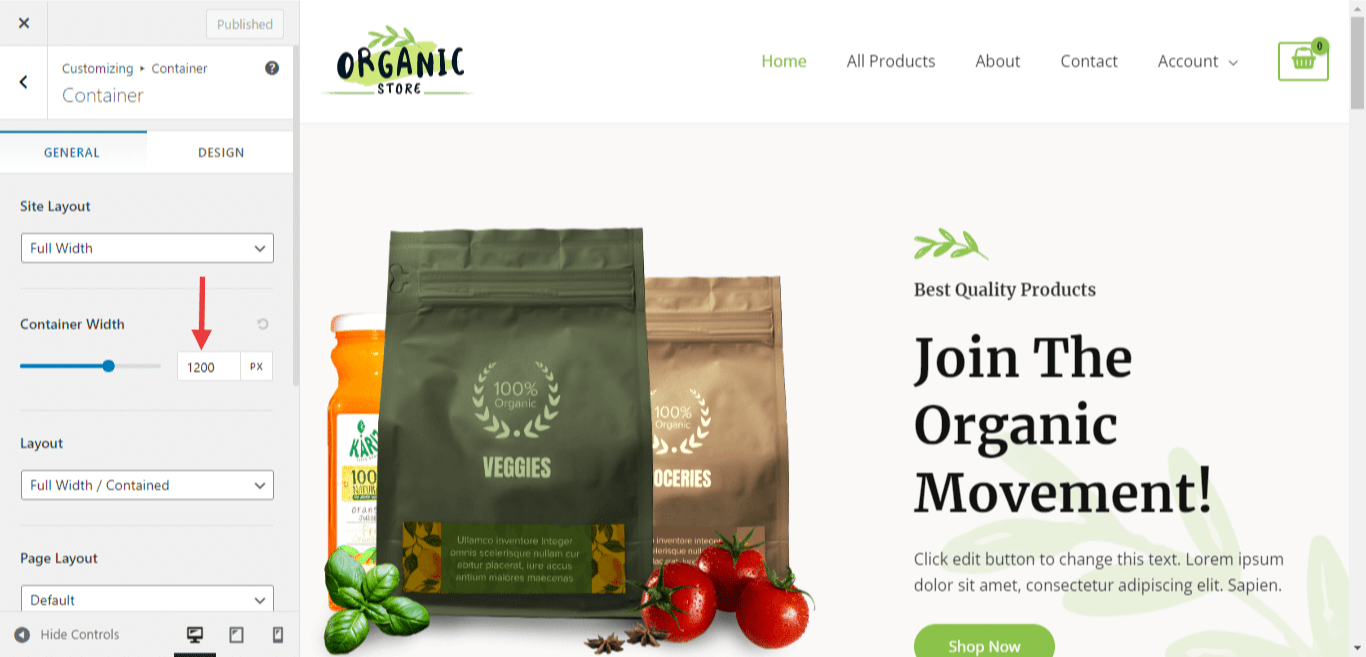
Credit: wpspectra.com
Testing Changes
Cross-device testing is important for content width changes. Use different devices like phones, tablets, and computers. Check if the content looks good on all. Some themes may look different on various screens. Ensure text is not cut off or too small. Adjust settings if needed. Remember, a good user experience is key.
Performance implications matter when adjusting content width. Too much content can slow down your site. A slow site can frustrate visitors. Use tools to check your site’s speed. Compress images and clean up code to help. A fast site keeps users happy. It also helps with search rankings.
Common Issues And Solutions
Sometimes, page elements overlap each other. This can make reading hard. Check the CSS code in your theme. Look for width and margin settings. Small changes can fix the issue. Test on different devices. Make sure the display is correct.
Responsive breakpoints are important. They help your site look good on all screens. Use media queries in your CSS. They can adjust content width for phones, tablets, and computers. Set different widths for each device. This helps in keeping the content organized. Test your site on different screens. Ensure everything fits well.
Credit: www.greengeeks.com
Best Practices
Adjusting content width is an important task. It helps in balancing aesthetics and functionality. A wider content area can make text look better. But it may affect readability. Keep sentences short and simple. This ensures easy reading.
Use a moderate width for paragraphs. It should not strain the eyes. Content should be easy to follow. Break text into smaller sections. This helps in maintaining reader interest. Use images to make content appealing. But don’t overcrowd with visuals.
Keep font size large enough to read. Choose a font style that is easy on the eyes. Proper spacing between lines is vital. This improves text clarity. A balance of white space and text is key. It makes the page look neat and tidy.

Credit: make.wordpress.org
Frequently Asked Questions
How Do I Change Content Width In WordPress?
To adjust content width, navigate to your theme’s settings. Look for a section labeled “Layout” or “Width. ” Here, you can specify the desired width for your content area. Some themes might require custom CSS for precise adjustments. Always preview changes before saving to ensure the best appearance.
Can I Adjust WordPress Width Without Coding?
Yes, many themes offer built-in options to change the content width without coding. Check your theme’s customization settings under “Appearance. ” Use sliders or dropdown menus to adjust the width. If your theme lacks this feature, consider using a plugin designed for layout adjustments.
Which Plugin Adjusts WordPress Content Width?
Plugins like “CSS Hero” or “YellowPencil” allow you to customize WordPress content width visually. They offer intuitive interfaces to adjust widths without coding. Search for these plugins in the WordPress repository, install, and configure to modify the width according to your needs.
What Is The Ideal Content Width In WordPress?
Ideal content width varies based on theme design and readability. Typically, widths between 600px to 900px are recommended for optimal viewing on desktops. This range ensures content is neither too narrow nor too wide, enhancing user experience and readability. Experiment to find the best fit for your audience.
Conclusion
Adjusting content width in WordPress is simple. Follow the steps outlined. Customize your site to fit your needs. A tailored layout enhances user experience. It helps with readability and navigation. Experiment with different settings. Find what works best for your site.
Remember, good design attracts visitors. It keeps them engaged longer. Consistency in design builds trust. Keep your site appealing and functional. Small adjustments make a big difference. Enjoy creating a visually pleasing site. Your efforts will pay off in user satisfaction.
Start adjusting today and watch your site improve. Happy designing!


