
Are you looking to give your WordPress site a fresh look or better functionality? Adjusting your theme might be just what you need.
Imagine having the power to customize your site’s appearance to perfectly match your vision or brand. Whether you’re a seasoned blogger or a business owner, mastering the art of theme adjustment can transform your website into a stunning digital presence.
You don’t have to be a tech wizard to make these changes. With a few simple steps, you can tailor your WordPress theme to reflect your unique style and needs. This guide will walk you through the process, ensuring you feel confident and in control. Get ready to unlock the potential of your website and captivate your audience with a design that truly stands out. Keep reading, and you’ll discover how easy it is to make your website shine.
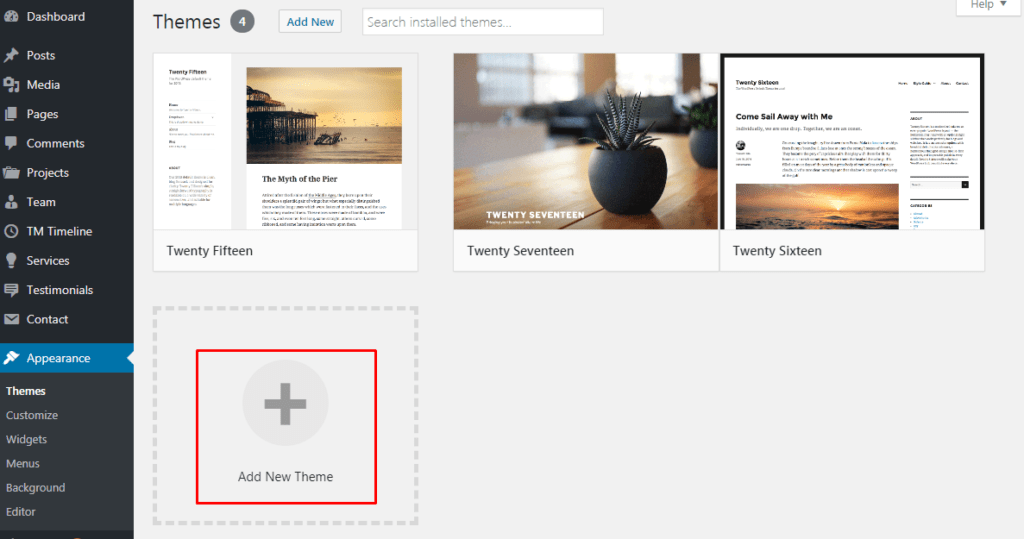
Credit: www.templatemonster.com
Choosing The Right Theme
Understand what your website needs. Is it for a blog, an online store, or a portfolio? Each type of site needs different features. A blog needs a simple layout. An online store needs a shopping cart. A portfolio needs a gallery. Think about your target audience too. Young people may like bright colors. Business people may prefer a clean look.
Make a list of your essential features. This helps you choose the right theme. Don’t forget about mobile users. Many people use phones to visit websites. Your theme should look good on any device.
Check if the theme has customization options. Can you change colors and fonts? This is important for your brand. Look at the demo of the theme. Does it load fast? Slow websites can lose visitors. Also, check for SEO-friendly features. These help your site rank in search engines.
Ensure the theme supports plugins. Plugins add more features to your site. Check for reviews and ratings of the theme. They tell you if others like it. Lastly, see if the theme has updates. Regular updates keep your site secure.
Customizing Theme Settings
The Customizer helps to change your theme. Find it in the dashboard. Click “Appearance” then “Customize”. You will see many options. Each option lets you change different parts. Make sure to save your changes. Saving keeps your work safe. You can preview changes before saving. This helps avoid mistakes.
Colors make your site look good. You can adjust them easily. Find the “Colors” section in Customizer. Pick colors that match your style. Use bright colors to catch eyes. Dark colors can be calm. Always balance colors well. Too many colors can confuse visitors. Save your changes to keep your chosen colors.
Fonts change how text looks. They are important for readability. Find the “Typography” section. You can choose different fonts. Make sure fonts are easy to read. Big fonts can help young readers. You can change font size too. Use bold for important words. Save your changes for the best look.
Editing The Header And Footer
Start by clicking on the customize option in your WordPress dashboard. Find the header section in the menu. You can change the layout by choosing a different style. Try moving the logo or changing the menu position. Experiment with different options. Keep the layout simple and clean. Your site will look more professional.
Scroll down to the footer settings. Click on the sections you want to update. Add your contact info or change the copyright text. You can also add social media links here. Make sure all the information is correct and easy to read. This helps visitors find what they need quickly. Always save your changes before leaving the page.

Credit: wordpress.com
Tweaking Page Layouts
Adjusting a WordPress theme involves tweaking page layouts to match your style. Use the theme customizer for easy changes. Focus on elements like headers, footers, and sidebars.
Using Page Builder Plugins
Page builder plugins help change your page layout easily. They offer drag-and-drop features. This means you can move items around with your mouse. You don’t need to know coding. Plugins like Elementor or Beaver Builder are popular. They let you add columns, images, and texts quickly. These plugins also have pre-made templates. You can use them to save time. Experiment with different layouts to find what you like best. Always preview your changes before saving them.
Adjusting Sidebar Settings
Sidebars are important for your website. They hold widgets like menus and search bars. You can adjust them in the WordPress Customizer. Look for the Widgets section. Here, you can add or remove items. Try to keep the sidebar clean. Too many items can confuse visitors. Some themes let you change sidebar positions. You can have it on the left or right. Always check how it looks on mobile devices. A good sidebar improves user experience.
Incorporating Widgets
Enhancing your WordPress theme involves integrating widgets seamlessly. Widgets allow customization of sidebars, footers, and other areas. Easily adjust layouts by dragging and dropping, creating a personalized experience.
Adding Useful Widgets
Widgets make your website look better. They are easy to add. Go to the WordPress dashboard. Click on Appearance. Then click Widgets. You will see a list. Choose a widget you like. Drag it to the right area. It can be your sidebar or footer. Widgets can show recent posts. They can show social media buttons too. Add a search bar widget. Help visitors find things. Your site will look neat and organized.
Organizing Widget Areas
Organizing widgets is important. It makes your site easy to use. You can change the order of widgets. Just drag them up or down. Remove widgets you do not need. Put the important ones first. Check how they look on your site. Make sure they fit well. Keep your sidebar tidy. This helps visitors find things easily. Change widget settings if needed. A well-organized site keeps visitors happy.
Using Custom Css
Adding custom styles can make your site unique. First, find the Theme Customizer. It’s under the Appearance menu. Then, click on Additional CSS. Here, you can type your CSS codes. Make changes to colors or fonts. For example, change the background color with body { background-color: blue; }. This will turn the background blue. Save your changes when done. Your site will show the new styles.
Testing is important to see if changes look right. Use your browser’s Inspect Tool. Right-click on a webpage part. Select Inspect to open the tool. You can see the CSS rules here. Try changing styles and see them live. This helps you find mistakes before saving. Always check on different devices. Ensure your site looks good everywhere.
Managing Theme Updates
Always make sure to back up your website before updates. This saves your content and settings. Use a plugin to create a backup. It’s easy and quick. You can restore your site if something goes wrong.
Check for theme updates regularly. Updates keep your site safe. They also fix bugs. Go to your WordPress dashboard. Click on ‘Updates’. Follow the steps to update your theme.
Test your site after updates. Make sure everything works. Check your pages and posts. Fix any problems quickly.
Troubleshooting Common Issues
Updating a WordPress theme can bring challenges like layout shifts or plugin conflicts. Check theme settings for customization options. Ensure plugins and WordPress core are up-to-date to minimize issues.
Resolving Design Conflicts
Design conflicts make themes look odd. Check your theme settings first. Themes often have color options. Adjust colors to avoid clashes. Fonts can also cause issues. Choose fonts that match your theme style. Keep an eye on spacing. Proper spacing improves readability. Use the preview option. This helps you spot errors early. Plugins can conflict with themes. Disable plugins one by one. This helps find the problem plugin. Fix settings and save changes.
Fixing Broken Elements
Broken elements ruin user experience. Images sometimes fail to load. Check image size and format. Use correct formats like JPEG or PNG. Links might break. Ensure URLs are correct. Update broken links quickly. Widgets may stop working. Check widget settings in the dashboard. Enable or disable widgets if needed. Updating the theme often solves problems. Always backup your site before updates. This prevents data loss.
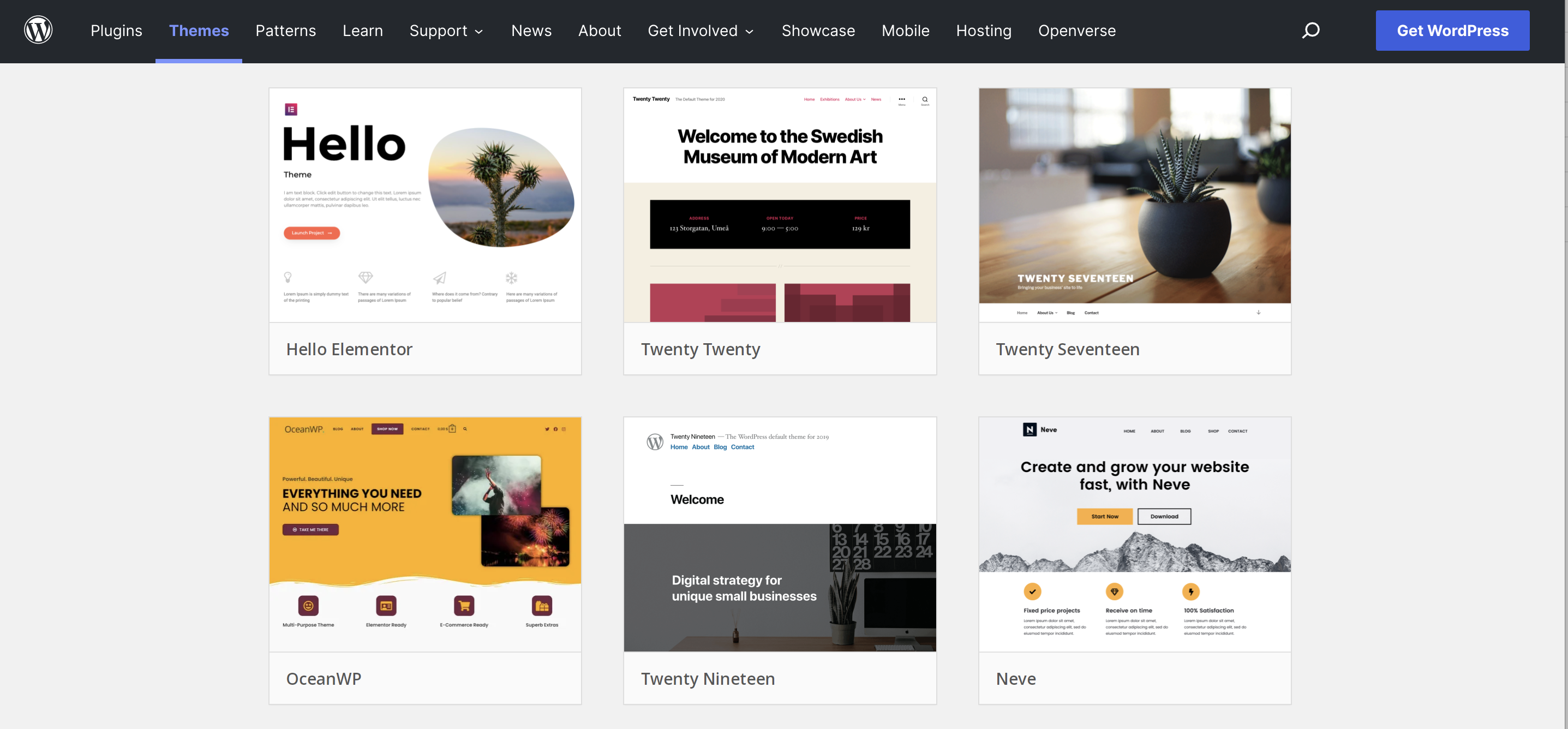
Credit: jetpack.com
Frequently Asked Questions
How Do I Customize My WordPress Theme?
To customize your WordPress theme, navigate to the Appearance section in your dashboard. Click on Customize to access theme options. You can modify settings like colors, fonts, and layouts. Use the live preview to see changes instantly. Save your adjustments once you’re satisfied with the new look.
Can I Edit A WordPress Theme Code?
Yes, you can edit theme code by accessing the Theme Editor under Appearance in your dashboard. Be cautious when modifying code, as incorrect changes can affect site functionality. It’s advisable to back up your site before making any alterations. Consider using a child theme for safer customization.
What Is A Child Theme In WordPress?
A child theme is a sub-theme that inherits the functionality of a parent theme. It allows you to customize your site without altering the original theme files. Create a child theme to safely modify styles and functions. This ensures your changes are preserved during theme updates.
Is It Necessary To Update WordPress Themes?
Yes, updating WordPress themes is essential for security and performance. Updates often include bug fixes, new features, and compatibility improvements. Regular updates help protect your site from vulnerabilities. Always back up your site before updating to avoid any potential issues.
Conclusion
Adjusting a WordPress theme is not as hard as it seems. Start by exploring the theme options. Play around with colors and fonts. Customize the layout to suit your style. Don’t forget to save your changes. Test everything carefully to ensure it looks right.
Remember, a theme reflects your brand. Make it unique and personal. With practice, your skills will grow. Soon, you’ll feel confident making adjustments. Keep experimenting. Enjoy creating a website that truly stands out. Your perfect WordPress theme is just a few tweaks away.


