
Struggling to add a Google Maps location to your WordPress MX Theme? You’re not alone.
Many WordPress users find this task daunting, yet having a map on your site can significantly enhance user experience and boost your business’s credibility. Imagine your visitors easily finding your location without leaving your site or juggling through multiple tabs.
Sounds ideal, right? In this guide, you’ll discover step-by-step instructions that simplify this process, making your website more interactive and user-friendly. So, whether you’re a tech novice or just short on time, keep reading to unlock the potential of seamless navigation for your audience.
Installing The Google Maps Plugin
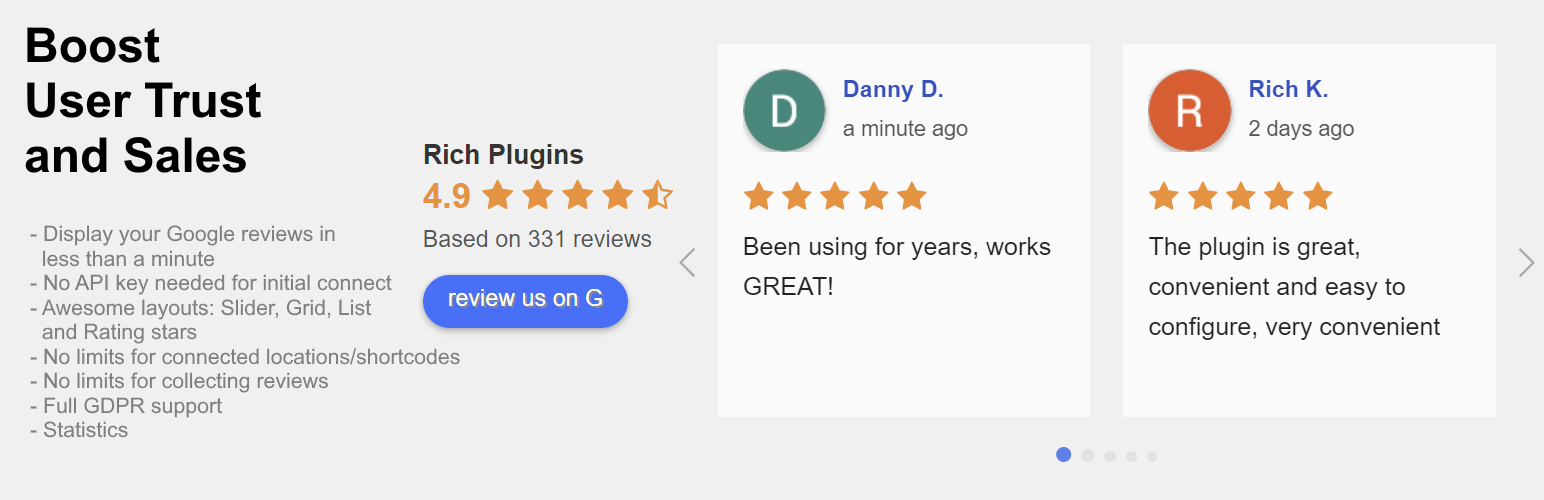
Picking a plugin is important. Google Maps plugins help show maps on your site. Some plugins are free. Some have extra features for a fee. Always check reviews before you decide. Good reviews mean people like the plugin. Choose one that fits your needs.
Go to the WordPress dashboard. Click on ‘Plugins’. Select ‘Add New’. Type the plugin name in the search bar. Click ‘Install Now’ next to your chosen plugin. Wait for the plugin to download. Once downloaded, click ‘Activate’.
After installation, you must activate it. Go back to your plugins page. Find the plugin you installed. Click ‘Activate’. The plugin is now ready. You can now add Google Maps to your website.
Credit: wordpress.org
Generating Google Maps Api Key
Create a Google Cloud account. Visit the Google Cloud Platform website. Click “Get Started”. Follow the steps to register. Use your Google email. This step is needed for the API key.
Log into your Google Cloud account. Go to the dashboard. Click on the “Select a Project” dropdown. Choose “New Project”. Name the project. Click “Create”. This will help you manage your API keys.
Find the API library section. Type “Maps JavaScript API” in the search box. Click on the API name. Press “Enable”. This makes the maps work on your site.
Go to the “Credentials” tab. Click “Create Credentials”. Choose “API Key”. The key will appear. Copy it. Keep it safe. Use this key in your WordPress MX Theme.
Configuring The Plugin Settings
Entering the API Key is the first step. Open the plugin settings. Look for the API Key field. Paste your Google Maps API Key there. This key helps the map show properly. Without it, the map won’t work.
Next, Selecting Map Display Options is crucial. Decide how you want the map to look. Choose from satellite, terrain, or normal views. Pick one that fits your site style. This choice affects how users see the map.
Customizing Map Appearance makes it unique. Change the map size. Adjust the map’s colors. Add markers for important places. Make sure it matches your site theme. This helps users find locations easily.

Credit: mapsplatform.google.com
Adding Location To A WordPress Page
Copy the Google Maps embed code from the map page. Go to your WordPress editor. Paste the code into the HTML section of your page or post. This will show the map directly on your page. Make sure the code is correct.
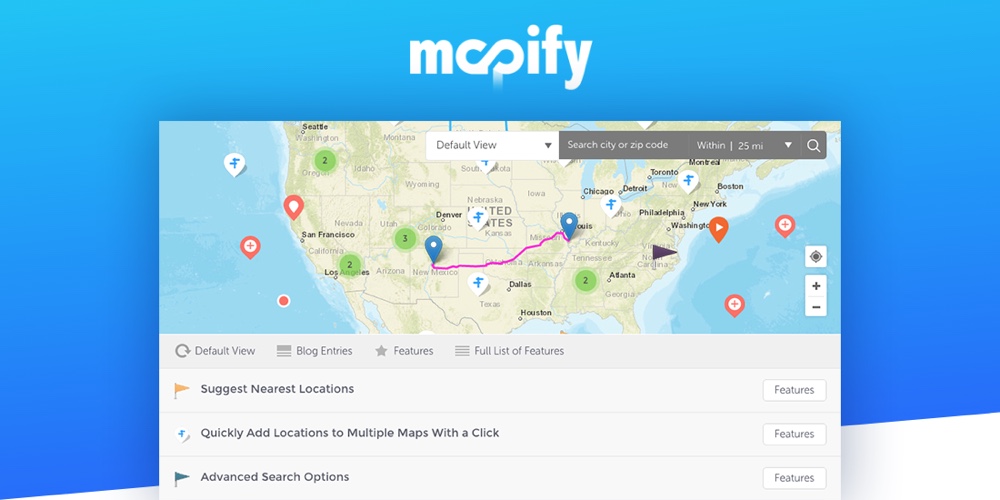
Some plugins offer shortcodes for Google Maps. Install a maps plugin from the WordPress plugin directory. Follow the plugin instructions to generate a shortcode. Paste this shortcode in the editor. The map will appear where the shortcode is placed.
Map size and zoom level can be adjusted. In the embed code, find the width and height. Change them to fit your page design. Zoom level can be set by changing the zoom value. Lower numbers zoom out. Higher numbers zoom in.
Troubleshooting Common Issues
Easily add Google Maps to your WordPress MX Theme by troubleshooting common issues. Ensure your API key is valid and check theme settings for map integration options. Adjust display settings to fit your website layout.
Api Key Errors
Google Maps needs an API Key to work. Check if the key is right. Sometimes keys expire or get blocked. Always update the key if it stops working. Make sure your key is for the right project. Double-check the permissions. This helps avoid errors. Check settings in your WordPress dashboard. Ensure the key matches the settings.
Map Display Problems
Maps might not show up right. Ensure you use the correct coordinates. Check if the map area is set properly. Adjust the zoom level for better view. Confirm your theme supports Google Maps. Some themes need extra settings. Keep your theme updated. Updates fix display issues. Always check for theme updates.
Plugin Conflicts
Sometimes plugins don’t work well together. Check for any plugin causing trouble. Disable plugins one by one. This helps find the problem. If a plugin conflicts, try a different one. Always use plugins that are compatible. Check the plugin reviews. Good reviews mean fewer problems. Keep plugins updated. Updates fix bugs and improve function.
Credit: www.wpexplorer.com
Frequently Asked Questions
How To Add Google Maps In Mx Theme?
To add Google Maps in MX Theme, first install the Google Maps plugin. Configure the plugin using your Google API key. Then, insert the shortcode provided by the plugin into your desired page or post. This will display the map on your WordPress site.
Can I Customize Google Maps Appearance?
Yes, you can customize the appearance of Google Maps in MX Theme. Use the plugin’s settings to adjust the map’s style, color, and size. You can also add markers, routes, and customize the display to match your site’s theme.
Do I Need A Google Maps Api Key?
Yes, a Google Maps API key is essential for integrating Google Maps. Obtain the key from the Google Cloud Platform. Insert it into your plugin’s settings to enable map functionality. This ensures smooth operation and access to Google’s mapping services.
Is Mx Theme Compatible With Google Maps Plugins?
MX Theme is compatible with most Google Maps plugins. Ensure your chosen plugin supports MX Theme. Check for any specific plugin requirements or compatibility issues in the plugin documentation. This guarantees seamless integration and functionality on your WordPress site.
Conclusion
Adding Google Maps in WordPress MX Theme is simple and effective. This process enhances your site’s user experience. Your visitors find locations easily. It boosts engagement and improves navigation. Use the steps shared to achieve this. Follow them carefully for best results.
Keep your site updated for smooth performance. Regular updates ensure compatibility with new features. A user-friendly interface always attracts more visitors. So, make your site informative and easy to use. Encourage exploration through accessible maps. Your audience will appreciate the effort.
Enjoy the benefits of enhanced site functionality and visitor satisfaction.


