
Are you looking to make your WordPress blog more engaging and dynamic? Adding a YouTube video can be the perfect way to grab your readers’ attention and keep them coming back for more.
But if you’re not sure how to do it, don’t worry—this guide will walk you through every simple step. By the end, you’ll know exactly how to embed videos that boost your content and connect with your audience like never before.
Ready to make your blog stand out? Let’s dive in!

Credit: www.youtube.com
Choose The Right Youtube Video
Choosing the right YouTube video is key to making your WordPress blog helpful and interesting. The video should match your blog topic and help explain your points clearly. Picking the best video keeps visitors engaged and adds value to your post.
Select Relevant Content
Pick videos that fit your blog’s subject well. The video should support your message or add new information. Avoid videos that stray off-topic or confuse readers. Relevant content keeps your blog focused and useful.
Check Video Quality
High-quality videos look better and hold attention. Choose videos with clear images and sound. Low-quality videos can distract or frustrate viewers. Good quality shows professionalism and respect for your readers.
Consider Video Length
Short videos are easier to watch and share. Aim for videos under five minutes for quick tips or ideas. Longer videos work for detailed guides or tutorials. Match the length to your blog’s style and reader patience.
Copy The Youtube Video Url
Copying the YouTube video URL is the first step to adding a video to your WordPress blog. This URL is the web address that links directly to the video you want to share. Getting the correct URL ensures your video will appear properly on your blog.
Follow simple steps to find and copy the URL. This process takes only a few seconds. The URL can be pasted into your blog editor to embed the video easily.
Locate The Share Button
Open the YouTube video you want to add. Look below the video player. Find the Share button near the like and dislike icons. It usually looks like an arrow pointing right. Click on this button to open sharing options.
Copy The Link
After clicking Share, a new box appears. It shows a URL under the word Send to. This is the video link. Click the Copy button next to the URL. The link is now saved to your clipboard. You can paste it directly into your WordPress blog editor.
Embed Video Using WordPress Editor
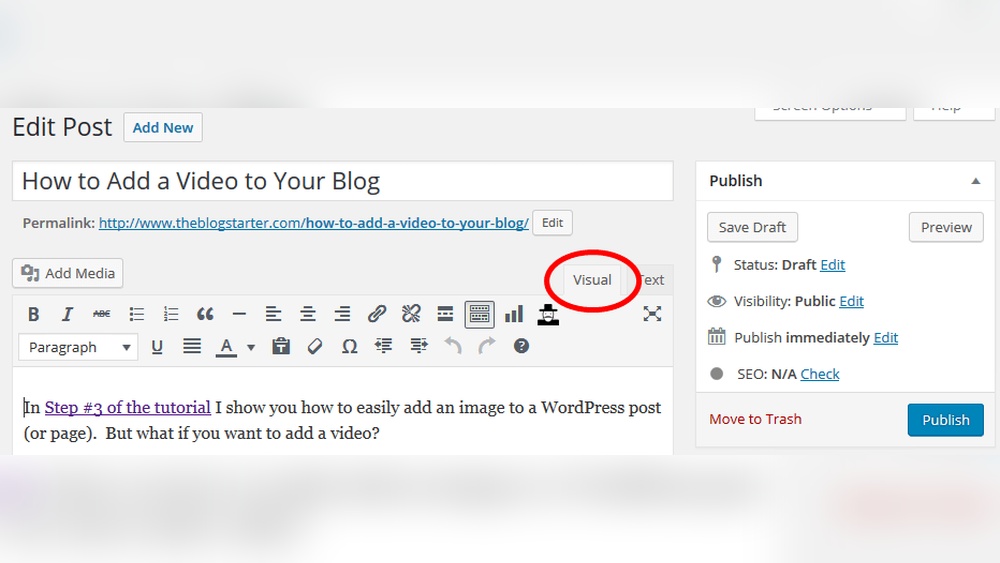
Embedding a YouTube video in your WordPress blog is simple and quick. The WordPress editor has built-in tools that help add videos without extra plugins. This guide shows how to embed videos using the WordPress editor step-by-step.
Use The Block Editor
The WordPress block editor makes adding videos easy. Each content element is a block. This setup lets you insert and arrange videos smoothly. Open your post or page in the editor to start.
Insert Youtube Block
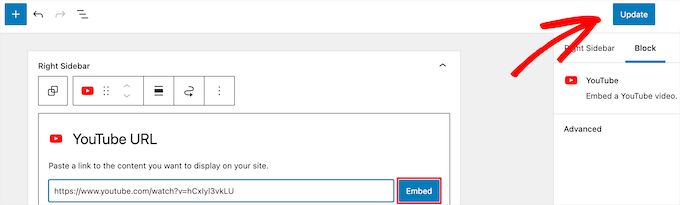
Click the plus (+) icon to add a new block. Search for the “YouTube” block in the list. Select it to add the video block to your content. This block is designed specifically for YouTube videos.
Paste The Video Url
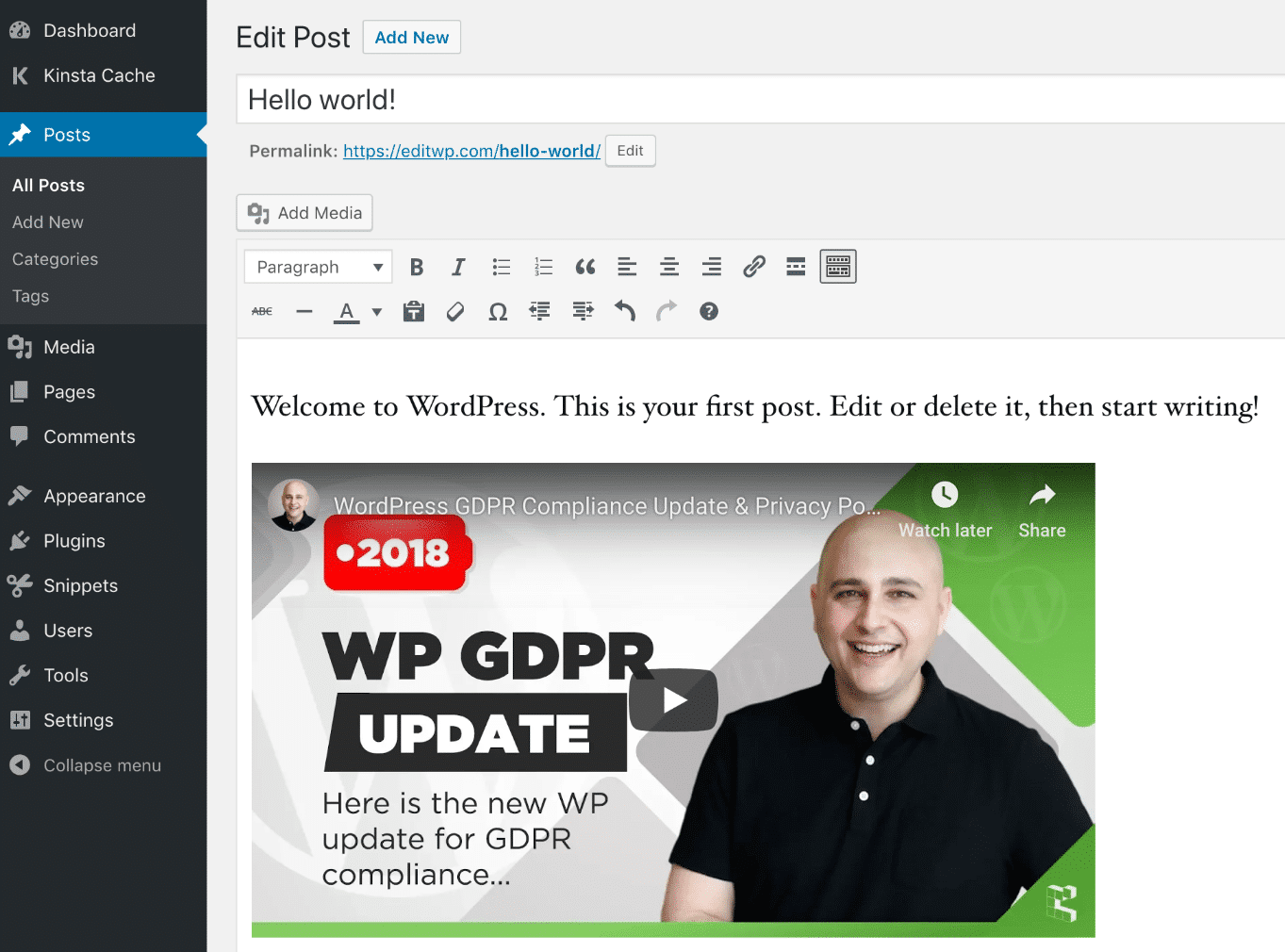
Copy the YouTube video URL from your browser. Paste the URL into the box inside the YouTube block. WordPress will load a preview of the video right away. Adjust the block position if needed, then save your post.
Credit: kinsta.com
Embed Video Using Embed Code
Embedding a YouTube video using the embed code gives you control over how the video appears on your blog. This method works well for all WordPress themes and lets you customize the video size. It is a simple process that anyone can follow.
Start by getting the embed code from YouTube. Next, add a Custom HTML block in your WordPress editor. Finally, paste the code and adjust it to fit your blog layout.
Get The Embed Code From Youtube
Open the YouTube video you want to add to your blog. Below the video, click the “Share” button. Then select the “Embed” option. You will see a box with HTML code.
Copy this code. It contains the exact video player setup. You can also set the video size here before copying.
Add Custom Html Block
Go to your WordPress blog editor. Click the plus (+) button to add a new block. Search for “Custom HTML” and select it. This block lets you enter HTML code directly.
Placing the embed code inside this block ensures the video appears correctly on your page.
Paste And Adjust Embed Code
Paste the copied embed code into the Custom HTML block. Check how the video looks in the preview. You can change the width and height values in the code to fit your blog.
Make sure the video size matches your content area. Save or update your post to publish the video on your blog.
Optimize Video For Performance
Optimizing videos for performance improves your WordPress blog’s speed and user experience. Videos can slow down your site if not handled well. Optimized videos load faster and keep visitors engaged. Here are simple ways to enhance video performance on your blog.
Enable Lazy Loading
Lazy loading delays video loading until users scroll to it. This reduces initial page load time. Your site feels faster and uses less bandwidth. WordPress supports lazy loading for videos automatically. You can also add plugins to control lazy loading settings.
Set Video Dimensions
Defining video width and height helps browsers allocate space. This prevents layout shifts as the video loads. Use the exact size of your embedded video. It keeps your page stable and improves loading speed. Avoid large or undefined video dimensions.
Use Video Plugins
Video plugins add extra performance options. They offer lazy loading, caching, and better embedding methods. Some plugins compress videos or use content delivery networks (CDNs). Choose plugins that focus on speed and easy use. Plugins can simplify managing video content on your blog.
Credit: www.wpbeginner.com
Enhance Blog Engagement
Adding a YouTube video to your WordPress blog makes your posts more interesting. Videos catch attention and keep visitors on your page longer. They help explain ideas clearly and show what words cannot. Engaging videos invite readers to spend more time on your blog and come back for more.
Add Captions Or Descriptions
Write short captions or descriptions for each video you add. Explain what the video is about. This helps visitors understand the video quickly. Captions also improve SEO by adding keywords related to your topic. Clear descriptions make your blog more user-friendly and accessible.
Encourage Comments
Ask readers to share their thoughts about the video. Pose questions or invite opinions below the video. This starts conversations and builds a community around your blog. Responding to comments shows you care about your readers. Active comment sections keep your blog lively and engaging.
Link Related Content
Connect your video with other blog posts or pages on your site. Add links to related articles or tutorials near the video. This helps visitors find more useful information easily. Linking related content improves site navigation and keeps readers exploring your blog longer.
Troubleshoot Common Issues
Adding a YouTube video to your WordPress blog is easy. Sometimes, issues can stop your video from working well. Troubleshooting these problems helps your visitors watch videos smoothly. This section covers common problems and quick fixes.
Fix Video Not Showing
Check the video URL for any mistakes. Make sure it starts with https://. Clear your browser cache and refresh the page. Disable any conflicting plugins that may block videos. Use the default WordPress editor to add the video. Avoid embedding videos in custom HTML without proper code.
Handle Playback Errors
Playback errors often happen due to slow internet or browser issues. Ask visitors to try a different browser or update theirs. Check if the video is private or deleted on YouTube. Make sure your WordPress theme supports video playback. Disable any ad blockers that might stop the video.
Resolve Mobile Compatibility
Videos should work well on phones and tablets. Use responsive video embeds to fit all screen sizes. Test the video on multiple devices before publishing. Avoid using old embed codes that don’t support mobile. Update your WordPress and plugins to ensure mobile support.
Frequently Asked Questions
How Do I Embed A Youtube Video In WordPress?
To embed a YouTube video, copy the video URL. Paste it directly into the WordPress editor. The video will auto-embed without plugins.
Can I Customize Youtube Video Size On WordPress?
Yes, you can adjust video size by editing the embed code. Change width and height values to fit your blog design.
Is It Necessary To Use A Plugin For Youtube Videos?
No, WordPress supports native embedding for YouTube videos. Plugins are optional and useful for extra features like galleries.
How To Improve Seo With Youtube Videos In WordPress?
Add relevant titles, descriptions, and transcripts. Use video schema markup. This helps search engines understand and rank your content better.
Conclusion
Adding a YouTube video to your WordPress blog is simple and effective. Videos make your content more interesting and keep visitors longer. Use the embed code or block editor to add videos quickly. Make sure the video fits your topic and loads fast.
This helps your blog look professional and user-friendly. Keep practicing these steps to improve your blog. Your readers will enjoy the extra information videos provide. Just a few clicks, and your blog becomes more dynamic and engaging.


