
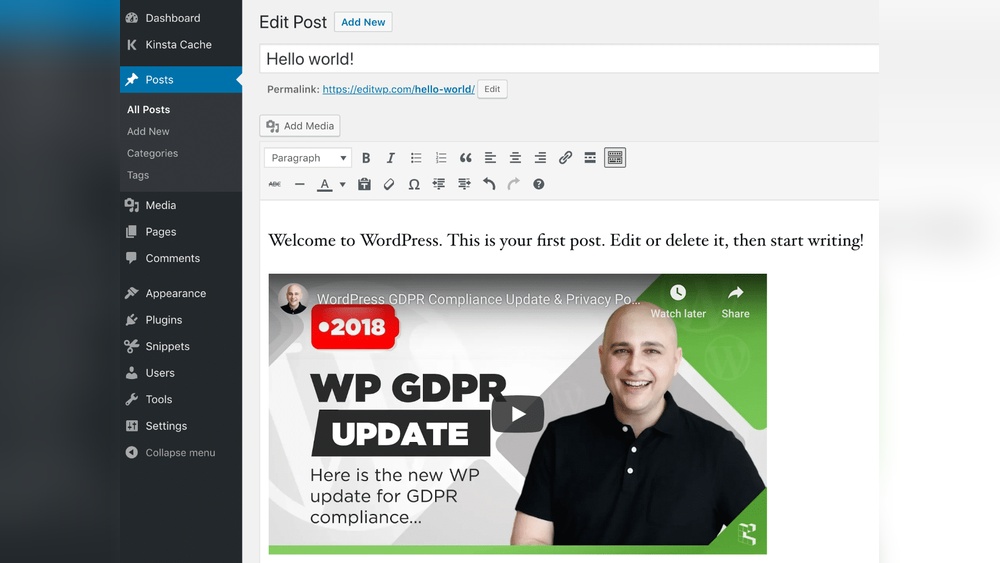
Want to make your WordPress site more engaging and keep visitors hooked? Adding a YouTube video is one of the easiest and most effective ways to do that.
Imagine your audience staying longer, enjoying your content, and coming back for more—all because you made your posts more dynamic. In this guide, you’ll learn simple, step-by-step methods to add YouTube videos to your WordPress site quickly. No tech jargon or complicated tricks—just clear instructions you can follow right now.
Ready to boost your site’s appeal and connect with your visitors like never before? Let’s dive in!
Choose The Right Youtube Video
Choosing the right YouTube video is important before adding it to your WordPress site. The video should match your content and interest your audience. Picking a relevant video helps keep visitors engaged. It also supports your message clearly.
Check the video’s quality and length. A clear video with good sound works best. Avoid videos that are too long or too short. The right video complements your blog and adds value.
Find The Video Url
First, open YouTube and find the video you want. Below the video, click the “Share” button. A box with the video URL appears. Copy this link carefully. This URL is needed to embed the video on WordPress.
Make sure you copy the full URL. The link usually starts with “https://www.youtube.com/”. Keep this link safe for the next steps.
Check Video Permissions
Not all videos can be added to your site. Some creators restrict where their videos appear. Look for the video’s license and sharing options. Avoid videos marked as private or restricted.
Use videos with a Creative Commons license or public access. This lets you share the video without legal problems. Respect creators’ rights and avoid copyright issues.

Credit: escapecreative.io
Embed Youtube Video Using Block Editor
Embedding a YouTube video in WordPress is simple with the Block Editor. This tool helps you add videos quickly without extra plugins. It keeps your content clean and easy to manage. Videos can boost user engagement and make your posts more lively. Follow these steps to embed your favorite YouTube video.
Add A Youtube Block
Open the post or page in WordPress Block Editor. Click the plus (+) icon to add a new block. Search for the “YouTube” block in the block selector. Click on the YouTube block to insert it into your content area. The block appears as a placeholder ready to accept your video link.
Paste The Video Link
Go to the YouTube video you want to embed. Copy the video URL from the browser’s address bar. Return to WordPress and paste the URL into the YouTube block. The video preview loads instantly inside the editor. This confirms your video is ready to show on your page.
Adjust Block Settings
Select the YouTube block to see its settings in the right sidebar. Adjust the video alignment to fit your layout. Enable or disable options like showing related videos after playback. Set a custom width or height if needed. These settings help your video fit well with your content style.
Embed Video With Classic Editor
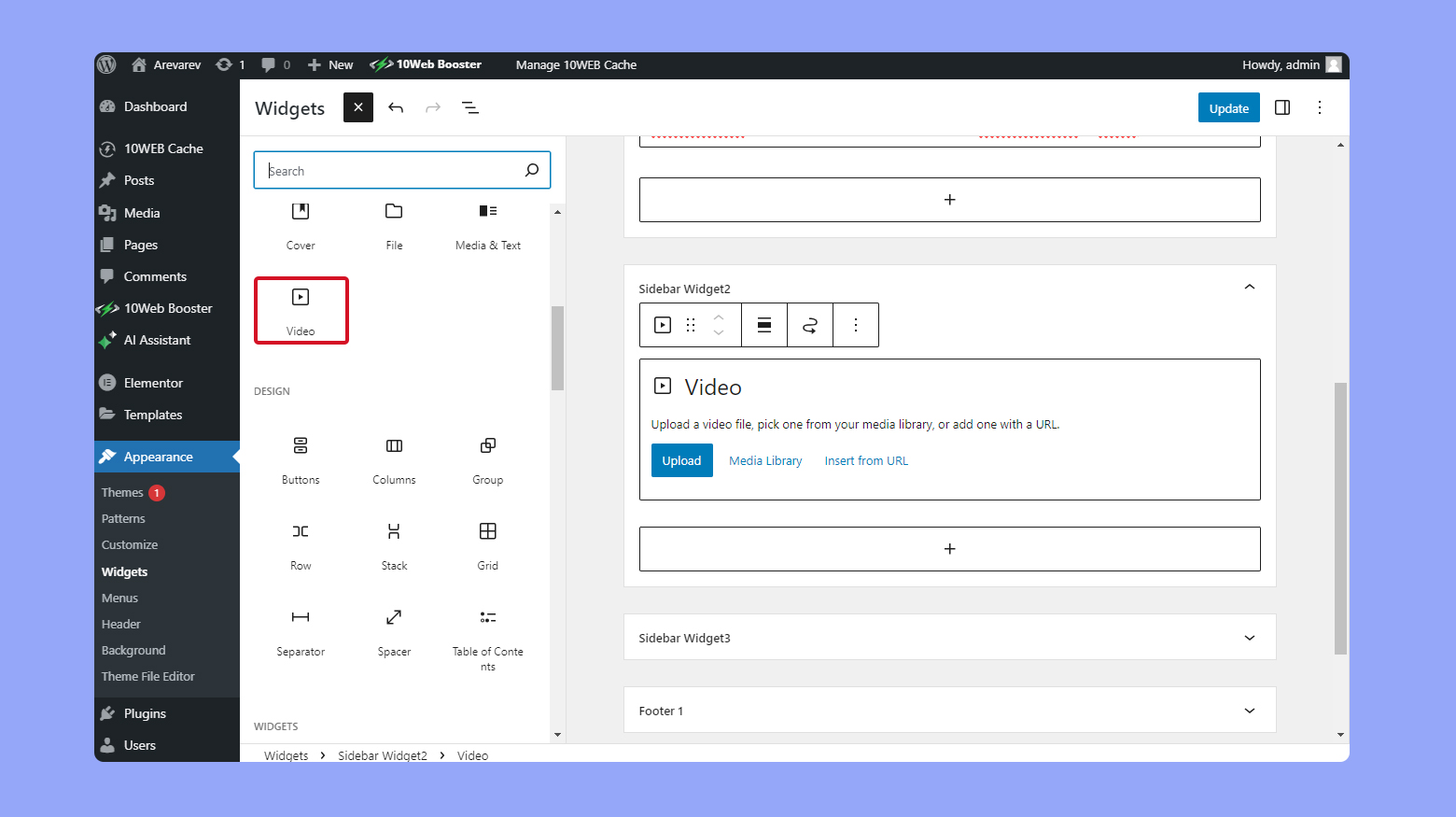
YouTube plugins offer more than just simple video embedding. They provide extra tools to improve user experience and video management. These plugins can help customize how videos look and behave on your WordPress site. They also add features like video galleries, lazy loading, and social sharing options. Using plugins saves time and makes your site more interactive.
Popular Youtube Plugins
Several plugins stand out for their ease and features. “YouTube Embed Plus” offers advanced embedding options and customization. “WP YouTube Lyte” helps videos load faster by lazy loading. “Video Gallery – YouTube Playlist, Channel Gallery” creates video galleries easily. Choose a plugin that fits your needs and technical skills.
Installing And Activating Plugins
Go to your WordPress dashboard. Click “Plugins” and then “Add New.” Type the plugin name in the search bar. Find the plugin and click “Install Now.” After installation, click “Activate.” The plugin is now ready for use. Follow any setup instructions the plugin provides.
Customizing Video Appearance
Most plugins let you change video size and layout. You can add borders or shadows around videos. Some allow autoplay or loop settings. Adjust colors to match your website design. Customize controls like play, pause, and volume buttons. Preview changes before saving to ensure the best look.
Credit: 10web.io
Use Youtube Plugins For Extra Features
Adding a YouTube video to your WordPress site is easy. But optimizing it helps your site run faster and look better. Videos can slow down pages and hurt user experience. Optimizing improves loading speed and keeps visitors engaged.
Lazy Loading Videos
Lazy loading delays video loading until the user scrolls near it. This reduces the initial page load time. Your site opens faster and uses less data. WordPress plugins or simple code snippets can add lazy loading. It helps visitors with slow internet or mobile devices.
Responsive Video Embeds
Responsive videos adjust to different screen sizes automatically. This means videos look good on phones, tablets, and desktops. Use CSS or WordPress themes that support responsive embeds. Responsive videos avoid horizontal scrolling and keep your layout neat. This improves user experience and site professionalism.
Optimize Video For Better Performance
Embedding YouTube videos on WordPress is usually easy. Sometimes, you may face issues that stop the video from showing or playing correctly. Troubleshooting these problems helps keep your site user-friendly. Understanding common embedding issues saves time and effort. Below are simple ways to fix frequent problems.
Video Not Showing
Videos might not appear due to slow internet or browser problems. Clear your browser cache and refresh the page. Check if the video is set to private or deleted on YouTube. Make sure the URL or embed code is correct. Sometimes, themes or plugins block video content. Try disabling plugins one by one to find the cause.
Playback Problems
Videos that do not play can have many reasons. Verify that your browser supports HTML5, the format YouTube uses. Disable browser extensions that block scripts or ads. Check your internet speed; slow connections cause buffering. Update your browser to the latest version. If videos only fail on mobile, test on different devices.
Embed Code Errors
Errors in embed code cause videos to fail. Copy the code directly from YouTube’s share option. Avoid editing the code manually. Ensure the iframe tag is complete and not broken. Use the “Text” editor in WordPress, not the “Visual” one, to paste code. Some security plugins may block iframes, check their settings.

Credit: smashballoon.com
Frequently Asked Questions
How Do I Embed A Youtube Video In WordPress?
To embed a YouTube video, copy the video URL and paste it directly into your WordPress post editor. WordPress automatically converts the link into an embedded video player. You can also use the YouTube block in the Gutenberg editor for easier integration.
Can I Customize Youtube Video Size On WordPress?
Yes, you can customize the video size by adjusting the width and height parameters in the embed code. Alternatively, use the block editor to resize the video by dragging its corners. This allows your video to fit perfectly within your website’s design.
Is It Possible To Autoplay Youtube Videos On WordPress?
Yes, autoplay can be enabled by modifying the embed URL with the parameter “autoplay=1”. However, autoplay may not work on all browsers due to user experience restrictions. Use this feature carefully to avoid annoying your visitors.
Do I Need A Plugin To Add Youtube Videos On WordPress?
No, WordPress supports YouTube embedding natively, so a plugin is not necessary. However, plugins can offer advanced features like lazy loading or video galleries. Choose a plugin only if you need extra customization beyond basic embedding.
Conclusion
Adding a YouTube video to WordPress is simple and quick. Just copy the video link and paste it into your post or page. This helps make your content more interesting and keeps visitors longer. Videos also improve your site’s appearance and can boost search rankings.
Practice these steps to get comfortable with embedding videos. Soon, your site will have engaging videos that catch attention. Keep sharing useful content, and your audience will grow steadily.


