

Want to make your WordPress site more engaging? Adding a YouTube link is one of the easiest ways to do that.
Whether you want to share a tutorial, a product demo, or just some fun content, embedding a YouTube video can grab your visitors’ attention instantly. But if you’re unsure how to add that link without breaking your site’s design, don’t worry.
This guide will walk you through simple steps to add a YouTube link to your WordPress site quickly and effortlessly. Keep reading, and you’ll be embedding videos like a pro in no time!
Credit: www.youtube.com
Benefits Of Embedding Youtube Links
Embedding YouTube links into your WordPress site offers many benefits. Videos capture attention quickly. They make your pages more lively and interesting. Visitors spend more time exploring your content. Videos also help explain complex topics in a simple way. They add visual appeal and break up text. These factors improve user experience and keep readers engaged.
Increase Visitor Engagement
Videos grab visitors’ attention faster than text alone. They encourage users to stay longer on your page. Longer visits reduce bounce rates and build trust. Engaged visitors are more likely to explore other pages. Videos also invite comments and shares, boosting interaction. This keeps your audience active and involved.
Enhance Content Value
Videos provide clear and quick explanations. They support your written content with visuals and sound. This helps visitors understand your message better. Adding relevant videos makes your content richer and more useful. It shows you care about delivering quality information. Visitors appreciate content that is easy to consume.
Improve Seo Performance
Search engines favor pages with videos. Videos increase the time visitors spend on your site. This signals quality to search engines. Embedded videos can also appear in video search results. Properly titled and described videos improve keyword relevance. This leads to better rankings and more organic traffic.
Preparing Your Youtube Link
Preparing your YouTube link is the first step to sharing a video on your WordPress site. This process ensures the link works well and fits your content. It also helps keep your page clean and easy to read. Below are simple steps to get your YouTube link ready.
Choosing The Right Video
Select a video that matches your blog topic. Make sure it adds value to your readers. Check the video’s quality and length. Avoid very long or poor-quality videos. Choose something clear and interesting.
Copying The Video Url
Go to the YouTube video page. Click the address bar or the “Share” button below the video. Copy the full URL shown there. This URL is what you will add to your WordPress post. Make sure you copy the whole link without missing any part.
Shortening The Link (optional)
You can shorten the link to make it cleaner. Use services like bit.ly or tinyurl.com. Paste the original URL and get a shorter version. This step is optional but can make your link look nicer. It also saves space in your post.
Methods To Add Youtube Links In WordPress
Adding YouTube links to WordPress is simple and effective. It improves user experience and boosts engagement. Different methods fit different needs and WordPress versions. Choose the right method for your site and content style.
Using The Block Editor
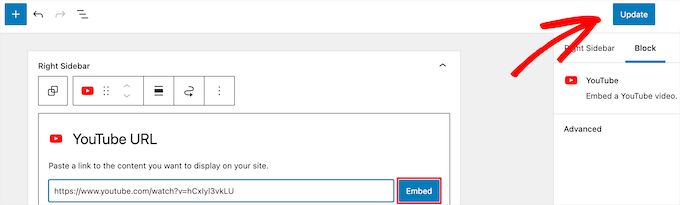
The Block Editor makes embedding YouTube easy. Paste the YouTube URL into a new block. WordPress automatically converts it into a video player. Customize size and alignment with block settings. No extra plugins or coding required. This method works well for posts and pages.
Embedding Via Classic Editor
The Classic Editor needs a slightly different approach. Copy the YouTube video URL or embed code. Switch to the “Text” tab in the editor. Paste the URL or embed code where you want the video. Save or update the post. The video will appear when viewed.
Adding Youtube Link In Widgets
YouTube videos can also appear in sidebars or footers. Go to Appearance > Widgets in the WordPress dashboard. Add a “Custom HTML” or “Text” widget. Paste the YouTube embed code or link inside. Save the widget settings. The video shows on your site’s widget area.

Credit: escapecreative.io
Customizing Embedded Videos
Embedding YouTube videos on WordPress is simple, but customization makes them fit your site better. You can change the size, control playback, and clean up the look. These tweaks help videos match your style and keep visitors focused.
Adjusting Video Size
You can set the width and height of the video to fit your page. Use the embed code from YouTube and change the width=”560″ and height=”315″ values. Smaller sizes fit sidebars, while larger sizes work well in main content areas. Always keep the aspect ratio to avoid stretching.
Enabling/disabling Autoplay
Autoplay starts the video automatically when the page loads. To enable, add ?autoplay=1 at the end of the video URL in the embed code. To turn it off, remove this part or set it to 0. Use autoplay carefully, as it can annoy some visitors.
Hiding Related Videos
YouTube shows related videos after the video ends by default. To stop this, add ?rel=0 to the video URL in the embed code. This keeps visitors focused on your content. Combine it with autoplay settings by using ?rel=0&autoplay=1 or ?autoplay=1&rel=0.
Troubleshooting Common Issues
Adding a YouTube link to WordPress seems easy but can cause some problems. Troubleshooting these issues helps keep your site smooth and user-friendly. Fixing these common problems ensures your videos display properly and your visitors have a good experience.
Video Not Displaying
Check the YouTube URL first. Make sure it is correct and complete. Use the full link, not just the video ID. Clear your browser cache and refresh the page. Disable any plugins that might block embedded videos. Also, check if your theme supports video embedding. Some themes need updates or settings changed.
Slow Page Loading
Embedding many videos can slow your page. Use lazy loading to delay video loading until needed. Compress images and other media on your page. Avoid auto-playing videos as they increase load time. Use a content delivery network (CDN) to speed up your site. Also, keep WordPress and plugins updated for better performance.
Mobile Responsiveness Problems
Videos not fitting on mobile screens frustrate users. Use responsive embed codes or plugins that adjust video size. Test your site on different devices to check video display. Adjust your theme settings to support mobile responsiveness. Avoid fixed-width video frames. Mobile-friendly videos improve user experience and engagement.
Credit: www.wpbeginner.com
Tips To Boost Engagement With Youtube Videos
Boosting engagement on your WordPress site with YouTube videos helps keep visitors interested. Simple steps can make your videos more interactive and encourage viewers to stay longer. Engaged visitors are more likely to explore your content and share it with others.
Adding Call-to-actions
Call-to-actions (CTAs) guide viewers on what to do next. Use phrases like “Subscribe for more” or “Visit our site.” Place CTAs in video descriptions or within the video using YouTube’s features. Clear CTAs increase clicks and interaction.
Using Playlists For More Views
Playlists organize videos by topic or theme. They encourage viewers to watch several videos in a row. Embed playlists on your WordPress page to keep visitors watching longer. This strategy helps increase total views and session time.
Regularly Updating Video Content
Fresh videos attract repeat visitors and signal activity to search engines. Update your YouTube channel with new content often. Replace old videos or add recent uploads to your WordPress site. Consistent updates keep your content relevant and engaging.
Frequently Asked Questions
How Do I Embed A Youtube Link In WordPress?
Copy the YouTube video’s URL, then paste it directly into the WordPress editor. The video will embed automatically without extra plugins.
Can I Add Youtube Links In WordPress Pages And Posts?
Yes, you can add YouTube links in both WordPress pages and posts easily by pasting the link in the editor.
What Is The Best Way To Display Youtube Videos In WordPress?
The best way is to use the block editor’s YouTube block or paste the video URL directly for automatic embedding.
Do I Need Plugins To Add Youtube Links To WordPress?
No, WordPress supports native embedding of YouTube links, so plugins are not necessary for basic video embedding.
Conclusion
Adding a YouTube link to WordPress is quick and simple. Just follow the steps carefully. Embed videos to make your posts more lively and engaging. Visitors enjoy watching videos right on your site. This also helps keep people longer on your page.
Use the WordPress editor or a plugin for easy embedding. Try it yourself to see how it works best. Sharing videos can improve your content and user experience. Keep your site fresh and interesting with YouTube links.


