
Have you ever found yourself mesmerized by a stunning WordPress theme, only to feel stumped when it comes to actually adding it to your website? You’re not alone.
Choosing the right theme is crucial because it sets the tone for your entire website, influencing both aesthetics and functionality. Imagine effortlessly transforming your site’s look with just a few clicks. Sounds like a dream, right? In this guide, you’ll discover the simple, step-by-step process to add a WordPress.
org theme to your WordPress site. No technical jargon, no complicated steps—just clear, actionable advice designed to empower you. Whether you’re a novice or a seasoned blogger, you’ll find that customizing your site has never been easier. Keep reading to unlock the secrets to giving your website a fresh, professional look that stands out.
Choosing The Right Theme
First, know what you want. Are you building a blog or a store? This matters a lot. Different sites need different themes. Make a list of must-have features. Maybe you need a photo gallery or an easy contact form. Think about your site’s purpose. This will help pick the right theme. A well-chosen theme makes your site look good. It also helps users find things easily.
Check out themes in the WordPress library. There are many free and paid choices. Read reviews to know what others think. Look at theme ratings and feedback. This helps in making a good choice. Try a demo if possible. It shows how the theme works. Pick a theme that matches your style and needs. Choose a theme that’s responsive. It should work well on phones and tablets too.
Downloading The Theme
Open your WordPress dashboard. Look for the Appearance option. Click on Themes. You will see an option to Add New. Click it. You are now in the WordPress Theme Repository.
In the repository, many themes are available. Use the search bar to find specific themes. Browse through the options. Read theme descriptions. Check ratings and reviews. Choose the theme you like. Click on Install. Wait for the theme to download. After downloading, hit Activate. Your new theme is now live. Enjoy your new look!
Uploading The Theme
To add a WordPress. org theme to your WordPress site, access your dashboard and navigate to “Appearance” > “Themes”. Click “Add New” and search or upload your desired theme. Activate it with a simple click, and your new theme is ready to customize.
Accessing WordPress Dashboard
First, log in to your WordPress Dashboard. Use your username and password. Look for the dashboard menu on the left. Click on the ‘Appearance’ tab. Find the option that says ‘Themes’. Click on it to open the themes page. This is where you manage your themes.
Using The Theme Upload Feature
On the themes page, find the ‘Add New’ button. It’s usually at the top. Click on it to open a new page. There you’ll see an ‘Upload Theme’ button. Click on it to upload your theme. Select the theme file from your computer. Make sure it’s a .zip file. Click ‘Install Now’ to upload it. After uploading, click ‘Activate’ to use the theme. Now your site looks different!
Activating The Theme
Start by going to the WordPress dashboard. Find the menu on the left side. Look for the Appearance option. Click on it. A new menu will appear. This is where you will find all theme settings. It is important to know this area well. You will use it often.
After selecting Appearance, click on Themes. You will see available themes here. To add a new one, click Add New. Find a theme you like. Click Install to download it. Wait for the theme to finish installing. Now, click Activate. Your website now has a new look.
Customizing Your Theme
Enhance your website by adding a WordPress. org theme directly to your WordPress site. Access the WordPress dashboard, navigate to ‘Themes,’ and click ‘Add New’ to explore available options. Select a theme, click ‘Install,’ and activate it to customize your site’s appearance effortlessly.
Using The WordPress Customizer
The WordPress Customizer helps change your site’s look. You can see changes live. To start, open the customizer. It’s in the dashboard under “Appearance.” Click “Customize” to begin.
There are many options. Change colors or fonts. Adjust your site title or tagline. You can add a logo too. Make changes to menus or widgets. These tools help you shape your site.
Always click “Publish” to save. Your changes are safe and visible. Try different settings. Find what looks best for your site. Explore and learn. The customizer makes it easy.

Credit: make.wordpress.org
Testing The New Theme
Install the new theme first. Check if it works with your plugins. Some themes may conflict. This can cause errors. Look at the theme settings. Make sure everything is okay. Test the theme on different browsers. Ensure it looks good everywhere. Check your website pages. Everything should display correctly.
Open your site on a phone. Check if it looks good. The theme should adjust to screen size. Text should be easy to read. Images should fit the screen. Buttons should be easy to click. If anything looks wrong, adjust the settings. Some themes offer mobile settings. Use them to fix issues.
Troubleshooting Common Issues
Adding a WordPress. org theme to your site can be tricky. Start by downloading the theme file from WordPress. org. Then, upload it to your WordPress dashboard under “Themes” and activate it.
Resolving Theme Conflicts
Theme conflicts can make your site act weird. Themes might clash with plugins or other themes. Deactivate all plugins to spot the problem. Turn them on one by one. See which plugin causes trouble. Some themes may not work well together. Switch to a default theme like Twenty Twenty-Three. Check if the problem goes away. If it does, your theme might be the issue. It’s wise to read the theme’s documentation. It often has solutions to common problems.
Seeking Help From Support Forums
Support forums are great places for help. Many users share their experiences. Search for your issue in the forum first. Someone else may have faced it. You might find a solution there. Ask questions clearly. Describe what you did and what went wrong. Community members often help quickly. Be polite and thank them for their help. Sometimes, theme developers join the forums. They can give expert advice. Keep checking for replies to your question.
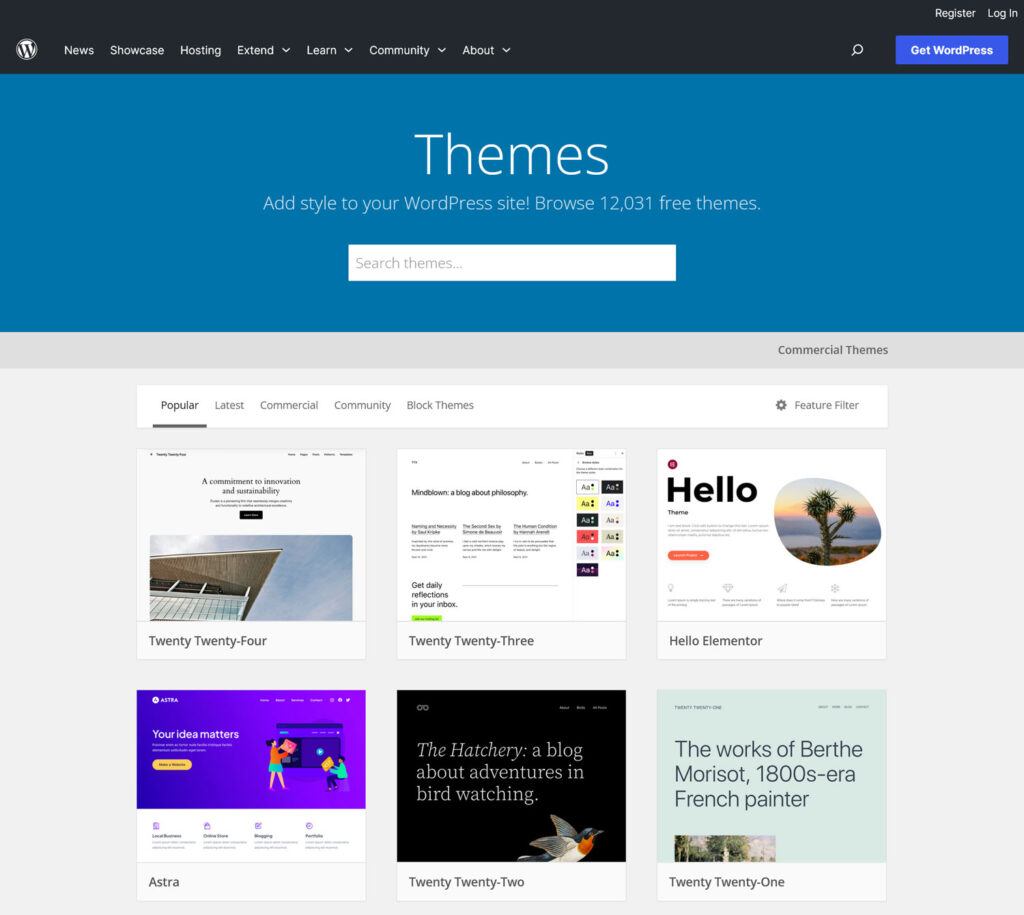
Credit: wpengine.com

Credit: wordpress.org
Frequently Asked Questions
How To Install A WordPress.org Theme?
To install a WordPress. org theme, log into your WordPress dashboard. Navigate to ‘Appearance’ > ‘Themes’. Click ‘Add New’ and search for your desired theme. Click ‘Install’, then activate it to apply changes. Ensure compatibility with your WordPress version for optimal performance.
Can I Upload A Custom Theme To WordPress?
Yes, you can upload a custom theme to WordPress. Go to ‘Appearance’ > ‘Themes’, then click ‘Add New’. Select ‘Upload Theme’, choose your theme file, and click ‘Install Now’. After installation, activate the theme to use it. Ensure the theme is compatible with your plugins.
Where To Find Free WordPress.org Themes?
Free WordPress. org themes can be found in the WordPress repository. Access it by navigating to ‘Appearance’ > ‘Themes’ > ‘Add New’ in your dashboard. Browse through thousands of themes by popularity, latest, or feature filters. Ensure to read reviews and check ratings before installation.
How To Preview A WordPress Theme?
To preview a WordPress theme before activation, go to ‘Appearance’ > ‘Themes’. Hover over a theme and click ‘Live Preview’. This allows you to see how the theme will look on your site. Make adjustments as needed in the customizer before activating.
Conclusion
Adding a WordPress. org theme is simple and rewarding. First, choose a theme that fits your style. Next, upload it to your WordPress dashboard. Activate it with a click. Customize it to suit your needs. The right theme enhances your website’s look and feel.
It also improves user experience. Remember to update themes regularly for security. Keep exploring new themes for fresh designs. Now, you can enjoy a beautifully themed WordPress site. Happy blogging!


