
Are you ready to transform your WordPress site into a powerful online store? Imagine the possibilities when you add WooCommerce to your WordPress theme.
Suddenly, your website isn’t just a platform—it’s a thriving business hub. With WooCommerce, you can manage products, track sales, and connect with customers like never before. But where do you start? And how do you ensure everything runs smoothly? You might feel a bit overwhelmed, but don’t worry.
By the end of this guide, you’ll have all the steps you need to seamlessly integrate WooCommerce into your WordPress theme. Ready to boost your sales and streamline your business operations? Let’s dive in and unlock the full potential of your website.
Setting Up Woocommerce
First, go to your WordPress dashboard. Look for the Plugins section. Click on Add New. Type “WooCommerce” in the search bar. Click Install Now next to WooCommerce. Wait for it to finish.
Once installed, click Activate. This will make WooCommerce ready to use. You will see a setup wizard. It helps you get started. Follow the steps. It’s easy and quick.
After activation, visit the WooCommerce settings. Set your store location. Choose your currency. Decide on tax and shipping options. Save your settings. Now your store is ready for products.
Credit: www.activecampaign.com
Integrating Woocommerce With Theme
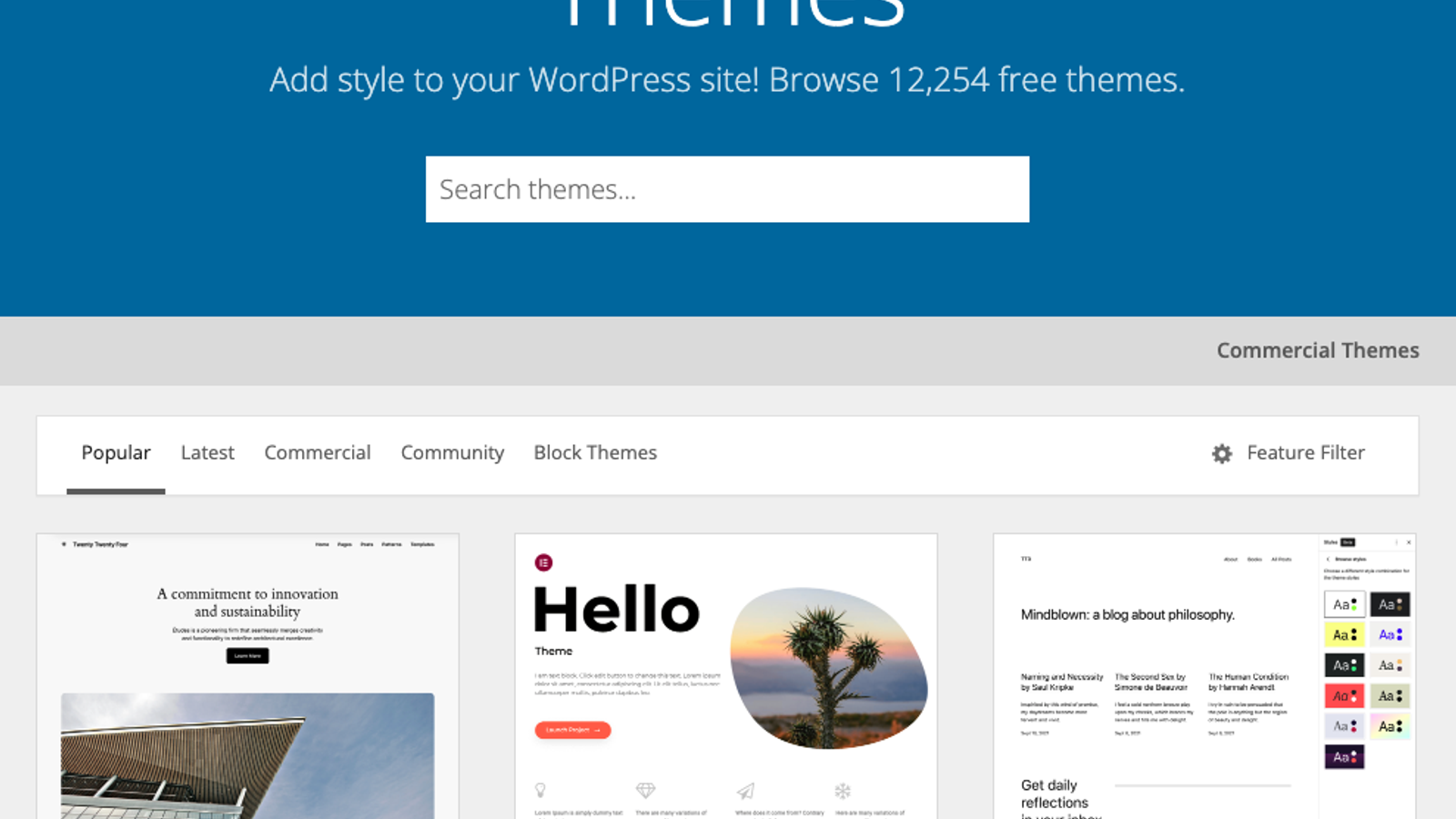
Picking the right theme is crucial. Many themes are WooCommerce ready. Always check for compatibility. Look for themes with WooCommerce support. This makes integration easier. Avoid themes with complex layouts. They might not work well. Simple designs are often best.
Themes need custom settings. Ensure the theme matches your brand. Change colors and fonts as needed. Adjust layout for product pages. Use widgets wisely. They enhance user experience. Check theme documentation. It often has helpful tips. Make the site unique and friendly.
Testing is important. Install WooCommerce. Check if features work. Test product display and cart. Ensure checkout runs smoothly. Fix any errors promptly. Use a staging site first. This avoids risks. Make sure the site is ready. Happy customers mean more sales.
Customizing Woocommerce Pages
Product pages show items for sale. It’s important to make them clear. Use bold text for key details. Add good pictures. Pictures help buyers see the product. Make sure the description is easy to read. Short sentences work best. Use bullet points for features. This makes it easy to find information.
The cart page shows items a buyer wants. Keep it simple. Use clear buttons for actions. The checkout page is where buyers pay. Make sure this page is easy to use. Use clear labels for form fields. Help buyers fill out forms quickly. Show total cost clearly. This helps avoid confusion.
A good user experience makes buyers happy. Use colors that match your brand. Ensure pages load fast. Fast pages keep users on the site. Offer help buttons for questions. Help buttons can guide users. Make sure the site works on phones. Many people shop on phones today.
Credit: codeconfig.dev
Using Woocommerce Shortcodes
Shortcodes make adding products easy in WordPress. They let you show product lists without coding. Use [products] to display all products. To show specific items, use [product id=”123″]. This shows one item by its ID. Change the number to show different items. Shortcodes are flexible and save time.
Shortcodes can show the cart and checkout pages too. Use [woocommerce_cart] for the cart page. This shows what users plan to buy. To show the checkout page, use [woocommerce_checkout]. These shortcodes help users buy items easily.
Many more shortcodes exist for WooCommerce. Use [woocommerce_my_account] to display user accounts. This lets users see their orders. The [woocommerce_order_tracking] shortcode helps track orders. These tools enhance user experience. Simple yet effective for your site.
Enhancing Woocommerce Functionality
Integrating WooCommerce into a WordPress theme boosts online store features effortlessly. Start by installing the WooCommerce plugin from the WordPress dashboard. Customize your site with widgets, shortcodes, and templates to enhance functionality, offering a seamless shopping experience for customers.
Integrating Payment Gateways
Adding payment gateways to WooCommerce is important. It allows customers to pay securely. Choose popular gateways like PayPal or Stripe. Go to WooCommerce settings. Find the payment section. Choose your preferred gateway. Follow the setup steps. Ensure your site is secure. Customers feel safe buying from you.
Setting Up Shipping Options
Proper shipping setup is crucial. It tells customers how products reach them. Go to WooCommerce shipping settings. Set up zones and methods. Define costs based on location. Offer flat rate or free shipping. Clear shipping options build trust. Customers know what to expect.
Employing Additional Plugins
Plugins can enhance WooCommerce features. Choose plugins wisely. Some add extra payment methods. Others improve product display. Search for plugins that fit your needs. Install them from the WordPress plugin directory. Always check plugin reviews. Ensure compatibility with your theme. Plugins make your store better.
Credit: woocommerce.com
Optimizing Woocommerce Performance
Faster sites make users happy. Install a caching plugin. It reduces load times. Compress images to save space. Smaller files mean quicker loading. Choose a lightweight theme for better speed. Heavy themes slow down the site.
Many people shop on phones. Make sure your site works on mobile. Use a responsive design. It fits screens of all sizes. Test the site on different devices. Check how it looks and functions. Fix any issues you find.
Good SEO helps people find your site. Use keywords in titles and descriptions. Write unique content for each product. Add alt text to images. It helps search engines understand them. Use clean URLs. They look nice and are easy to read.
Frequently Asked Questions
How Do I Install Woocommerce On WordPress?
To install WooCommerce, navigate to your WordPress dashboard, click on ‘Plugins’, then ‘Add New’. Search for WooCommerce, click ‘Install Now’, and activate it. Follow the setup wizard to configure your store, including payment methods, shipping options, and product categories. This process is straightforward and user-friendly.
Can I Customize Woocommerce To Fit My Theme?
Yes, WooCommerce is highly customizable. Use its built-in settings to adjust layout, colors, and styles. You can also add custom CSS or install WooCommerce-compatible themes and plugins for advanced customization. This flexibility helps integrate WooCommerce seamlessly with your existing WordPress theme.
Are There Free Themes Compatible With Woocommerce?
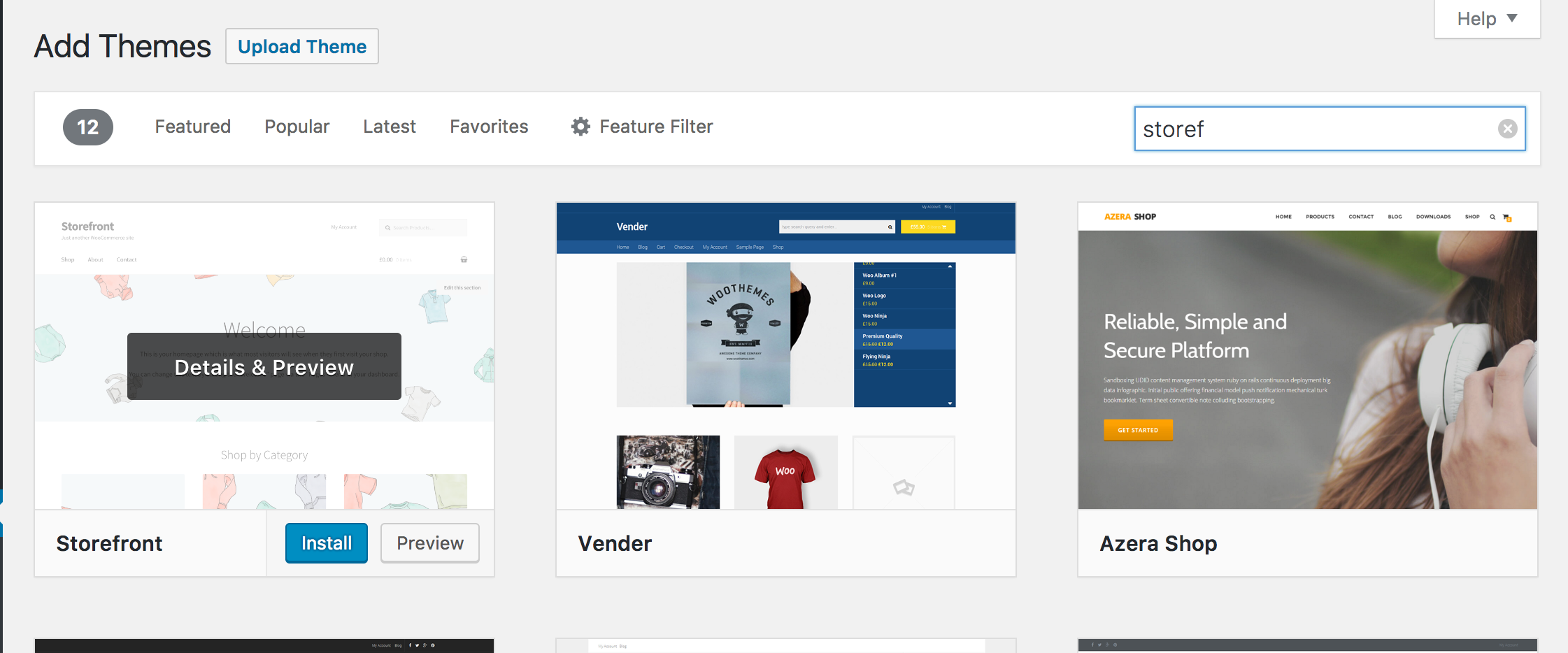
There are many free themes compatible with WooCommerce. Popular options include Storefront, Astra, and OceanWP. These themes offer basic customization and are designed to work seamlessly with WooCommerce. They provide a cost-effective way to create a professional online store without purchasing premium themes.
How Can I Optimize Woocommerce For Seo?
Optimize WooCommerce by using SEO plugins like Yoast or Rank Math. Focus on product descriptions, meta tags, and URLs. Ensure your site is mobile-friendly, fast-loading, and secure. Regularly update content and use structured data to enhance search visibility. Good SEO practices improve your store’s rankings and attract more visitors.
Conclusion
Adding WooCommerce to your WordPress theme is straightforward. You just need patience and a few clicks. Start by installing WooCommerce from your WordPress dashboard. Customize it to fit your theme. Ensure your products look appealing. Check that your site runs smoothly.
This setup can boost your online store. Now you can manage inventory easily. Your customers will appreciate a seamless shopping experience. Remember, regular updates keep your site secure. Keep learning to enhance your store’s features. With WooCommerce, you’re ready for success in e-commerce.
Enjoy building your online business today!


