

Are you looking to showcase your WooCommerce products directly on a WordPress page? You’re in the right place.
Adding products to your site might seem tricky at first, but with the right steps, you can do it quickly and easily. Imagine your visitors seeing your best products exactly where you want them, boosting your sales and making your site look professional.
In this guide, you’ll discover simple, clear instructions that anyone can follow, even if you’re not a tech expert. Keep reading, and you’ll have your products shining on your WordPress page in no time.
Credit: aovup.com
Setting Up Woocommerce
Setting up WooCommerce is the first step to selling products on your WordPress site. This process includes installing the plugin and configuring key settings. The goal is to create a smooth shopping experience for your visitors. Follow these simple steps to get started quickly.
Installing Woocommerce Plugin
Go to your WordPress dashboard. Find the “Plugins” menu and click “Add New.” Type “WooCommerce” in the search bar. Click “Install Now” on the WooCommerce plugin. After installation, click “Activate” to enable it. The plugin is now ready for setup.
Configuring Basic Settings
Once activated, WooCommerce opens a setup wizard. Enter your store details like address and currency. Choose the payment options you want to offer. Set shipping methods based on your delivery plans. Adjust tax settings to fit your region. Save your changes to complete the setup.
Creating Woocommerce Products
Creating WooCommerce products is the first step to building an online store. This process lets you add items for sale directly on your WordPress site. Each product can have different features and options to fit your needs. Understanding how to create simple and variable products helps you offer a better shopping experience.
Adding Simple Products
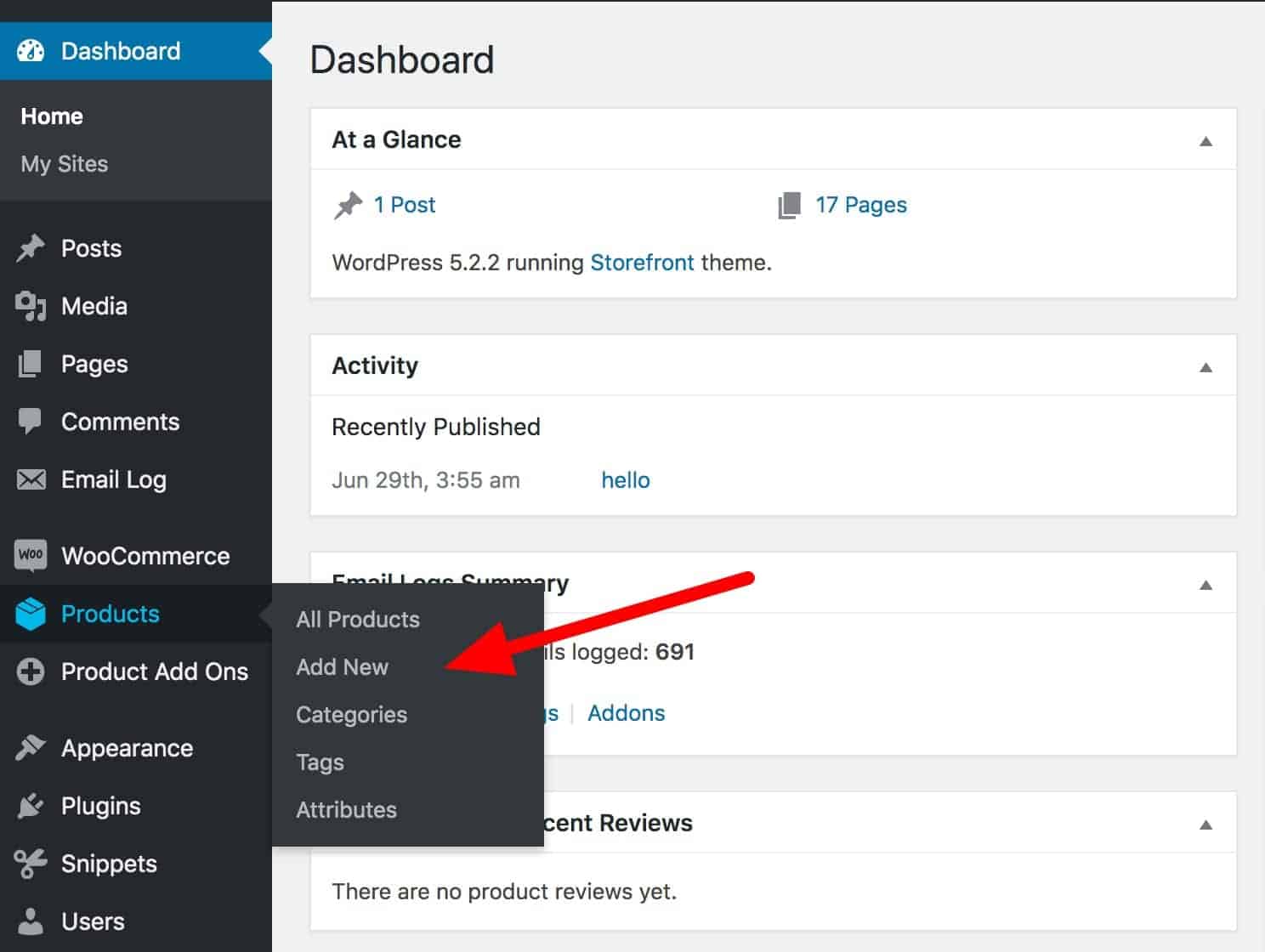
Simple products are basic items without variations. To add one, go to your WordPress dashboard and click “Products” then “Add New.” Enter the product name and description. Set the price in the “Product data” section under “General.”
Upload images to show the product clearly. Add stock quantity if you want to manage inventory. Publish the product to make it live on your site.
Adding Variable Products
Variable products have different options like sizes or colors. Start by selecting “Variable product” from the “Product data” dropdown. Next, create attributes such as size or color.
Mark each attribute as “Used for variations.” Then, add variations under the “Variations” tab. Set prices and stock for each variation. This lets customers choose their preferred option easily.
Managing Product Categories And Tags
Categories and tags organize your products for easier browsing. Categories are broad groups like “Clothing” or “Electronics.” Tags describe specific details like “Cotton” or “Bluetooth.”
Add categories and tags on the right side of the product editor. Assign products to one or more categories and tags. This helps customers find products faster and improves your store’s SEO.
Adding Products To A WordPress Page
Adding products to a WordPress page helps you showcase items clearly. It lets visitors see and buy products without searching your store. This section shows three easy ways to add WooCommerce products to any page.
Using Shortcodes
Shortcodes are simple codes that show products anywhere on your page. Use the shortcode [products] to display all products. You can customize it to show specific items by ID or category.
Example: [products ids="1, 2, 3"] shows products with those IDs. Shortcodes work on classic editor and most themes. They are fast and easy to use.
Using Gutenberg Blocks
Gutenberg editor has built-in blocks for WooCommerce products. Add a block like “All Products” or “Featured Product” to your page. Blocks let you change the layout and style with clicks.
This method needs no coding. It fits well if you use the default WordPress editor. Blocks also update automatically as you add new products.
Using Page Builders
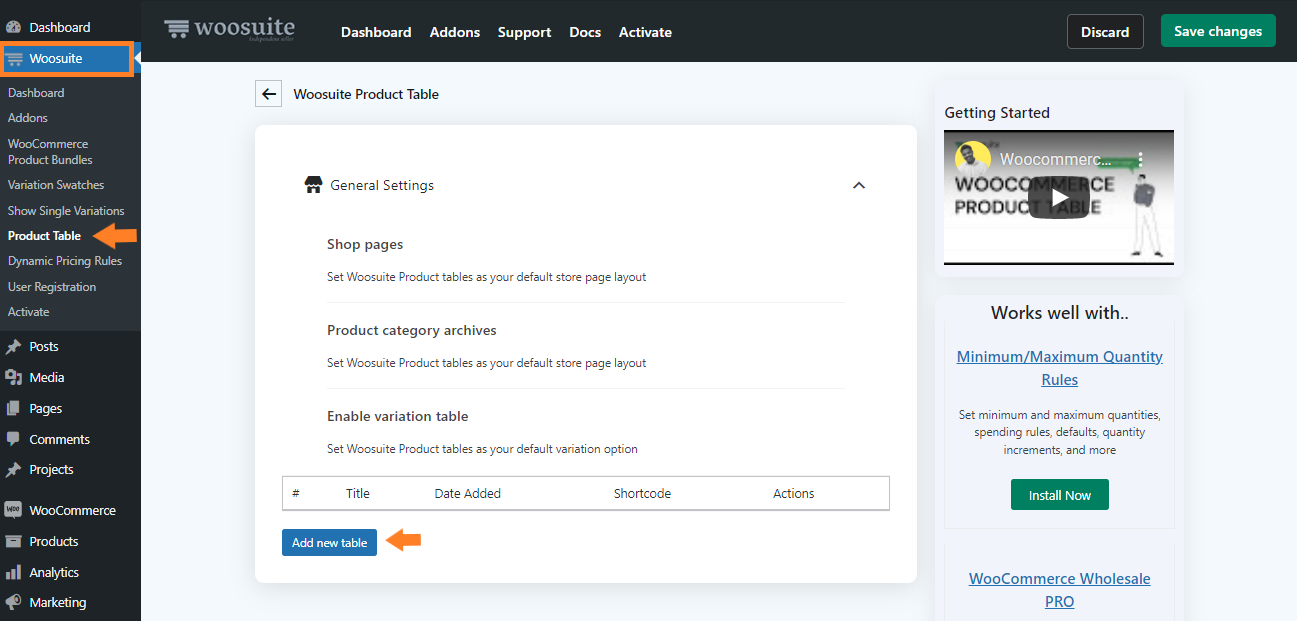
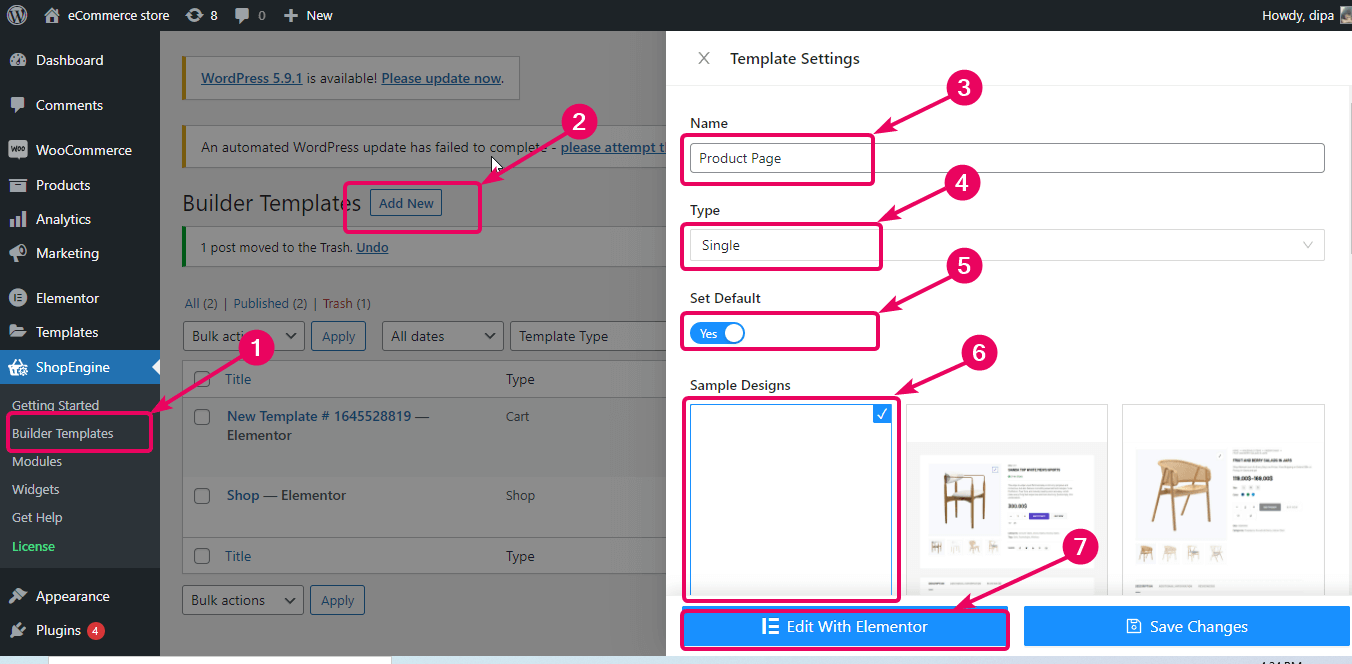
Page builders like Elementor or Divi offer special WooCommerce widgets. Drag and drop product grids or sliders anywhere on the page. You get full control over design and layout.
This approach suits users who want custom pages without coding. Page builders work with WooCommerce to show product details nicely. They help create attractive and user-friendly product displays.
Credit: pluginrepublic.com
Customizing Product Display
Customizing how products appear on your WordPress page helps improve user experience. It makes your shop look neat and easy to use. You can change layouts, styles, and how products are sorted. These changes help visitors find what they want faster. Here are some ways to customize your product display in WooCommerce.
Adjusting Layout And Style
Choose the number of products shown per row or page. Change the size of product images to fit your theme. Use different fonts and colors for product titles and prices. Align text and images for a clean look. Many themes offer built-in options to adjust these settings. Custom CSS can also help create a unique style.
Filtering And Sorting Products
Allow customers to filter products by categories, price, or ratings. Sorting options can list products by popularity or new arrivals. Filters reduce the time users spend searching. Sorting helps highlight special offers or best sellers. WooCommerce has built-in tools to set up these filters and sorting options easily.
Using Widgets For Product Display
Widgets let you add product lists to sidebars or footers. Show featured products, recent items, or top-rated products. Place widgets where visitors see them without scrolling. Widgets are simple to add through the WordPress dashboard. They improve product visibility and encourage more clicks.
Troubleshooting Common Issues
Troubleshooting common issues helps keep your WooCommerce store running smoothly. Problems can block products from showing or cause errors. Fixing these quickly improves user experience and sales.
Product Not Showing On Page
Check if the product is published and in stock. Draft or private products do not appear on pages. Confirm that the product category matches the page filter. Clear your site cache to show recent changes. Refresh the page after updates.
Shortcode Errors
Verify the shortcode syntax carefully. Missing brackets or wrong attributes cause errors. Use WooCommerce shortcodes like [products] correctly. Avoid extra spaces inside shortcodes. Test with a default shortcode to isolate problems.
Plugin Conflicts
Deactivate other plugins one by one to find conflicts. Some plugins may block WooCommerce features. Update all plugins to their latest versions. Use a staging site to test changes safely. Contact plugin support if issues persist.
Optimizing Product Pages
Optimizing product pages is key to a successful WooCommerce store. Good product pages attract visitors and encourage purchases. They help your site load faster, improve user experience, and boost search rankings.
Focus on making each product page clear, fast, and easy to navigate. Small changes can make a big difference in sales and customer satisfaction.
Improving Page Speed
Fast pages keep visitors on your site. Compress product images to reduce file size without losing quality. Use a reliable web host with good speed. Avoid too many plugins that slow down your site. Enable caching to load pages quicker for returning visitors.
Enhancing User Experience
Make product pages simple and easy to use. Use clear, high-quality images from different angles. Write brief and helpful product descriptions. Add customer reviews to build trust. Use visible call-to-action buttons like “Add to Cart.” Make sure the page works well on mobile devices.
Seo Tips For Woocommerce Products
Use relevant keywords in product titles and descriptions. Write unique descriptions for each product. Add alt text to product images for better search visibility. Use clean and simple URLs with product names. Include schema markup for product details like price and availability.
Credit: wpmet.com
Frequently Asked Questions
How Do I Add Woocommerce Products To A WordPress Page?
To add WooCommerce products, use the WooCommerce shortcode or block editor. Insert [products] shortcode or select the “Products” block. Customize display options for categories or specific items easily.
Can I Display Specific Products On A WordPress Page?
Yes, use the WooCommerce shortcode with product IDs or categories. For example, [products ids=”1,2,3″] shows specific products. This method helps target product displays precisely.
What Is The Easiest Way To Show Products On WordPress?
The easiest way is using WooCommerce blocks in the Gutenberg editor. They allow drag-and-drop placement and customization without coding. This suits beginners well.
How To Customize Product Display On WordPress Pages?
Customize using shortcode attributes or block settings. Options include product count, order, categories, and layout style. This flexibility enhances user experience and design.
Conclusion
Adding WooCommerce products to your WordPress page is simple and fast. Just follow the steps, and you will see your products online. This helps visitors find what you sell without trouble. Keep your product pages clear and easy to read.
Regular updates keep your store fresh and inviting. Try adding different products to see what works best. Your online shop will grow with time and effort. Enjoy sharing your products with the world!


