
Are you looking to enhance the functionality and aesthetics of your WordPress website? Adding widgets to your theme’s footer can be a game-changer.
Imagine your visitors scrolling down and finding useful links, engaging content, or even contact information that makes navigating your site easier and more enjoyable. Widgets can transform your footer from a neglected space into a powerful tool that boosts user engagement and retention.
In this guide, you’ll discover simple steps to seamlessly integrate widgets into your WordPress theme footer. Whether you’re a seasoned webmaster or just starting out, you’ll find these tips easy to follow and highly effective. By the end, you’ll have a footer that not only looks great but also serves your visitors better, enhancing your overall site experience. Ready to get started? Let’s dive in and unlock the full potential of your WordPress footer!
Understanding Widgets
Widgets are small blocks on a website. They add extra features. These blocks are easy to use. They do not need coding skills. Many types are available for WordPress. Some show recent posts. Others display calendars or social media feeds. Most themes support them. They make websites more engaging.
Adding widgets can improve a website’s function. They can make navigation easier. This helps users find what they need fast. Widgets also help in saving space. Important information can fit in small areas. They offer a better user experience. This can lead to more visitors. Widgets are a great way to customize a site. They add personality and style. Many website owners find them useful.
Choosing The Right Widgets
Widgets make your website look better. They also add useful tools. The footer is a great place for them. Many websites use footers for widgets. This keeps your site tidy and neat. Popular widgets include social media links. These help visitors find your profiles. Also, contact forms are common. They let visitors reach out easily. Newsletter signup forms are useful too. They help grow your audience. These widgets make your footer more useful. They also improve user experience. Add widgets to enhance your site.
Popular Widgets For Footers
Many widgets work well in footers. Social media links are very popular. These links connect users to your profiles. Contact forms are important too. They let users send messages quickly. Newsletter signup forms are great for growing your audience. They encourage visitors to join your list. Also, use widgets for site navigation. These help users find information fast. Pick widgets that fit your needs. They make your site better and more interactive.
Customizing Widgets For Your Needs
Choose widgets that fit your style. Make them match your theme. You can change colors and fonts. This helps them blend in. Widgets should be easy to use. Make sure they work on all devices. Test them often for any problems. Also, update them regularly. This keeps them secure. Add only needed widgets to avoid clutter. A clean footer looks nice. Make sure your widgets add value. They should help users find what they need. Customize them to fit your site goals.
Accessing The Footer Area
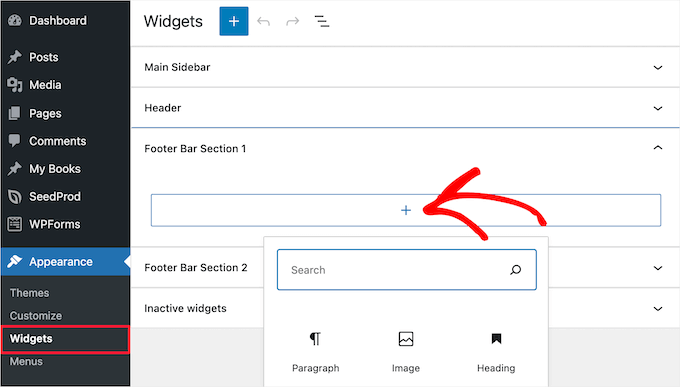
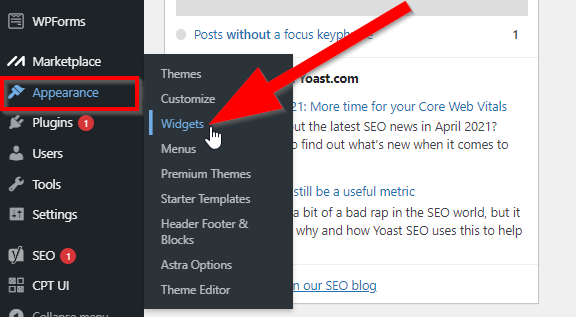
Locating the Footer in WordPress is simple. First, log in to your WordPress dashboard. Look for the “Appearance” tab on the left side. Click it. You will see a menu. Select “Widgets.” The footer area is usually at the bottom of this page. It might be labeled as “Footer” or “Footer Widgets.” If you can’t find it, check your theme’s documentation. Some themes have different names for their footer areas.
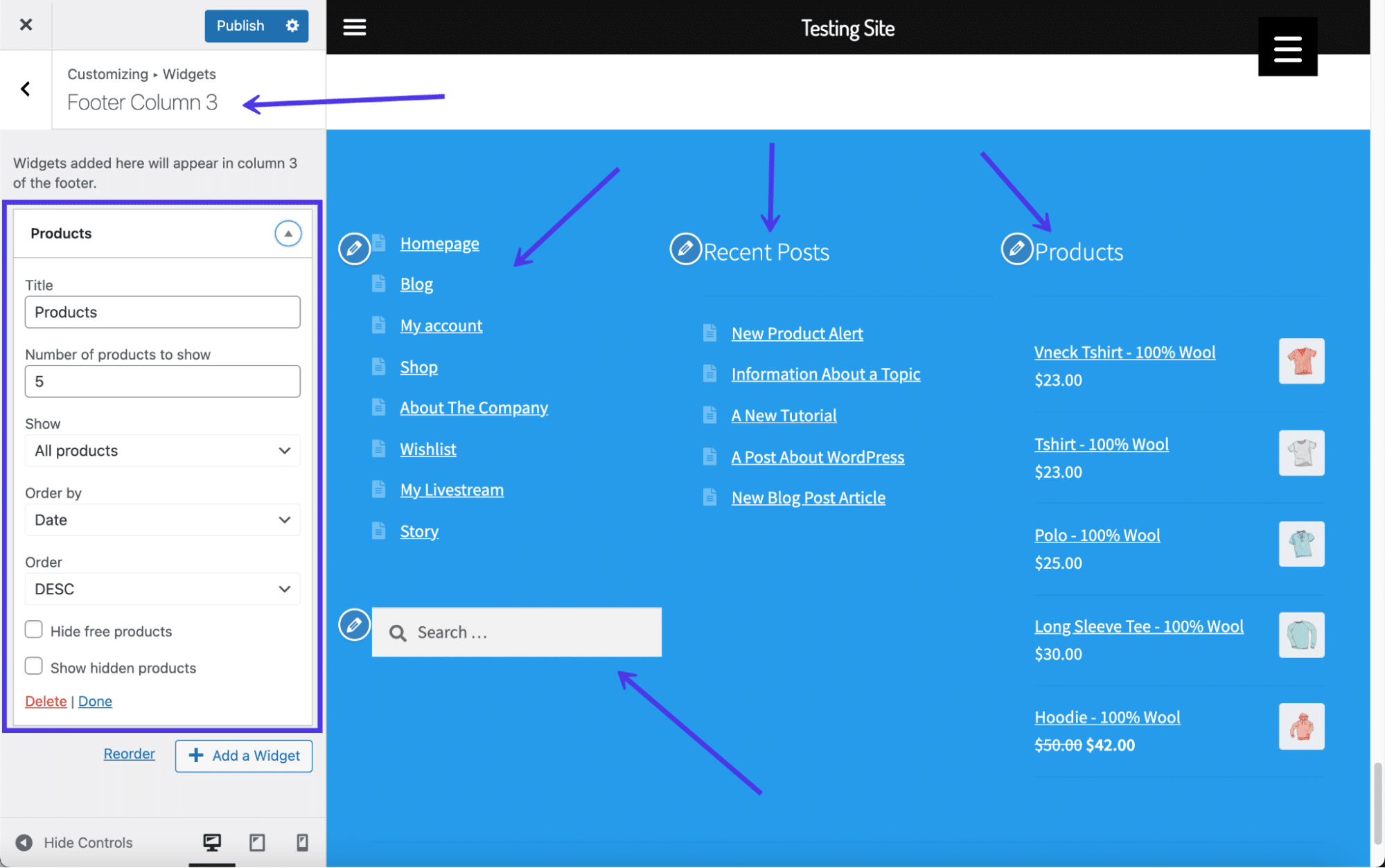
Accessing Footer Settings is easy. Still in the “Widgets” section, you will see different boxes. These are widget areas. Find the one labeled as “Footer.” Click to open it. Now, you can add widgets to your footer. Drag and drop widgets from the left to the footer area. Make sure to save changes before leaving the page.
Credit: kinsta.com
Adding Widgets To The Footer
Open your WordPress dashboard. Look for the Appearance tab. Click on Customize. The Customizer will load on the screen. On the left, find the Widgets section. Click on it. You’ll see the Footer area. Click to open it. Now, add your desired widgets. Drag and drop them into place. Make sure to save your changes. Check your website to see the new look.
Go to the Appearance section again. Click on Widgets. A list of widgets will appear. On the right, find the Footer area. Drag widgets from the left to the right. Place them in the Footer section. Arrange them in the order you like. Don’t forget to save your changes. Review your site to see the updates.
Customizing Footer Widgets
Widgets make footers look nice. They add useful content. You can change how they look. Choose a style that fits your theme. Use colors that match. Spacing is important. Keep it neat. Don’t crowd the widgets. Use headers to separate sections. This helps users find things easily.
Widgets have settings. You can configure these settings. Click on the widget you want. Adjust its options. Some widgets have text fields. Others have images. Choose what you want to show. Adjust size and position. Preview changes. Make sure everything looks good.
Credit: www.wpbeginner.com
Testing And Troubleshooting
Adding widgets to a WordPress theme footer involves navigating to the Widgets section in the admin panel. Drag desired widgets into the Footer area to customize functionality. If issues arise, troubleshooting includes checking theme compatibility and ensuring widget settings are correctly configured.
Ensuring Widgets Function Properly
Check each widget in the footer. Make sure they all appear. Click on them to see if they work. Some widgets might not load. This could be due to themes or plugins. Look for updates. Update the theme and plugins if needed. Test again after updating. Use different browsers to test. Sometimes, issues are browser-specific. Ask a friend to test on their device. This ensures it’s not just your computer.
Common Issues And Solutions
| Issue | Solution |
|---|---|
| Widgets not displaying | Check widget settings and placement. |
| Widgets not working | Disable conflicting plugins. |
| Footer looks broken | Check for theme updates. |
| Widgets slow to load | Optimize website speed. |
Enhancing Footer Functionality
Adding widgets to your WordPress theme footer is easy. Plugins offer advanced features for this task. They help you add widgets without coding. Some popular plugins include Widget Options and Footer Widgets. These plugins are user-friendly. They provide drag-and-drop options. You can add social media icons. Or display recent posts. Plugins allow customization. They improve the look of your footer. Make sure the plugin is compatible. Check for updates regularly.
Using Plugins For Advanced Features
Plugins offer more than basic options. They enhance footer functionality. You can add contact forms easily. Or include subscription boxes. Plugins can also display ads. This helps in monetizing your site. Choose plugins wisely. Not all plugins are free. Some may require payment. Read reviews before installing. Look for plugins with good support.
Incorporating Custom Code
Custom code lets you personalize your footer. It gives more control. You can add unique styles. Or create custom layouts. Use CSS for styling. Or add JavaScript for interactive elements. Custom code requires caution. Mistakes can break your site. Back up your site before editing. Seek help if unsure. Use code snippets wisely.
Credit: www.crazyegg.com
Best Practices For Footer Design
Creating a cohesive look is key for any website. A footer should match the overall theme. Keep colors and fonts consistent. This helps users feel comfortable. Avoid using too many different styles. Simple designs make a site look neat. Use similar icons and buttons throughout the footer. This ensures clarity. Consistency in design strengthens brand identity.
Optimizing for user experience is crucial. A footer should be easy to read. Information must be well-organized. Links should be clear and clickable. Add contact details like email and phone. Use labels that users understand quickly. Ensure quick navigation. Test links to make sure they work. Use responsive design for mobile users. This improves overall accessibility.
Frequently Asked Questions
How Do I Add Widgets To My WordPress Footer?
To add widgets to your WordPress footer, navigate to Appearance > Widgets in your WordPress dashboard. Locate the “Footer” section and drag desired widgets from the available options. Drop them into the footer widget area. Customize settings for each widget as needed.
Save changes to apply the widgets to your theme’s footer.
Can I Customize Footer Widgets In WordPress?
Yes, you can customize footer widgets in WordPress. Access the Appearance > Widgets section in your dashboard. Select the footer widget you wish to customize. Modify the widget settings or content as required. Preview changes to ensure they match your design preferences.
Save the changes to implement customizations in your theme’s footer.
Why Aren’t Footer Widgets Showing In My Theme?
Footer widgets may not show if your theme doesn’t support them. Check your theme’s documentation or settings. Ensure you’ve added widgets to the correct footer area. If the theme lacks footer support, consider using a child theme or a plugin to enable widgets in the footer section.
How Many Widgets Can I Add To A Footer?
The number of widgets you can add depends on your theme’s design. Some themes offer multiple widget areas in the footer. Check your theme’s documentation to understand its widget capacity. Experiment with different layouts to find the best configuration. Avoid overcrowding the footer to maintain a clean design.
Conclusion
Adding widgets to your WordPress footer is simple and rewarding. Widgets enhance functionality and improve user experience. They offer versatility in displaying content. You can add social media links, contact info, or recent posts. This customization helps your site stand out.
It attracts and retains visitors. Widgets are easy to manage from the WordPress dashboard. No need for coding skills. Experiment with different widgets to find what works best. Keep your footer tidy and organized. A well-designed footer can be a great asset.
Start customizing today and watch your site grow.


