
Are you looking to enhance your WordPress site with dynamic and interactive features? Adding widgets to your custom theme is a fantastic way to do just that.
Widgets can transform your website, making it more user-friendly and engaging. Whether you want to display recent posts, social media feeds, or custom content, widgets can effortlessly bring your vision to life. In this guide, you’ll discover the step-by-step process to seamlessly integrate widgets into your WordPress custom theme.
Imagine the satisfaction of seeing your site evolve with practical and visually appealing elements. Ready to captivate your audience and elevate your site’s functionality? Let’s dive in and unlock the full potential of WordPress widgets.

Credit: qodeinteractive.com
Setting Up Your Development Environment
Start with a text editor. It helps you write code. Popular choices are Visual Studio Code and Sublime Text. Next, install WordPress on your computer. Use a tool like Local by Flywheel or XAMPP. These tools create a local server. A server lets you run WordPress on your computer. Download and install Node.js. It helps with JavaScript tasks. Finally, get a version control system like Git. Git tracks changes in your code.
A child theme changes a parent theme. It keeps original files safe. Start by creating a new folder. Name it anything you like. Inside, make a style.css file. Add a few lines of code. These lines tell WordPress about your theme. Include the parent theme’s name. Next, make a functions.php file. Use this file to enqueue stylesheets. This step makes your site look good. Now, activate your child theme in WordPress. Go to the Appearance section. Click on Themes.
Credit: www.wpbeginner.com
Understanding WordPress Widgets
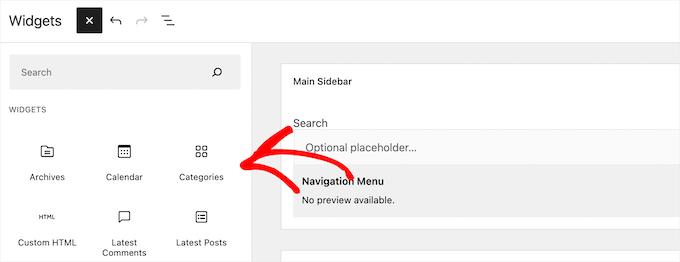
WordPress offers several default widgetssearch bars, recent posts, and categories. Each widget serves a unique purpose. Users can easily drag and drop them. This makes site customization simple. Default widgets are user-friendly. Perfect for beginners. Customization options are vast. Explore them to enhance your site.
Creating a custom widget requires coding skills. You need PHP knowledge. Start by creating a new widget class. Extend the WP_Widget class. Define widget options and controls. Add code to display content. Customize appearance with CSS. Test the widget thoroughly. Debug any errors. Custom widgets offer flexibility. Tailor them to specific needs. Perfect for advanced users. Enhance your site with unique features.
Registering Widget Areas
Widgets help to add new features to your site. You need to edit the functions.php file in your theme. This file is where you add code. First, open the file. Next, use the register_sidebar() function. This function creates a spot for widgets. Name your widget area. Describe it too. Then, add code to display it in your theme. Save the file. Now, go to the admin panel. Check your new widget area there. This process makes your site more useful.
Keep the widget areas simple. Use clear names. This helps others understand them. Don’t add too many widget areas. Too many can make the site messy. Test the widgets on your site. Ensure they look good. They should work on all devices. This includes phones and computers. Update your widgets often. This keeps your site fresh.
Adding Widgets To Your Theme
Widgets are small tools for your WordPress site. To add them, change your template files. Open the functions.php file in your theme. Add code to register a new widget area. Use register_sidebar() function for this. Choose a name for your widget area. Save your changes.
Now, open the sidebar.php file. Use dynamic_sidebar() function here. This shows your widget on the site. Place this code in the right spot. It can be in the header, footer, or sidebar. Save the file again. Your widgets should now work.
Creating Custom Widgets
Widgets make websites interactive. Widgets are small tools. You can add widgets in WordPress easily. You need to understand Widget Class Structure.
Widget Class Structure
A widget has a class structure. This structure tells WordPress how the widget works. It is like a blueprint. You build your widget using this blueprint. Each widget has its own class.
Extending the WP_Widget Class
Widgets use the WP_Widget class. You must extend this class. This means you add new functions to it. You create your own special widget this way. Start by creating a new PHP file. Write your code in this file.
Widgets have three main functions. The first function shows the widget on the site. The second function sets widget options. The third function saves these options. You can modify these functions to change how your widget works.
Widget Styling And Design
Adding widgets to a WordPress custom theme involves using the WordPress dashboard. Start by accessing the ‘Widgets’ section. Then, drag and drop your desired widgets into the sidebar or other widget-ready areas. Customize each widget’s settings to fit your theme’s design.
Css Customization Techniques
Widgets can look better with some CSS magic. Start by adding a background color to make them stand out. Change the font style to match your theme. Use padding and margin to give space around the widget. This makes it look neat. Border styles can add a nice touch. Rounded corners or solid lines are good choices. Play with hover effects to add interaction. This makes widgets more engaging. Always check your changes. Make sure they look good on all devices.
Responsive Design Considerations
Responsive design is key for widgets. Widgets must fit on small screens. Use media queries in CSS. Adjust the size of the widget for different screens. Make sure text is always readable. Use flexbox or grid for layout. This helps in arranging items neatly. Test on various devices. Ensure every widget looks good everywhere. Your audience will have a better experience.
Testing And Debugging Widgets
Common Issues and Fixes:
Widgets can sometimes break. They might not appear or work. Check for typos in code. They can cause problems. Verify widget settings. Ensure they match your needs. Update WordPress. New versions fix bugs. Clear your browser cache. Old data might cause issues. Deactivate other plugins. Conflicts can occur. Reactivate one by one. Identify the troublemaker.
Using Debugging Tools:
Debugging tools help find errors. Use Chrome Developer Tools. They show errors in console. Check for red messages. They are warnings. Use WP Debugging plugin. It logs errors. Review them for clues. Enable WordPress Debug Mode. It shows errors on the screen. Fix one error at a time. Test after each change. Ensure everything works smoothly.
Deploying Your Custom Theme
Check your theme. Make sure everything works. Look for errors. Test on different devices. Check links. Ensure images load. Validate code. Use online tools. Fix issues. Make the theme ready. User-friendly is key.
First, create a zip file of your theme. Log in to your WordPress account. Go to the theme section. Click “Add New.” Choose the zip file. Upload it. Wait for the upload to complete. Check for errors. Fix errors if any. Review the theme. Make sure it works well.

Credit: wordpress.org
Frequently Asked Questions
How Do I Add Widgets In WordPress Custom Themes?
To add widgets in a WordPress custom theme, register widget areas using `functions. php`. Utilize `register_sidebar()` to define areas. Then, implement `dynamic_sidebar()` in theme files to display widgets. Customize using CSS for styling. Widgets enhance functionality and user experience.
Can I Customize Widget Areas In WordPress?
Yes, you can customize widget areas in WordPress. Use the `functions. php` file to register custom widget areas. Define them using `register_sidebar()` function. Style with CSS for personalized appearance. This flexibility allows you to tailor widget areas according to your theme design needs.
Are Widgets Essential For WordPress Themes?
Widgets are essential for WordPress themes as they enhance site functionality. They allow users to add content easily. Widgets improve user engagement and provide interactive features. They help in organizing information and customizing layouts without coding. Incorporating widgets makes themes more versatile and user-friendly.
How Many Widgets Can I Add To A Theme?
You can add multiple widgets to a theme, depending on the widget areas defined. Add as many as required by the theme’s design. Ensure widget areas are registered in `functions. php`. More widget areas mean more flexibility and customization options for your WordPress site.
Conclusion
Adding widgets to your WordPress custom theme is simple and effective. Widgets enhance user experience by adding functionality. They help organize content efficiently. Follow the steps to integrate widgets seamlessly into your theme. Customize them to fit your design preferences.
This process strengthens your website’s performance and usability. Remember, practice makes perfect. Experiment with different widgets to find what works best. Your site can become more interactive and user-friendly. Keep learning and adapting to improve your WordPress skills. Happy widgeting!


