
Have you ever wanted to customize your WordPress site but felt overwhelmed by the technical jargon? You’re not alone.
Adding widgets to your WordPress theme can seem like a daunting task, but it’s actually simpler than you might think. Imagine transforming your website into a dynamic, user-friendly space that keeps visitors engaged and coming back for more. With just a few easy steps, you can enhance your site’s functionality and appearance by seamlessly integrating widgets.
In this guide, you’ll discover how to effortlessly add widgets to your WordPress theme, making your website not only more attractive but also more effective. Let’s dive into the world of WordPress widgets and unlock the full potential of your site.

Credit: wordpress.org
Understanding Widgets In WordPress
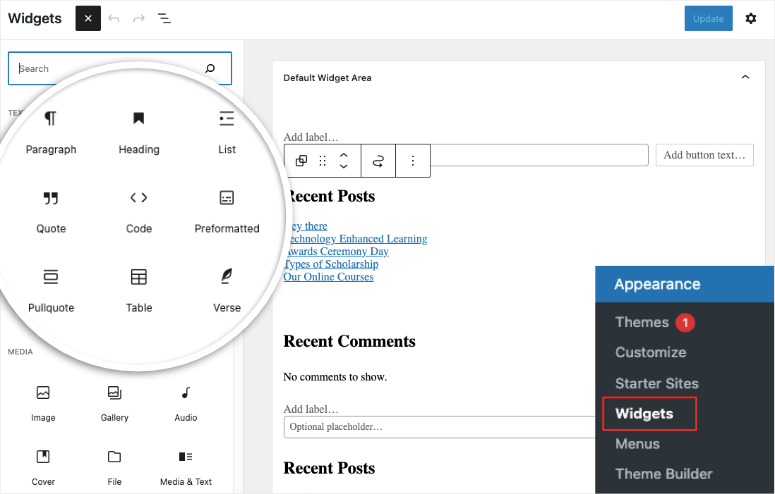
Widgets make WordPress websites more engaging. They are small tools. These tools add features to your site. Common widgets include calendars, search bars, and social media links. You can find widgets in the WordPress dashboard. Go to the Appearance section. Then click on Widgets. From there, you can add or remove widgets easily. Widgets let you change your site without code. This makes them user-friendly. Beginners love using widgets. They make websites look better. They also improve functionality.

Credit: qodeinteractive.com
Choosing The Right Widget
Finding the right widget is vital. It should match your theme. Widgets bring more features to your site. Some popular widgets are for social media sharing, calendars, and contact forms. Check if the widget fits your site’s purpose. Read user reviews for each widget. Reviews help in picking reliable options. Test the widget before finalizing it. Testing ensures it works well with your theme.
Easy to install and customize is key. Look for those features in widgets. They save time and avoid complications. Avoid complex widgets if you are a beginner. Simplicity often works best. Good widgets make your site better. Choose wisely for a smoother experience.
Locating Widget Areas
Many WordPress themes have default widget areas. These are often found in the sidebar or footer. To find them, go to your WordPress dashboard. Click on Appearance, then Widgets. You will see a list of available widget areas. Each area can hold different widgets. These areas let you add tools to your site. They make your site more interactive and fun.
Some themes allow you to create custom widget areas. This means you can add widgets to any part of your site. To do this, you might need a plugin. There are many free plugins available. They help you add custom areas easily. After installing, go to the plugin settings. Choose where you want the new widget area. This gives you more freedom to design your site.
Installing Widgets
Adding widgets to a WordPress theme enhances website functionality. Navigate to the WordPress dashboard, select “Appearance,” then “Widgets. ” Drag your chosen widget to the desired sidebar or footer area.
Using WordPress Dashboard
Go to your WordPress dashboard. Find the Appearance tab on the left side. Click on it. Then, select Widgets. You will see a list of available widgets. Drag a widget you like to a widget area. This area could be a sidebar or footer. Save your changes. Now, check your website. You will see the new widget there. It’s easy to move widgets around. Just drag and drop them.
Adding Via Plugins
First, go to the Plugins section in your dashboard. Click on Add New. In the search bar, type the widget’s name. Find the plugin you want. Click Install Now. After installing, click Activate. Now, go back to the Appearance tab. Choose Widgets. You will see the new widget added by the plugin. Drag it to your desired area. Save your changes to see it live.
Adding Widgets To Sidebar
Widgets make your site fun and useful. They live in the sidebar. First, go to your WordPress dashboard. Find the Appearance tab. Click it. Choose Widgets. A list will show. Drag the widget you want. Place it in the sidebar area. You can add many widgets. Customize each one. Click the widget title. Fill in the settings. Hit save when done.
Widgets can be clocks, calendars, or search bars. Change them anytime. Try different ones. Add new widgets by clicking Add New. Search for more from the library. Keep your sidebar neat. Too many widgets can be confusing. Make sure each widget adds value. Test them on your site. Check if they work well. Update them when needed.
Adding Widgets To Footer
Widgets make your WordPress footer more useful. Start by opening your WordPress dashboard. Click on Appearance and then select Widgets. You will see different widget options. To add a widget to the footer, drag the desired widget to the footer area. Check the widget’s settings. Adjust them if needed. Save the changes to apply them. Your widget is now in the footer. You can add more widgets if you want. Just repeat these steps. This makes your website more functional and engaging. It’s simple and quick. Enjoy the new look of your site.
Customizing Widget Settings
Widgets make your website fun and useful. They add special features. You can make them fit your site. Just click on the widget you want. You can change its color, size, and text. Each widget has different settings. Explore them to make your site better.
Configuring Widget Options
Every widget has options to change. You can choose where it shows. Pick its position on the page. Choose the style you like. Some widgets let you change the font. Others let you add images. Check all options available.
Using Widget Visibility
Visibility controls where widgets appear. You can hide some widgets. Show them only on certain pages. This helps make your site clean. Visitors will see what you want. Widgets can be visible to everyone or just some. Adjust settings easily. Test what looks best.
Credit: www.isitwp.com
Using Widget Shortcodes
Shortcodes make adding widgets easy. They are small codes. You can place them anywhere. Paste the shortcode in a post or page. It’s simple and quick. Widgets will appear there. No coding needed.
Shortcodes are often in square brackets. They look like this: [example_shortcode]. Each widget has its own shortcode. Visit the widget settings. Find the shortcode there. Copy it.
Some themes support shortcodes. Check your theme first. Not all themes work with them. If your theme supports it, you’re all set. If not, you might need help. Ask a friend or use online guides.
Troubleshooting Common Issues
Adding a widget to a WordPress theme can be tricky. Sometimes, the widget might not show up, or it could look different than expected. Check widget settings and theme compatibility to resolve these issues.
Widget Not Displaying
Widgets might not show up due to several reasons. Check if the widget is active in the WordPress dashboard. Sometimes, widgets are not added to the correct sidebar or footer. Ensure the widget area is enabled in your theme’s settings. Another reason could be theme compatibility issues. Some themes don’t support certain widgets. Try switching to a default theme to see if the issue persists. Also, verify if any plugins are conflicting with the widget.
Conflicting Widgets
Conflicting widgets can cause display issues. Deactivate other widgets to find the conflicting one. Sometimes, multiple widgets try to use the same resources. This can create problems. Check if your theme has known widget conflicts. Contact the theme developer if you suspect a conflict. They might have a fix or update. Keep your theme and plugins updated for the best performance. Updates often fix compatibility issues.
Enhancing Widgets With Css
CSS makes widgets look nice. You can change colors, sizes, and borders. Choose bright colors to catch eyes. Resize widgets to fit your theme. Borders add style and make widgets stand out. Try different border styles like solid, dashed, or dotted.
Use padding for space around text. Padding keeps text from touching borders. Marging adds space outside borders. This separates widgets from other parts. Align text to left, right, or center. Text alignment helps in reading.
Add shadows for depth. Shadows make widgets appear raised. Use hover effects for interactivity. Hover effects change widgets when hovered over. CSS transforms help with rotating or scaling. Transformations give dynamic looks.
Frequently Asked Questions
How Can I Add A Widget To WordPress?
To add a widget, go to your WordPress dashboard. Navigate to Appearance > Widgets. Select the widget you want and drag it to the desired sidebar or footer area. Save your changes to make the widget visible on your site.
Can I Customize Widget Appearance In WordPress?
Yes, you can customize widget appearance using CSS or widget-specific settings. Some widgets offer customization options directly within the widget settings. For more advanced customization, use custom CSS in your theme’s Additional CSS section under Appearance > Customize.
Where Do Widgets Appear In WordPress Themes?
Widgets typically appear in sidebars, footers, and other widget-ready areas. The specific locations depend on your WordPress theme. Check your theme’s documentation or Appearance > Widgets to see available widget areas for placement.
Are All WordPress Themes Widget-ready?
Most modern WordPress themes support widgets, but some may not have widget-ready areas. Check your theme’s documentation or Appearance settings to ensure widget compatibility. Consider switching themes if widget functionality is essential for your site.
Conclusion
Adding widgets to your WordPress theme enhances your site. Makes navigation easier. Improves user experience. Widgets provide extra functionality. They make your website more interactive. Customizing them is simple. Choose the right widgets for your needs. Adjust settings to fit your design.
Keep your site clean and organized. Ensure widgets add value to your content. Regularly update them for best performance. Experiment with different types. Find what works best for your audience. Widgets can transform your WordPress theme effortlessly. Enjoy a more dynamic and user-friendly website.
Your site will stand out with the perfect widgets.


