
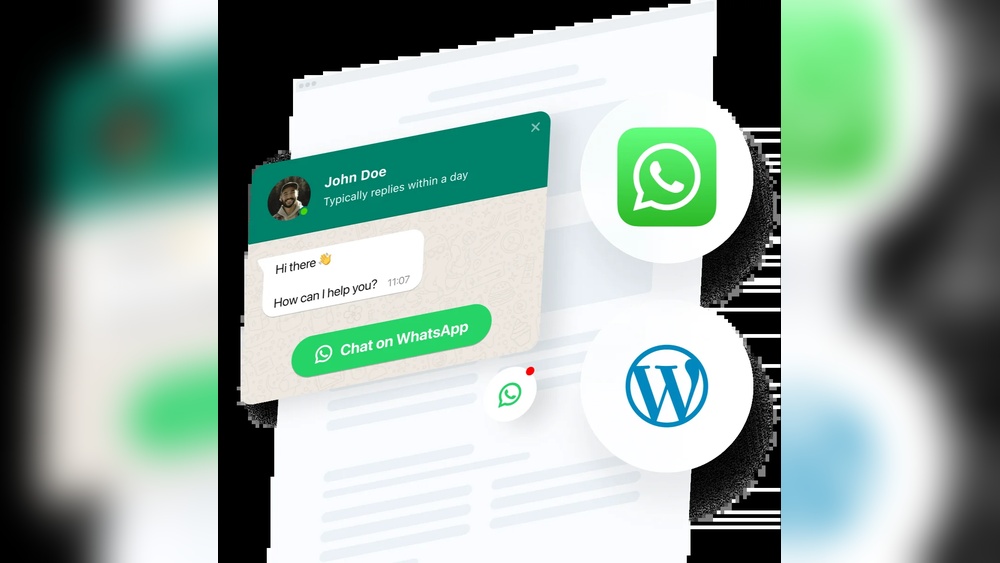
Want to make it super easy for your visitors to reach you? Adding WhatsApp to your WordPress site can do just that.
Imagine your customers sending you messages instantly, right from your website. No complicated steps, no extra apps needed for them. In this post, you’ll learn exactly how to add WhatsApp to your WordPress site quickly and effortlessly. Stick with me, and by the end, your site will be ready to connect with your audience like never before.
Ready to boost your communication? Let’s dive in!
Benefits Of Adding Whatsapp To WordPress
Adding WhatsApp to WordPress brings many benefits for website owners and visitors. It creates a simple way for users to contact you. This improves communication and builds trust. WhatsApp is a popular messaging app used by millions worldwide. Integrating it into your site can make your business feel more reachable and friendly.
The connection with customers becomes faster and more direct. This helps in solving problems and answering questions quickly. Visitors appreciate quick replies, which can lead to better satisfaction. Your website becomes a place where users get immediate help without waiting.
Boosting Customer Engagement
WhatsApp allows you to chat with visitors in real time. This makes customers feel valued and listened to. Visitors can ask questions about products or services easily. Quick replies keep users interested and reduce site bounce rates. Engaged customers are more likely to return and recommend your site.
Enhancing Support Responsiveness
Fast support improves user experience on your website. WhatsApp offers instant messaging, unlike email or forms. You can handle multiple chats and solve problems faster. This reduces frustration and builds customer loyalty. Responsive support shows that your business cares about its users.
Increasing Conversion Rates
Direct communication helps remove doubts that block buying decisions. Customers feel more confident with instant answers. WhatsApp chats can guide users to complete purchases. Personalized support can turn visitors into paying customers. This improves sales and grows your business steadily.
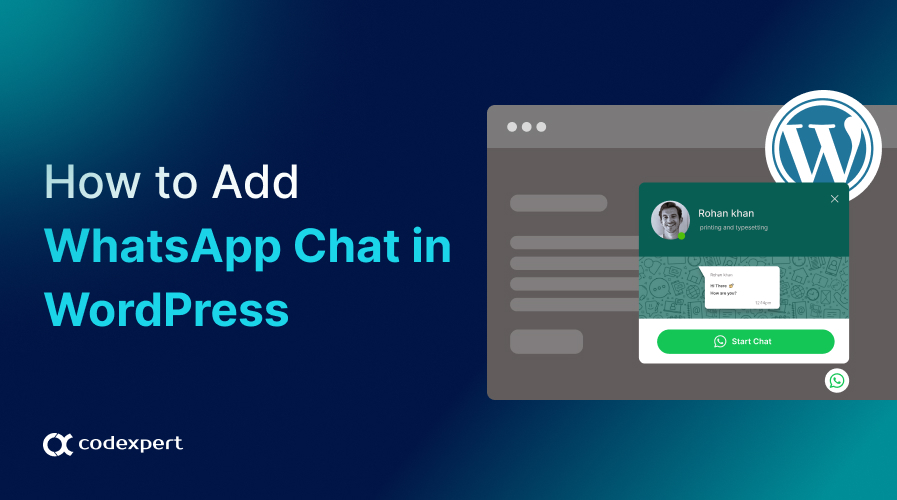
Credit: codexpert.io
Prerequisites For Whatsapp Integration
Adding WhatsApp to your WordPress site helps visitors contact you quickly. Before starting, some key steps must be complete. These ensure smooth integration and better user experience. The following sections explain the essential prerequisites for WhatsApp integration.
Whatsapp Business Account Setup
Create a WhatsApp Business account first. It allows you to use business features and tools. Download the WhatsApp Business app on your phone. Register using a phone number dedicated to your business. Complete your profile with your business name and info. This account will connect to your WordPress site later.
WordPress Site Requirements
Your WordPress site should run on the latest version. This keeps your site secure and compatible. Make sure your site uses HTTPS for encryption. A secure site builds trust for your visitors. Also, check that your theme supports plugins well. This avoids conflicts during WhatsApp integration.
Choosing The Right Plugin
Select a plugin designed for WhatsApp integration. It should be easy to use and update regularly. Look for features like chat buttons and customization options. Check plugin reviews and ratings for reliability. Ensure the plugin fits your site’s needs and user experience.
Step-by-step Whatsapp Integration
Adding WhatsApp to your WordPress site helps connect with visitors quickly. This step-by-step guide shows how to integrate WhatsApp easily. Follow each step to set up the chat feature fast. No coding skills needed.
Installing The Whatsapp Plugin
Start by logging into your WordPress dashboard. Go to the Plugins section and click on “Add New.” Search for a WhatsApp plugin like “Click to Chat.” Click “Install Now” and then “Activate.” The plugin is now ready to use.
Configuring Plugin Settings
Open the plugin settings from the dashboard menu. Enter your WhatsApp phone number carefully. Choose the default greeting message visitors will see. Set the display rules for when the button shows. Save all changes before moving on.
Adding Whatsapp Button To Pages
Decide where you want the WhatsApp button to appear. Most plugins allow automatic display on all pages. You can also insert the button manually with a shortcode. Place the shortcode in posts or pages easily.
Customizing Chat Appearance
Adjust the button style to match your website design. Change colors, size, and position on the screen. Choose an icon or upload your own image. Preview the changes to ensure it looks good. Save settings to finalize the setup.
Credit: www.youtube.com
Alternative Methods For Whatsapp Integration
There are several ways to connect WhatsApp with your WordPress site. These alternative methods offer different levels of control and features. Choose the one that fits your needs and technical skill.
Using Whatsapp Api
The WhatsApp API allows businesses to send and receive messages at scale. It is ideal for larger websites or shops with many customers. To use it, you must apply for API access through Facebook Business. After approval, integrate the API with your site using plugins or custom code.
This method offers automation and advanced messaging features. It requires some technical knowledge or developer support. The API helps create chatbots, send notifications, and handle multiple chats efficiently.
Embedding Whatsapp Chat Widget Manually
You can add a WhatsApp chat widget to your WordPress manually. This method uses simple HTML and JavaScript code. Place the code snippet in your theme’s footer or a widget area.
The widget displays a clickable WhatsApp icon. Visitors can start a chat directly from your site. This method is free and quick. It works well for small sites or personal blogs.
Manual embedding does not need plugins. It is easy to customize the look and position of the widget. This way, you keep your site lightweight and fast.
Tips For Optimizing Whatsapp Chat
Optimizing your WhatsApp chat on WordPress improves user interaction. It helps visitors get quick answers and feel valued. Simple steps make your chat efficient and friendly. These tips ensure smooth communication and better customer support.
Setting Automated Greetings
Automated greetings welcome visitors instantly. They create a friendly first impression. Use short, polite messages to greet users. For example, “Hello! How can I help you today?” Avoid long or complex sentences. This keeps chats clear and inviting.
Timing Your Availability
Show your chat availability clearly. Set specific hours when you can respond fast. Visitors trust quick answers and know when to expect replies. Use WordPress plugins to display online or offline status. This prevents frustration from delayed responses.
Monitoring Chat Analytics
Track chat performance to improve service. Check how many visitors use WhatsApp chat. Notice peak chat times and common questions. Use data to adjust your greetings and availability. Analytics help you offer better, faster support.
Common Issues And Solutions
Adding WhatsApp to WordPress can boost user interaction. Some common issues may block smooth setup. Knowing typical problems helps fix them fast. This section covers frequent issues and simple solutions.
Plugin Compatibility Problems
Plugins may conflict with WhatsApp tools. Some themes or plugins stop WhatsApp from working. Check for updates on all plugins and your theme. Disable other plugins one by one to find conflicts. Choose plugins that have good reviews and regular updates.
Button Not Showing
The WhatsApp button may not appear on your site. Clear your site cache and browser cache first. Ensure the plugin settings have the button enabled. Check if the button is set to show on the correct pages. Make sure your WordPress theme supports widget or shortcode displays.
Chat Not Connecting
Users may find the chat does not connect. Verify the WhatsApp number entered is correct and active. Ensure your internet connection is stable on both ends. Some plugins require API keys—check if yours does and enter them properly. Test the chat on different devices and browsers to spot issues.
Credit: www.youtube.com
Frequently Asked Questions
How Do I Add Whatsapp To My WordPress Site?
To add WhatsApp, install a WhatsApp plugin or use a widget. Configure your phone number and display style. This allows visitors to contact you instantly via WhatsApp directly from your WordPress site.
Which Whatsapp Plugins Work Best With WordPress?
Popular plugins include WP Social Chat, Click to Chat, and WhatsApp Chat WordPress. They are easy to install, customize, and support mobile responsiveness for better user experience.
Can I Customize The Whatsapp Chat Button On WordPress?
Yes, most plugins offer customization options. You can change the button color, position, text, and visibility to match your website’s design and branding.
Is Whatsapp Integration Good For WordPress Seo?
Yes, it improves user engagement and reduces bounce rates. Quick communication boosts customer satisfaction, which can positively impact your SEO rankings over time.
Conclusion
Adding WhatsApp to your WordPress site helps visitors contact you easily. It improves communication and builds trust with your audience. You can choose simple plugins or manual methods for integration. Make sure your WhatsApp link works well on both desktop and mobile.
Keep your contact option visible for quick access. This small step can boost user interaction on your website. Try it today and see how it helps your site grow.


