

Are you ready to get your website up and running with WordPress? Whether you’re starting a blog, creating a portfolio, or launching an online store, adding your website to WordPress is the first crucial step.
In this guide, you’ll discover simple, clear steps to make the process smooth and stress-free. By the end, you’ll have the confidence to set up your site exactly the way you want. Keep reading, and let’s get your website live!
Choosing A Domain Name
Choosing a domain name is the first step to create your WordPress website. It shapes your brand and helps visitors find you online. A good domain name is short, clear, and easy to remember.
Think about what your site offers. The name should match your content or business. Avoid complex words or long strings of letters. Simple names stick better in people’s minds.
Keep It Short And Simple
Short names are easier to type and share. Long names confuse visitors and cause mistakes. Use simple words that everyone can spell. This helps your site get more traffic.
Use Keywords Related To Your Site
Including keywords helps your site appear in search engines. Choose words that describe your content or service. This makes it clear what your site is about. It also improves your SEO ranking.
Choose The Right Domain Extension
The extension is the ending, like .com or .net. .com is the most popular and trusted. Pick an extension that fits your purpose. For example, .org suits non-profits, .shop works for stores.
Avoid Numbers And Hyphens
Numbers and hyphens confuse visitors. People may forget them or type them wrong. Stick to letters only for better clarity. This makes your domain easier to remember.
Check Domain Availability
Make sure your chosen name is free to use. Use domain search tools to check availability. If taken, try slight variations. Secure your domain as soon as possible to keep it safe.
Credit: www.elegantthemes.com
Selecting A Hosting Provider
Selecting a hosting provider is the first step to add a website in WordPress. A good host keeps your site fast and safe. It also ensures your site stays online without interruptions. Choosing the right host helps your website grow smoothly.
Many hosting providers offer different plans. Some are cheap but slow, while others are faster but cost more. The best choice depends on your needs and budget. Think about your website size and traffic before picking a host.
Understanding Different Types Of Hosting
Shared hosting is affordable and easy for beginners. Your site shares server space with others. This may slow your site if traffic is high.
VPS hosting gives more power and control. You get a private part of the server. This option suits growing sites with more visitors.
Dedicated hosting offers full control and best speed. You rent an entire server. It is best for large websites with heavy traffic.
Checking Server Performance And Uptime
Choose a host with at least 99.9% uptime. This means your site stays online almost all the time. Fast servers improve user experience and SEO.
Look for servers with SSD storage. SSDs are faster than traditional hard drives. Faster loading sites keep visitors happy.
Evaluating Customer Support
Good customer support solves problems quickly. Check if the host offers 24/7 support via chat or phone. Quick help saves time and stress.
Read reviews about support quality. A helpful support team improves your hosting experience.
Considering Security Features
Security protects your site from hackers. Look for hosts with free SSL certificates. SSL encrypts data and builds trust.
Check if the host offers regular backups. Backups save your site from data loss. Also, ask about malware scanning and removal.
Installing WordPress
Installing WordPress is the first step to creating your website. It sets up the base so you can start building pages and adding content. There are two main ways to install WordPress: using one-click installers or manual installation. Both methods get the job done, but one might suit your needs better.
Using One-click Installers
One-click installers make WordPress installation quick and simple. Many web hosts provide tools like Softaculous or Fantastico. These tools install WordPress with just a few clicks. You usually log into your hosting control panel, find the installer, and follow the prompts.
This method saves time and requires no technical knowledge. It automatically creates the database and configures files. Your site is ready to use in minutes. Perfect for beginners or those who want a hassle-free setup.
Manual Installation Process
Manual installation requires more steps but gives you control. First, download the latest WordPress files from the official site. Next, upload these files to your web server using an FTP client.
Then, create a MySQL database and user via your hosting panel. After that, open your website URL in a browser to run the setup script. You will enter your database details and site information here.
This method suits users who want to customize or troubleshoot during installation. It helps understand how WordPress works behind the scenes. Take your time and follow each step carefully for success.
Accessing The WordPress Dashboard
Accessing the WordPress dashboard is the first step to managing your website. This area lets you control all parts of your site. You can add pages, posts, and change design settings here.
It looks simple but holds powerful tools for your website. Knowing how to reach and use it saves time and helps keep your site updated.
Logging Into Your WordPress Account
Open your web browser and type your website’s URL. Add /wp-admin at the end of the address. Press Enter to go to the login page.
Enter your username and password carefully. These details were set during WordPress installation or by your host.
Understanding The Dashboard Interface
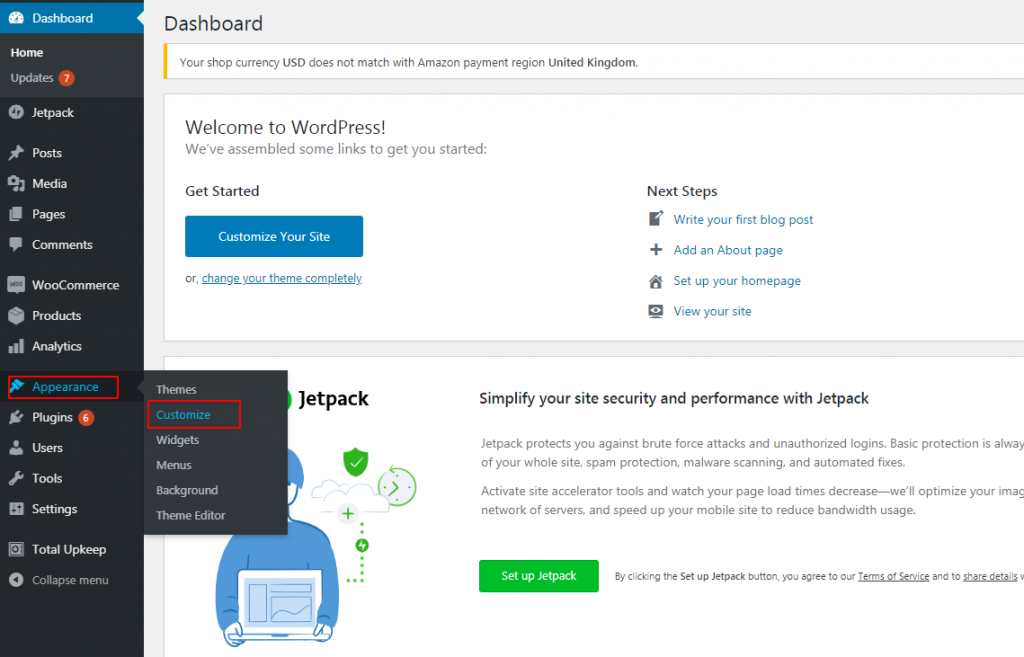
The dashboard shows a menu on the left side. This menu has links to posts, pages, media, and settings. The center area displays your website’s overview and updates.
At the top, find quick links for new posts or viewing your site. The dashboard helps you find what you need fast.
Using Dashboard Tools For Website Management
Click “Posts” to write new articles or edit old ones. Use “Pages” to add or change website pages. The “Appearance” tab helps change themes and site look.
Settings let you adjust site title, time zone, and more. Explore these tools to customize your website easily.
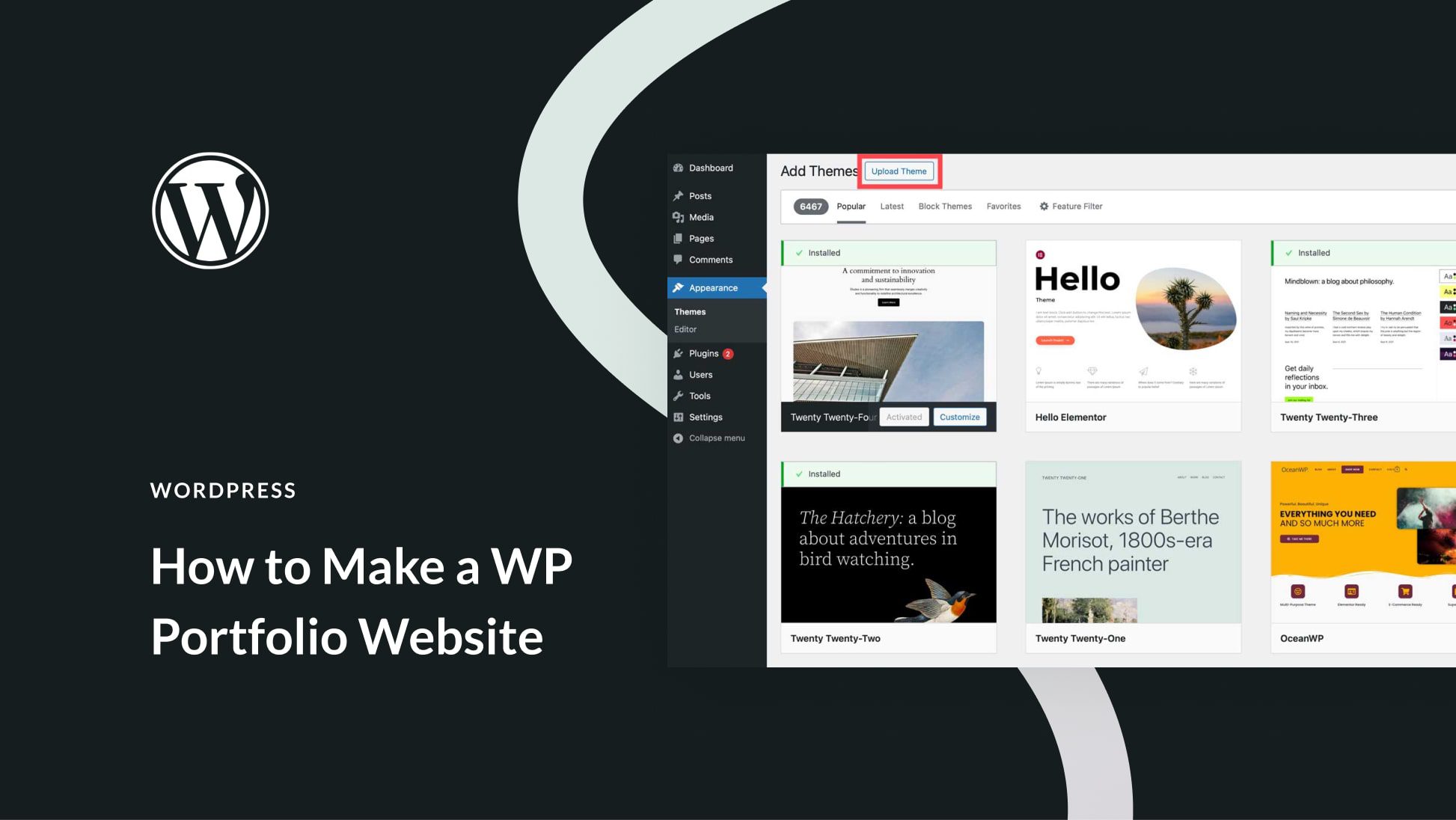
Choosing And Installing A Theme
Choosing and installing a theme is an important step in setting up your WordPress website. The theme controls how your site looks and feels. It also affects how visitors interact with your content. Picking the right theme helps your site stand out and stay easy to use.
WordPress offers many themes. Some are free, while others are paid. Each type has different features and benefits. Understanding these options helps you make the best choice for your site.
Free Themes
Free themes are available directly in the WordPress theme directory. You can browse and install them with just a few clicks. They are a good choice for beginners and small sites. Many free themes are simple, clean, and mobile-friendly.
These themes receive regular updates and support from the WordPress community. You can customize colors, fonts, and layouts without coding. Though free, they offer enough options for many websites.
Premium Themes
Premium themes cost money but offer more features and designs. They often come with advanced options and built-in tools. Premium themes provide better support and regular updates from developers.
These themes are perfect for businesses or blogs needing a unique look. They usually include extra templates and plugins. Installing a premium theme is similar to free themes but requires uploading the theme file.
Credit: www.inmotionhosting.com
Adding Essential Plugins
Adding essential plugins to your WordPress website helps improve its functionality. Plugins let you customize your site without coding. They add important features like SEO, security, and speed. Choosing the right plugins can make your website better for visitors and search engines.
Seo Plugins
SEO plugins help your website rank higher in search engines. They guide you to use the right keywords and optimize your content. These plugins create sitemaps and improve meta tags automatically. They also check your content for readability and SEO errors. Popular options include Yoast SEO and Rank Math.
Security Plugins
Security plugins protect your website from hackers and malware. They block suspicious activity and limit login attempts. Some plugins scan for vulnerabilities and fix them quickly. Security plugins keep your data safe and your site online. Wordfence and Sucuri are trusted security plugins.
Performance Plugins
Performance plugins speed up your website. They reduce the size of images and files. These plugins also use caching to load pages faster. Faster websites keep visitors happy and improve search rankings. WP Rocket and W3 Total Cache are good performance plugins.
Creating Key Pages
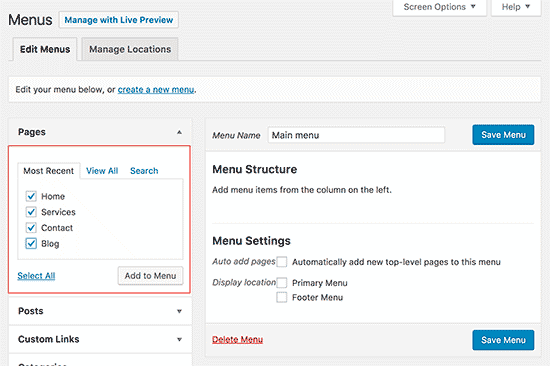
Creating key pages is the first step in building your WordPress website. These pages form the base of your site and tell visitors what your site is about. Each page has a special role and purpose. Well-made pages help visitors find the information they need quickly.
Focus on clear and simple content for each page. This way, visitors stay longer and understand your message easily. Below are the important pages to create.
Home Page
The home page is the main page of your website. It welcomes visitors and shows what your site offers. Use a clean layout with easy navigation. Include a strong headline that explains your site’s purpose. Add images or videos to make it more attractive. Keep text short and clear. Highlight important services or products.
About Page
The about page tells your story. It explains who you are and what you do. Be honest and friendly in your writing. Share your mission and values. Add a photo or video to connect with visitors. This page builds trust and helps visitors feel confident about your site.
Contact Page
The contact page lets visitors reach you easily. Include your email, phone number, and address if needed. Use a simple contact form for quick messages. Add links to your social media profiles. Make sure this page is easy to find from any part of your site. Clear contact info encourages visitors to connect with you.
Credit: duplicator.com
Customizing Website Settings
Customizing your website settings in WordPress helps shape how your site works. It improves user experience and search engine visibility. Adjusting these settings early saves time later.
Permalinks Setup
Permalinks are the URLs for your posts and pages. Clear and simple URLs help visitors and search engines understand your content. Go to Settings > Permalinks in your WordPress dashboard. Choose the “Post name” option. This setting creates clean, readable links. Save changes to apply.
General Settings
General settings control your site’s basic information. You can set your site title and tagline here. Make sure these reflect your website’s purpose. Enter your email address for admin contact. Set your timezone to match your location. This keeps your posts and events on time.
Reading Settings
Reading settings manage how your homepage looks. Choose whether to show your latest posts or a static page. A static page works well for business sites. Decide how many blog posts display on one page. You can also control search engine visibility here. This helps keep your content private if needed.
Publishing Your Website
Publishing your website is the final step in sharing your content with the world. It makes your site visible and accessible to visitors online. Taking care during this stage ensures your website works well and looks great.
Before you hit publish, thorough checks help avoid mistakes. Testing your site helps catch errors and improve user experience. Once satisfied, you can make your website live for everyone to see.
Preview And Testing
Preview your website to see how it looks on different devices. Check desktop, tablet, and mobile views. Make sure all images load properly and text is easy to read.
Test all links and buttons to ensure they work. Try filling out contact forms and submitting them. Verify loading speed and fix any slow pages.
Review your site’s content for typos and broken elements. Test navigation menus to confirm they lead to the right pages. This step saves time after publishing.
Going Live
Once testing is complete, it’s time to go live. Click the publish button in WordPress to make your site public. Your domain will show your website to visitors around the world.
Check your site again after going live. Sometimes small issues appear only on live servers. Keep monitoring your website’s performance regularly.
Update content often to keep your site fresh and relevant. Respond to visitor feedback to improve your website experience. Publishing is just the start of your online journey.
Maintaining Your WordPress Site
Maintaining your WordPress site is important to keep it running smoothly and safely. Regular care helps prevent problems and keeps your visitors happy. Simple steps can save you time and stress later.
Regular Updates
Keep WordPress, themes, and plugins up to date. Updates fix bugs and improve security. Run updates often to avoid crashes and hacks. Always check for compatibility before updating.
Backups
Back up your site regularly to protect your data. Use plugins or hosting tools for easy backups. Store backups in a safe place outside your server. Restore backups quickly if your site breaks.
Security Checks
Scan your site for malware and vulnerabilities. Use security plugins to monitor threats. Change passwords often and use strong ones. Limit login attempts to block hackers. Stay alert to unusual activity on your site.
Frequently Asked Questions
How Do I Add A New Website In WordPress?
To add a new website in WordPress, install WordPress on your hosting. Then, select a theme, customize settings, and add pages. Use plugins for extra features. Finally, publish your site to go live.
Can I Add Multiple Websites In One WordPress Account?
Yes, you can add multiple websites using WordPress Multisite. This feature lets you manage several sites under one dashboard. Enable Multisite in the WordPress configuration file and set up subdomains or subdirectories.
What Is The Easiest Way To Create A WordPress Website?
The easiest way is to use a one-click WordPress installer from your hosting provider. Choose a theme, add content, and customize your site. This process requires no coding and is beginner-friendly.
Do I Need Coding Skills To Add A Website In WordPress?
No coding skills are needed to add a website in WordPress. The platform offers intuitive tools and drag-and-drop editors. You can build and customize your site without writing any code.
Conclusion
Adding a website to WordPress is simple and clear. Follow each step carefully, and you will create your site quickly. WordPress offers many tools to customize your website easily. Keep your content fresh and update your site often. This helps attract more visitors and keeps them interested.
Now, you have the basics to start building your WordPress website today. Take your time, explore features, and enjoy creating your online space.


