
Unlock the true potential of your website with Visual Composer. Imagine having the power to craft stunning, professional-looking pages without a single line of code.
Sounds too good to be true? It’s not. Visual Composer is the secret weapon that can transform your WordPress site into a visual masterpiece. Whether you’re a seasoned web developer or a curious beginner, adding Visual Composer to your WordPress theme can be a game-changer.
In this guide, you’ll discover the step-by-step process to seamlessly integrate this powerful tool into your site. Say goodbye to frustrating design limitations and hello to endless creative possibilities. Ready to elevate your website’s design and captivate your audience? Keep reading to find out how you can effortlessly enhance your WordPress theme with Visual Composer.

Credit: visualmodo.com
Benefits Of Visual Composer
Visual Composer makes website building easy. It offers a drag-and-drop feature. This helps users create beautiful pages fast. No coding skills needed. Pre-designed templates are available. They save time and effort. You can choose from many styles. This makes your website look unique.
The plugin is compatible with most WordPress themes. This ensures smooth operation. It also offers responsive design options. Your site will look good on all devices. SEO-friendly tools are included too. They help improve your site’s visibility. Visual Composer is a smart choice for beginners and experts.
Compatibility Check
Visual Composer must work with your WordPress theme. Check your theme’s documentation first. Some themes are not compatible. This is crucial to know early. Visit Visual Composer’s site for more details. They have a list of supported themes. Ensure your theme is on the list. If not, you may face issues later.
Consider reaching out to your theme’s developer. Ask if there are any known issues with Visual Composer. They might have solutions or updates. This can save time and effort. A quick check can prevent future headaches.
Keep your WordPress version up-to-date. Newer versions often have better support. This can help with compatibility. Updating is easy and fast. It often fixes many minor problems. Regular updates are key for smooth operation.
Installation Process
First, go to your WordPress dashboard. Find the Plugins option on the left. Click on it. Next, click on Add New. In the search box, type Visual Composer. Wait for the results. Once you find it, click on Install Now. After installation, click Activate. Now, Visual Composer is ready to use.
Start by downloading the Visual Composer plugin from the official site. Save it on your computer. Go to your WordPress dashboard. Click on Plugins, then Add New. Next, click on Upload Plugin. Choose the file you downloaded. Click Install Now. Once done, click Activate. Visual Composer is now active.
Activation Steps
First, ensure you have the Visual Composer plugin installed. Navigate to the WordPress dashboard. Click on Plugins and select Add New. Search for Visual Composer in the search bar. Once found, click Install Now. After installation, press Activate to enable the plugin.
Once activated, go to Pages in the dashboard. Choose the page you want to edit. Click Edit and you will see the Visual Composer editor. Use the editor to build your page layout. Add elements by dragging and dropping them onto the page.
Save your changes to see them live. Visual Composer makes it easy to create beautiful pages. Enjoy building your site with ease.
Setting Up Visual Composer
Start by installing the Visual Composer plugin on your WordPress site. Go to the plugins section and click Add New. Search for Visual Composer. Click Install Now. Once installed, press Activate. Now, Visual Composer is ready to use. Check its settings. Configure basic options. Adjust default settings. Save changes.
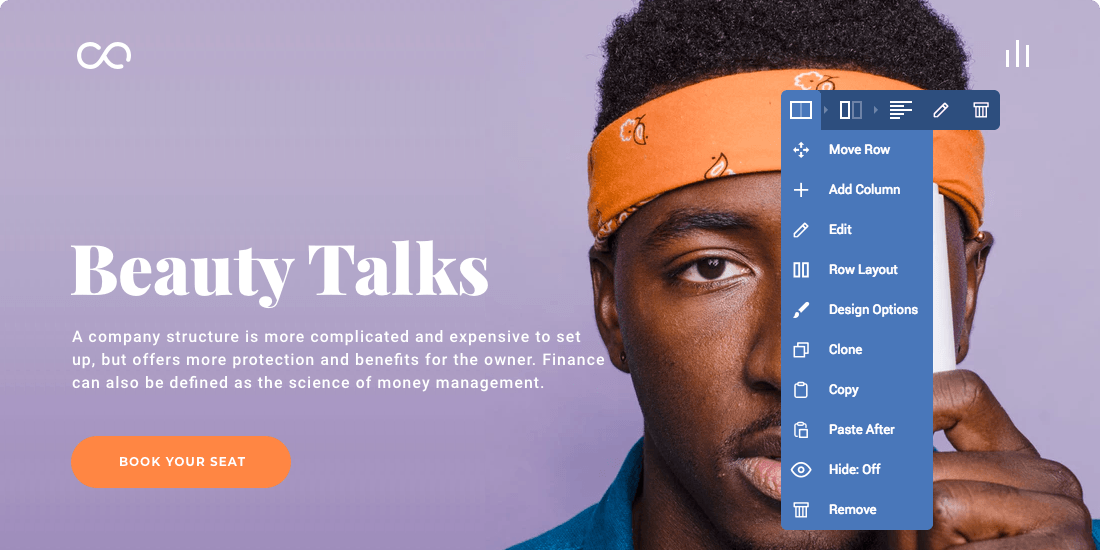
Visual Composer lets you create unique layouts. Choose from many pre-made templates. Drag and drop elements. Change colors and fonts. Add images and videos. Organize sections with rows and columns. Adjust margins and padding. Preview changes instantly. Save your work regularly. Experiment with different designs. Make your pages stand out.
Credit: visualcomposer.com
Integrating With Theme
Shortcodes are small snippets of code. They help to add features easily. Place shortcodes inside a post or page. They do special tasks. Use brackets to write a shortcode. For example, [shortcode]. Each shortcode does something different. They make pages look better. Shortcodes are easy to use. No coding skills needed. They save time and effort.
Custom templates make your site unique. They change how pages look. Each template has its own style. Use templates to match your brand. Visual Composer lets you design these templates. Drag and drop elements to create a template. Templates help make the site user-friendly. Anyone can design templates. It’s simple and fun.
Troubleshooting Common Issues
Adding Visual Composer to a WordPress theme can present challenges. Ensure compatibility with your theme and install necessary plugins. If issues arise, consult the plugin’s support documentation for detailed solutions.
Plugin Conflicts
Some plugins do not get along. They can cause errors or slow your site. Deactivate each plugin one by one. Find the bad plugin. Reactivate good plugins only.
Always update plugins. New versions fix problems. Keep backups of your site.
Performance Optimization
A slow site is bad. Use caching plugins for speed. Optimize images. Large images slow down sites.
Use a content delivery network (CDN). It helps load pages faster. Test your site speed often. Find and fix slow parts.
Updating Visual Composer
Visual Composer is a tool for building pages on WordPress. First, log into your WordPress dashboard. Locate the Plugins section on the left menu. Click on it. Find Visual Composer in the list. If there is an update, it will show here. Click the update button. Wait for the update to finish. Visual Composer is now updated. If there is no update button, Visual Composer is up to date. It’s easy to keep Visual Composer updated. Updates bring new features. They also fix bugs. Keeping plugins updated helps keep your site safe.
Additional Resources
Explore helpful resources for integrating Visual Composer into your WordPress theme. Find guides, tutorials, and tips to enhance your site.
Subheading
Learn more with helpful guides. Find tutorials on using Visual Composer. Explore step-by-step videos. Check forums for user tips. See the official documentation. Access community support. Join online groups for advice. Read blog posts for tricks. Discover new features with Visual Composer updates. Stay informed with newsletters.
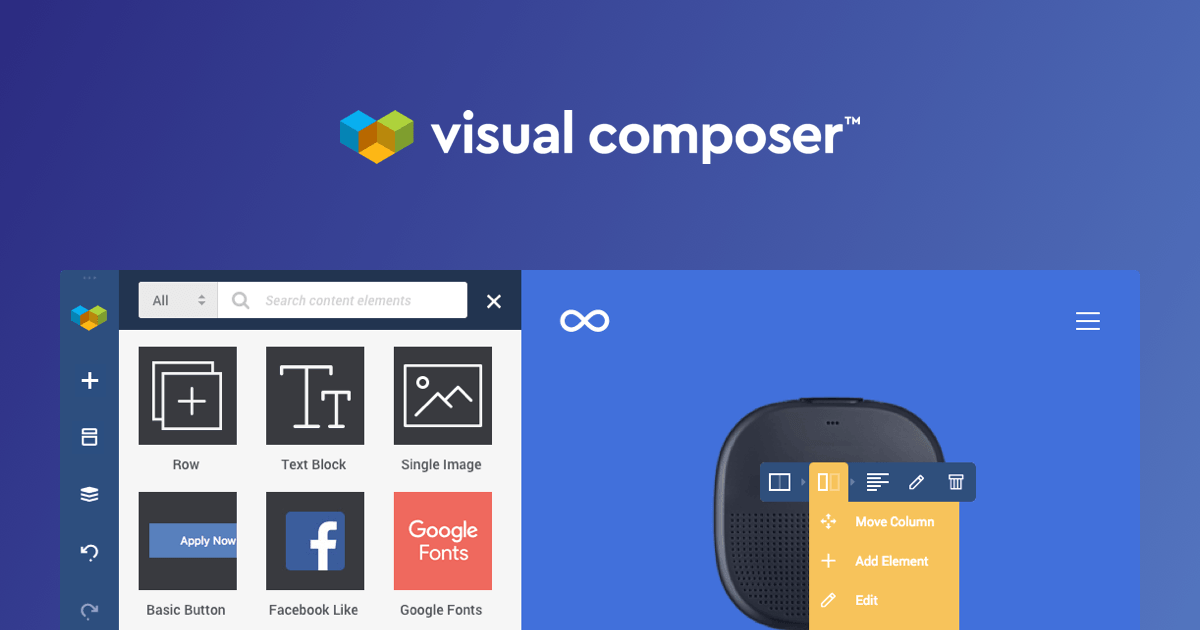
Use Visual Composer’s official website for resources. Bookmark it for easy access. Connect with other users online. Share experiences and solutions. Search for common issues. Solve problems quickly. Keep learning about Visual Composer. Enhance your website design.
Credit: visualcomposer.com
Frequently Asked Questions
What Is Visual Composer In WordPress?
Visual Composer is a drag-and-drop page builder for WordPress. It allows users to create custom layouts without coding. With an intuitive interface, users can easily add elements like images, text blocks, and sliders. It enhances the design capabilities of WordPress themes, making website development faster and more flexible.
How Do I Install Visual Composer?
To install Visual Composer, purchase and download the plugin from its official site. Then, log into your WordPress dashboard. Navigate to Plugins > Add New, upload the plugin file, and activate it. Once activated, you can start building pages using the Visual Composer editor.
Can Visual Composer Work With Any Theme?
Yes, Visual Composer is compatible with most WordPress themes. It integrates seamlessly to enhance design flexibility. However, some themes might have specific styles that require adjustments. Always ensure your theme supports page builders. Compatibility ensures a smooth experience when creating custom layouts.
Is Visual Composer Free To Use?
Visual Composer offers both free and premium versions. The free version includes basic features suitable for simple designs. The premium version provides advanced functionalities, templates, and elements. Consider your project’s complexity when choosing between the free and premium versions. Premium offers more customization options for professional websites.
Conclusion
Adding Visual Composer enhances your WordPress theme beautifully. It offers simple design tools. You can easily create stunning pages. Drag and drop elements with ease. Customize without coding skills. Your site gains a professional look. Visitors enjoy the improved experience.
Follow the steps outlined above. Build engaging content quickly. Experiment with different layouts. Discover what works best for you. Visual Composer adapts to your creativity. Begin crafting your unique website today. Enjoy the process. Make your WordPress site stand out effortlessly.
Users will appreciate the enhanced design. It’s a valuable addition to your digital toolkit.


